How to Free Up 20 GB on Your Mac Fast (Safely)

On this page
- Before you start: two quick checks
- 1. Old iPhone and iPad backups
- 2. Time Machine local snapshots
- 3. Old macOS installers
- 4. Large files in Downloads
- 5. Big files anywhere on your Mac
- 6. App caches
- 7. Messages attachments
- 8. Apps you no longer use
- Extra places for developers
- What not to delete to hit your target
- Why the number may not move straight away
- Keep the 20 GB you just freed
- How Purgy checks all eight places in one scan
- Questions people ask about freeing 20 GB
Quick answer: The fastest safe places to find 20 GB on most Macs are old iPhone backups, Time Machine local snapshots, old macOS installers, large files in Downloads, and app caches.
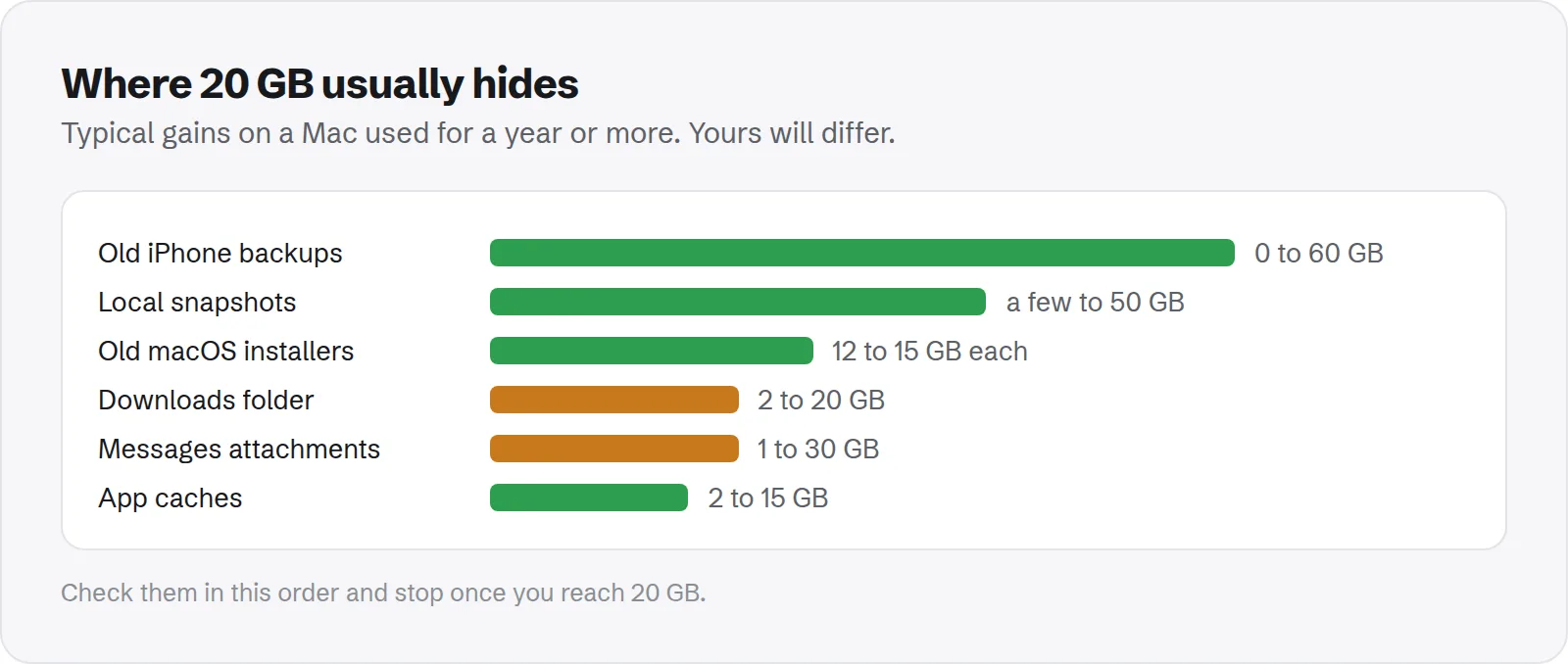
Check them in that order. On a Mac that has been in use for a year or more, two or three of these together usually add up to 20 GB in under half an hour.
Twenty gigabytes is a common target. It is roughly what you need to install a big macOS update, start a video project, or simply stop the "disk almost full" warning.
The good news is that you rarely need to delete your own photos or documents to get there. Most Macs carry that much in old backups, leftovers and caches. This guide shows where to look first, roughly how much each place frees, and how to remove it safely.
Before you start: two quick checks
A minute of preparation makes the rest faster and safer. Do both of these first.
- Note your free space: in Finder, choose View > Show Status Bar. Free space now shows at the bottom of every window, so you can watch it grow.
- Make sure you have a backup: everything below is safe, but a current backup means a mistake is never a disaster.
Then work through the list in order. Stop as soon as you reach your 20 GB.
1. Old iPhone and iPad backups
This is often the single biggest win. Each backup can be 5 to 60 GB, and backups of phones you no longer own often stay on the Mac for years.
- Open System Settings > General > Storage.
- Click the info button next to iOS Files to see each backup with its date and size.
- Select backups of old devices and click Delete.
Keep the newest backup of any device you still use, unless iCloud Backup is on for it. Our guide to deleting old iPhone backups covers the details.
Typical gain: 0 to 60 GB, depending on how many old devices you have backed up.
2. Time Machine local snapshots
If Time Machine is on, macOS keeps local snapshots on your internal disk. They are hidden from Finder and counted as System Data or purgeable space.
tmutil thinlocalsnapshots / 999999999999 4That asks macOS to remove as many local snapshots as it can. It does not touch backups on your Time Machine drive. See how to delete Time Machine local snapshots for the full method.
Typical gain: a few gigabytes to 50 GB or more, especially when backups have been failing.
3. Old macOS installers
When you download a macOS upgrade, the installer app can stay in Applications after you upgrade. Each one is often over 12 GB.
Open Applications and look for apps named Install macOS followed by a version name. If you have already upgraded, drag them to the Trash and empty it.
Typical gain: 12 to 15 GB per installer.
4. Large files in Downloads
Downloads is where installers, zip files, videos and exports pile up. It is also the folder people check least.
- Open Downloads in Finder and press Cmd + 2 for list view.
- Click the Size column to sort the biggest first.
- Delete
.dmginstallers for apps you already installed and.zipfiles you already opened.
Typical gain: 2 to 20 GB. It varies a lot, but it is quick to check.
5. Big files anywhere on your Mac
Large videos and disk images hide in Documents, Movies and Desktop too. Finder can find them for you.
Press Cmd + F in Finder and choose This Mac. Change the first rule to File Size, set it to is greater than, and enter 1 GB.
Sort the results by size. Move what you want to keep to an external drive or iCloud, and delete what you no longer need.
Typical gain: varies widely. One forgotten screen recording can be several gigabytes.
6. App caches
Apps keep caches to load faster. Over time, browsers, chat apps and streaming apps can build caches of several gigabytes each.
The safest way is to clear each cache from inside its app where it offers the option. Some guides for common apps:
- Chat apps: Slack, Microsoft Teams, WhatsApp and Telegram.
- Streaming: Spotify.
- The cache folder in general: is ~/Library/Caches safe to delete?
Typical gain: 2 to 15 GB across apps. Caches come back as you use the apps, so this is a short-term win.
7. Messages attachments
Years of photos, videos and stickers in Messages can take a lot of space. You can remove the big ones without deleting whole conversations.
Open System Settings > General > Storage, click the info button next to Messages, and review the largest attachments. Our guide to clearing Messages attachments also covers setting messages to delete after a year.
Typical gain: 1 to 30 GB, depending on your history.
8. Apps you no longer use
Large apps you have not opened in months are easy space. Games, creative suites and trial apps are the usual suspects.
Sort Applications by size in list view. When you remove an app, also remove its leftover data in your Library, or the space is only partly freed. See how to remove leftover app files.
Typical gain: 1 to 20 GB or more for big suites.
Extra places for developers
On a developer Mac, the fastest 20 GB is almost always in tool caches. These are safe to clear because the tools rebuild what they need.
- Xcode: Derived Data, Archives and iOS DeviceSupport, and old simulators.
- Docker: unused images and build cache. See Docker disk space on Mac.
- JavaScript: old project folders. See how to find and delete node_modules.
- Android: Gradle caches and emulators. See Android Studio and Gradle.
- Local AI: models you no longer run. See storage for local LLMs.
What not to delete to hit your target
When you are in a hurry, it is tempting to delete big folders you do not recognise. A few are never worth the risk.
- System folders: anything in
/System,/privateor/Librarythat belongs to macOS. - Your Photos library: clean it from inside Photos, not in Finder.
- Mail and Messages folders: remove data from inside the apps instead.
- App data for apps you still use: it can hold settings and work you cannot get back.
If you are unsure about a folder, our guide to the Mac Library folder explains what each part holds.
Why the number may not move straight away
Sometimes you delete 20 GB and free space barely changes. That is normal, and there are a few reasons for it.
- The Trash: files stay on disk until you empty it.
- Snapshots: a local snapshot can keep a deleted file's space in use until the snapshot is removed.
- Calculation delays: Storage settings can take a few minutes to update.
Empty the Trash, wait a few minutes, and check again. If it still looks wrong, see what purgeable storage is.
Keep the 20 GB you just freed
Space you free today tends to fill again within months. A few small changes slow that down a lot.
- Turn on Empty Trash Automatically in Storage settings.
- Back up your iPhone to iCloud instead of the Mac, if you have the iCloud storage.
- Limit auto-downloads in chat apps.
- Check Storage settings once a month.
Apple's guide to freeing up storage space on Mac explains each built-in recommendation. On a small disk, our 256GB MacBook guide has a full routine.
How Purgy checks all eight places in one scan
The list above takes an afternoon by hand. Purgy checks most of it in a single scan and keeps the risky items separate from the safe ones.
- Ticked and freed in one click: app caches, logs, developer caches and old macOS installers in Downloads and Applications.
- Listed for you to choose: old iPhone and iPad backups, Time Machine local snapshots, archives in Downloads,
node_modulesfolders and AI models. These start unticked, and files you choose go to the Trash. Snapshots are the one exception: they cannot go to the Trash, so Purgy removes them with Apple'stmutil, only if you tick them. - Big files anywhere: the Documents screen lists files over 100 MB and exact duplicates, and the Space map shows every folder, hidden ones included, largest first.
- Apps you no longer use: the Uninstall apps screen removes them together with their leftover files.
Messages attachments are the exception. Purgy shows how much space Messages takes but never deletes from it, so clear those in the Messages app as described in step 7. You can see how close one scan gets you to 20 GB with the free trial.
Questions people ask about freeing 20 GB
These come up most when people need space quickly.
What is the fastest way to free space on a Mac?
Delete old iPhone backups and local snapshots first. They are often the largest items and take only a few clicks or one command.
Is it safe to delete Time Machine local snapshots?
Yes. They are extra copies on your Mac. Your backups on the Time Machine drive are separate and stay intact.
Will clearing caches free space for good?
No. Apps rebuild caches as you use them. It helps in the short term, but backups, installers and old files are better long-term wins.
Do I need to restart after freeing space?
It is not required, but it helps. A restart clears temporary files and shrinks swap, which often frees a few more gigabytes.
Why does my Mac still say the disk is almost full?
Empty the Trash and wait a few minutes. If the warning stays, you may need more room. See what to do when your disk is almost full.
How much free space should I keep?
About 15 to 20 percent of your disk. That leaves room for updates, swap and everyday changes.