How to Find and Delete All node_modules Folders on Mac
On this page
- Is it safe to delete node_modules?
- How to find every node_modules folder
- How to see the size of each node_modules folder
- How to delete node_modules folders
- Clear the package manager caches too
- Why deleting node_modules sometimes frees less than expected
- Other JavaScript caches that grow large
- Old Node.js versions take space too
- How to stop node_modules from piling up
- Other developer folders that grow quietly
- How Purgy finds every node_modules folder
- Questions people ask about node_modules
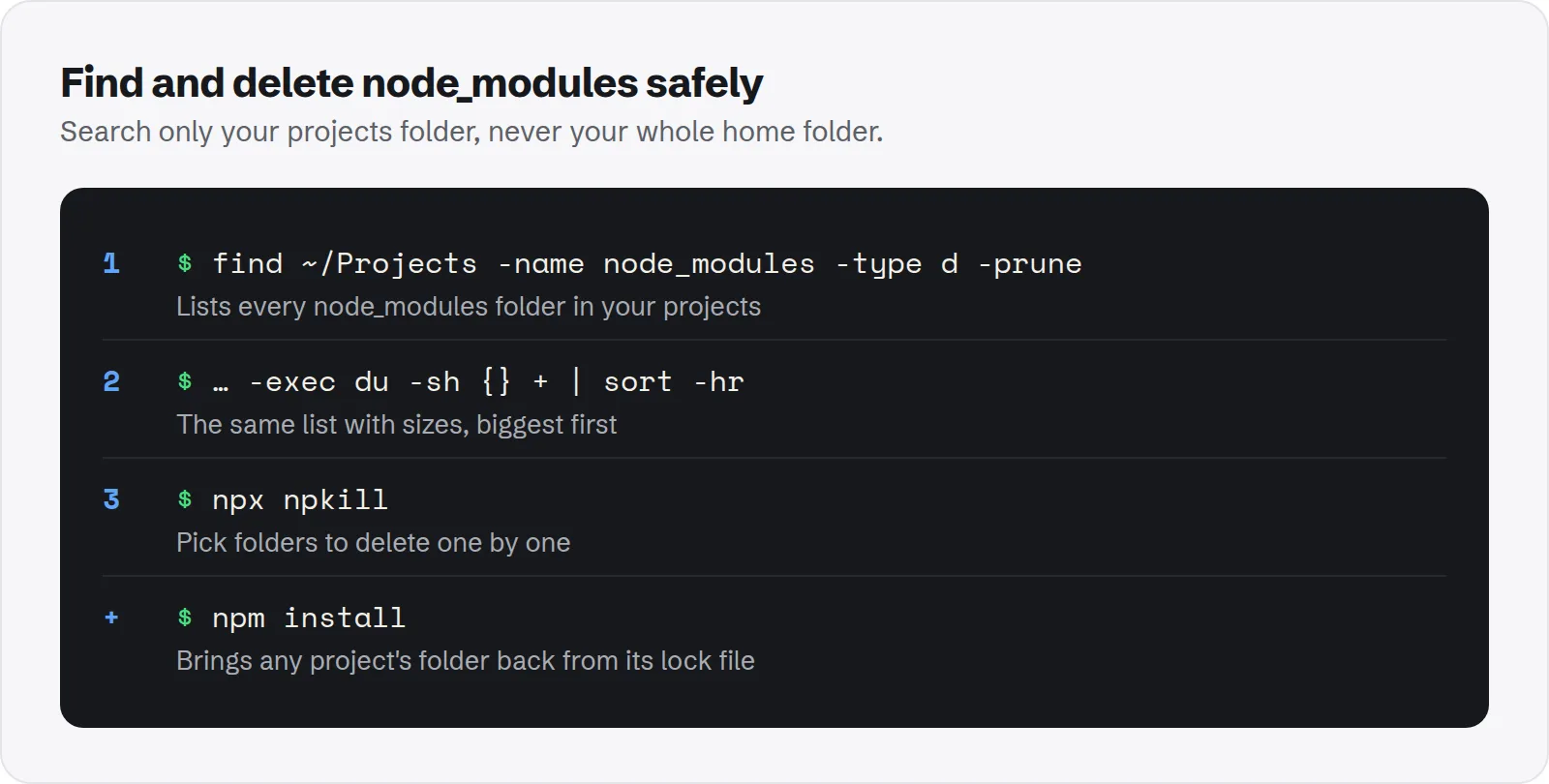
Quick answer: To list every node_modules folder in your projects with its size, run find ~/Projects -name node_modules -type d -prune -exec du -sh {} + | sort -hr in Terminal.
To delete them all, run the same find command with -exec rm -rf {} + instead. Or run npx npkill to pick folders one by one. Any project gets its folder back with npm install.
Every JavaScript project you have ever cloned or created keeps its own node_modules folder. A small project might use 100 MB. A large app with many dependencies can use 1 GB or more.
Multiply that by every tutorial, side project and old client repo on your Mac, and it is easy to reach 20 GB of folders you have not opened in months.
Is it safe to delete node_modules?
Yes, for your own projects. A node_modules folder is rebuilt from the project's package.json and lock file. Nothing in it is your work.
Running npm install, pnpm install or yarn in the project brings it back exactly, as long as the lock file is still there.
There is one important exception. Some apps keep their own node_modules folders as part of how they run. If you delete those, the app or its extensions break:
- Editor extensions: for example inside
~/.vscode/extensionsor similar folders for other editors. - App support folders: some apps built with web technology keep packages in
~/Library/Application Support. - Global tools: packages you installed globally with
npm install -g.
That is why every command in this guide searches only your projects folder, never your whole home folder.
How to find every node_modules folder
First, decide where your code lives. Most people keep projects in one place, such as ~/Projects, ~/code or ~/Developer. Replace the path below with yours.
find ~/Projects -name node_modules -type d -pruneThe -prune part matters. It stops find from looking inside each node_modules folder, where there are often thousands of nested ones. Without it, the command is slow and the list is useless.
How to see the size of each node_modules folder
A list is more useful with sizes, sorted biggest first. Add du to the same command:
find ~/Projects -name node_modules -type d -prune -exec du -sh {} + | sort -hrThis can take a minute on a large folder. When it finishes, the top of the list shows where the space is. Often a handful of old projects account for most of it.
If the list is long, add | head -20 to the end to see only the twenty biggest.
How to delete node_modules folders
You have three good options. Pick based on how much control you want over which folders go.
Option 1: pick folders with npkill
npkill is a free tool that lists every node_modules folder with its size and lets you delete them with one key. Run it from your projects folder:
cd ~/Projects
npx npkill
Use the arrow keys to move and the space bar to delete a folder. It shows how much you have freed as you go. This is the best option if you want to keep some projects ready to run.
It also shows how long ago each project was last changed, which makes old projects easy to spot.
Option 2: delete them all with one command
If none of your projects need to run today, delete every node_modules folder under your projects folder at once:
find ~/Projects -name node_modules -type d -prune -exec rm -rf {} +Run the listing command first and check the paths. This deletes straight away, with no Trash step and no undo.
Option 3: delete only old projects
You can limit the cleanup to folders that have not changed in a while. This deletes node_modules folders not modified in the last 90 days:
find ~/Projects -name node_modules -type d -prune -mtime +90 -exec rm -rf {} +Change 90 to suit you. Active projects are left alone.
Clear the package manager caches too
Package managers keep a shared download cache, separate from each project. It is what makes installs fast, but it also grows without limit. Clearing it is safe; the next install downloads again.
- npm: the cache is in
~/.npm. Clear it withnpm cache clean --force. The npm cache documentation explains what it holds. - pnpm: run
pnpm store prune. It removes packages no project uses any more, and keeps the rest. - Yarn: run
yarn cache clean. Newer Yarn versions also acceptyarn cache clean --all. - Bun: run
bun pm cache rm.
Check sizes first with du -sh ~/.npm, or pnpm store path to find where pnpm keeps its store.
Why deleting node_modules sometimes frees less than expected
If you use pnpm, the numbers can surprise you. pnpm keeps one copy of each package in a central store and links it into every project.
Tools like du count those linked files inside each project, so every node_modules folder looks big. Deleting one only removes the links. The real space comes back when you run pnpm store prune.
The same idea applies if your projects are on a drive that uses clones, such as APFS copies made by some tools. The space is shared until the last copy goes.
Other JavaScript caches that grow large
Node projects leave more behind than node_modules. These folders are all rebuilt automatically, so they are safe to delete when a project is idle.
- Framework build output: folders such as
.next,.nuxt,.svelte-kit,.turboanddistinside each project. They come back on the next build. - Playwright browsers: test browsers downloaded to
~/Library/Caches/ms-playwright. Each browser version can be several hundred megabytes. - Cypress: its app binaries live in
~/Library/Caches/Cypress, one per version you have installed.
Old browser and Cypress versions pile up because each project update downloads a new one and keeps the old. Deleting the folders is safe; the right version downloads again the next time tests run.
Old Node.js versions take space too
If you use a version manager, every Node.js version you install stays on disk. Each one is usually a few hundred megabytes, plus its own global packages.
- nvm: list versions with
nvm ls, remove one withnvm uninstall 18. - fnm: use
fnm listandfnm uninstall. - Volta: versions live in
~/.volta/tools/image/node.
Keep the versions your current projects need. Old ones from years ago can usually go.
How to stop node_modules from piling up
A few habits keep this from growing back. None of them slow down your daily work.
- Delete when you archive: when a project is finished, delete its
node_modulesbefore you move on. The lock file is enough to restore it. - Use pnpm for many projects: its shared store means ten projects with the same dependencies do not keep ten copies.
- Run npkill every few months: it takes two minutes and usually frees several gigabytes.
- Keep projects in one folder: it makes every command in this guide safe and fast to run.
Other developer folders that grow quietly
JavaScript is rarely the only thing filling a developer Mac. If you build for Apple platforms, check simulators and Xcode folders next.
See how to delete old iOS simulators and runtimes and whether Xcode Archives and DeviceSupport are safe to delete. Together they often hold more than every node_modules folder combined.
If you run local AI models for coding help, those files are often the largest of all. See how much storage local LLMs need.
How Purgy finds every node_modules folder
The find command above works, but its output is a long list of paths. Purgy does the same search and groups the results by project.
- Open Purgy and let it scan. It looks for
node_modulesin the folders in your home folder where projects usually live, a few levels deep, and adds up each one. - Each project appears once under Backups & old tool data with the size of its
node_modules, largest first. - Nothing is ticked for you. Tick the projects you are not working on. The next
npm installputs the folder back. - Selected folders move to the Trash, so a project you still need can be restored before you empty it.
The package manager caches, npm's _cacache, Yarn's cache and the pnpm store, are a separate, safer win. Purgy lists them under Developer & AI-tool caches, ticks them by default and frees them straight away. Rust target folders are found the same way as node_modules.
Purgy does not search inside Documents or Desktop for node_modules, and it does not remove old Node.js versions installed with nvm or Homebrew. Try the scan on your projects with the free trial.
Questions people ask about node_modules
These are the questions that come up most when developers clean up for the first time.
Will deleting node_modules break my project?
No. It only means you need to run your package manager's install command before the project runs again. Your code, settings and lock file are untouched.
Should I commit node_modules to Git?
No. It should be listed in .gitignore. The lock file is what you commit, because it lets anyone rebuild the exact same folder.
Why is node_modules so big?
Each package brings its own dependencies, and those bring more. A project with twenty direct dependencies can end up with hundreds or thousands of packages, including test files and documentation inside them.
Can I delete node_modules while my editor is open?
Yes, but close any running dev server or watcher in that project first. Otherwise it may crash, or start reinstalling packages while you delete them.
Does Time Machine back up node_modules?
Yes, unless you exclude it. That makes backups slower and larger for no benefit. You can add your projects folder's node_modules folders to Time Machine's exclusions, or rely on deleting them regularly.