Xcode Archives and iOS DeviceSupport: Safe to Delete?
On this page
- Where are Xcode Archives and DeviceSupport on a Mac?
- What is inside the Archives folder?
- Is it safe to delete Xcode Archives?
- How to delete old archives
- What is iOS DeviceSupport?
- Is it safe to delete iOS DeviceSupport?
- How to see how much space these folders use
- How to delete old DeviceSupport folders
- Other Xcode folders that grow over time
- Why this space often shows up as System Data
- A simple routine for Xcode storage
- Questions developers ask about these folders
- How Purgy handles Xcode's folders
Quick answer: Yes, mostly. Old folders in iOS DeviceSupport are safe to delete, because Xcode copies them again the next time you connect a device on that iOS version.
Archives need more care. Delete archives of builds you no longer support, but keep the ones for app versions people still use, because they hold the debug symbols for crash reports.
If you build apps with Xcode, these two folders grow quietly for years. Nothing ever cleans them up. On a Mac used for iOS work since a few releases back, it is common to find 20 to 60 GB here.
This guide explains what each folder is for, how to see its size, and how to clean it without losing anything you need.
Where are Xcode Archives and DeviceSupport on a Mac?
Both live inside your user Library, in the Xcode developer folder. That folder is hidden in Finder by default.
~/Library/Developer/Xcode/Archives
~/Library/Developer/Xcode/iOS DeviceSupport
You may also see watchOS DeviceSupport, tvOS DeviceSupport and macOS DeviceSupport next to it. They work the same way for those platforms.
To open any of them, press Cmd + Shift + G in Finder, paste the path and press Return.
What is inside the Archives folder?
An archive is what Xcode makes when you choose Product > Archive. It is the build you upload to App Store Connect or export for testers.
Archives are grouped into folders by date. Each one is a .xcarchive package that holds three main things:
- The app build: the compiled app exactly as you shipped it.
- Debug symbols (dSYM files): the map that turns a crash report full of memory addresses into readable function names.
- Information about the build: version, build number and when it was made.
One archive is often a few hundred megabytes. Large apps, or apps with many frameworks, can reach a gigabyte or more each. If you archive every release, this adds up fast.
Is it safe to delete Xcode Archives?
It depends on whether people still run that version of your app. The archive is the easiest place to find the exact symbols for a build.
Safe to delete:
- Test archives: builds you made to check that archiving works, but never shipped.
- Old releases nobody uses: versions that are several updates behind and no longer get crash reports.
- Apps you no longer work on: projects you have retired or handed over.
Worth keeping:
- The current release and the one before it: most crash reports come from these.
- Any version with a known crash you are still fixing: you need its symbols to read the reports.
If you upload builds with symbols to App Store Connect, or use a crash service that stores dSYM files, you have a second copy. In that case you can be bolder.
How to delete old archives
The cleanest way is through Xcode, so you can see the version and date of each archive before you remove it.
- Open Xcode and choose Window > Organizer.
- Click Archives at the top.
- Pick an app on the left. Its archives are listed with version, build and date.
- Select the archives you no longer need, right-click and choose Delete.
You can also delete date folders straight from ~/Library/Developer/Xcode/Archives in Finder. This works, but you cannot see the app version until you open each package.
Before you delete a shipped version, you can save just its symbols. Right-click the archive in Finder, choose Show Package Contents, and copy the dSYMs folder somewhere safe. It is much smaller than the full archive.
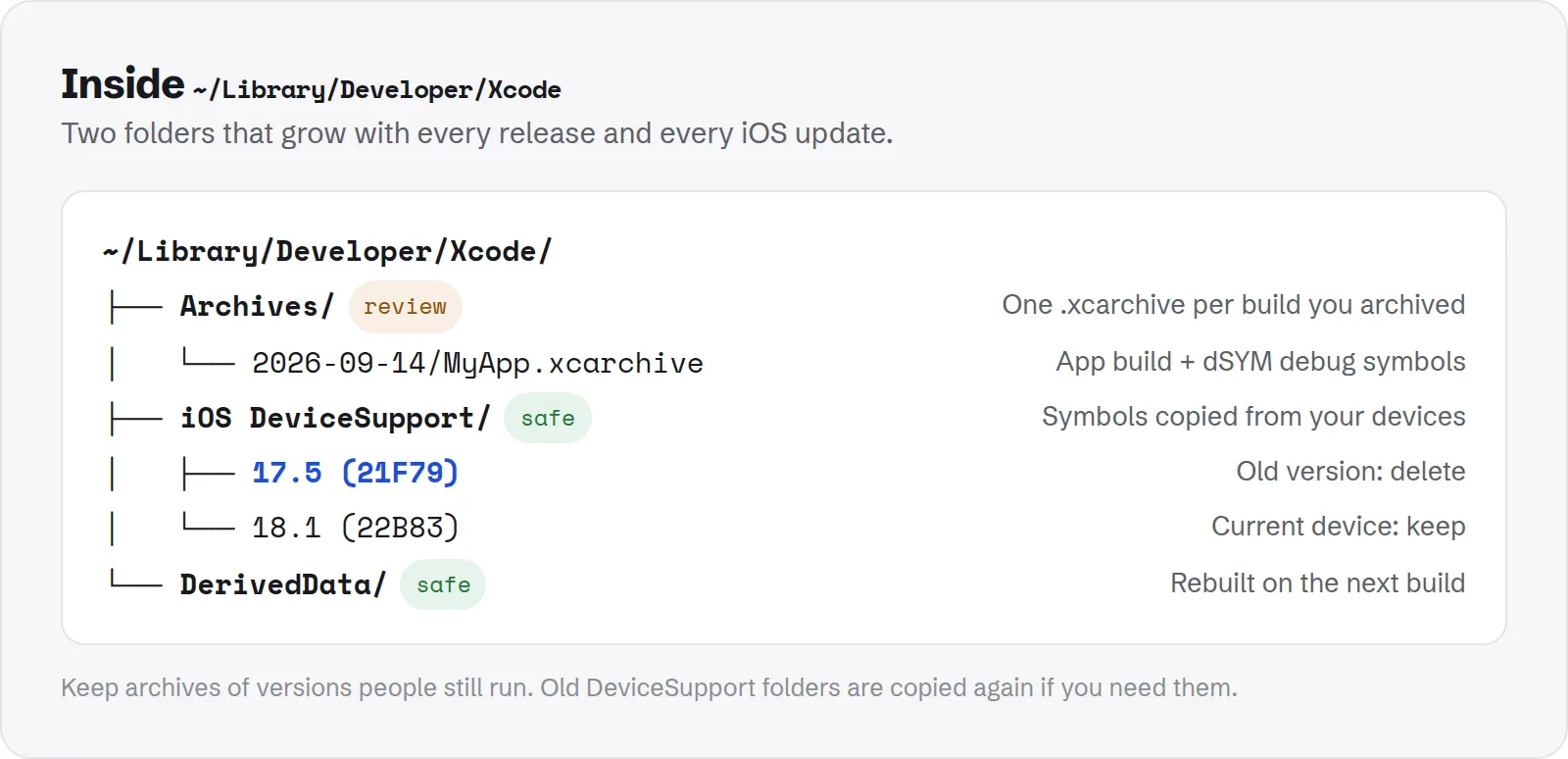
~/Library/Developer/Xcode. Two folders that grow with every release and every iOS update.What is iOS DeviceSupport?
When you connect an iPhone or iPad to debug on it, Xcode copies the system symbols for that exact iOS version to your Mac. That is the "Preparing device for development" or "Copying shared cache symbols" step you sometimes wait for.
Each iOS version gets its own folder, named after the version and build number. Newer Xcode versions may also include the device model in the name.
These folders let Xcode show readable system frames when you debug. Each one is often 2 to 5 GB. Every point release you have tested on adds another.
Is it safe to delete iOS DeviceSupport?
Yes. This is the easiest space to get back in the whole developer folder. The files are copies that Xcode makes from your device, so nothing is lost.
If you delete a folder and later connect a device running that iOS version, Xcode simply copies the symbols again. The only cost is a few minutes of waiting the next time you connect.
A sensible approach:
- Delete every version older than what your devices run now: if your test iPhone is on the latest iOS, older point releases are dead weight.
- Keep the newest folder or two: this avoids the copy step next time you plug in.
- Check the other platforms: watchOS and tvOS folders follow the same rule.
How to see how much space these folders use
You can check the size of each folder with one command in Terminal. This shows you where the space is before you delete anything.
du -sh ~/Library/Developer/Xcode/Archives
du -sh ~/Library/Developer/Xcode/*DeviceSupport/*
The second command lists every DeviceSupport folder with its size, so you can see which iOS versions take the most room.
To see the whole developer folder at once, including caches and simulators:
du -sh ~/Library/Developer/*How to delete old DeviceSupport folders
Quit Xcode first, so it is not copying symbols while you delete them. Then pick one of these two ways.
In Finder: open ~/Library/Developer/Xcode/iOS DeviceSupport, select the folders for old iOS versions and move them to the Trash. Empty the Trash to get the space back.
In Terminal: delete one version at a time by name. Use quotes, because the folder names contain spaces:
rm -rf ~/Library/Developer/Xcode/iOS\ DeviceSupport/"16.4 (20E247)"Replace the folder name with one from your own list. The Terminal method deletes straight away, with no Trash step.
Other Xcode folders that grow over time
Archives and DeviceSupport are rarely the only large folders. While you are in ~/Library/Developer, these are worth a look:
- DerivedData: build products and indexes in
~/Library/Developer/Xcode/DerivedData. Safe to delete; Xcode rebuilds it on the next build. - Simulators: devices and runtimes in
~/Library/Developer/CoreSimulator. These can be very large on Macs that test many iOS versions. - Old Xcode versions: if you keep several copies of Xcode in Applications, each one is over 10 GB.
macOS does not break these folders out in its own storage screen. Apple's guide to freeing up storage space on Mac covers the built-in tools, but developer folders usually end up in the "Developer" or "System Data" totals.
Why this space often shows up as System Data
If your Storage settings show a huge System Data figure, developer files are a common reason. macOS lumps hidden folders like these into that category.
Our guide to clearing System Data on Mac covers the other usual causes, such as caches, snapshots and old device backups.
Developers who also run local AI models should check those folders too. Models are often the biggest files on a developer Mac. See how much storage local LLMs need for a quick way to measure them.
A simple routine for Xcode storage
You do not need to clean these folders every week. A quick check after each major Xcode or iOS release is enough for most people.
- After a big iOS update: delete DeviceSupport folders for versions your devices no longer run.
- After each release: delete test archives and archives of versions nobody uses.
- Every few months: clear DerivedData and check the size of the whole developer folder.
Questions developers ask about these folders
These come up often when people first look inside their developer folder. Here are short, direct answers.
Will deleting archives remove my app from the App Store?
No. An archive is a local copy on your Mac. The build you uploaded lives in App Store Connect and is not affected by anything you delete here.
Can I still read crash reports after deleting an archive?
Only if the debug symbols for that build exist somewhere else. If you saved the dSYMs folder, uploaded symbols with the build, or use a crash service that stores them, you are covered.
If none of those apply, keep the archive for any version people still run.
Why does Xcode say "Copying shared cache symbols" every time?
It happens when you connect a device on an iOS version Xcode has not seen before, or after you deleted its DeviceSupport folder. Xcode is rebuilding that folder. It only takes this long once per version.
Is it safe to delete the whole DeviceSupport folder?
Yes. Xcode creates it again the next time you connect a device. The only cost is waiting for the symbols to copy again for each device you use.
Do I need to quit Xcode before deleting these folders?
It is a good idea. If Xcode is copying symbols or reading an archive while you delete it, you can get odd errors. Quitting first takes a second and avoids that.
How Purgy handles Xcode's folders
Purgy treats the two folders in this guide differently, for the reasons above.
- iOS DeviceSupport is cleared automatically. Xcode downloads the symbols again the next time you connect a device, so
~/Library/Developer/Xcode/iOS DeviceSupportis listed under Developer & AI-tool caches, ticked by default and freed with Clean now. DerivedData and the CoreSimulator cache are handled the same way. - Archives are left alone. An archive can be the only copy of the build you shipped, with the dSYMs you need to read crash reports. Purgy never selects them. Delete old ones in Xcode's Organizer, as shown above.
To see what the Archives folder takes, open Purgy's Space map and go to ~/Library/Developer/Xcode. Each folder is listed with its size, and anything you tick moves to the Trash rather than being deleted.
The same scan covers npm, Yarn, pnpm, Gradle, Cargo and Docker build caches. See what Xcode is using on your Mac with the free trial.