Purgy vs DaisyDisk: seeing space or clearing it.
DaisyDisk is a well-liked disk visualizer. Purgy also has a space map, plus a cleaner. They overlap less than you might think.
On this page
If all you want is a clear picture of what fills your drive, and you are happy to decide what to delete, DaisyDisk is a good, cheap choice. If you also want something to find caches, leftovers and System Data, and tell you what is safe to clear, Purgy does both in one app.
At a glance
| Purgy | DaisyDisk | |
|---|---|---|
| Price | $20 once, 3 Macs | About $10 once, up to 5 Macs, per its listings |
| Main job | Find and clear what is safe to remove | Show where your space went |
| Disk map | Yes, a treemap you can drill into | Yes, its main feature |
| Tells you what is safe to delete | Yes: safe, review and locked | No, you decide |
| Explains System Data | Yes, by name | Shows sizes, you interpret them |
| Uninstalls apps with leftovers | Yes | No |
| Scans external drives | Yes | Yes |
| Works on | macOS 12 Monterey and later | Check the vendor's current requirements |
DaisyDisk details come from its App Store listing and published reviews, linked under Sources. We have not tested it ourselves for this page.
What DaisyDisk is
DaisyDisk scans a drive and draws it as a set of rings. Each ring segment is a folder, sized by how much space it uses. You click through the rings to find the biggest items, then collect the ones you want gone and delete them. It is available through the Mac App Store and from the DaisyDisk site.
The idea is simple, which is why people like it. It answers one question well: where did all my space go?
What Purgy adds
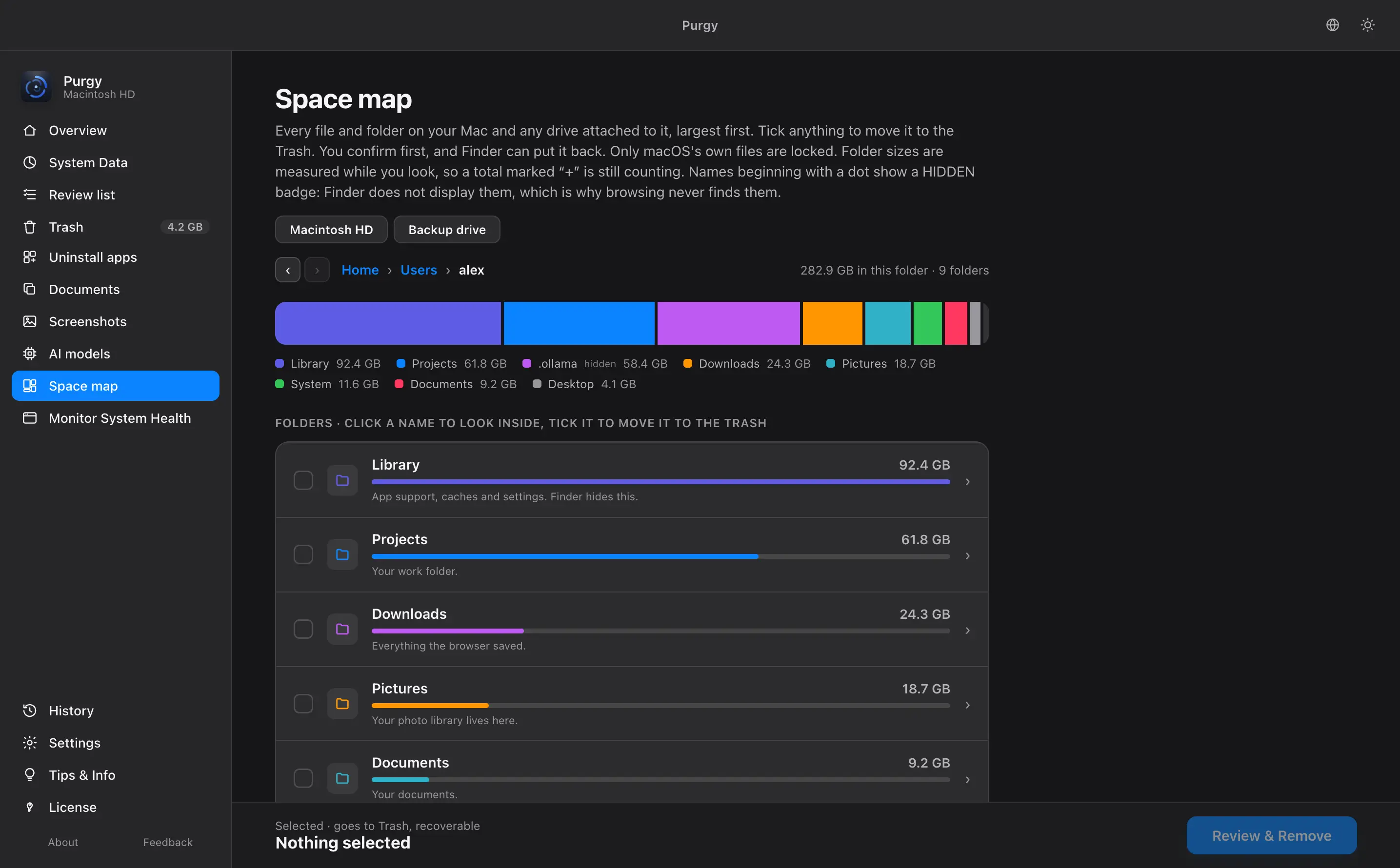
Purgy answers that question too, with its own space map. Then it goes one step further and answers a second one: what can I safely remove?
It sorts what it finds into three groups. Safe items are caches and logs that macOS rebuilds. Review items are things you should decide on, like big files and old downloads. Locked items are your own documents, photos and projects, which Purgy will not select for you. Each item lists its size and the reason it was found.
It also includes an uninstaller that removes an app with its leftovers, finders for large files and duplicates, screenshot cleanup, and a view that breaks System Data into named parts. The guide shows each screen.
The real difference: who decides
With a visualizer, you see a big folder and you decide what it is. That is fine when you know your Mac well. It is harder when the biggest block is called something like com.apple.something and you cannot tell if it is safe to touch.
A cleaner takes on some of that judgement and shows its reasoning. Purgy names each item and says why it was flagged, but it still leaves the final choice to you. For a deeper look at the mystery block itself, see our guide to clearing System Data.
Price
DaisyDisk is cheap. Listings show about $10 once, with a license that covers up to five of your own Macs. Purgy is $20 once for3 Macs, with free updates. Neither is a subscription. The pricing page has the full detail on Purgy.
The gap is about ten dollars, and it buys you the cleaning side. Whether that is worth it depends on whether you want to do the deleting yourself.
Where DaisyDisk is better
- It costs less. About $10 once.
- It does one thing. If you only want a map, there is nothing else to learn.
- It is a mature, well-known tool. It has been on the Mac for years.
- It does not decide for you. Some people prefer a tool that only shows data.
Where Purgy is better
- It tells you what is safe. Items are sorted and explained, and your own files are locked.
- It explains System Data. It names what is in that block instead of only measuring it.
- It removes apps cleanly. The uninstaller clears caches, preferences and launch agents.
- It starts with the safe parts. One click clears what macOS rebuilds anyway, to the Trash by default.
Using both
These two work well together. Use a disk map to spot a surprise, such as a folder of old project files, and use a cleaner for the routine work. There is no conflict in having both. Just avoid deleting the same item in two places at once.
Who should pick which
Pick DaisyDisk if you
- only want a picture of your disk
- know which folders are safe to delete
- want the lowest price
Pick Purgy if you
- want help deciding what to remove
- want System Data explained
- want an uninstaller in the same app
Try Purgy without risk
Start with a backup. Then try the 3-day free trial, which has every feature and needs no card. If you buy, the refund policy gives you 7 days. You can also read how Purgy compares with AppCleaner, a free uninstaller, or with the Storage tools in macOS.
Sources
Common questions
Is DaisyDisk a Mac cleaner?
Not in the usual sense. DaisyDisk is a disk visualizer. It draws your storage as a map so you can see what is big, and you choose what to delete yourself. It does not sort files into safe and unsafe for you.
How much does DaisyDisk cost?
Listings show about $10 as a one-time purchase, with a license that covers up to five of your own Macs. Check the App Store page or the DaisyDisk site for the current price.
Does Purgy have a disk map too?
Yes. Purgy includes a space map that shows your disk, or an external drive, as a treemap you can drill into.
Can I use DaisyDisk and Purgy together?
Yes. They do different jobs. DaisyDisk is strong at showing where space went. Purgy finds what is safe to clear and tells you why. Many people find using both reasonable.
Which is better for System Data?
DaisyDisk shows how much room each folder takes, and you work out what it is. Purgy goes further by naming what is inside System Data and marking what is safe to remove.