Do you need a Mac cleaner, or are the macOS Storage tools enough?
Your Mac already has a Storage page with some useful tools. For many people that is enough. Here is what it does, what it does not, and when adding Purgy makes sense.
On this page
Try the built-in tools first. They are free and made by Apple. Add Purgy if your disk is still full afterward and you want to see exactly what is in System Data, clear leftovers from deleted apps, or find large files and duplicates without checking folders by hand.
At a glance
| Purgy | macOS Storage settings | |
|---|---|---|
| Price | $20 once, 3 Macs | Free, built into macOS |
| Storage breakdown | Space map you can drill into | A bar chart by category |
| System Data | Measured and named by part | Shown as one total |
| Store files in iCloud | No | Yes |
| Empty Trash automatically | Optional, off by default | Optional, after 30 days |
| Uninstall apps with leftovers | Yes | Removes the app, not always its leftovers |
| Large files and duplicates | Yes, with a built-in finder | A list of large files, no duplicate finder |
| Protects folders you choose | Yes | Not applicable |
macOS details come from Apple's support pages, linked under Sources. Menu names can differ slightly between macOS versions.
What macOS already gives you
Open the Apple menu, then System Settings, then General, then Storage. You will see a bar showing how your disk is used, and a set of recommendations. Apple describes them in its guide to optimizing storage space on your Mac. The main ones are:
- Store in iCloud. Moves Desktop and Documents files, photos and messages to iCloud and keeps recent ones on your Mac. It needs an iCloud plan with enough room.
- Optimize Storage. Removes watched Apple TV items and keeps only recent email attachments when space runs low.
- Empty Trash Automatically. Erases items that have been in the Trash for more than 30 days.
- A list of large files and apps. Lets you review and delete them from the same page.
For a lot of Macs, switching these on is enough. They cost nothing, and they come from the company that makes the operating system.
What it leaves out
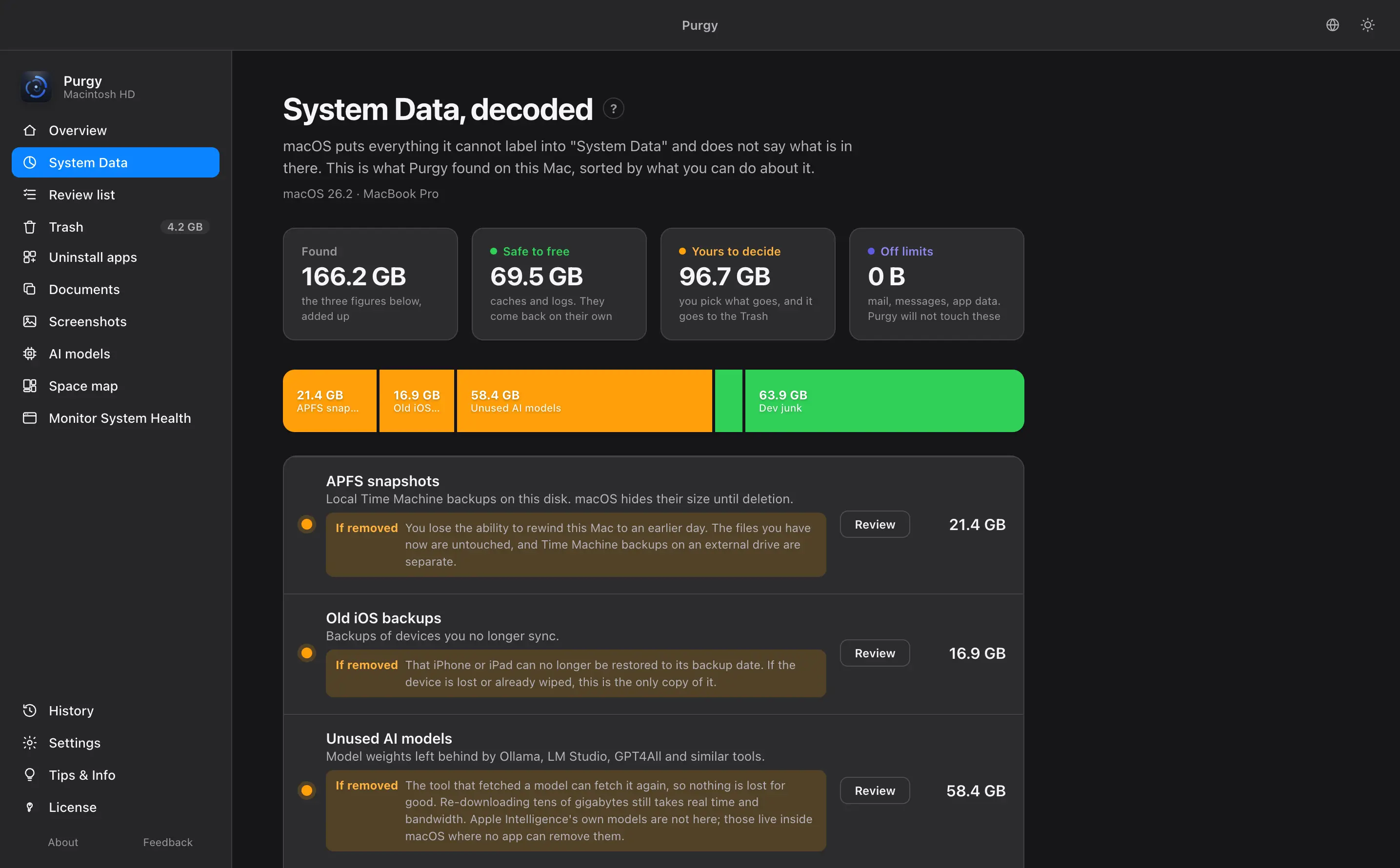
The biggest gap is System Data. macOS shows it as one number, sometimes tens of gigabytes, and gives no list of what is inside. Apple's own explanation is that it holds caches, logs and temporary files apps need. That is accurate, but it does not help you decide what to clear.
Other gaps:
- Leftover files from apps you already deleted are not listed.
- There is no tool for finding exact duplicate files.
- Developer caches, such as Xcode data, are not explained.
- Local AI model files, which can run to gigabytes each, are not singled out.
What Purgy adds
Purgy measures inside System Data and names what it finds, so you can see which part is caches, which is old logs and which is something you should decide on. It sorts results into safe, review and locked groups. Your own documents, photos and projects stay locked.
It also removes apps with their caches, preferences and launch agents, finds large files and duplicates, and has a space map for your disk and external drives. Anything you approve goes to the Trash by default. For the full list, see the pricing page or guide.
For a hands-on walkthrough of the manual route, read how to clear System Data on a Mac.
Where macOS is better
- It is free and already installed.
- It works with iCloud. Purgy does not move files to the cloud.
- It is made by Apple. Nothing to download, and it follows macOS changes.
- It is low risk. It only offers actions Apple considers safe.
Where Purgy is better
- It explains System Data. It names the contents instead of showing one total.
- It clears leftovers. Remnants from deleted apps and developer tools are found.
- It shows its work. Each item has a size and a reason.
- It adds a disk map and duplicate finder.
Do you need a cleaner at all?
Maybe not. If your Mac has plenty of free space, leave it alone. If it feels slow, note that clearing space does not make a healthy Mac much faster, and Purgy does not claim it will.
A cleaner is worth considering when your disk is nearly full, you have turned on the built-in tools, and you still cannot account for the space. That is where a list of what is inside System Data helps.
Try it without risk
Back up with Time Machine, then start Purgy's 3-day free trial. It has every feature and needs no card. If you buy, the refund policy gives you 7days. You can also compare Purgy with CleanMyMac, a larger bundle, or AppCleaner, a free uninstaller.
Sources
Common questions
Where do I find Storage settings?
Open the Apple menu, then System Settings, then General, then Storage. You will see a bar showing what uses your disk, plus a few recommendations.
What is System Data?
It is a catch-all category for files macOS cannot place in Apps, Documents or Photos. It holds caches, logs, temporary files and other support data. macOS shows a total but not a list of what is inside.
Does Empty Trash Automatically delete files for good?
Yes. When you turn it on, items that have been in the Trash for more than 30 days are erased. Purgy leaves its own auto-empty setting off until you turn it on.
Is it safe to use Purgy alongside the built-in tools?
Yes. Purgy does not replace Storage settings. You can use both, for example Optimize Storage for iCloud and Purgy for caches and leftovers.