Free Up Space on Your Mac, Safely
Purgy is a Mac storage cleaner. It shows what's really inside System Data, clears years of old screenshots, and removes apps completely. Safe junk goes in one click. Everything else goes to the Trash first, so nothing you need is lost.
✓ Ready for macOS 27 Golden Gate · Works on macOS 12 Monterey and every version since · Intel & Apple Silicon✓ Ready for macOS 27 Golden Gate · Runs on macOS 12 and later
3 days free, then $20 once for 3 Macs. No card to start. No subscription.
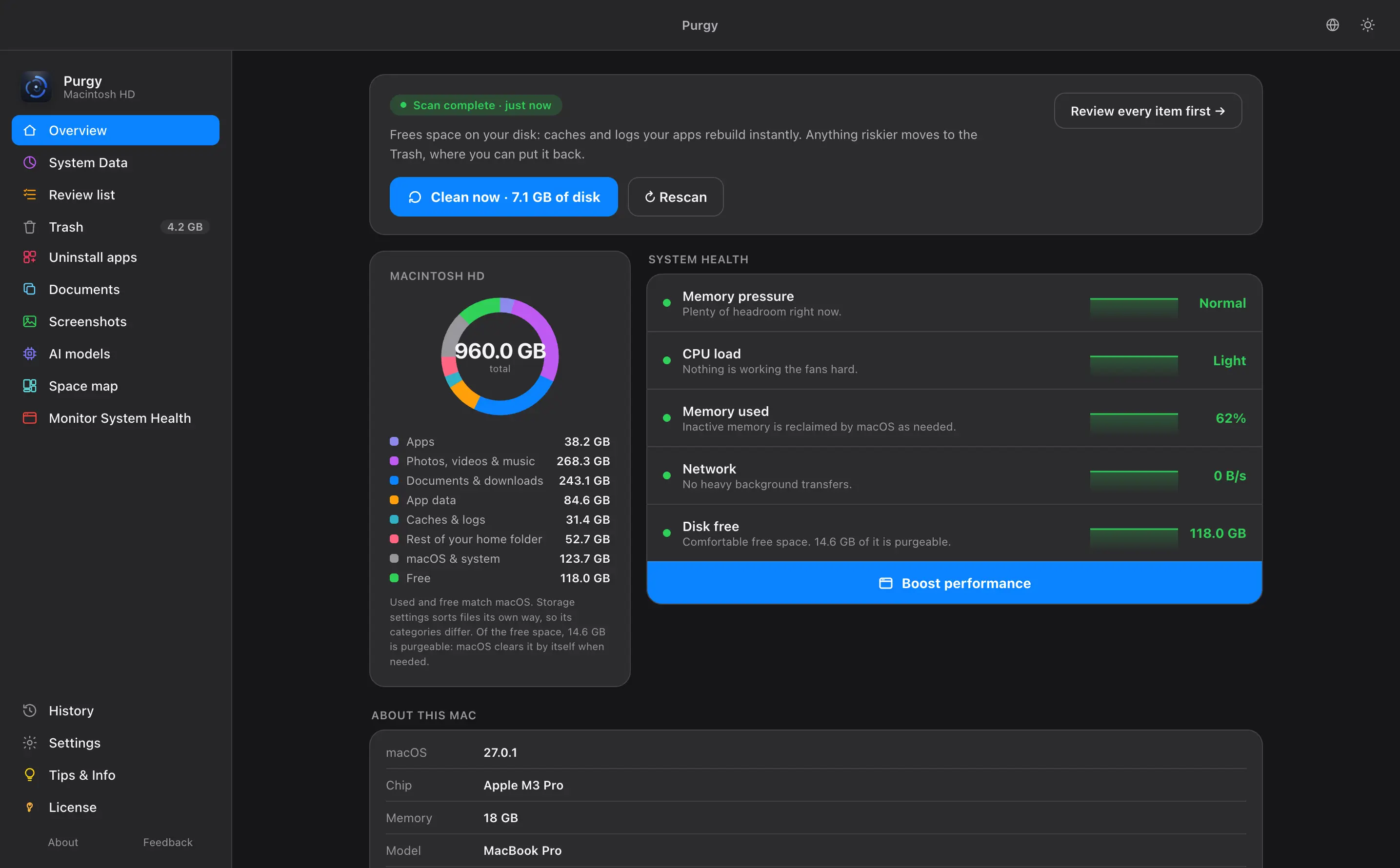
Other Mac cleaners ask you to trust them. Purgy shows its work: what it found, why, and what is safe to clear.
What is System Data on a Mac?
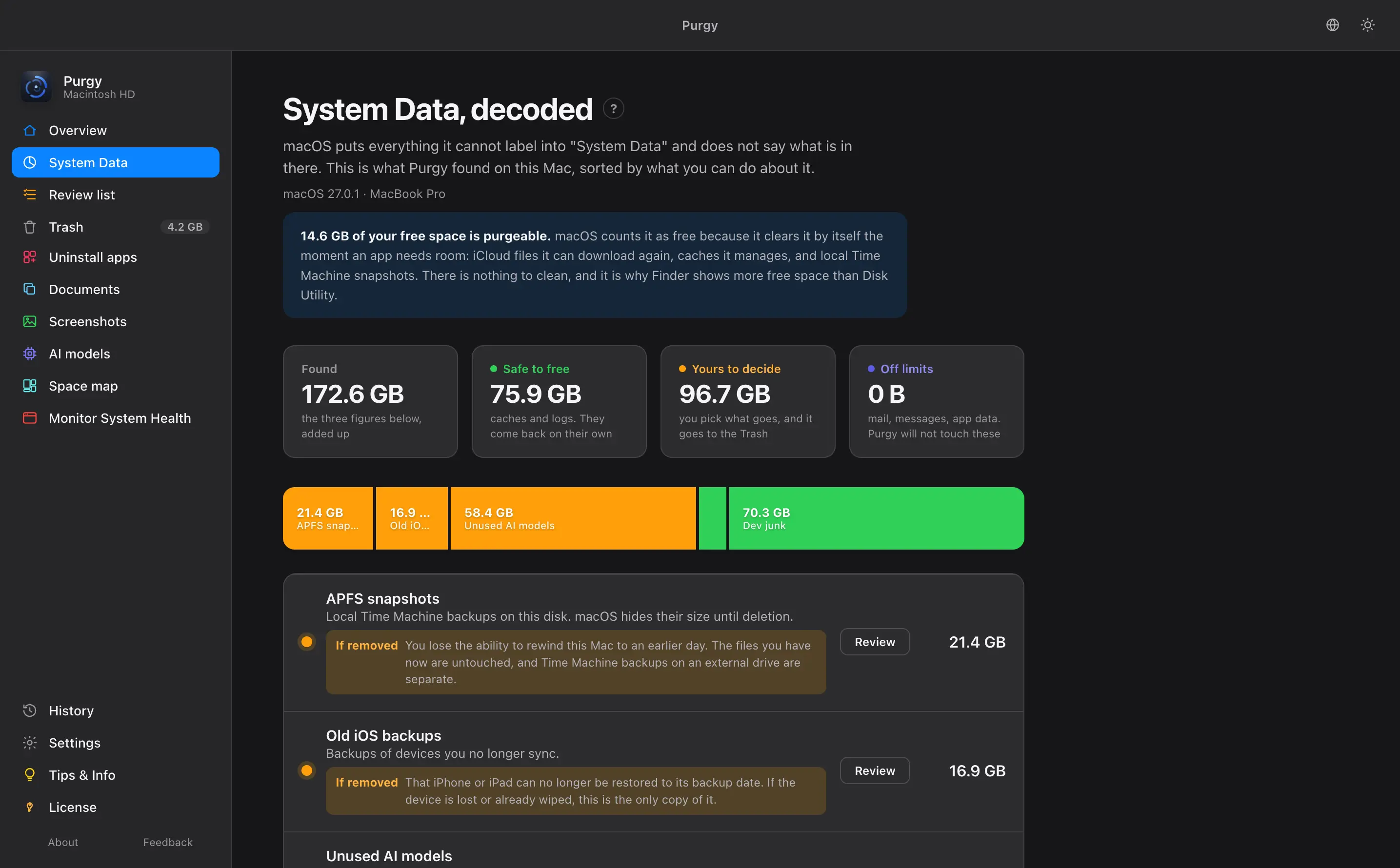
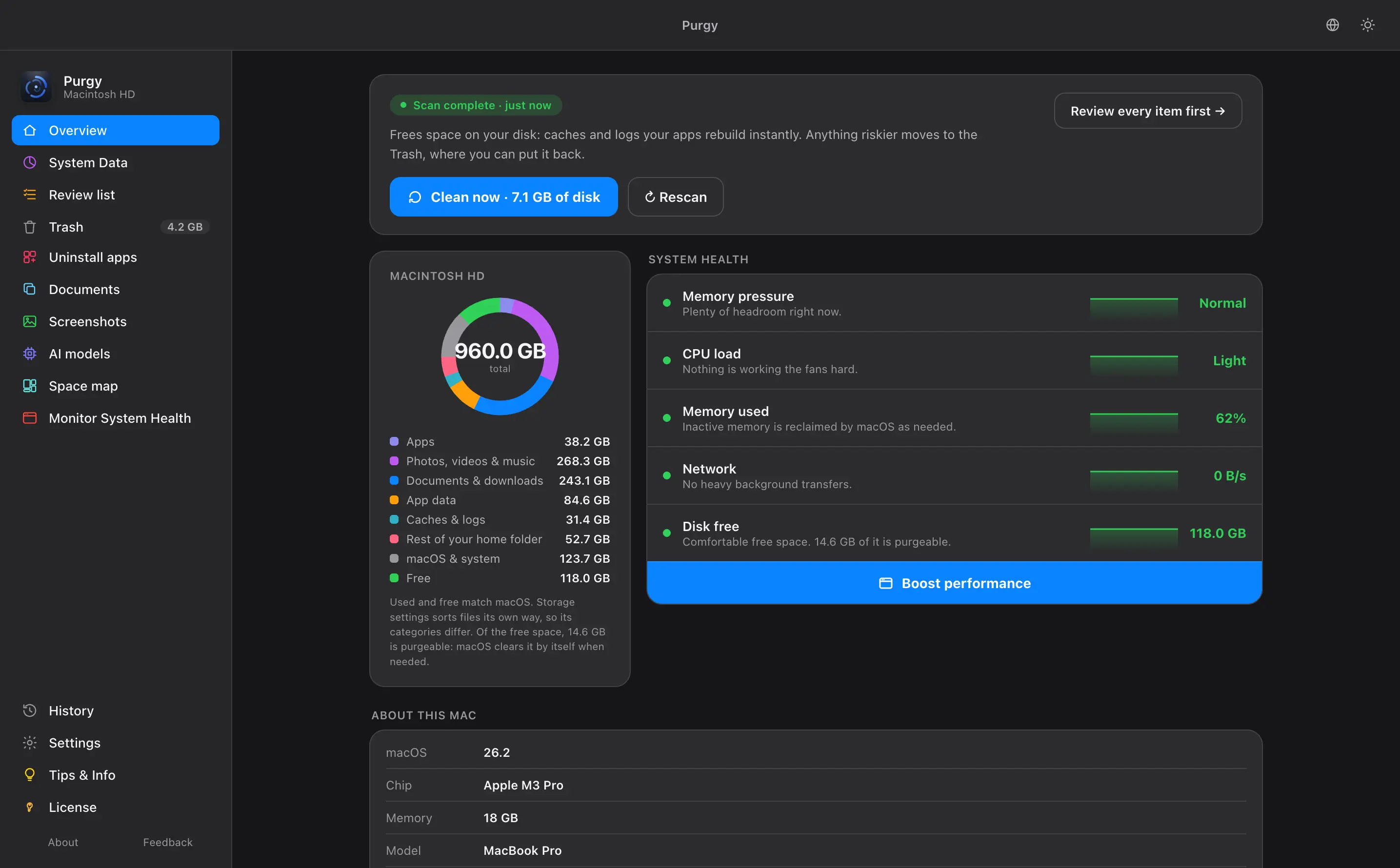
It is the mystery storage filling your Mac: caches, logs, snapshots and old backups, often 50 GB or more. Purgy shows you what is inside and sorts it into three groups, so you know what is safe to clear. It also tells you how much of your free space is purgeable, which macOS clears by itself, so you know when nothing needs cleaning.
- Safe to free now. Junk that macOS builds again by itself.
- Free after review. APFS snapshots and old iOS backups. You decide.
- Your data, never touched. Mail, messages and app data stay locked.
See what is taking up space on your Mac
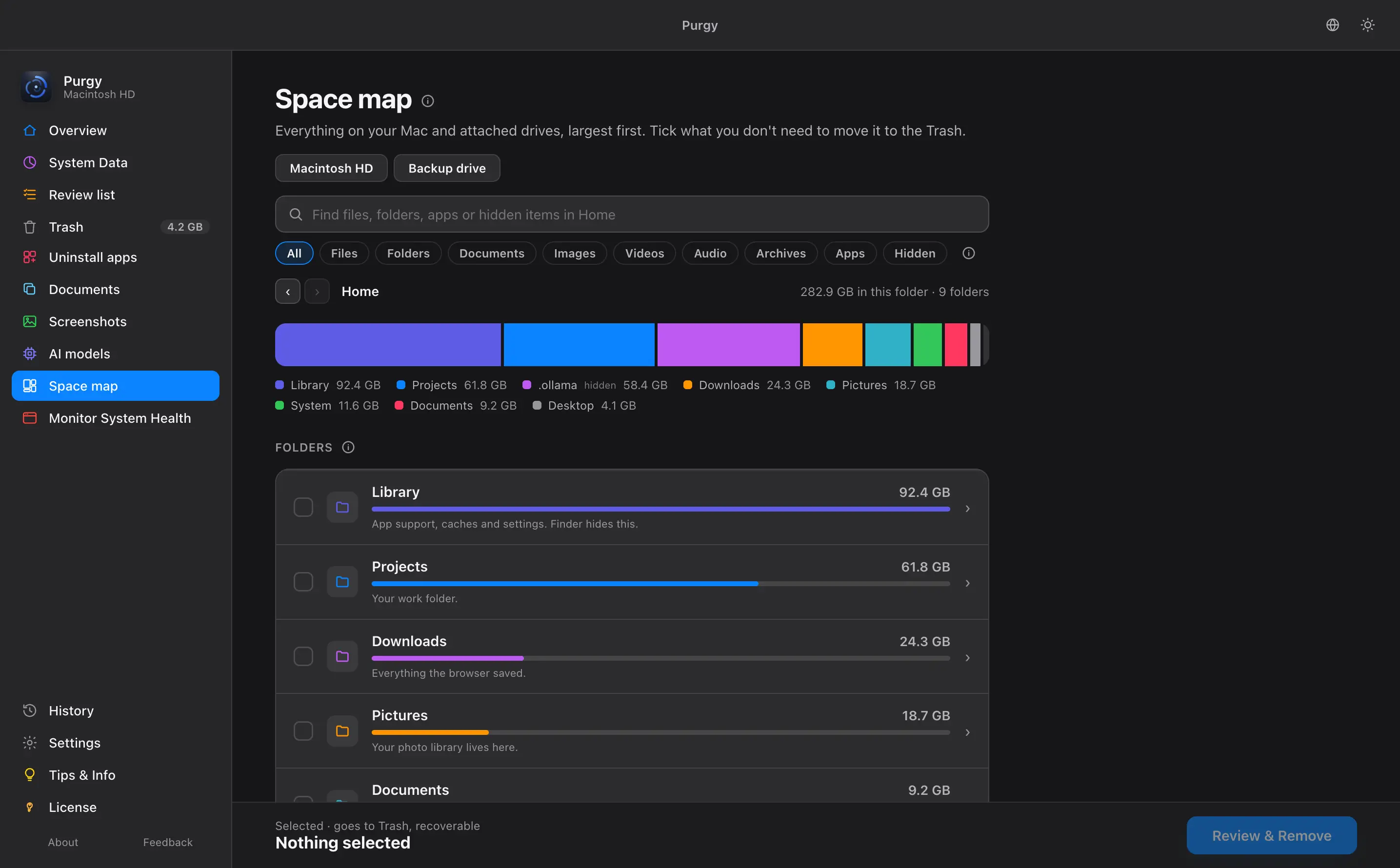
See your whole Mac as a map, biggest folders first, so the problem jumps out. Click one to look inside. It even shows the hidden folders Finder never shows you. External drives work too.
Find large files on your Mac by name or type
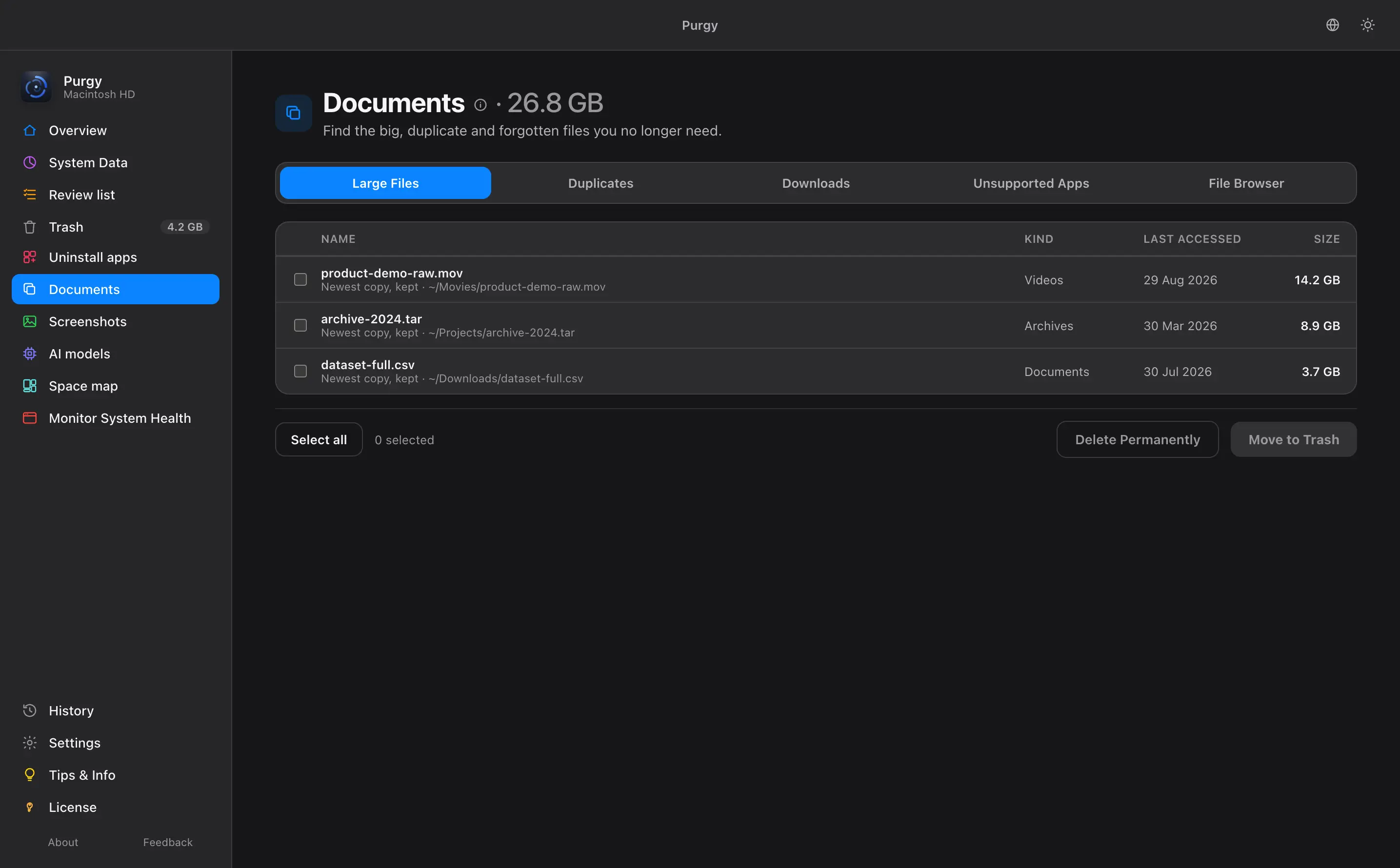
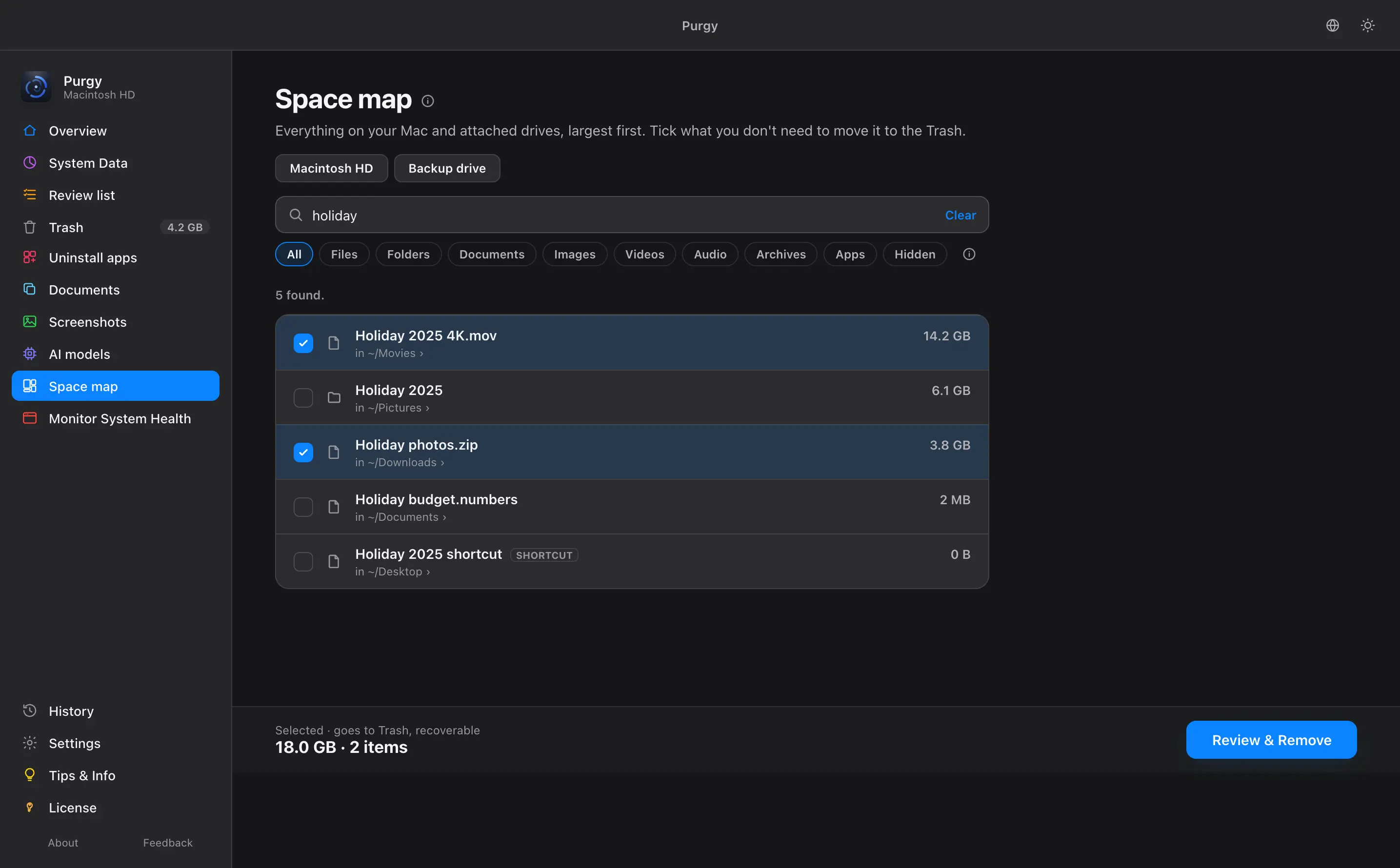
Type a name, or pick Videos, Archives or Apps, and every match on your Mac is listed, biggest first, hidden files included. After the first search, results come back in under a second. Tick what you do not need and it goes to the Trash, so you can put it back.
Find the app slowing your Mac down
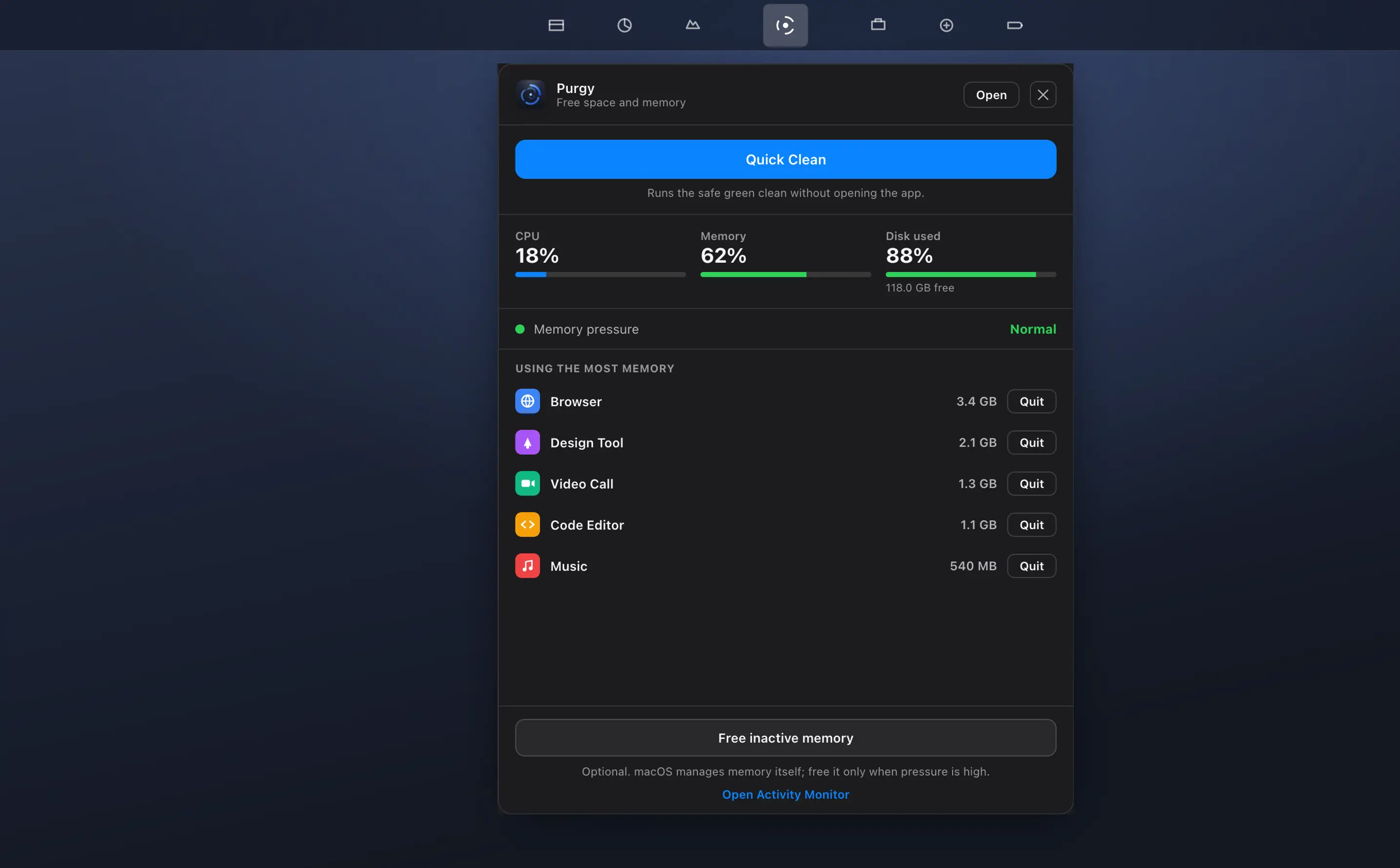
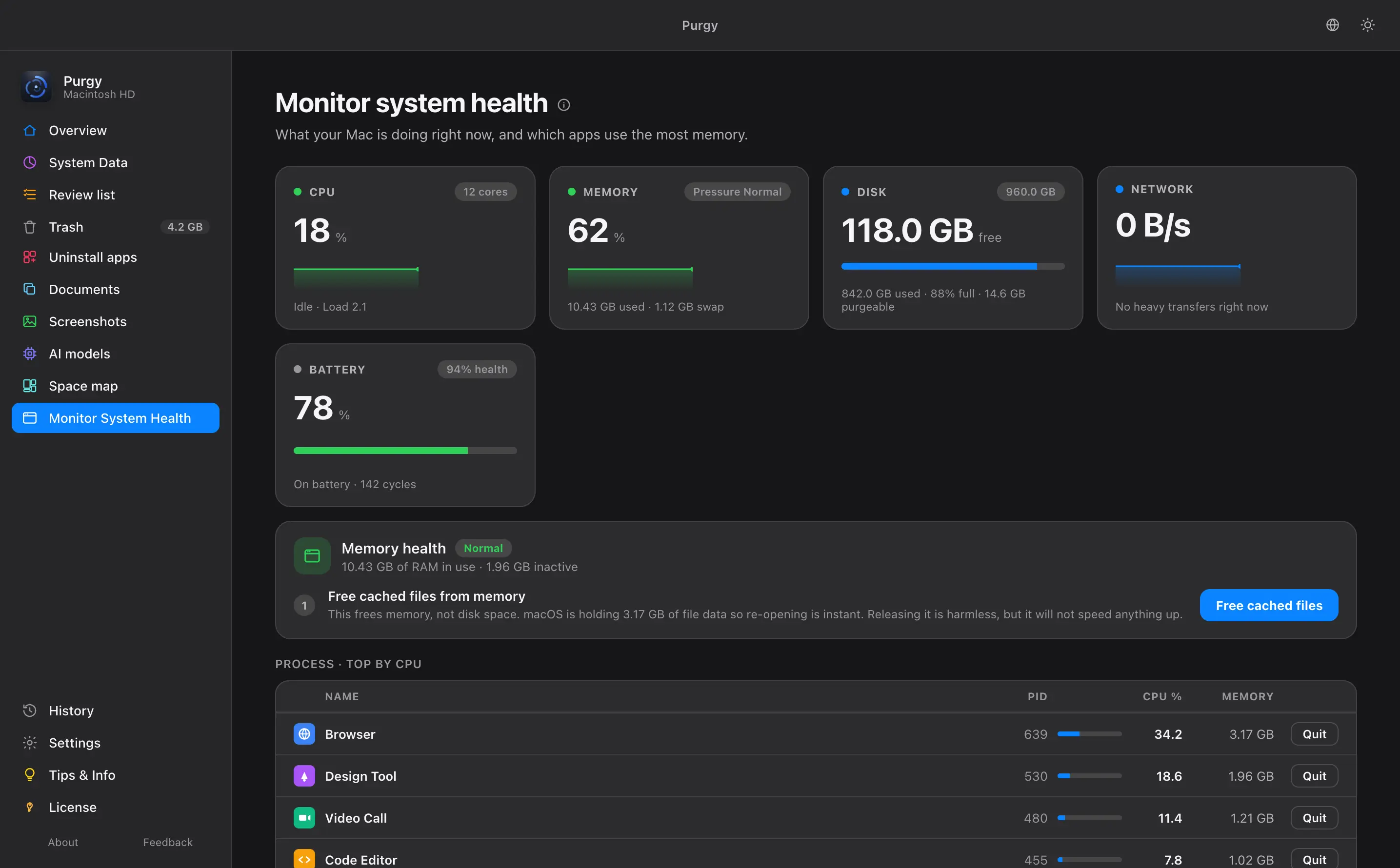
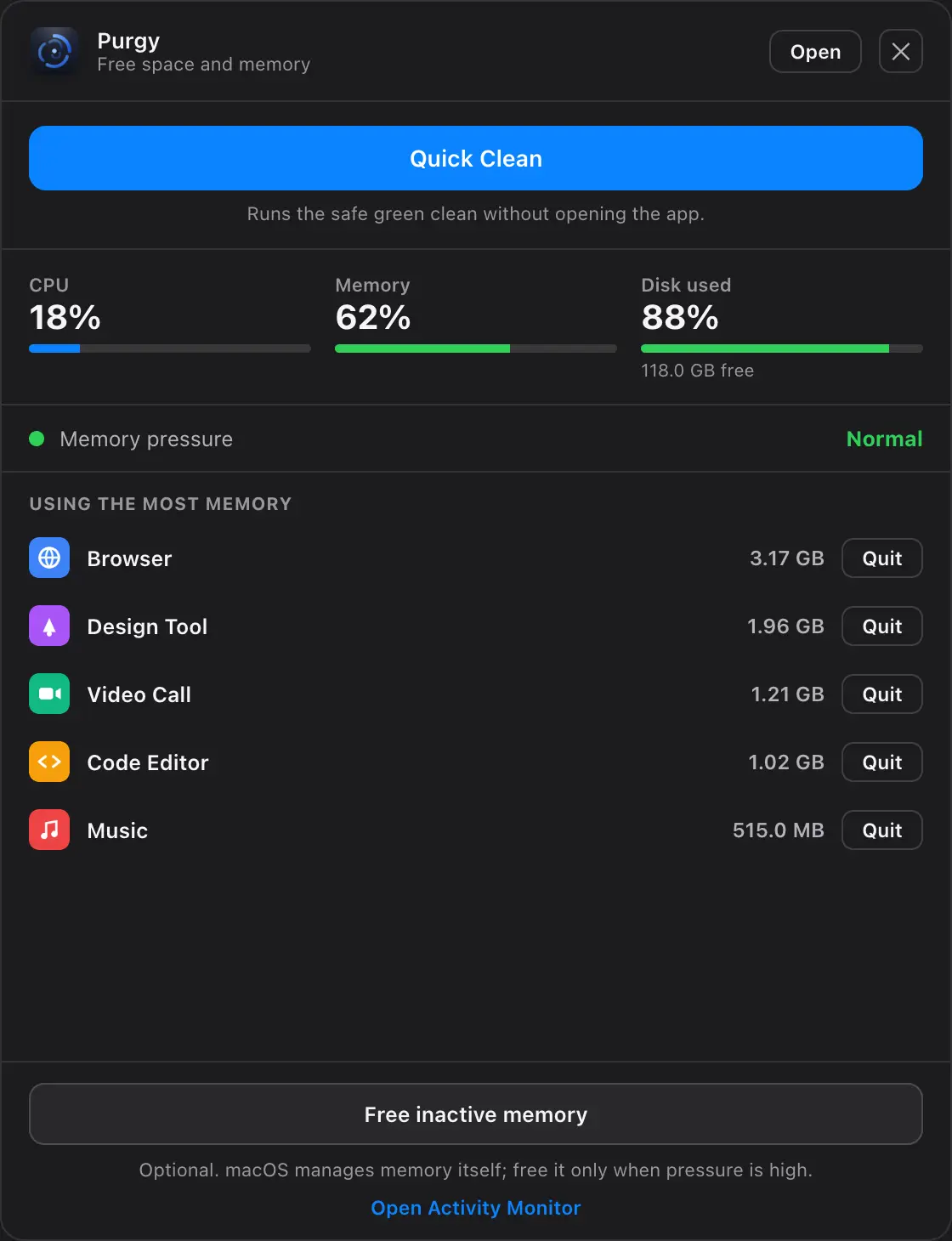
See which app is using your CPU and memory right now, and quit it in one click. No fake speed-up buttons, just the real cause.
Clean your Mac safely, not by guesswork
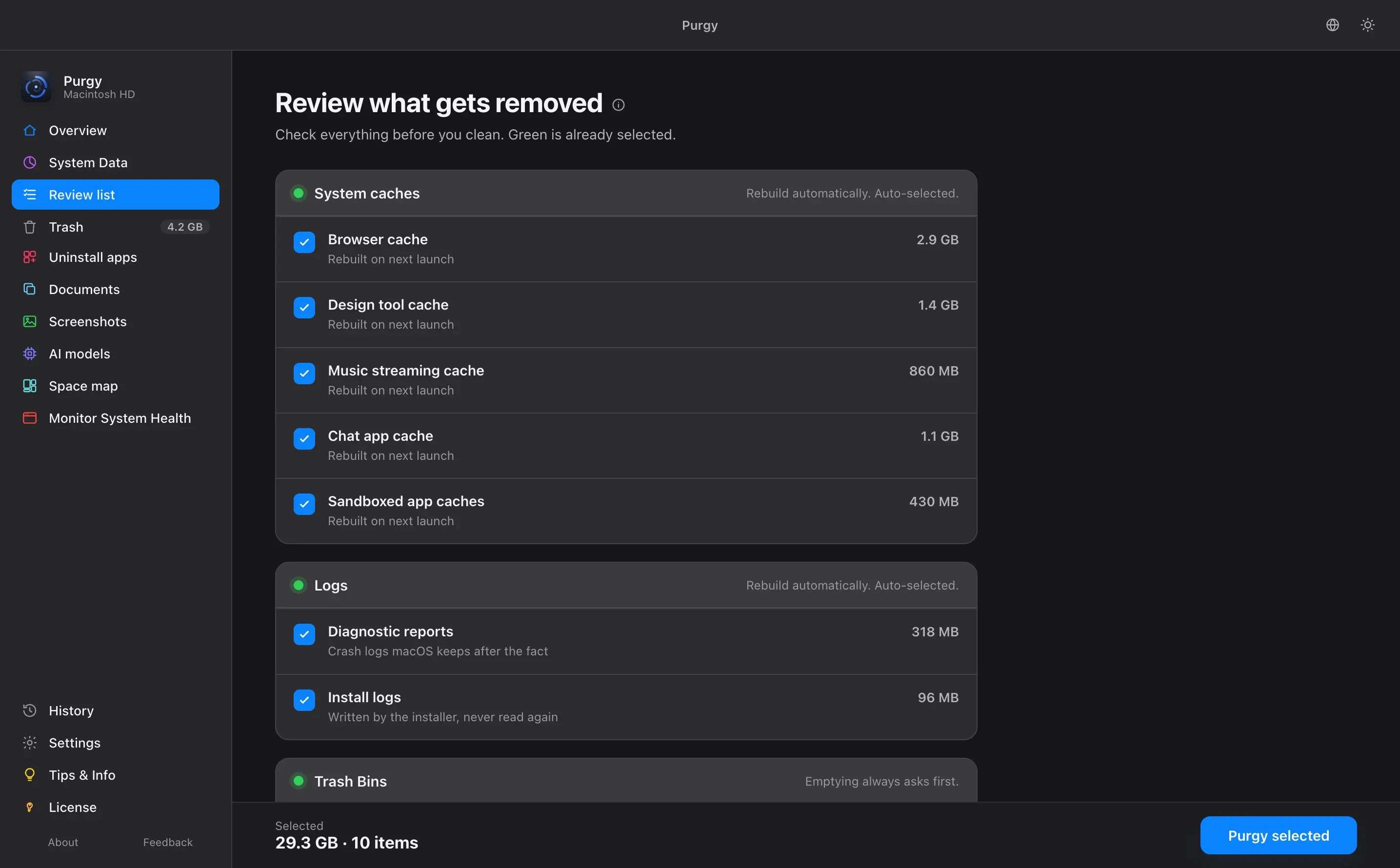
Green is junk that macOS builds again on its own.Amber is your call: backups, AI models and old developer files, each shown with the reason it was found.Red is your own data, and it cannot be selected. What you approve goes to the Trash by default, so Finder can put it back.
Delete the AI models filling your Mac
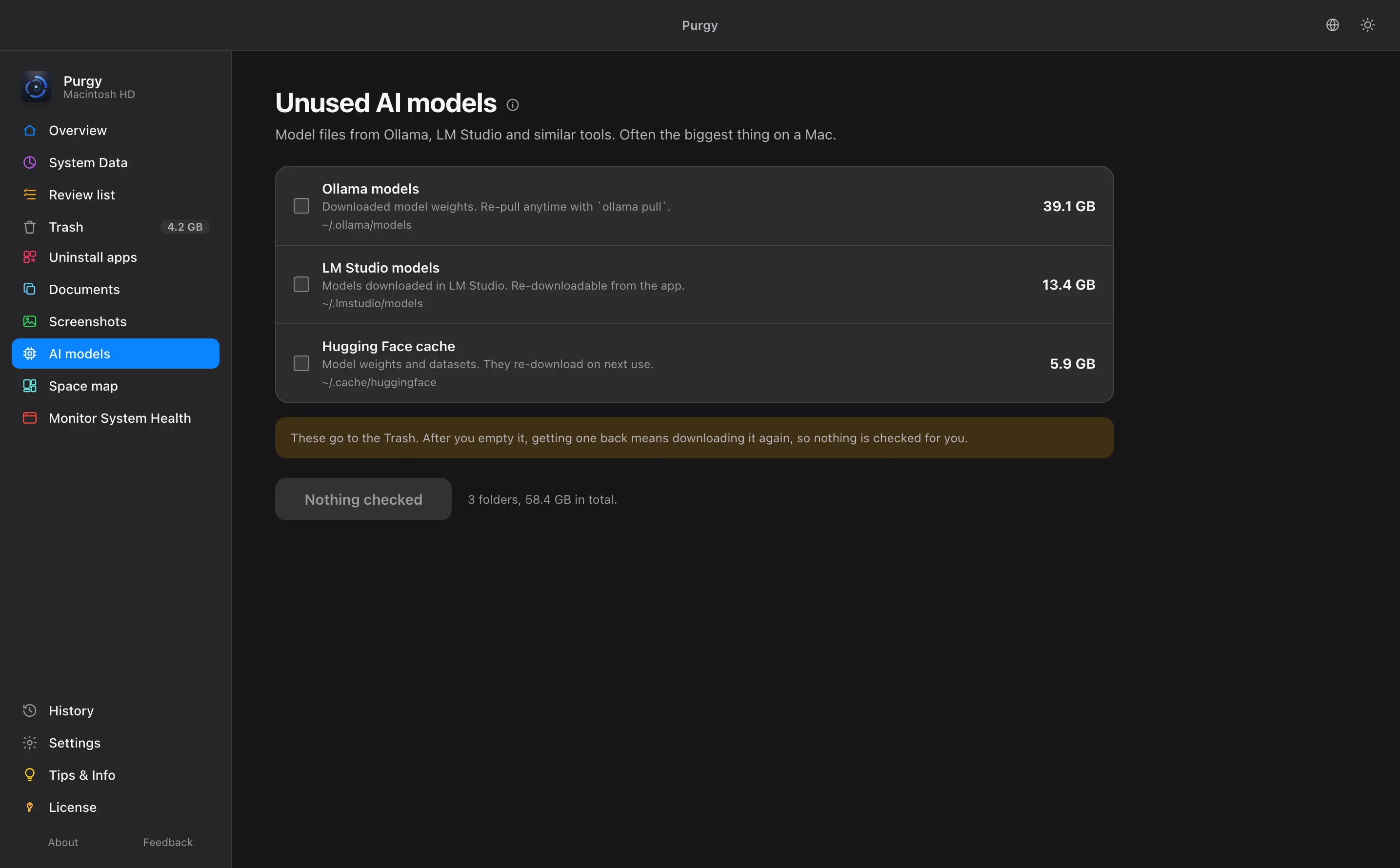
Ollama, LM Studio and other AI tools can leave 10 GB or more per model. Purgy shows what each tool is holding and never selects any for you. Removing one costs a download, not your work.
Uninstall Mac apps completely
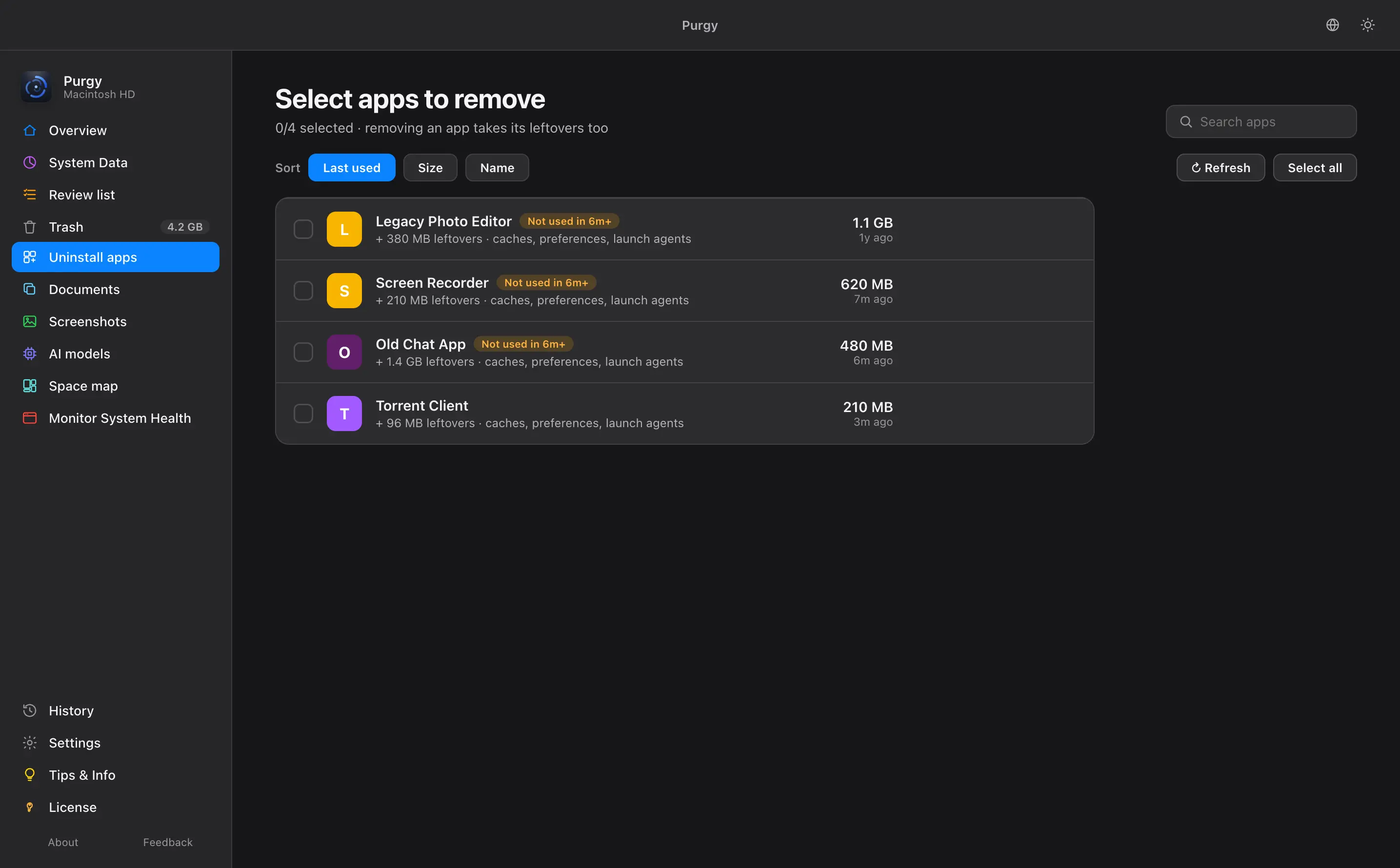
Dragging an app to the Trash leaves its files behind. Purgy removes the app and everything it left, and shows you the apps you stopped opening.
Find duplicate files and forgotten downloads
Big files, exact copies, old downloads and apps this macOS can no longer run, in one list. Open a file to check it before you remove it.
Change your mind at any time
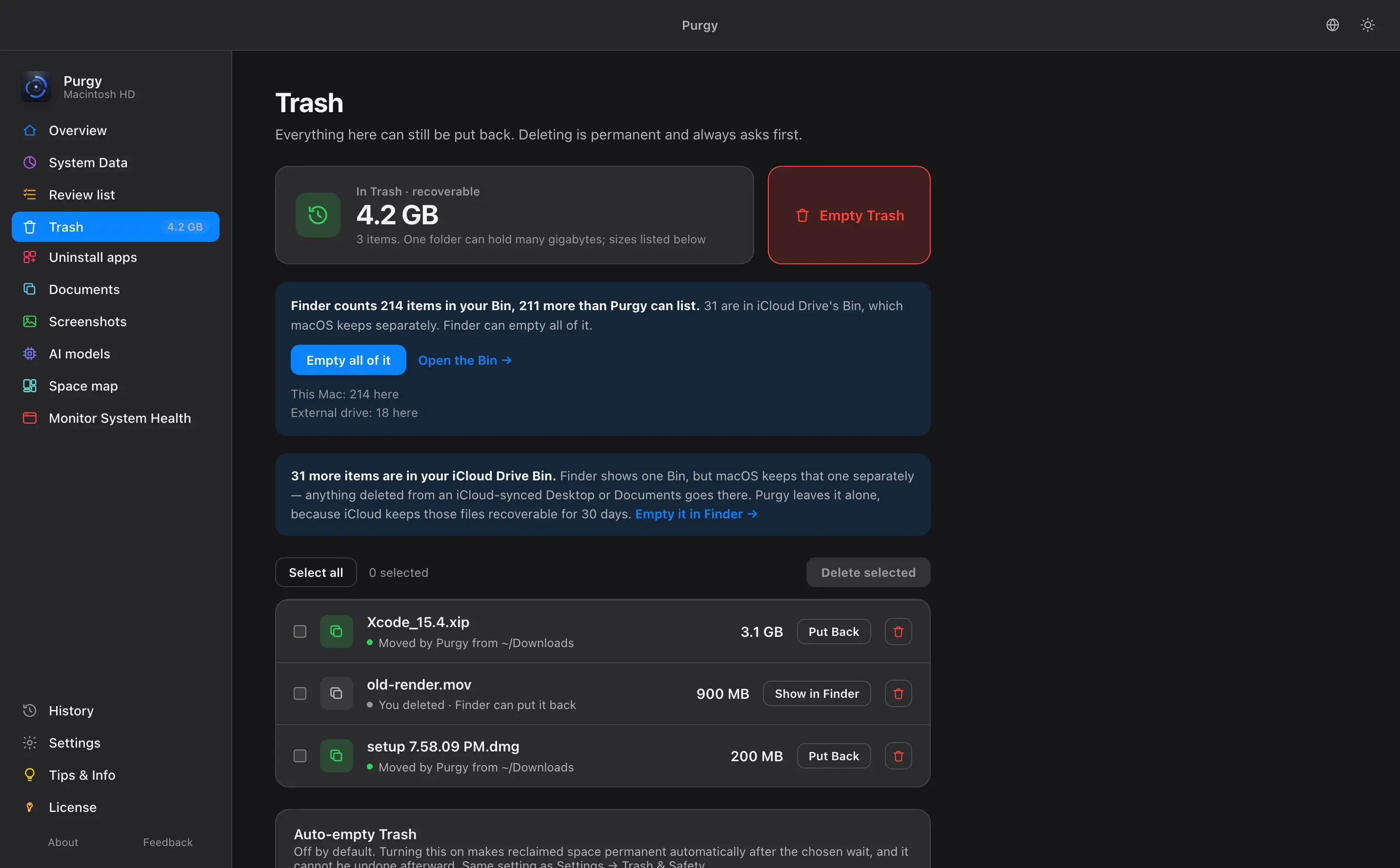
Your own files only ever go to the Trash, so you can put them back. Caches and logs are freed at once because they rebuild, or sent to the Trash too if you prefer. Purgy will not empty the Trash unless you tell it to.
Free up space without opening the app
Click the icon at the top of your screen for CPU, memory and free disk at a glance. Quit whichever app is eating your memory, or run the safe clean, without opening Purgy at all.
Delete years of old screenshots in seconds
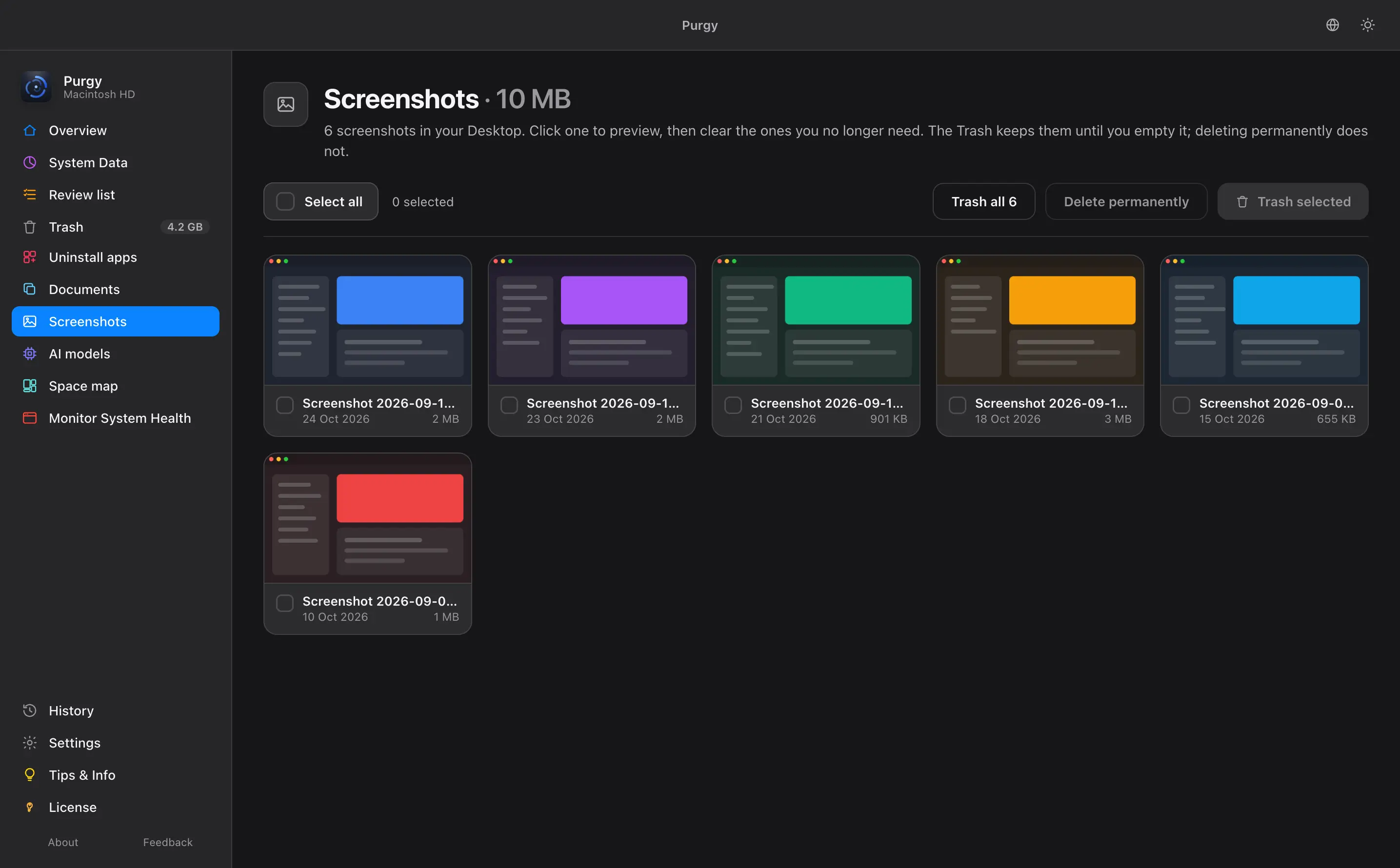
macOS saves every screenshot to your Desktop and never cleans them up. Purgy gathers them in one place, so you get a clean Desktop back in seconds.
Keep private folders off limits
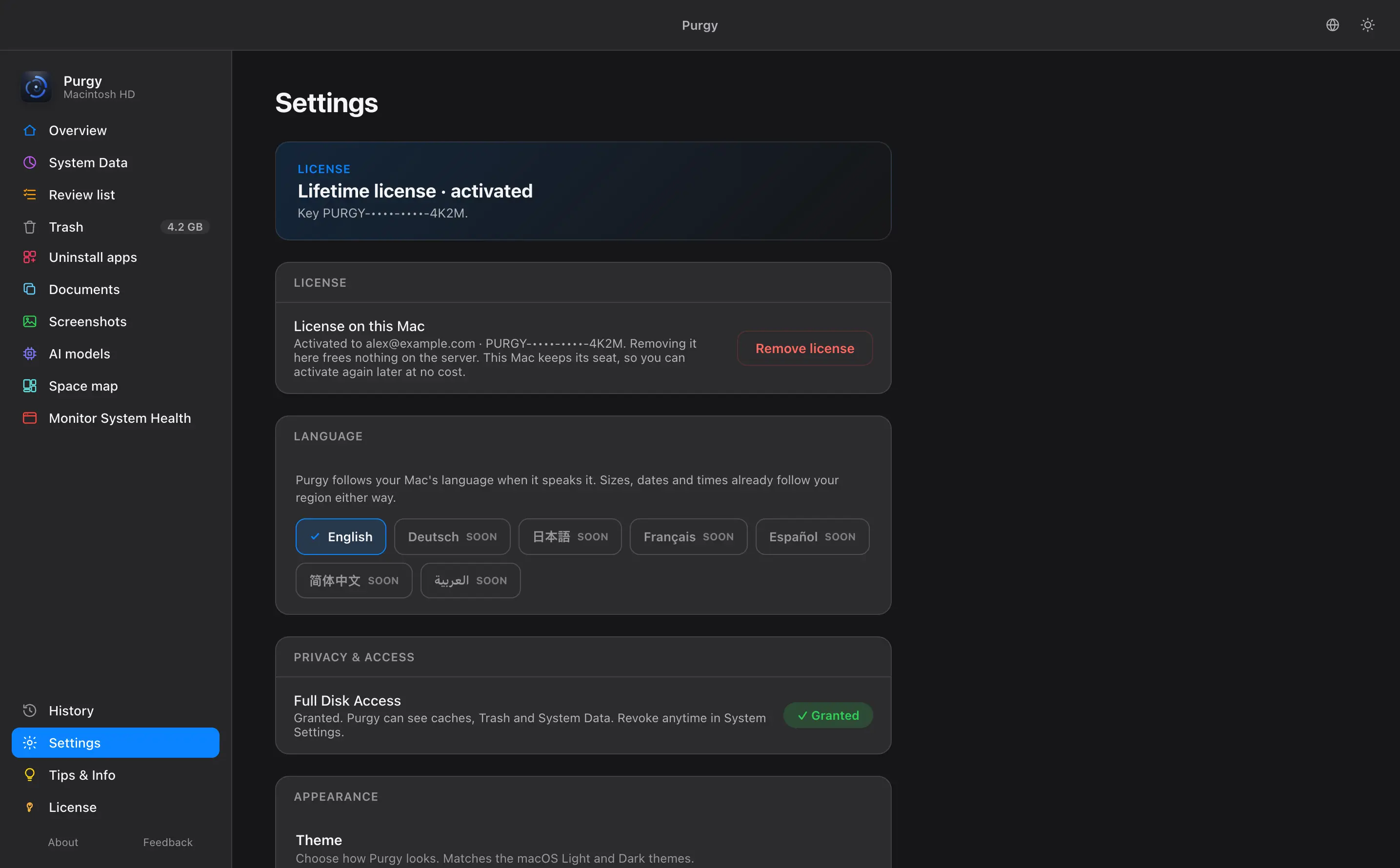
Add any folder to the protected list and Purgy will not open it. Choose whether cleaning goes to the Trash or frees space straight away.
Make Purgy yours
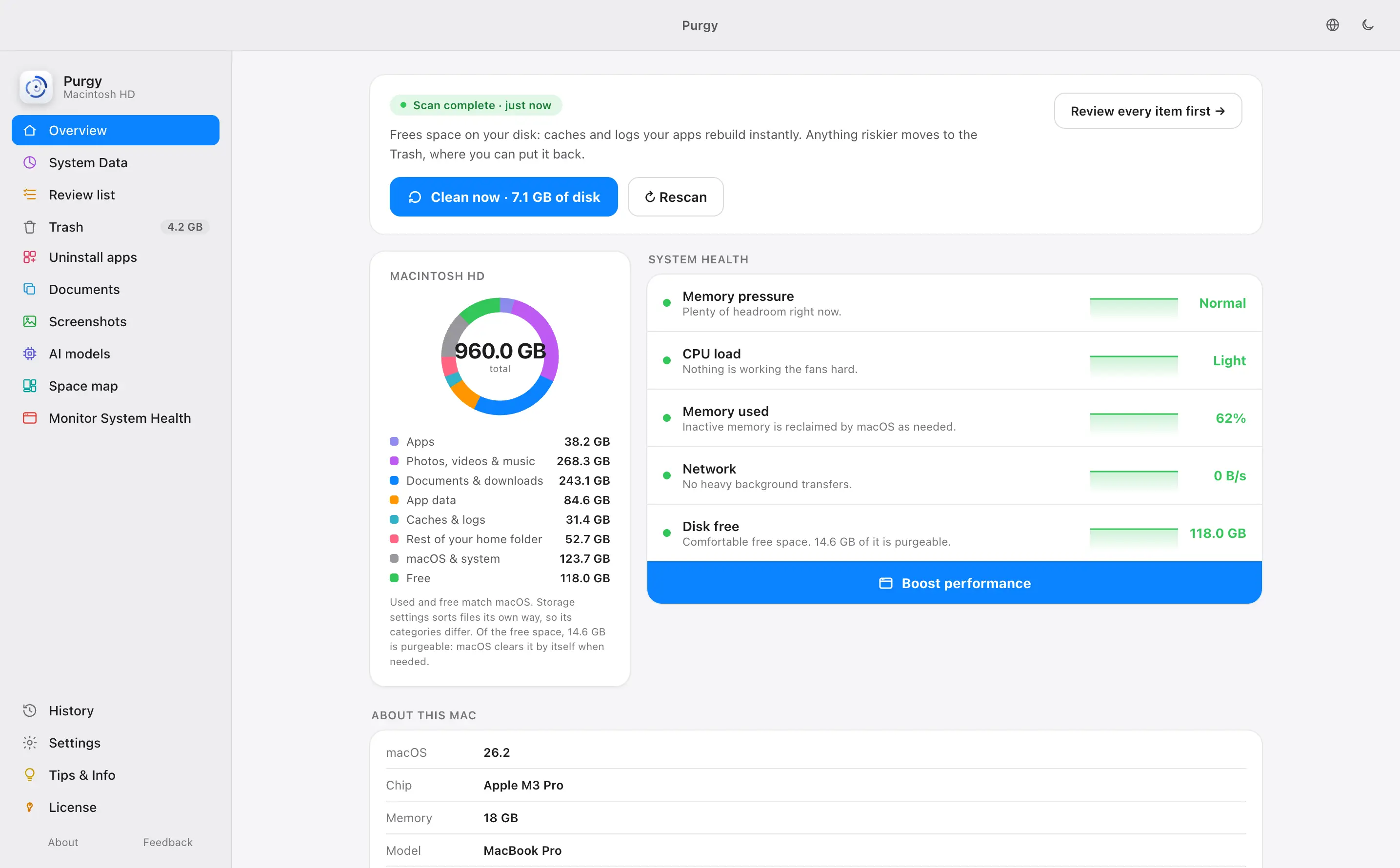
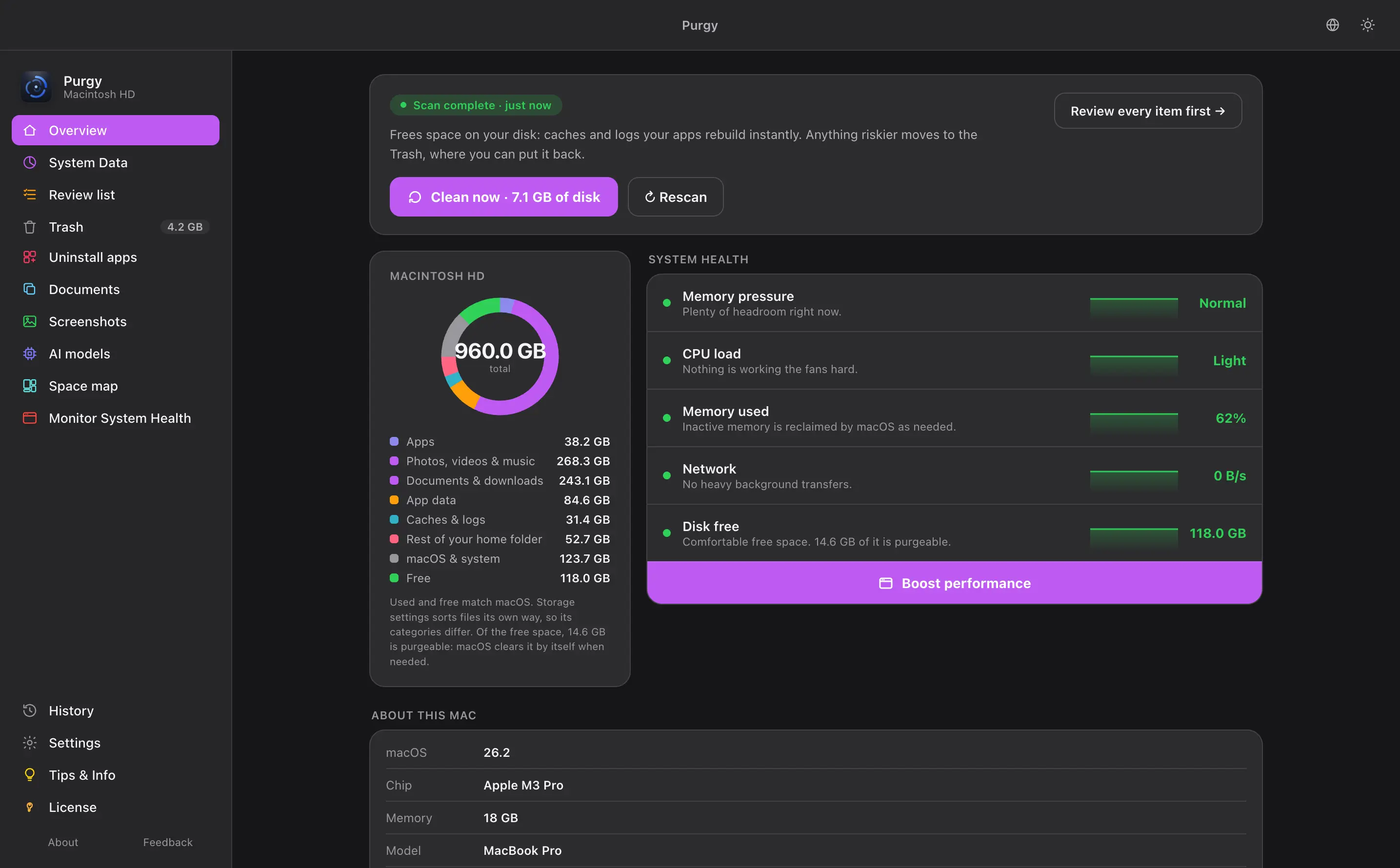
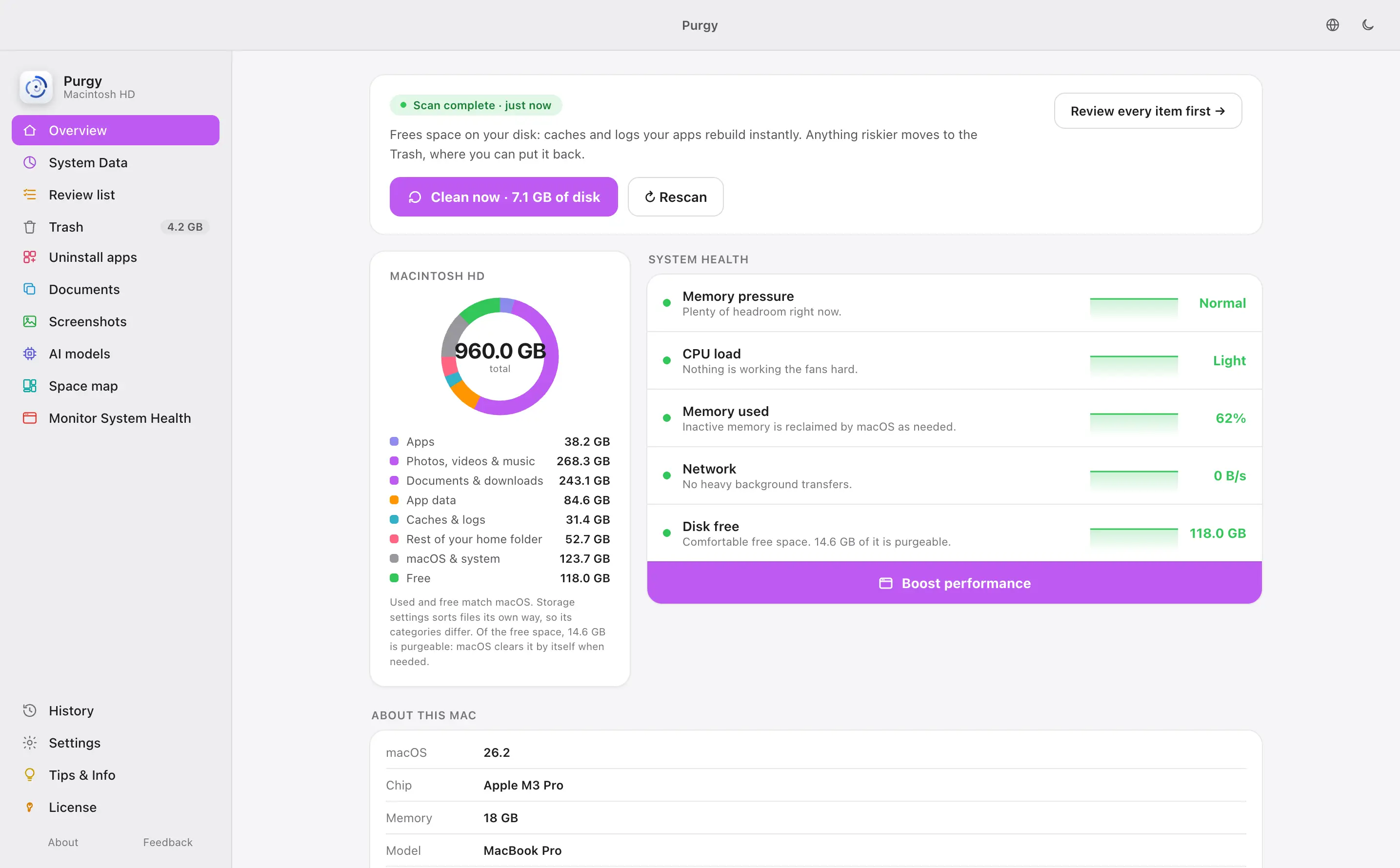
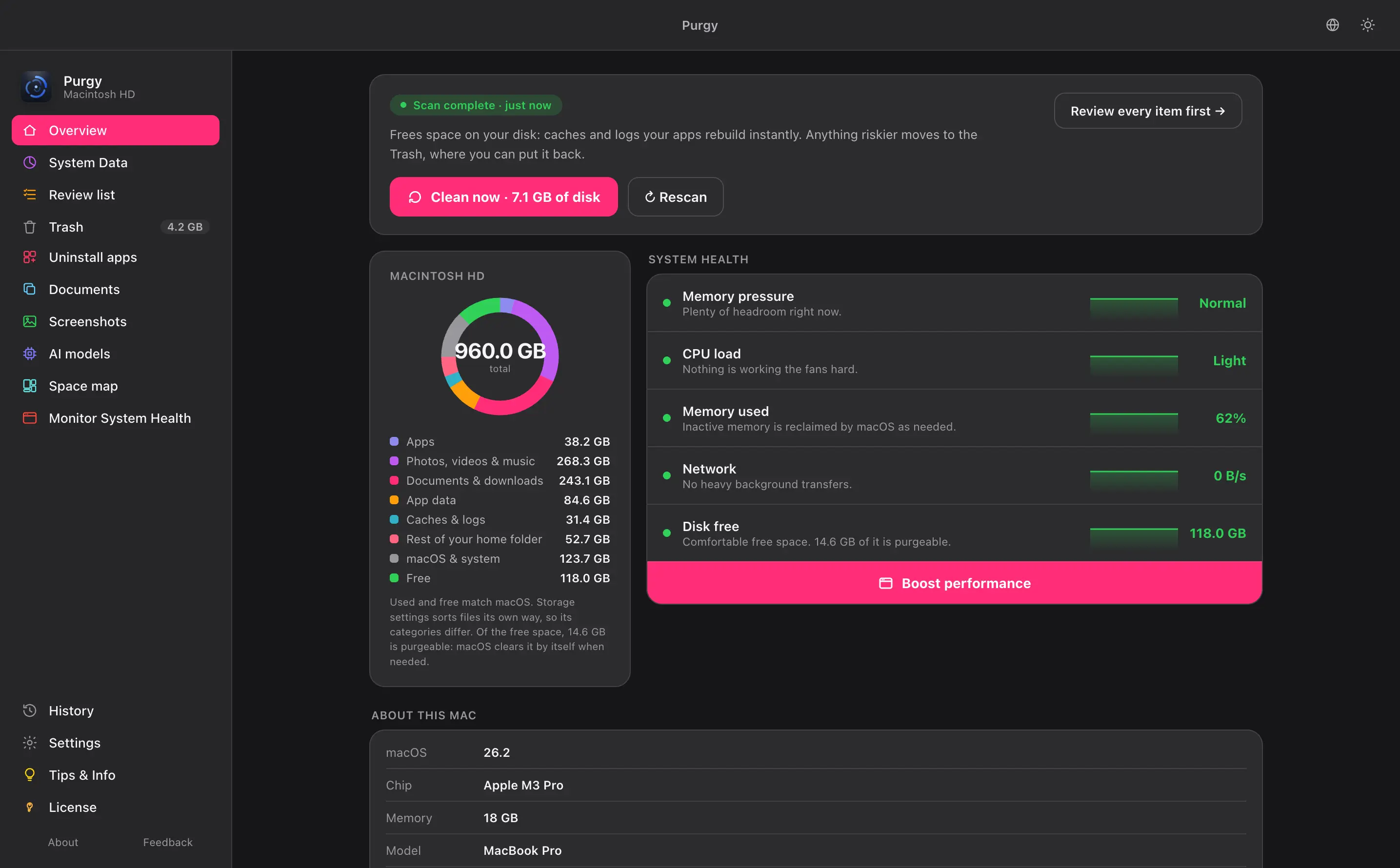
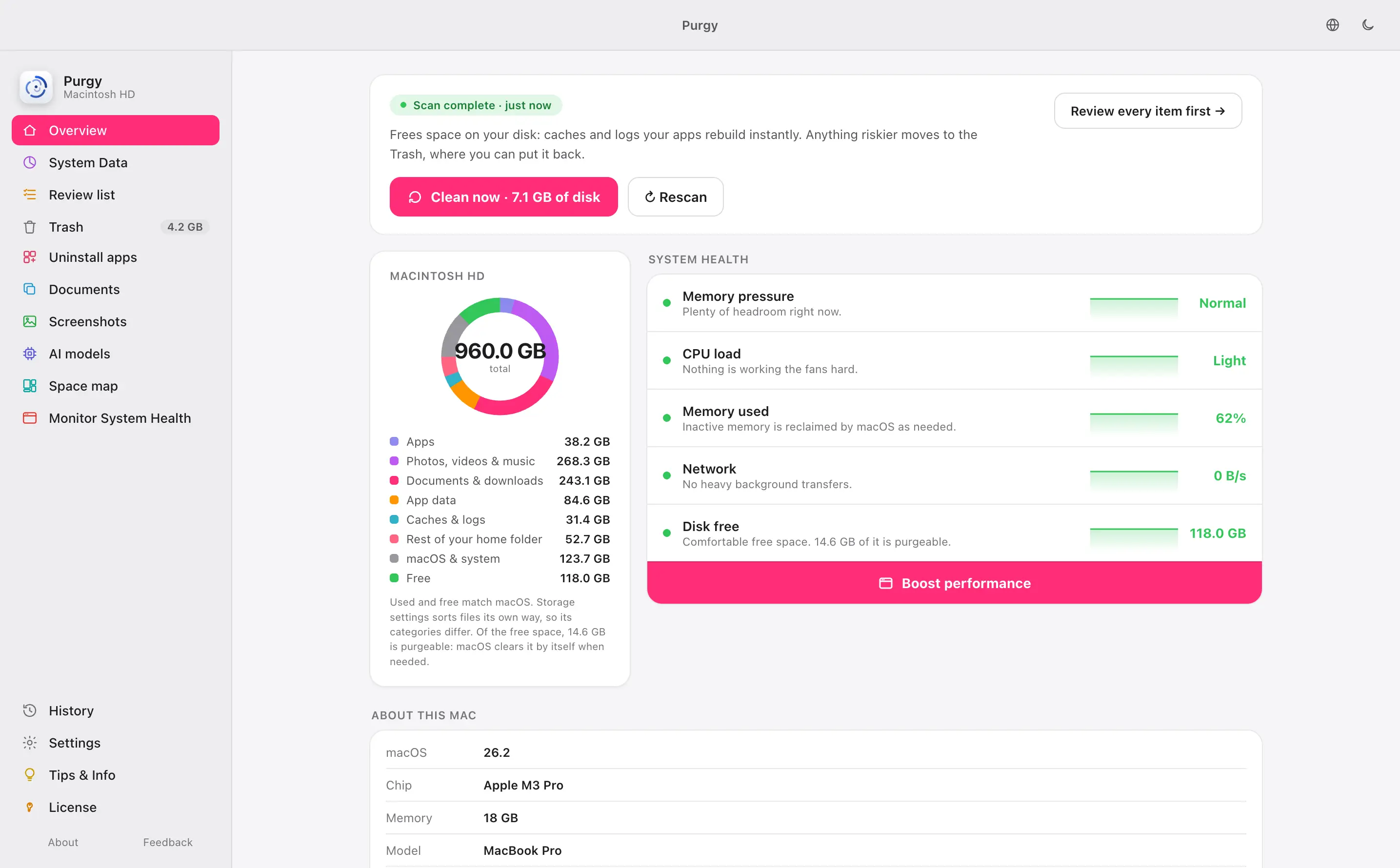
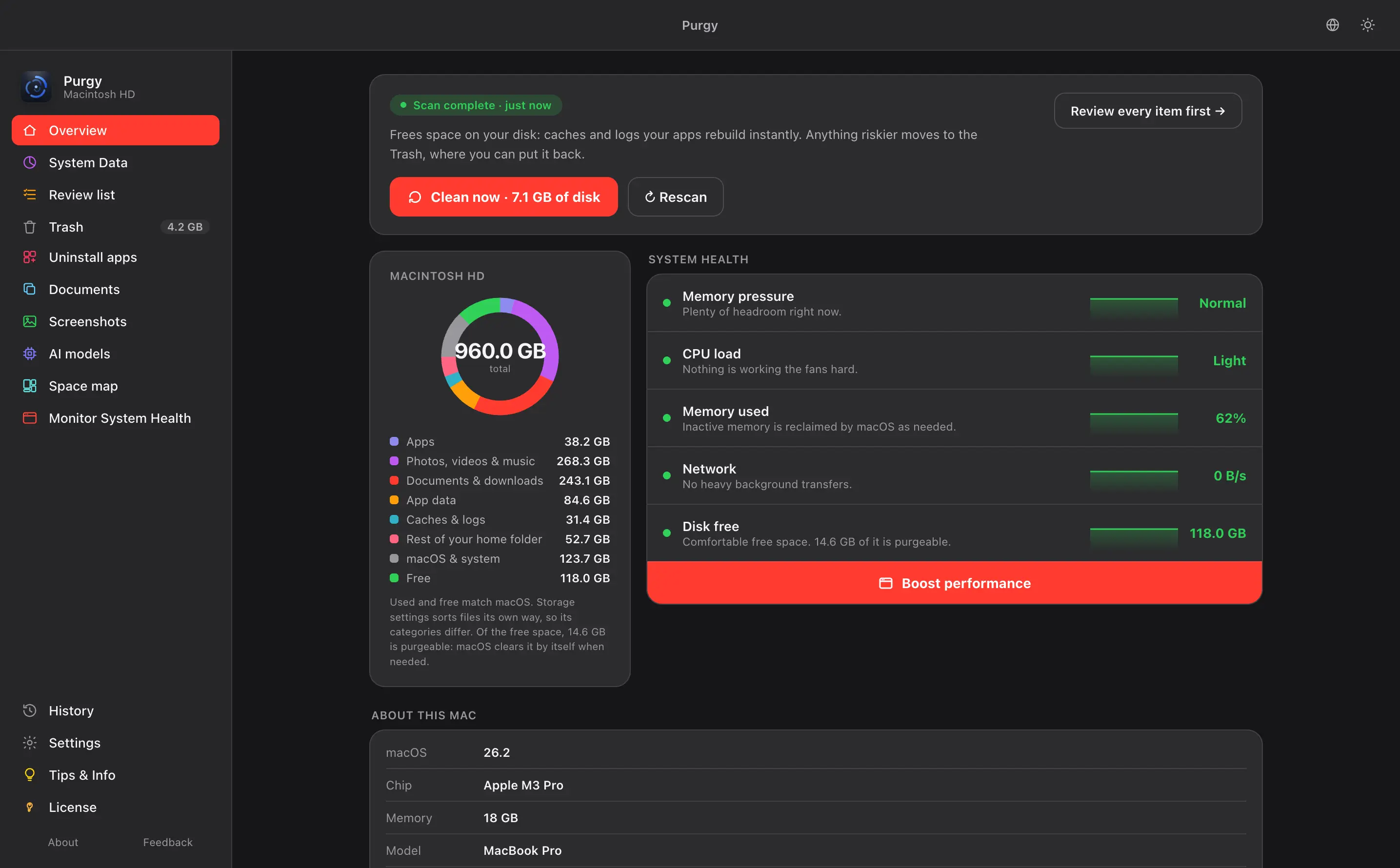
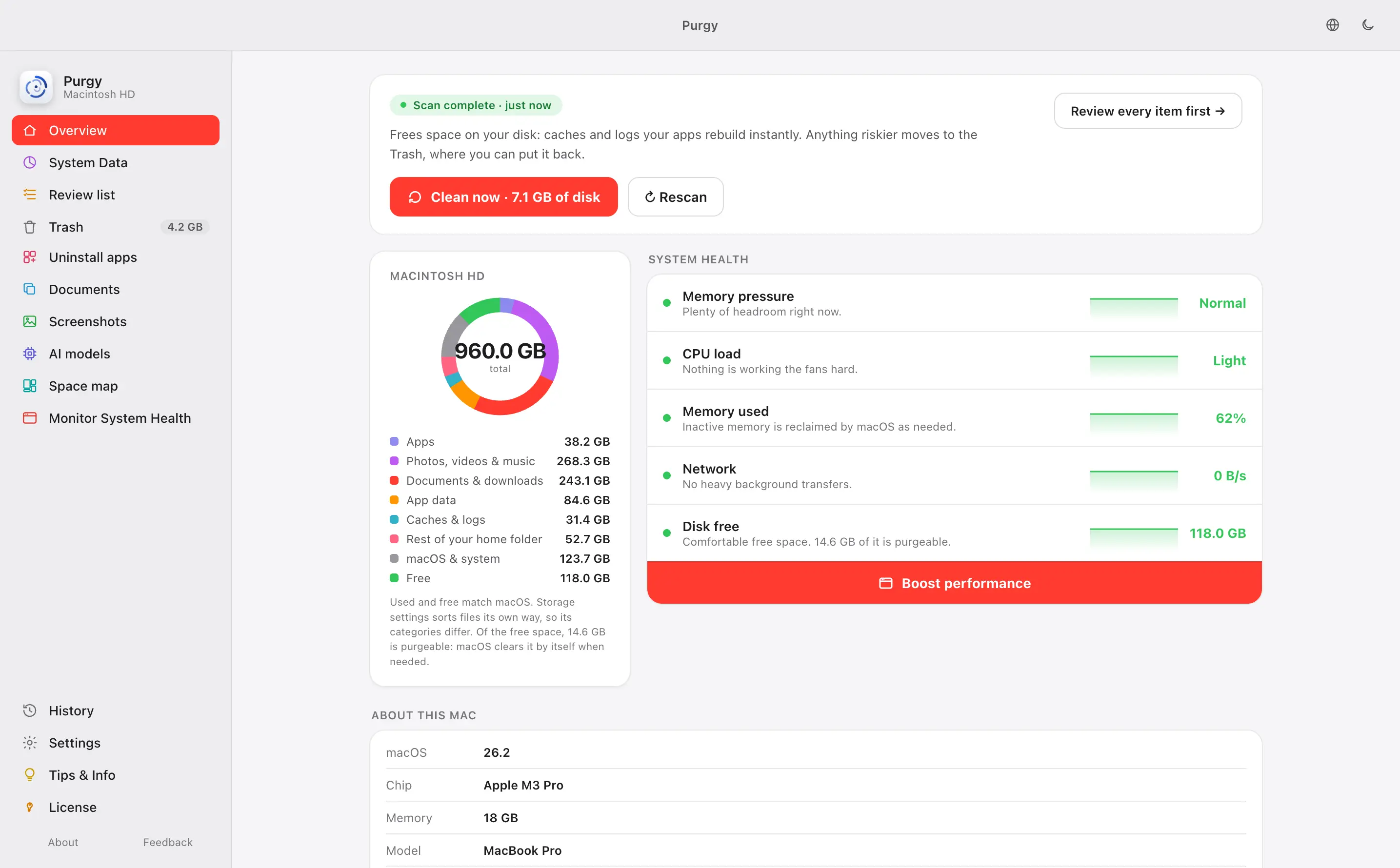
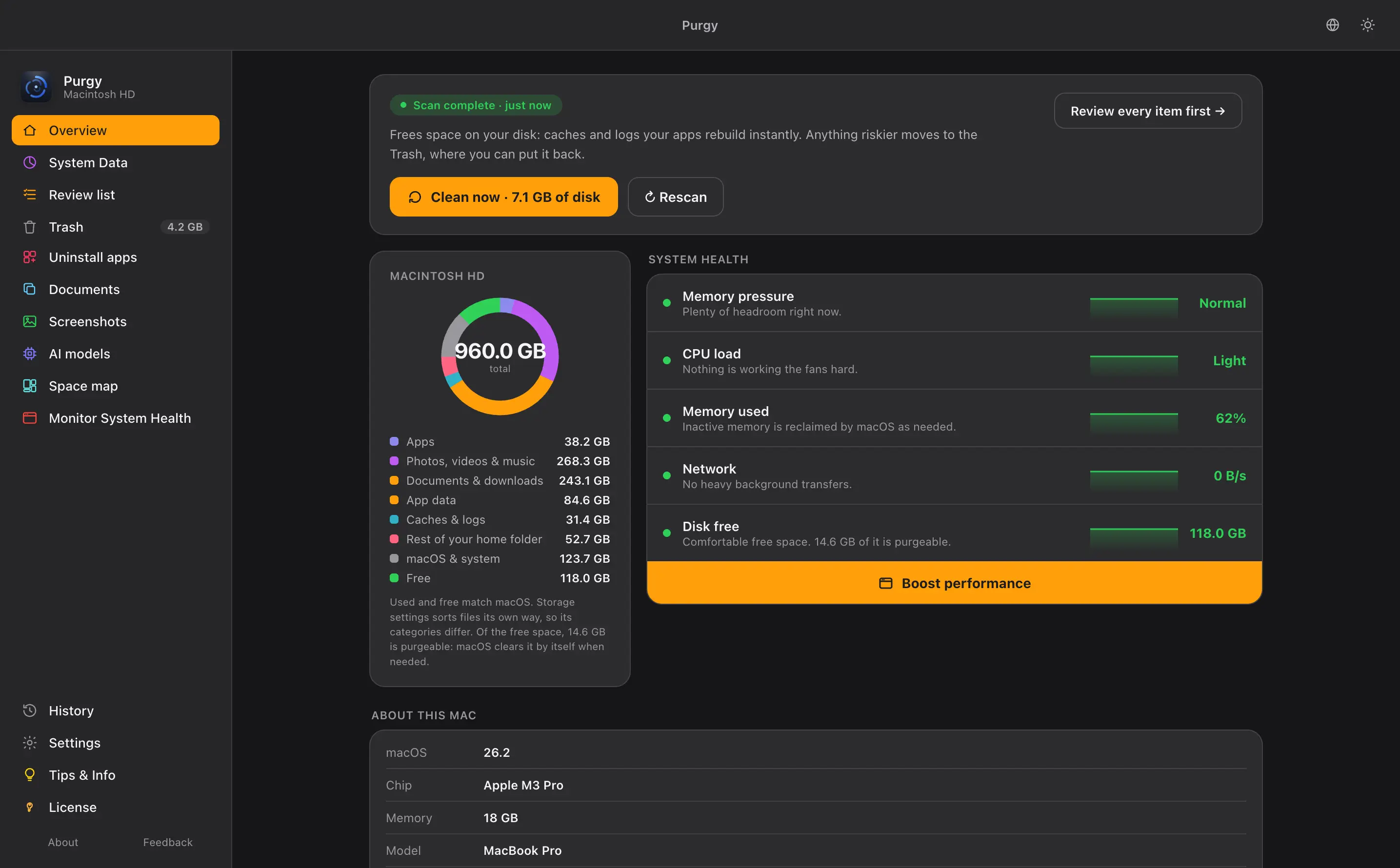
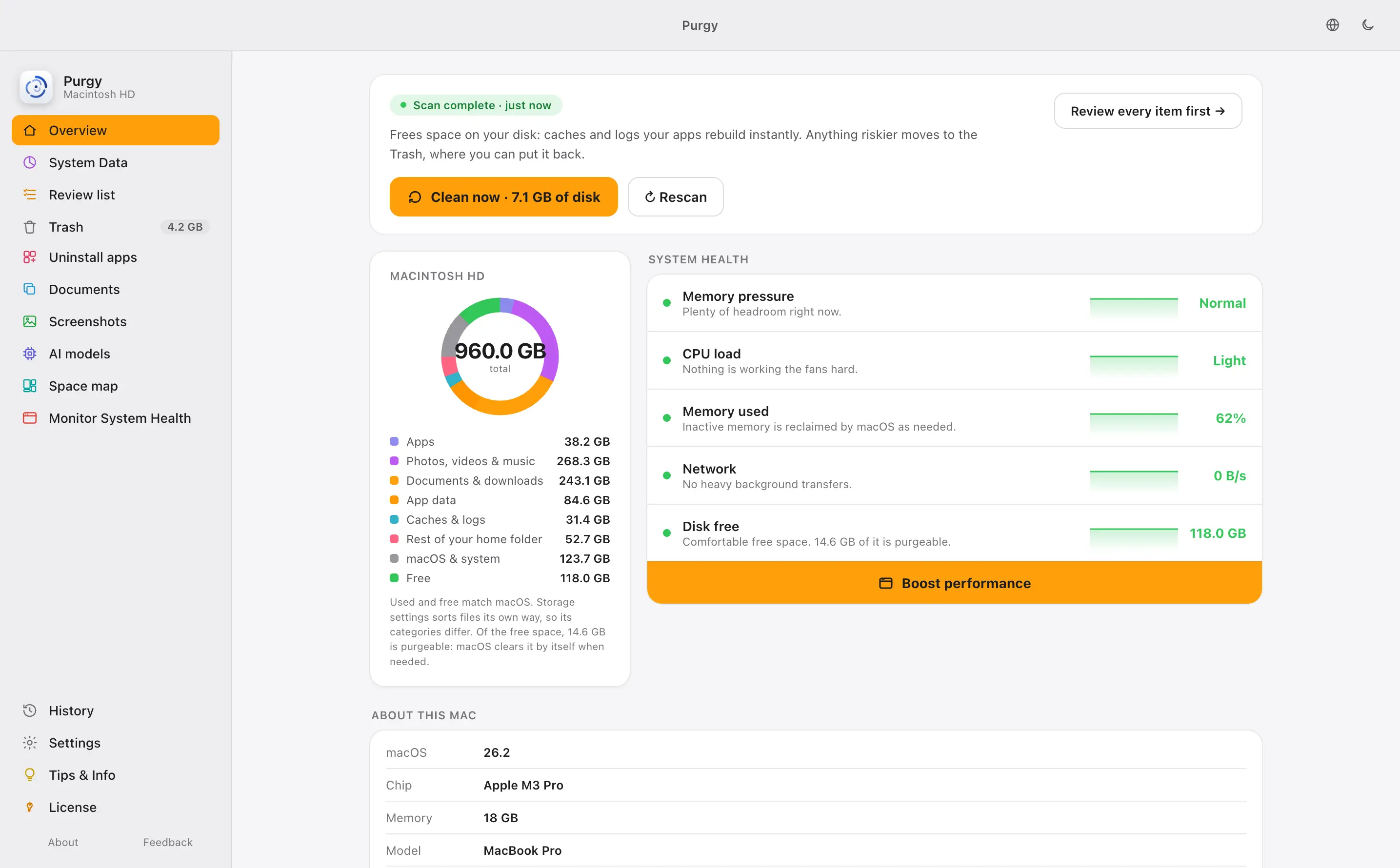
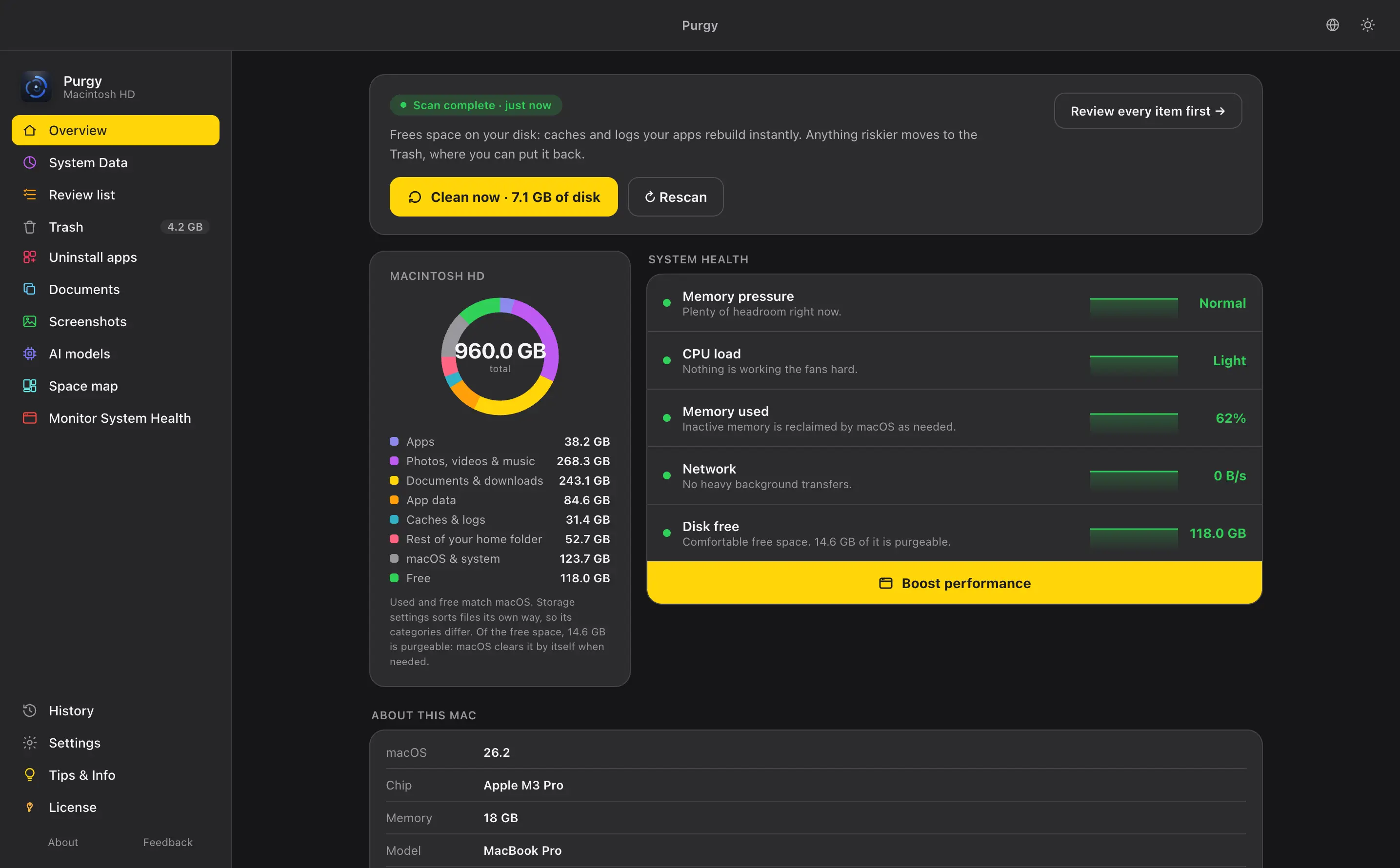
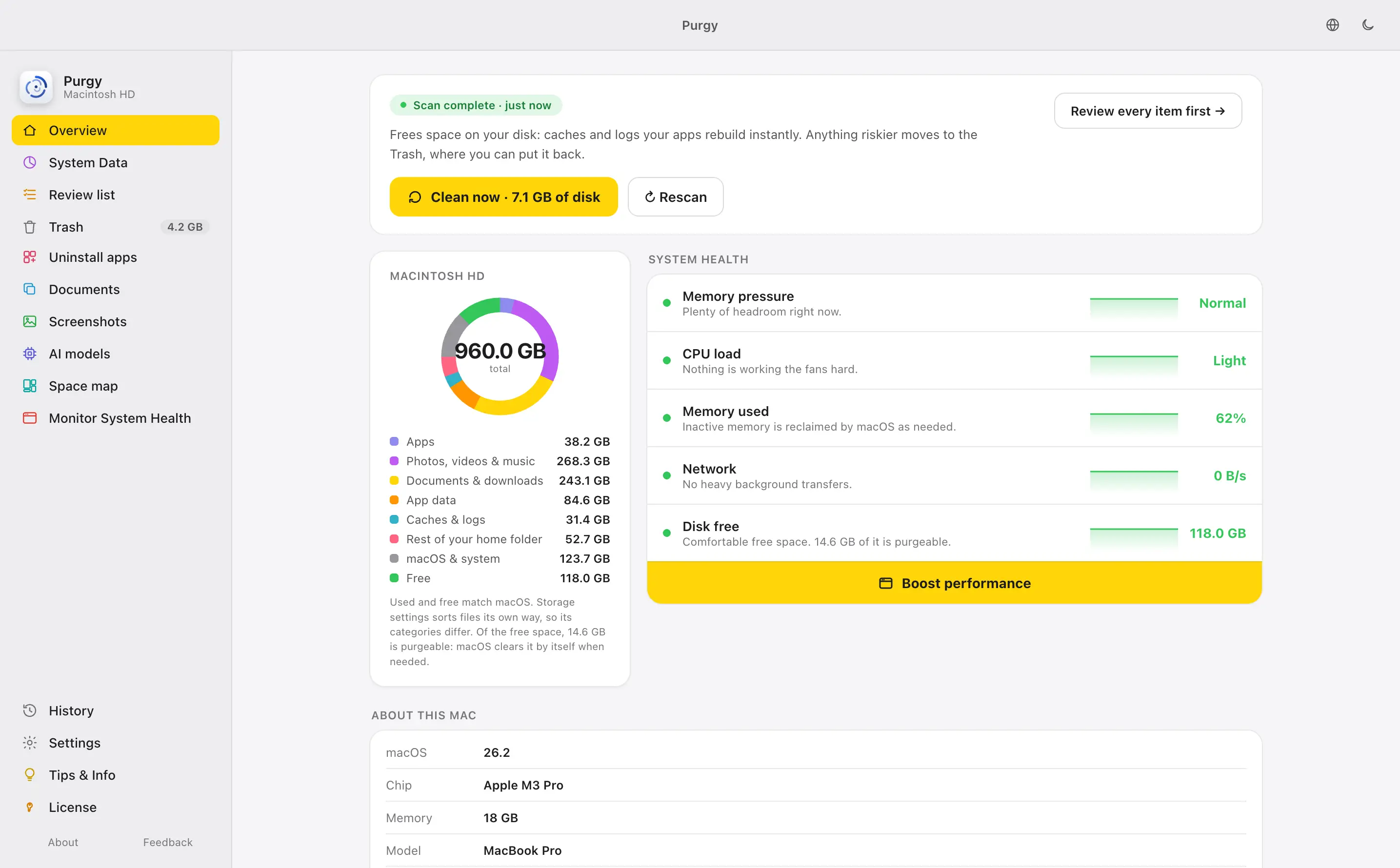
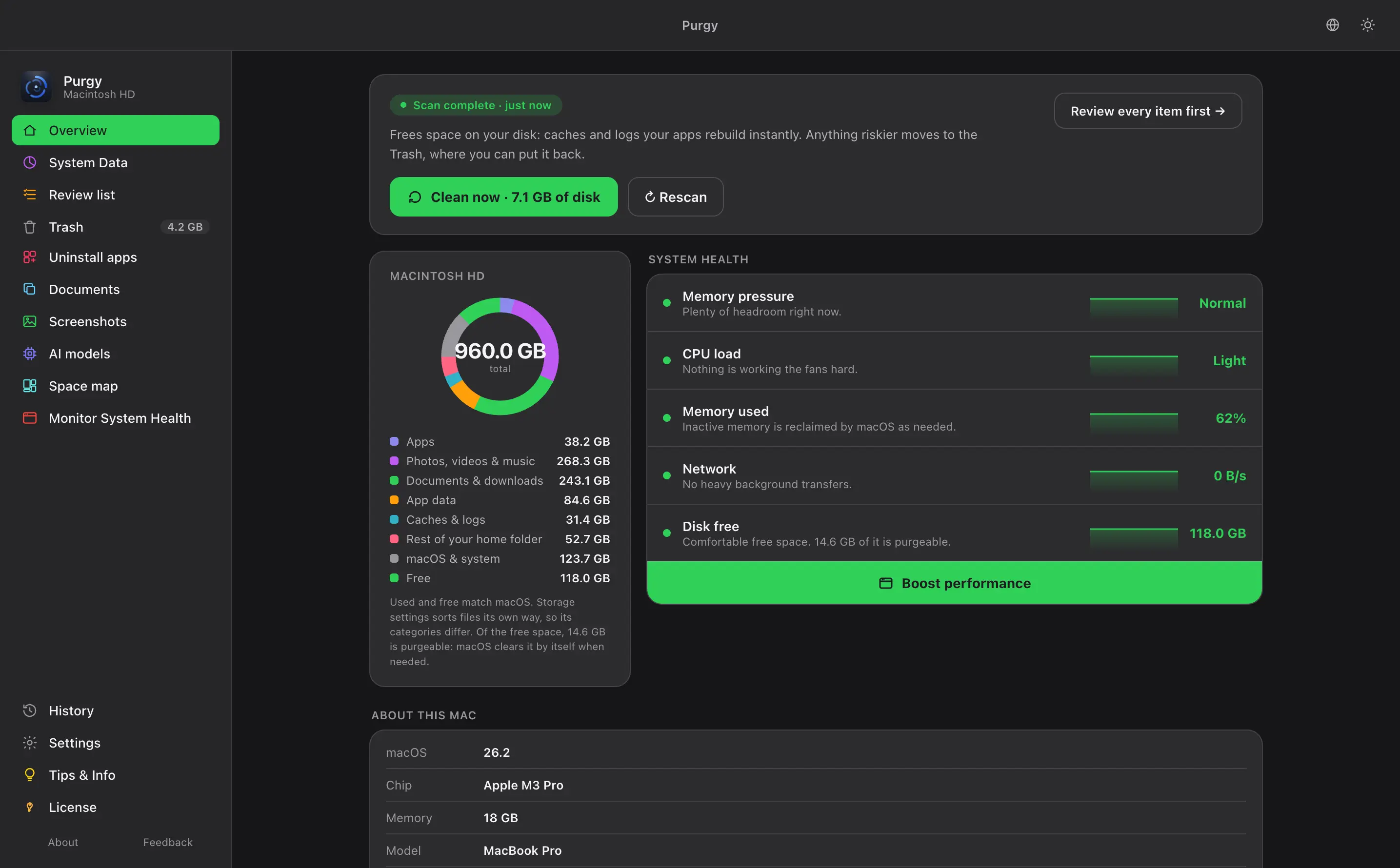
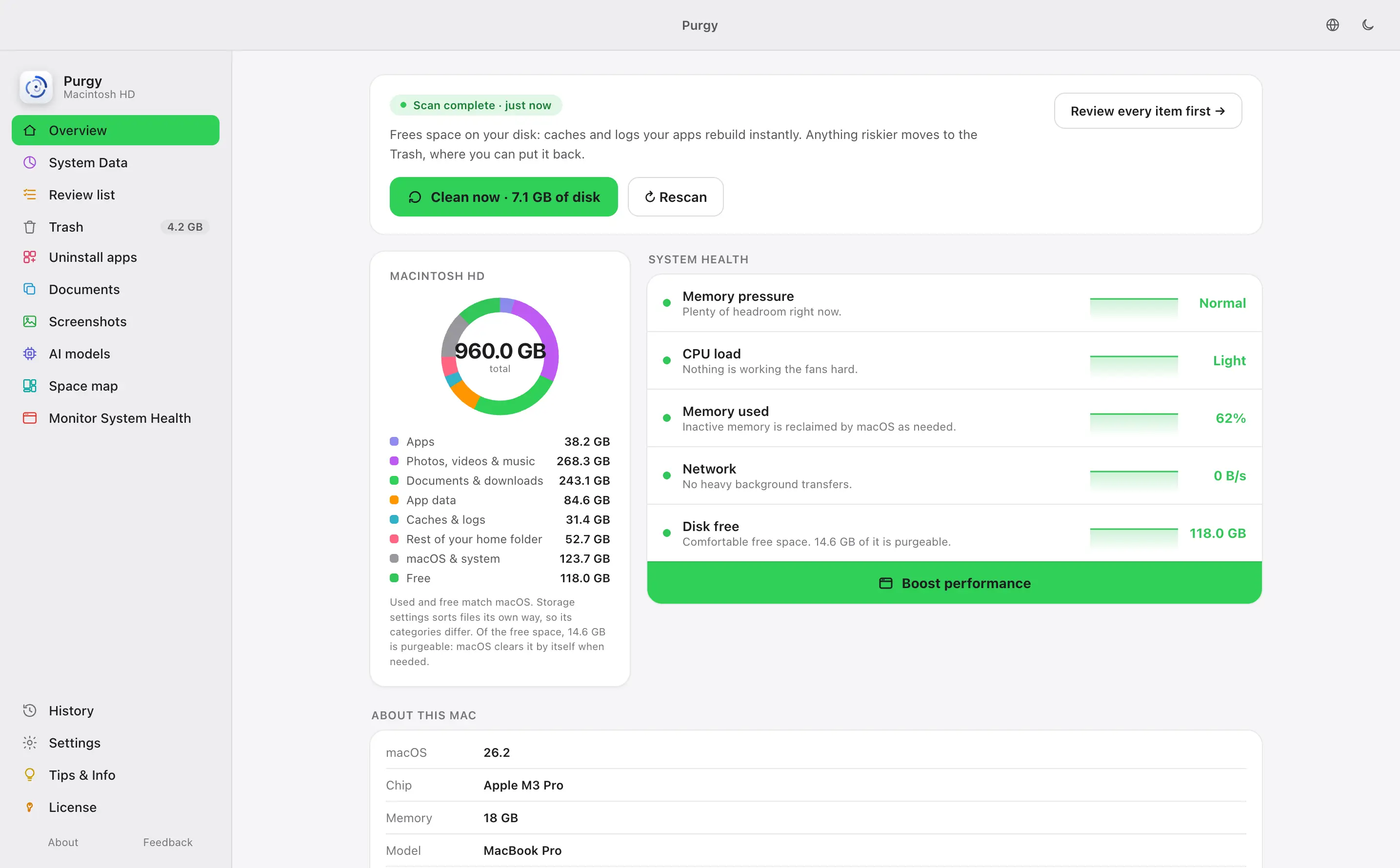
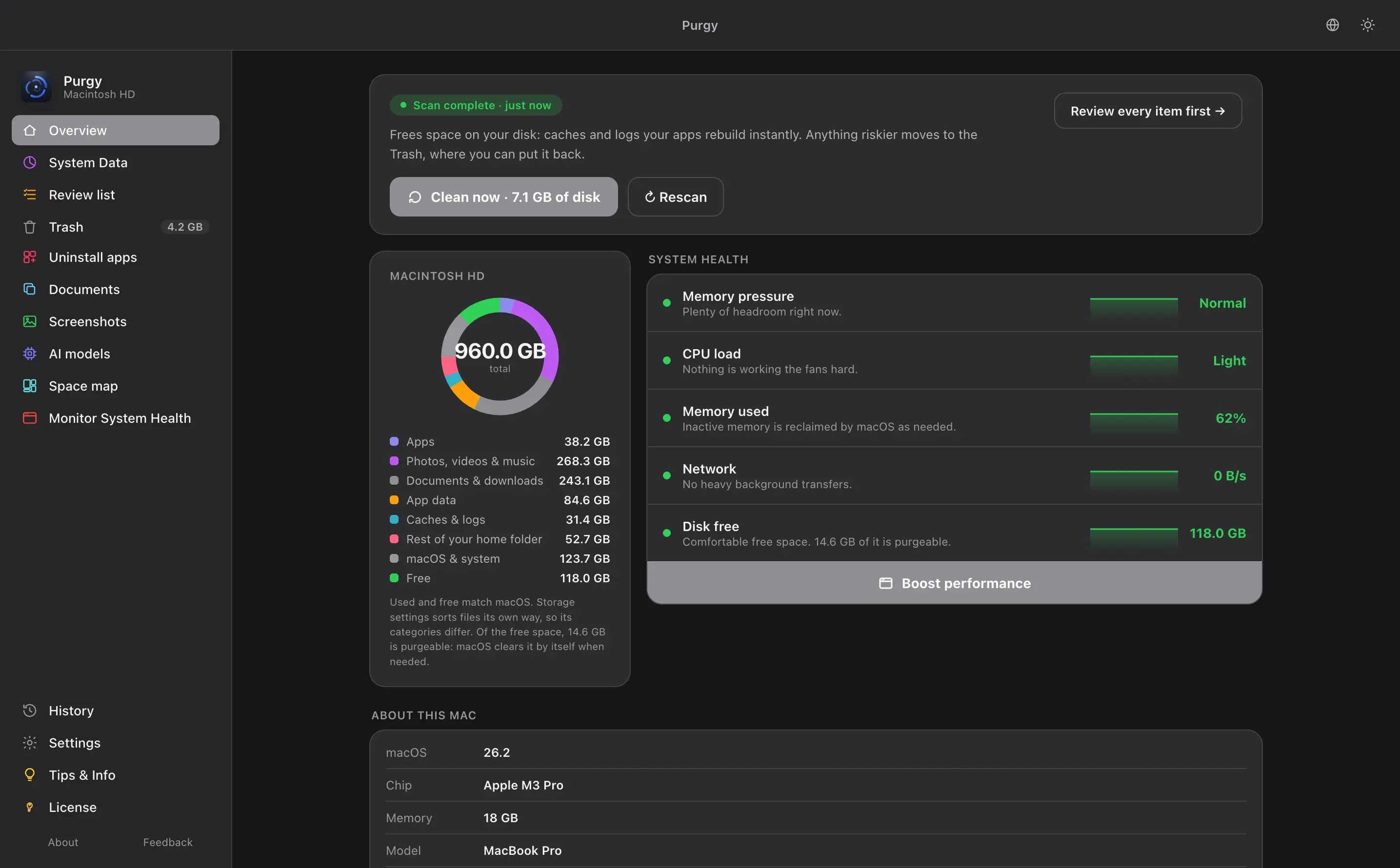
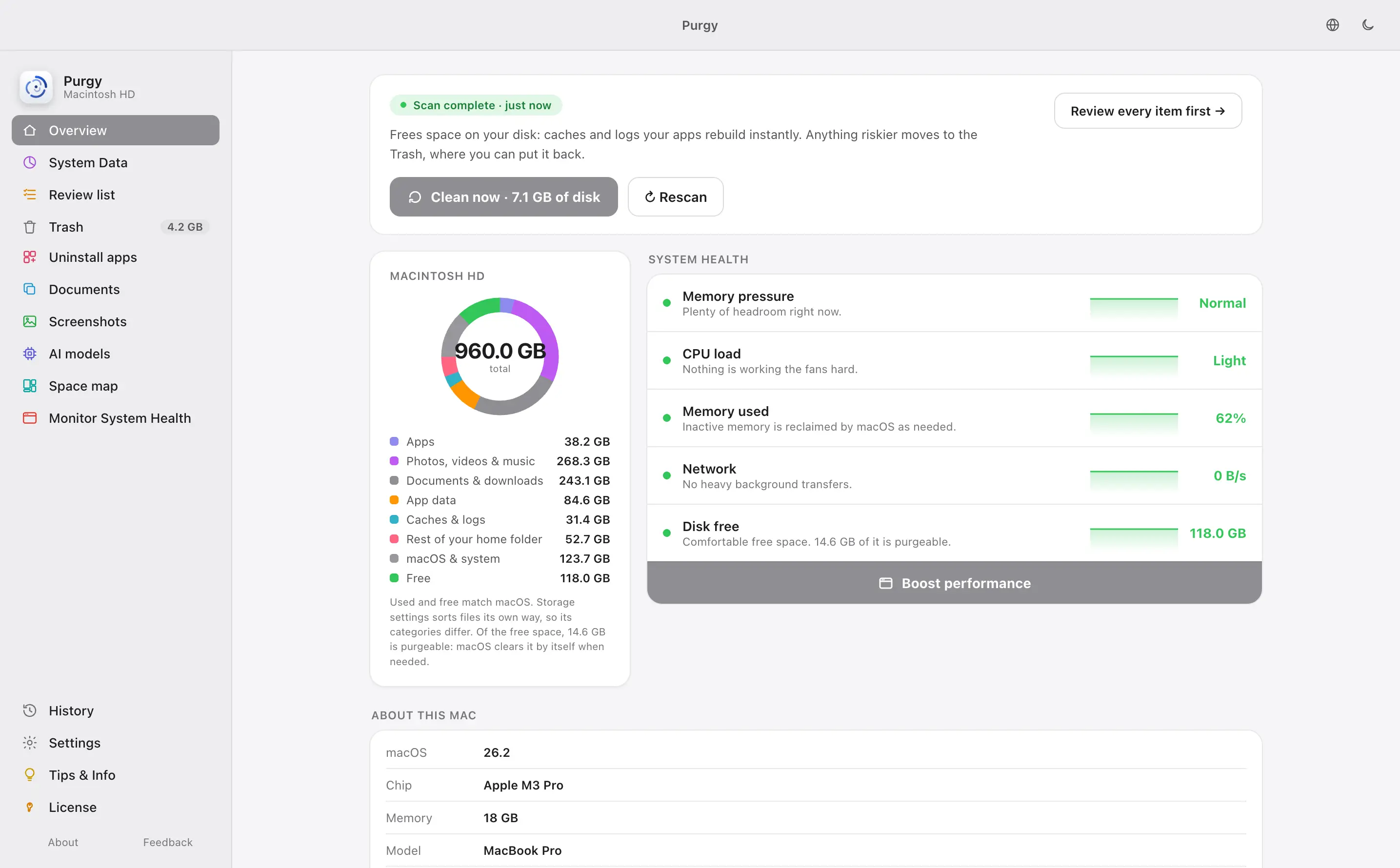
Pick dark or light mode and one of eight accent colours. Buttons, highlights and the sidebar all follow your choice. Click a colour to try it: every look is the real app.
- Dark or light. Matches the macOS themes. Dark is the default.
- Eight accent colours. Blue, purple, pink, red, orange, yellow, green or graphite.
- Exact figures. Dense data mode shows sizes to three decimals instead of rounding them.
A Mac cleaner for people who do not trust cleaners
Specifications- Compatibility
- macOS 12 Monterey through macOS 27. Built for macOS 27 and tested on it. A universal binary that runs natively on Intel and on Apple Silicon.
- Deletions
- Your files are always reversible. Your own files only ever go to the Trash, so Finder can put them back. Caches and logs are freed at once because they rebuild, or go to the Trash too if you choose. Deleting permanently is a separate button that says so.
- Protected items
- Never scanned. Add any folder to the protected list and Purgy will not open it or count what is inside.
- Full Disk Access
- On your terms. Grant it to scan, and take it back at any time in System Settings. Purgy keeps working on what it can still see.
- Privacy
- Nothing leaves your Mac. No account and no tracking. Purgy goes online only to check your license and look for updates. What it scans stays on your Mac.
- Updates
- They install themselves. Purgy checks for new versions in the background and shows what changed. One click downloads it, checks it is genuine, installs it and reopens Purgy. Free for as long as you own it.
Why switch to Purgy?
Pay once, not every year
$20 covers 3 Macs, and updates stay free. No subscription to renew or forget to cancel.
Safe, review, locked
No black box. Every item is sorted by risk, with its size and why it was found. One click clears the safe part, and the rest is your call.
Find what other cleaners miss
Old AI models, hidden folders, and what is really inside System Data. Often the biggest wins on a Mac.
Undo the risky stuff
Anything riskier than a cache or log goes to the Trash, so Finder can put it back. Your own files are locked.
Try it next to the one you use now. Run both for 3 days, free, and keep whichever finds more. Weighing your options? SeeCleanMyMac alternatives orevery comparison.
Pay once.
Own it forever.
No subscription, no account, no renewal date. Updates and fixes are free. Buy it outright, or start with 3 days free. No card required.
- Every feature
- included
- Devices
- 3 Macs
- Updates & fixes
- free
- Account
- none required
- Runs offline
- yes
Checkout opens on Creem.io, our payment partner. Pay by card and Apple Pay.
Your license key arrives by email, usually within a minute, so check your spam folder if you do not see it. The app is a separate download, always at purgy.app/download.
Works on macOS 27 · macOS 12 Monterey or later · Intel and Apple Silicon
Questions about cleaning your Mac
How do I free up space on my Mac?
Start with what rebuilds itself: app caches, logs and old macOS installers. Then look at large files, old iPhone backups, Time Machine snapshots and apps you no longer use.
Purgy finds all of these in one scan and clears the safe part in one click. To do it by hand, follow our guide to clearing System Data on a Mac.
Is Purgy a good CleanMyMac alternative?
It is if you want a Mac cleaner you pay for once. Purgy costs $20 once for 3 Macs, with free updates, and shows why every item was found before anything is removed. It focuses on storage, not antivirus.
See the side-by-side comparison with CleanMyMac, or other CleanMyMac alternatives.
Do I need a Mac cleaner at all?
Not always. macOS clears some caches by itself, and Storage settings can remove large files. A Mac cleaner helps when System Data keeps growing, when you cannot see what is using your space, or when deleted apps leave files behind.
Try Purgy free for 3 days and see what it finds on your Mac.
Is Purgy free?
Purgy is free for 3 days with every feature, and no card is needed to start. After that it is $20 once for 3 Macs, with free updates and no subscription.
Do I decide what gets scanned and what gets deleted?
Yes, both. Add any folder to the protected list and Purgy will not open it.
Clean now clears only the safe part: caches and logs your apps rebuild on their own. Anything riskier is yours to decide, and it goes to the Trash. Want to check first? The Review list shows every item with its size and why it was found, and you can untick anything you want to keep.
Will it ever delete files I still need?
No. Your own files are locked in red and cannot be selected automatically. That covers documents, photos, projects and app data. You choose anything else that goes, and by default it lands in the Trash, so you can put it back from Finder.
Can Purgy delete something permanently?
Only caches and logs, which your apps rebuild on their own. Those are freed at once by default, and Settings can send them to the Trash instead. Your own files always go to the Trash, so you can put them back.
There is also a separate Delete permanently button. It skips the Trash and frees the space at once. It is never selected for you.
Is Purgy safe to install?
Purgy is signed and notarized by Apple. Every build we release is sent to Apple, checked for malware, and stapled with their approval before it reaches you. macOS verifies that again on your Mac before the app will open, so you will not see a warning that the developer cannot be verified.
It is also a cleaner, not an antivirus. macOS already has XProtect and Gatekeeper for that, and Purgy does not try to replace them.
Is cleaning System Data safe?
Yes. Protected OS files are never counted as removable and never touched. Purgy only frees caches and snapshots that macOS itself rebuilds, or that you explicitly approve.
How many Macs does one license cover?
3 Macs on one $20 license, with no account and no renewal date. Pay once and Purgy is yours to keep, with free updates, for as long as you like.
Are updates free?
Yes. Bug fixes, refinements and new features all arrive at no cost, for as long as you own Purgy. There is no subscription, no renewal date, and no charge on a day you did not choose.
Purgy checks for updates by itself and shows what is new. One click installs the update and reopens the app. See what changed in each version.
Does Purgy work on macOS 27?
Yes. Purgy 1.1.6 is built for macOS 27 and tested on it.
macOS 27 changed how some app folders are protected, and Purgy follows those rules. It never tries to get around a folder macOS has locked.
Does it run on older macOS versions?
Yes. Purgy runs on macOS 12 Monterey and every version since. It runs natively on both Intel and Apple Silicon Macs.
Older Macs are often the ones that need the space most.
Prefer to do it by hand?
Step-by-step guides with the exact folders and commands, and what is safe to delete. No app needed.
System Data and free space
How to Clear System Data on Mac and Free Up Storage SpaceWhat the grey System Data bar really holds, and how to get the space back.
The Library folder and app caches
The Mac Library Folder: What Is Safe to Delete?Which folders in ~/Library are safe to clear, app by app.
Uninstalling apps
How to Remove Leftover Files After Deleting an App on MacRemove apps completely, leftovers and background helpers included.
Developer storage
Xcode Archives and iOS DeviceSupport: Safe to Delete?Xcode, simulators, node_modules, Docker and the caches build tools leave behind.
Local AI models
How Much Storage Do You Need to Run Local LLMs on a Mac?Where Ollama, LM Studio and Hugging Face keep models, and how much room they need.

Mac storage full? Get your gigabytes back.
Free up space in minutes, keep every file you need, and pay only once.
Checkout opens on Creem.io, our payment partner. Pay by card and Apple Pay.
Your license key arrives by email, usually within a minute, so check your spam folder if you do not see it. The app is a separate download, always at purgy.app/download.