Where Ollama Stores Models on Mac (and How to Delete Them)

On this page
- Where does Ollama store models on a Mac?
- What is inside the models folder?
- How much space are your Ollama models using?
- How to delete an Ollama model
- Is it safe to delete the Ollama models folder?
- How to move Ollama models to an external drive
- How to uninstall Ollama completely
- How to keep Ollama from filling your Mac again
- Find unused AI models across every app with Purgy
Quick answer: On a Mac, Ollama stores every model you download in ~/.ollama/models, a hidden folder in your home folder.
To delete a model, run ollama list to see its exact name, then ollama rm followed by that name. Ollama deletes the model's files right away, so the space is free immediately. There is no Trash step.
Local models are big. A small chat model is a few gigabytes, and a 70B model is around 40 GB. Try a handful of them over a few weeks and Ollama can quietly become one of the largest things on your disk.
This guide shows where the files live, how to see what each model costs, and how to clean up or move them without breaking Ollama.
Where does Ollama store models on a Mac?
The default location is:
~/.ollama/modelsThe ~ means your home folder, so the full path is something like /Users/yourname/.ollama/models. The folder name starts with a dot, which is why you do not see it in Finder. To open it:
- In Finder, press Cmd + Shift + G to open Go to Folder.
- Type
~/.ollama/modelsand press Return.
You can also press Cmd + Shift + . (period) in any Finder window to show hidden files, and press it again to hide them.
The location is the same whether you installed the Ollama app from ollama.com or the command-line version from Homebrew, unless you changed it with the OLLAMA_MODELS setting covered below.
If you run Ollama inside Docker, the models live in the container's volume instead, and you clean them up with Docker's own tools.
What is inside the models folder?
Opening the folder can be confusing, because you will not find files called llama or mistral. Ollama splits each model into two parts:
blobs/holds the actual data. Every file is named after its checksum, such assha256-6a0746a1ec1a…. The largest blobs are the model weights, and they make up almost all of the space.manifests/holds tiny text files that say which blobs belong to which model and tag. A model you pulled from the Ollama library is listed undermanifests/registry.ollama.ai/library/, then the model name, then the tag, for examplelibrary/llama3.2/latest.
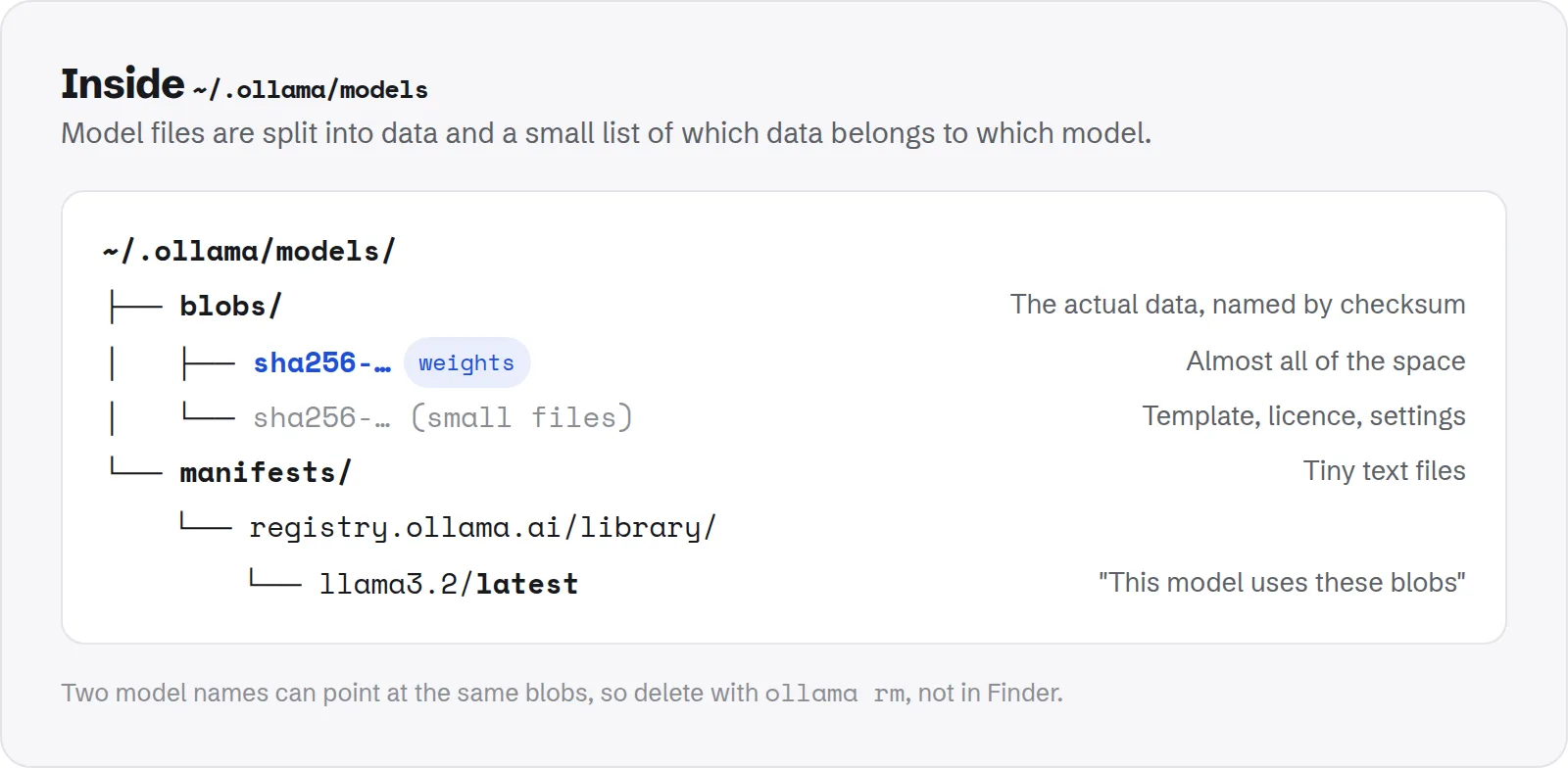
~/.ollama/models: the weights live in blobs, and manifests says which blobs belong to which model.This design lets models share data. If you run ollama cp llama3.2 my-assistant, Ollama writes a new manifest that points at the same blobs, so the copy takes almost no extra space.
It also explains why deleting blobs by hand is a bad idea: a manifest may still point at a blob you removed, and that model will fail to load.
How much space are your Ollama models using?
The quickest way to see each model's size is Ollama itself:
ollama listThis prints every model with its name, ID, size and when it was last modified. The SIZE column is what that model costs on disk. Models created with ollama cp share blobs, so adding up the column can overstate the real total.
For the true total, measure the folder:
du -sh ~/.ollama/modelsTo list the largest individual blobs:
ls -lhS ~/.ollama/models/blobs | headTo find out which model a large blob belongs to, run ollama show --modelfile with the model's name. The FROM line in the output shows the path of the blob that holds its weights.
Typical model sizes
Most models in the Ollama library are stored with 4-bit quantization by default. As a rule of thumb, that works out to a little over half a gigabyte per billion parameters:
| Model size | Roughly on disk (default 4-bit) | Examples of the class |
|---|---|---|
| 1–3B | 1–2 GB | Small, fast models for simple tasks |
| 7–8B | 4–5 GB | The common everyday chat size |
| 12–14B | 8–9 GB | Mid-size models |
| 30–34B | 18–20 GB | Large models for 32 GB+ Macs |
| 70B | about 40 GB | Needs a Mac with a lot of memory |
Higher-precision tags such as q8_0 or fp16 are roughly two and four times larger than the default. If you pulled one of those to compare quality, it is often the single biggest file in the folder.
How to delete an Ollama model
Always delete through Ollama, not Finder. Ollama removes the manifest and any blobs that no other model needs, and leaves shared blobs alone.
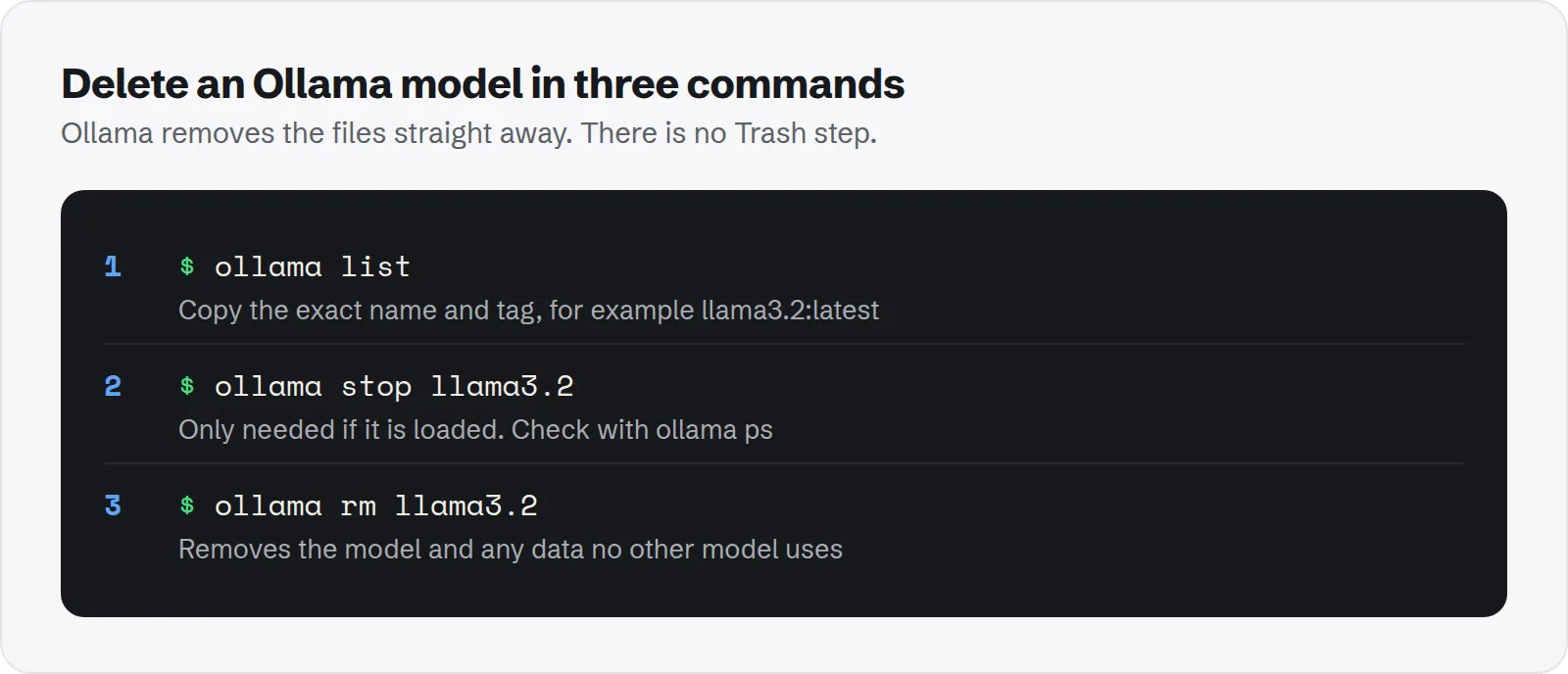
- List your models and copy the exact name, including the tag:
ollama list - If the model is loaded in memory, stop it first.
ollama psshows what is running:ollama ps ollama stop llama3.2 - Remove it:
You can name several models in one command, such asollama rm llama3.2ollama rm llama3.2 mistral. - Check the result with
ollama listanddu -sh ~/.ollama/models.
If you only typed a model name without a tag, Ollama assumes :latest. A model you pulled as qwen2.5:14b has to be removed with that full name.
What if deleting a model did not free much space?
There are three usual reasons:
- Another name still uses the same blobs. If you made a copy with
ollama cp, or built a custom model from a Modelfile, the weights stay until every name that uses them is gone. - An interrupted download left partial files. A
ollama pullthat was cancelled or lost its connection leaves files inblobs/whose names contain-partial. Ollama clears blobs that no model uses when it starts, so quitting and reopening Ollama usually removes them. That cleanup is skipped if theOLLAMA_NOPRUNEsetting is turned on. - The space is somewhere else. If you also use LM Studio, Python tools or other apps, they keep their own copies of models. See where LM Studio stores models on Mac.
Is it safe to delete the Ollama models folder?
Yes, with one cost. Models are downloads, not your data. Anything you pulled from the Ollama library can be pulled again with ollama pull.
Deleting the whole ~/.ollama/models folder does not harm macOS or other apps. Ollama starts with an empty model list and creates the folder again when you next pull.
The cost is time and bandwidth: getting a 40 GB model back is a long download. Two things are worth a second look before you delete:
- Custom models you built from a Modelfile. The weights can be pulled again, but your custom system prompt and parameters live only on your Mac. Save them first with
ollama show --modelfile your-model > your-model.Modelfile. - Models imported from your own files, such as a GGUF file you fine-tuned. If the original file is gone, the copy in Ollama may be the only one.
Do not delete ~/.ollama/id_ed25519 or id_ed25519.pub unless you are removing Ollama completely. They are the key pair Ollama uses to identify your Mac when you push models to ollama.com.
How to move Ollama models to an external drive
If you want to keep a large collection without filling your internal disk, point Ollama at another folder with the OLLAMA_MODELS setting.
- Quit Ollama from its menu bar icon.
- Move your existing models so you do not have to download them again. Copy the whole
modelsfolder, so the blobs and manifests stay together:cp -R ~/.ollama/models /Volumes/External/ollama-models - Tell the Ollama app where the models are now:
launchctl setenv OLLAMA_MODELS /Volumes/External/ollama-models - Open Ollama again and run
ollama list. Once your models appear, you can delete the old~/.ollama/modelsfolder.
Recent versions of the Ollama app also have a model location setting in their Settings window, which does the same thing without Terminal.
The Ollama project on GitHub documents OLLAMA_MODELS and its other settings. If you start the server yourself with ollama serve, set OLLAMA_MODELS in that shell instead.
Two things to know about external drives. The drive must be connected when Ollama starts, or your models will be missing from the list.
A launchctl setenv setting also lasts only until you restart your Mac, so you need to run it again after a restart, or use the app's Settings window if your version has it.
How to uninstall Ollama completely
Dragging the app to the Trash leaves the models behind, which is usually most of the space. To remove everything:
- Quit Ollama from its menu bar icon.
- Move
/Applications/Ollama.appto the Trash. - Remove the command-line link the app installed:
sudo rm /usr/local/bin/ollama - Remove the models, keys and history:
rm -rf ~/.ollama - Check
~/Library/Application Support/Ollamaand remove it if it exists. Older versions of the app may also have left folders with "ollama" in the name in~/Library/Cachesand~/Library/Saved Application State.
If you installed Ollama with Homebrew, run brew services stop ollama and brew uninstall ollama instead of steps 1 to 3, then remove ~/.ollama.
How to keep Ollama from filling your Mac again
- Keep one size per model. If you have both the 8B and 70B version of a model, decide which one you actually use. On a Mac with 16 GB of memory, a 40 GB model will not run well anyway, so it is only taking up disk.
- Remove experiment tags. Quantization comparisons leave
q8_0andfp16copies behind. Once you have picked one, delete the rest. - Check
ollama listonce a month. TheMODIFIEDcolumn shows when you pulled each model. Anything you have not touched in months is a good candidate. - Pull again when you need it. A model is a download, not a document. Deleting one you might want later is cheaper than keeping 40 GB around just in case.
Find unused AI models across every app with Purgy
Ollama is rarely the only place models end up. LM Studio, GPT4All and other tools each keep their own folder, and they do not share files, so the same model can sit on your disk two or three times.
Purgy's AI models screen lists them in one place:
- Open Purgy and let it scan. It checks
~/.ollama/modelstogether with the Hugging Face cache and GPT4All's models. - Each tool's models appear with their total size, under Unused AI models.
- Nothing is ticked for you. Re-downloading 40 GB still costs time, so you decide. Anything you choose moves to the Trash, where Finder can put it back.
For Ollama, ollama rm is still the most precise option, because it removes one model while keeping layers that other models share. Purgy works on the whole folder. Apple Intelligence models are not in the list either, because they live inside macOS, where no app can remove them.
Hidden model folders like this one often end up inside the "System Data" figure in macOS Storage settings. If that number looks far too big, our guide to clearing System Data on Mac covers the other usual suspects. See what your AI tools are holding with the free trial.