LM Studio Models Taking Up Space on Mac? Find and Delete Them

On this page
- Where does LM Studio store models on a Mac?
- What is inside the models folder?
- Why LM Studio fills up your disk
- How much space is LM Studio using?
- How to delete models in LM Studio
- Is it safe to delete LM Studio models?
- How to move LM Studio models to an external drive
- How to uninstall LM Studio completely
- A simple routine to keep LM Studio lean
- Check every AI tool at once with Purgy
Quick answer: On a Mac, LM Studio saves downloaded models in ~/.lmstudio/models. Older versions used ~/.cache/lm-studio/models. To free space, open LM Studio's My Models tab, open the menu next to a model you no longer use and choose Delete.
You can also remove its folder in Finder. Models are downloads, so anything you delete can be downloaded again later.
LM Studio makes trying models easy: search, click download, chat. That ease is exactly why the folder grows.
A few weeks of comparing models, sizes and formats can leave tens or even hundreds of gigabytes behind, and LM Studio never removes a model unless you ask it to.
This guide shows where the files are, what takes up the most room, and how to clean up safely.
Where does LM Studio store models on a Mac?
Current versions of LM Studio use:
~/.lmstudio/modelsIf you have used LM Studio since its early versions, also check the older location:
~/.cache/lm-studio/modelsBoth folders start with a dot, so Finder hides them. To open one, press Cmd + Shift + G in Finder, paste the path and press Return. Or press Cmd + Shift + . (period) to show hidden files.
The quickest way to be sure is to ask LM Studio itself. The My Models tab shows the folder it is using at the top of the list.
If you or a past version of the app changed it, that path is the one that matters.
What is inside the models folder?
LM Studio arranges models by who published them, then by model:
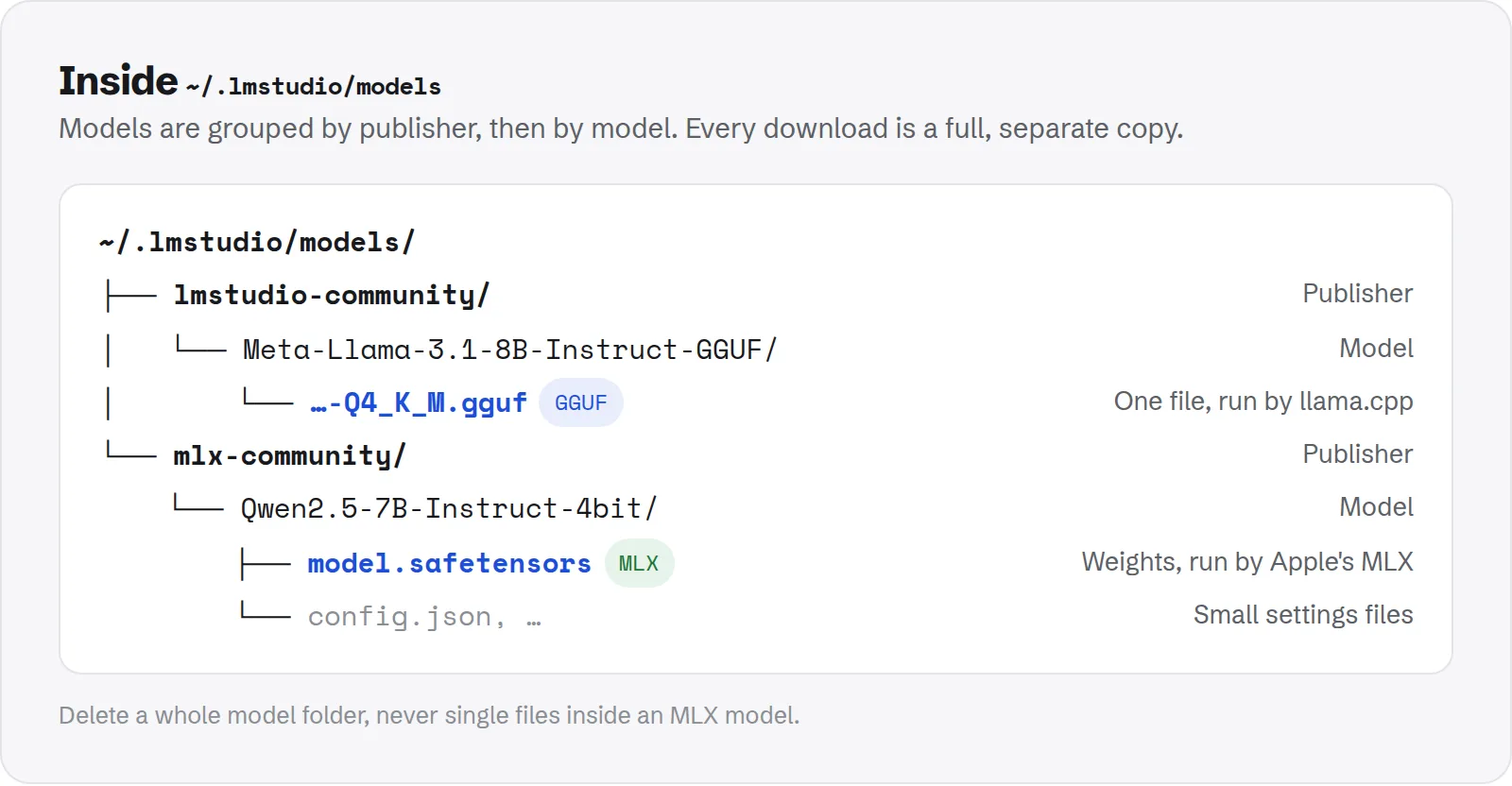
~/.lmstudio/models: publisher, then model, then the files.You will see two kinds of model:
- GGUF models are single
.gguffiles, or a few numbered parts of one, run by the llama.cpp engine. The file name ends in the quantization, such asQ4_K_M,Q6_KorQ8_0. - MLX models are folders of
.safetensorsfiles plus small config files, run by Apple's MLX engine on Apple Silicon Macs.
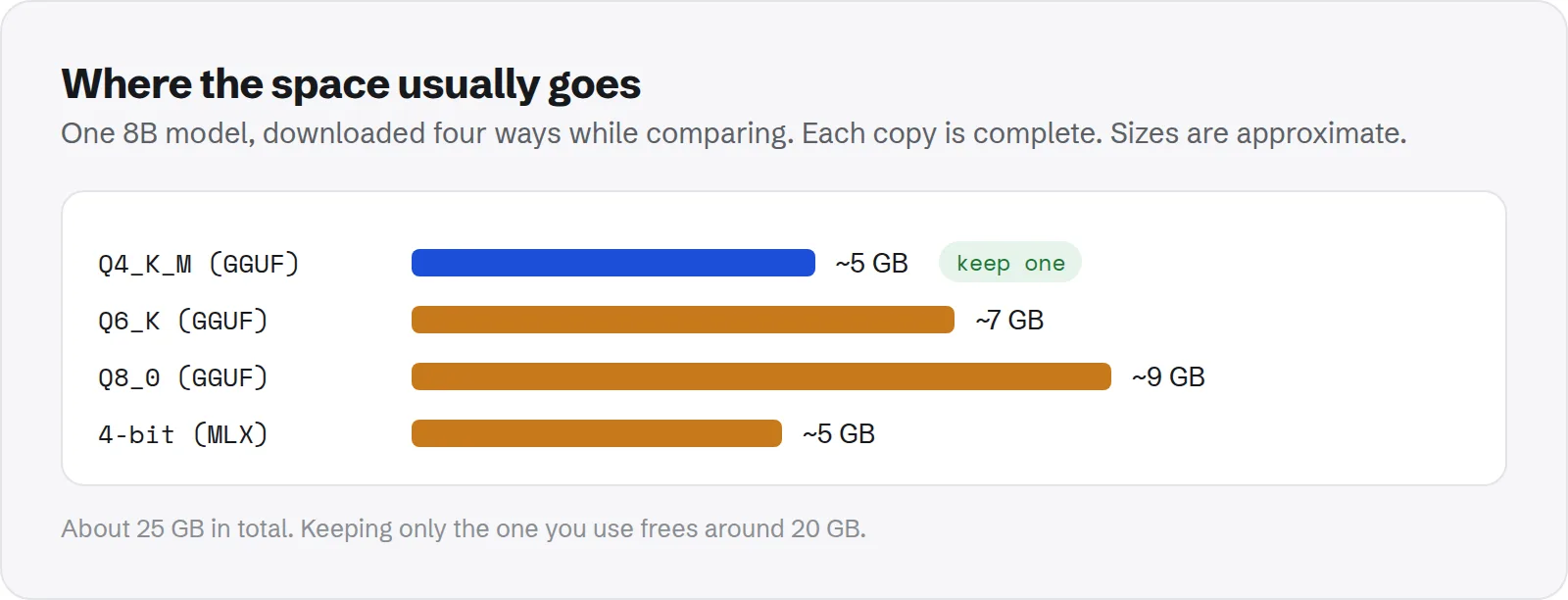
Unlike Ollama, LM Studio does not share files between models. Every quantization you download is a complete, separate copy.
Why LM Studio fills up your disk
Three habits account for most of the space:
- Several quantizations of the same model. It is natural to download
Q4_K_M, then tryQ6_KandQ8_0to compare quality. Each one is a full copy, and the larger quantizations are close to double the size of the 4-bit one. - The same model in both GGUF and MLX. On Apple Silicon, LM Studio often offers both formats. If you tried each to see which was faster, you now have the model twice.
- Models too large for your Mac's memory. A model has to fit in memory to run well. On a 16 GB Mac, a 40 GB model mostly sits on the disk unused. LM Studio warns about this when you download, but the file stays after you give up on it.
Typical model sizes
| Model size | 4-bit (Q4_K_M or MLX 4-bit) | 8-bit (Q8_0 or MLX 8-bit) |
|---|---|---|
| 1–3B | 1–2 GB | 2–3.5 GB |
| 7–8B | 4–5 GB | 8–9 GB |
| 12–14B | 7–9 GB | 13–15 GB |
| 30–34B | 18–20 GB | 32–36 GB |
| 70B | about 40 GB | about 75 GB |
These are rough figures. The exact size depends on the model's architecture and the quantization recipe, and LM Studio shows the real size for each file before you download it.
How much space is LM Studio using?
The My Models tab lists each model with its size, which is the easiest place to start. For an exact total, use Terminal:
du -sh ~/.lmstudio/modelsTo see which publishers and models are biggest:
du -sh ~/.lmstudio/models/*/* | sort -hr | head -n 15If you have used LM Studio for a long time, run the same commands on ~/.cache/lm-studio/models. A folder left there by an old version can still hold models that the current app no longer shows.
LM Studio's command-line tool can also list what you have. Run lms ls to see your downloaded models. If the lms command is not found, LM Studio has a setting to install it, or you can run it from ~/.lmstudio/bin/lms.
How to delete models in LM Studio
You can delete models from inside the app or from Finder. The app is easier, and Finder is useful for the old storage location.
From inside LM Studio (recommended)
- If a model is loaded, eject it first, so the file is not in use.
- Open the My Models tab.
- Find the model, open its menu (the ⋯ button or a right-click) and choose Delete.
- Confirm. LM Studio removes the files and the model disappears from the list.
From Finder
- Quit LM Studio, including the menu bar icon if the local server is running.
- Open
~/.lmstudio/modelswith Cmd + Shift + G. - Move the model's folder to the Trash. Delete the whole model folder, not just one file inside an MLX model, or LM Studio will show a broken entry.
- Empty the Trash. Until you do, the space is still used.
Deleting in Finder is fine, because LM Studio reads the folder each time it starts. It is the right way to clean up the old ~/.cache/lm-studio/models location, which current versions may not show in the app.
Is it safe to delete LM Studio models?
Yes. Downloaded models are copies of files that are still on Hugging Face. Deleting them does not affect macOS, LM Studio's settings or your chats, and you can download any of them again from LM Studio's search.
Be careful with the rest of the ~/.lmstudio folder, though. It holds more than models, and the names can vary between versions:
conversations: your chat history. Deleting it removes your chats for good.extensions: the engines LM Studio downloads to run models, such as llama.cpp and MLX. LM Studio downloads them again if they are missing, but the app will not run models until it has.bin: thelmscommand-line tool.
If your goal is disk space, the models folder is where nearly all of it is. Leave the rest alone unless you are uninstalling.
The one real exception is a model you made or changed yourself, such as a fine-tune you converted to GGUF on your Mac. If the only copy is in LM Studio's folder, deleting it loses your work. Move it somewhere safe first.
How to move LM Studio models to an external drive
LM Studio lets you change the models folder, so a large collection can live on an external SSD:
- Quit LM Studio.
- Copy your existing
modelsfolder to the new drive, keeping the publisher and model folders the same:cp -R ~/.lmstudio/models /Volumes/External/lmstudio-models - Open LM Studio, go to My Models and use the option next to the folder path at the top to change it to the new location.
- Check that your models appear, then delete the old
~/.lmstudio/modelsfolder to get the space back.
Changing the folder only affects where new downloads go. That is why step 2 copies your existing models first; otherwise they stay behind in the old folder. LM Studio's own guide to downloading models covers the setting.
Keep the drive connected whenever you use LM Studio. If it is missing, the app shows an empty model list until you plug it back in. A fast SSD matters too, because a model is read from disk every time it loads.
How to uninstall LM Studio completely
Dragging LM Studio to the Trash leaves its models behind, which is usually almost all the space. To remove everything:
- Quit LM Studio. If you started its local server, also quit it from the menu bar icon, or run
lms server stop. - Move
/Applications/LM Studio.appto the Trash. - Remove the models, chats, engines and tool:
rm -rf ~/.lmstudio - Remove the old location if it exists:
rm -rf ~/.cache/lm-studio - Check
~/Library/Application Supportand~/Library/Cachesfor folders with "LM Studio" or "lmstudio" in the name, and remove them. - Empty the Trash.
If you moved your models to another folder or drive, delete that folder too. LM Studio does not keep track of it once the app is gone.
A simple routine to keep LM Studio lean
- One quantization per model. After comparing, keep the one you use and delete the rest. For most chat use on a Mac, a 4-bit or 5-bit quantization is the usual sweet spot.
- One format per model. If MLX runs faster on your Mac, delete the GGUF copy, or the other way round.
- Match models to your memory. If a model is too large to load comfortably, delete it rather than keeping it for later.
- Review My Models once a month. Anything you have not loaded in weeks can go. You can download it again in a few minutes.
Check every AI tool at once with Purgy
LM Studio and Ollama do not share files. If you use both, a model you like may be on your disk twice, once in each app's folder, and Python tools that use Hugging Face keep a third cache in ~/.cache/huggingface. For Ollama's side, see where Ollama stores models on Mac.
Purgy helps you see all of it:
- Space map lists every folder in your home folder by size, with hidden ones such as
~/.lmstudio,~/.ollamaand~/.cachemarked HIDDEN, so you can see at a glance which tool holds the most. - The AI models screen totals your LM Studio models alongside Ollama, Hugging Face and GPT4All. Since Purgy 1.1.3 it finds them in
~/.lmstudio/models, in the older~/.cache/lm-studio/models, and in a folder you chose in LM Studio's settings. - Nothing is selected for you. Anything you tick moves to the Trash, where Finder can put it back, and the space returns when you empty it.
Hidden folders like ~/.lmstudio often end up inside the "System Data" figure in macOS Storage settings. If that number looks far too big, read our guide to clearing System Data on Mac. See what your AI tools take with the free trial.