How to Uninstall Adobe Creative Cloud Completely on Mac
On this page
- Before you start: save your work
- Step 1: uninstall each Adobe app
- Step 2: run the Creative Cloud Uninstaller
- Step 3: use the Cleaner Tool if things are stuck
- Step 4: remove leftover Adobe folders
- Step 5: clear the media cache
- Step 6: remove Adobe background helpers
- What about Adobe Fonts?
- Keep Adobe but reclaim space
- How much space you can expect to free
- Where this fits in your cleanup
- Where Purgy fits after removing Adobe
- Questions people ask about removing Creative Cloud
Quick answer: First uninstall every Adobe app from the Creative Cloud app. Then open Applications/Adobe Creative Cloud and run Creative Cloud Uninstaller.
Finally, remove leftover Adobe folders in your Library, especially the media cache, and check for Adobe background helpers. Do not delete your Creative Cloud Files folder unless you have copies of your work.
Adobe Creative Cloud is one of the hardest apps to remove from a Mac. It installs a manager app, background services, shared libraries, fonts and caches, spread across many folders.
Dragging Photoshop or the Creative Cloud app to the Trash does not work well. It often leaves gigabytes behind, and some helpers keep running. This guide removes everything in the right order.
Before you start: save your work
Uninstalling Adobe apps does not delete your own projects. But some Adobe folders sit close to your files, so it is worth a quick check first.
- Creative Cloud Files: a folder in your home folder that syncs with Adobe's cloud. Make sure everything you need has synced, or copy it elsewhere.
- Projects saved inside Adobe folders: some people save files in app folders by mistake. Check your Documents for Adobe-named folders.
- Presets, brushes and plug-ins: if you bought or made custom ones, export or copy them before you remove the apps.
Also sign out of Creative Cloud if this Mac counts toward your device limit. That frees the activation for another computer.
Step 1: uninstall each Adobe app
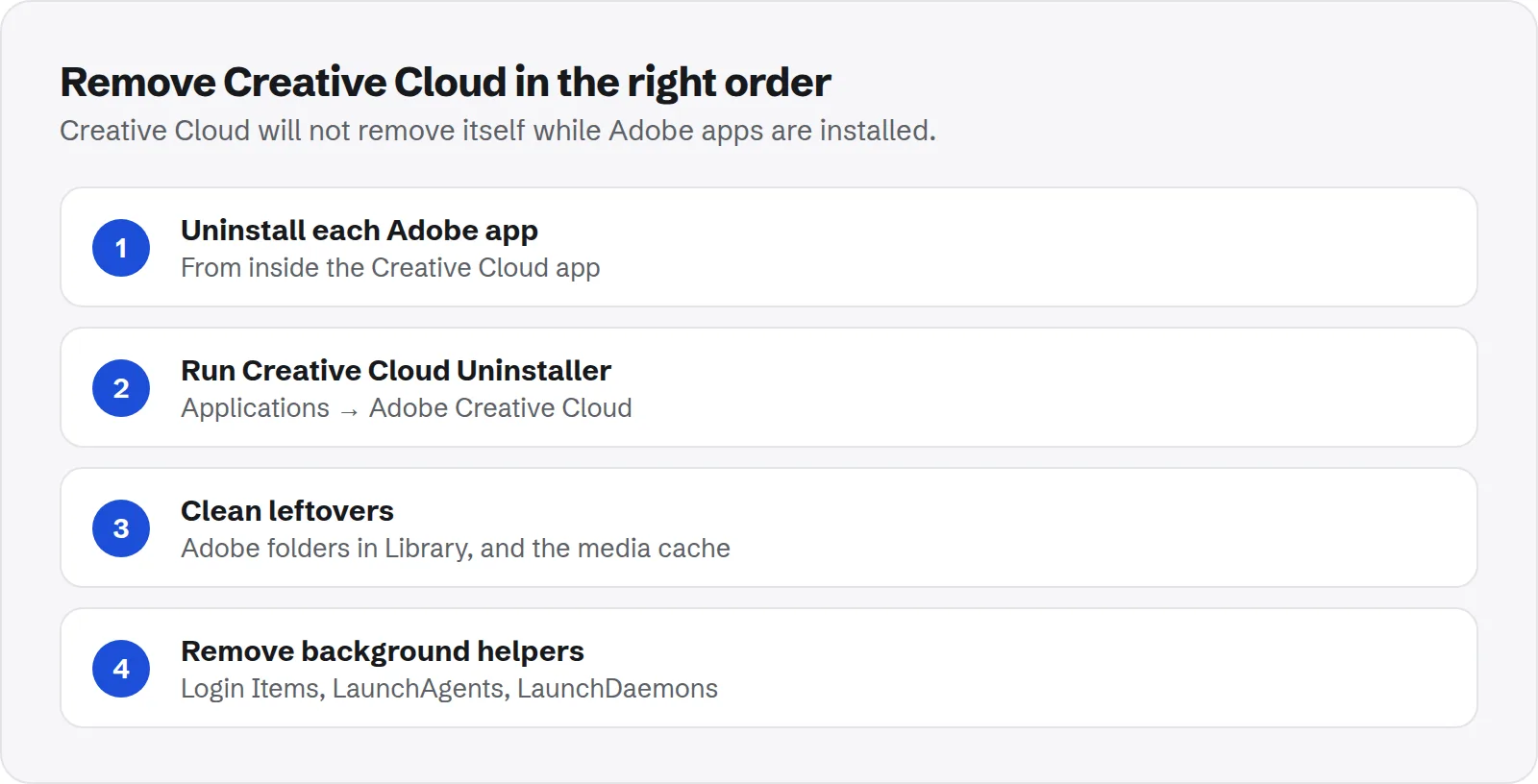
The Creative Cloud app will not remove itself while Adobe apps are still installed. So remove the apps first, from inside Creative Cloud.
- Open the Creative Cloud app.
- Go to the list of installed apps.
- For each app, open the menu next to it (often three dots) and choose Uninstall.
- When asked whether to keep or remove preferences, choose Remove if you want a full cleanup.
Repeat for every app, including smaller ones like Adobe Bridge or Media Encoder, which are easy to forget. Acrobat may have its own separate uninstaller in its folder.
Step 2: run the Creative Cloud Uninstaller
With all apps removed, you can uninstall the Creative Cloud app itself. Use Adobe's uninstaller, not the Trash.
- Quit Creative Cloud. Also quit it from the menu bar icon if it is there.
- Open
Applications, then theAdobe Creative Cloudfolder. - Open Creative Cloud Uninstaller and follow the steps.
If the uninstaller is missing, Adobe offers it as a separate download on its help site. Apple's guide to deleting or uninstalling apps also recommends an app's own uninstaller when one exists.
Step 3: use the Cleaner Tool if things are stuck
If an uninstall failed, or Creative Cloud refuses to install or remove properly, Adobe has a tool for exactly that. It removes files and settings left by broken installs.
Adobe's page on the Creative Cloud Cleaner Tool explains how to download and run it. In the tool you can choose what to clean, or choose Clean All to remove everything Adobe.
Restart your Mac after running it. Most people never need this step, but it is the right fix when the normal uninstaller fails or Creative Cloud keeps showing install errors.
Step 4: remove leftover Adobe folders
Even a clean uninstall can leave caches and shared files behind. Check these locations with Cmd + Shift + G in Finder.
~/Library/Application Support/Adobe: app data and shared components for your account.~/Library/Caches/Adobeand folders starting withcom.adobein~/Library/Caches.~/Library/Preferences/Adobeand files starting withcom.adobein~/Library/Preferences.~/Library/Logs: folders or files with Adobe in the name./Library/Application Support/Adobe: shared files for all users. Needs your administrator password.
Move them to the Trash. If you are removing Adobe for good, all of these can go. Empty the Trash once you have restarted and checked that nothing else complains.
Step 5: clear the media cache
If you used Premiere Pro, After Effects or other video apps, their media cache can be the single largest leftover. It often reaches tens of gigabytes.
It usually lives in ~/Library/Application Support/Adobe/Common, in folders named Media Cache and Media Cache Files. Check their size first:
du -sh ~/Library/Application\ Support/Adobe/Common/* 2>/dev/nullThese files are previews and converted audio. Deleting them is safe, even if you keep the apps; they are rebuilt when needed. If you set a custom cache location inside the app, check that folder too.
Step 6: remove Adobe background helpers
Adobe installs helpers that start automatically, for updates, licensing and syncing. After uninstalling, make sure none are left running.
- Open System Settings > General > Login Items & Extensions.
- Remove any Adobe items under Open at Login.
- Turn off Adobe items under Allow in the Background.
Then look for files starting with com.adobe in these folders and move them to the Trash:
~/Library/LaunchAgents
/Library/LaunchAgents
/Library/LaunchDaemons
/Library/PrivilegedHelperTools
Restart your Mac afterwards. Check Activity Monitor for anything named Adobe; if nothing appears, the helpers are gone.
What about Adobe Fonts?
Fonts you activated through Adobe Fonts are tied to the Creative Cloud app. When it is removed, those fonts stop being available to your other apps.
If documents use those fonts, they will show replacement fonts afterwards. Fonts you installed yourself, in your own Fonts folder, are not affected.
Keep Adobe but reclaim space
Many people search for this because Adobe is using too much space, not because they want it gone. If you still need the apps, these steps free a lot without uninstalling anything.
- Premiere Pro and After Effects media cache: both apps have a media cache section in their settings with a button to delete unused cache files. Use it rather than deleting folders while the app is open.
- Lightroom Classic previews: the catalog's previews file can grow to many gigabytes. In the Library module, use Library > Previews to discard 1:1 previews you no longer need.
- Photoshop scratch files: temporary files Photoshop writes while you work. They are removed when Photoshop quits normally, so quit and reopen it if your disk is filling up during a session.
- Apps you never open: uninstall them from Creative Cloud and keep only the ones you use.
Uninstalling one or two unused apps often frees several gigabytes each, and you can always reinstall them later from the same screen.
How much space you can expect to free
It depends on how many apps you had and how you used them. A typical Creative Cloud install is many gigabytes for the apps alone.
Add caches, the media cache and leftovers, and removing Adobe completely often frees 20 to 50 GB on a Mac used for design or video work.
Where this fits in your cleanup
The same leftover locations apply to most apps, not just Adobe. Adobe simply uses more of them than most.
See how to remove leftover files after deleting an app for the general method, and whether Application Support is safe to delete for the folder where most Adobe data lives.
Our guide to the Mac Library folder covers every other folder you may come across.
Where Purgy fits after removing Adobe
Start with Adobe's own tools. The Creative Cloud Uninstaller and the Cleaner Tool in steps 1 to 3 remove Adobe's system-wide helpers in /Library, which need an administrator password and which Purgy does not touch.
Purgy is useful for what is left in your own Library afterwards:
- Media cache and other caches. Adobe's caches in
~/Library/Cachesand the cache folders in Application Support are listed under System caches, ticked by default and freed in one click. That also helps if you keep Adobe and only want the space back. - Leftover folders. The Space map shows any Adobe folders still in
~/Library/Application SupportorPreferenceswith their sizes. Tick the ones you want gone and they move to the Trash. - Adobe apps you no longer need. The Uninstall apps screen removes an app with its caches, preferences, logs and launch agents in your Library, all moved to the Trash.
Your own project files are never part of this. See what Adobe left on your Mac with the free trial.
Questions people ask about removing Creative Cloud
These come up most when people try to remove Adobe from a Mac.
Why can I not uninstall the Creative Cloud app?
Because Adobe apps are still installed. Creative Cloud manages them, so it refuses to go until they are removed. Uninstall every app first, then the Creative Cloud app.
Will uninstalling delete my Photoshop files?
No. Your own files in Documents, Desktop or elsewhere are not touched. Only check folders you keep inside Adobe's own folders, and your synced Creative Cloud Files.
Is it safe to delete the Adobe folder in Application Support?
Yes, once all Adobe apps are uninstalled. If you still use any Adobe app, leave it, because they share files there.
Does uninstalling cancel my subscription?
No. Your subscription is tied to your Adobe account, not the apps. Cancel it from your account on Adobe's website if you no longer need it.
Why is Adobe still running after I uninstalled it?
A background helper is probably still installed. Check Login Items in System Settings and the LaunchAgents folders in Step 6, remove anything from Adobe, and restart.
Do I need the Cleaner Tool if the uninstaller worked?
No. The Cleaner Tool is for broken or failed installs. If the normal uninstaller finished without errors, the manual leftover check in Step 4 is enough.
Can I reinstall later?
Yes. Download Creative Cloud from Adobe, sign in, and install the apps again. Your cloud files and synced settings return when you sign in.