The Mac Library Folder: What Is Safe to Delete?
On this page
- There are three Library folders, not one
- How to open your Library folder
- Which folders use the most space?
- Folders that are safe to clear
- Folders that need care
- Folders you should never delete
- How to clean the Library folder safely
- The shared Library folder: /Library
- The system Library: /System/Library
- Hidden folders outside the Library
- Why the Library counts as System Data
- How Purgy sorts the Library folder for you
- Questions people ask about the Library folder
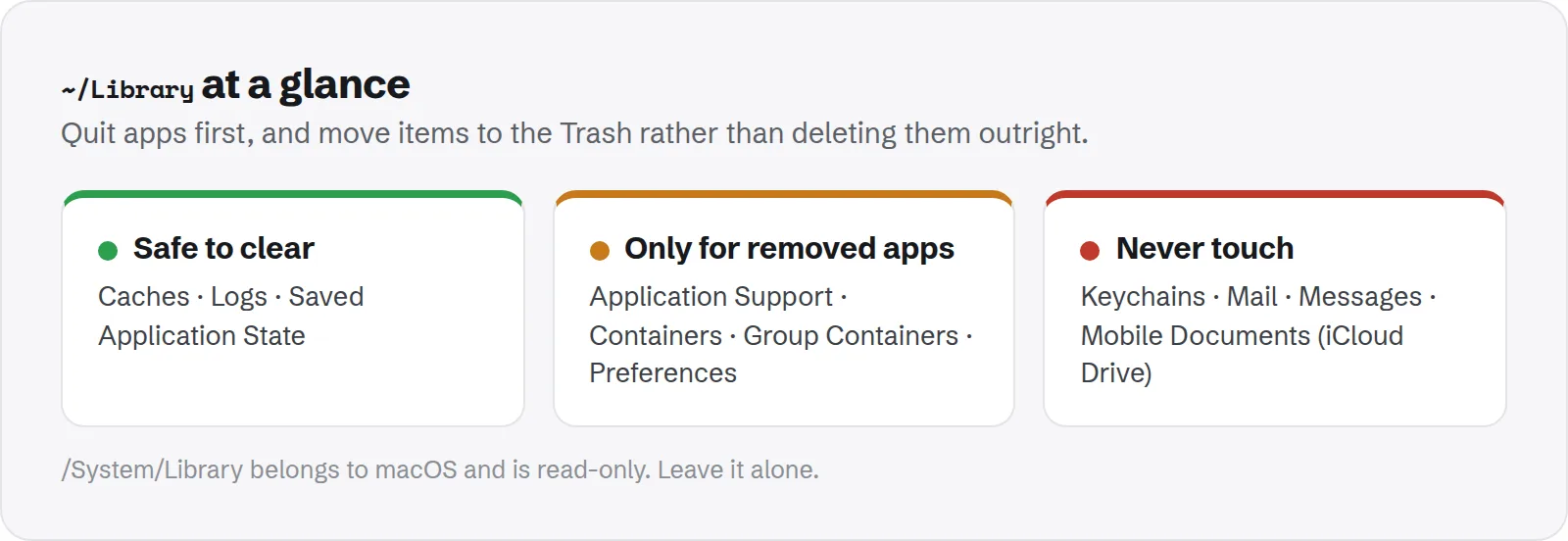
Quick answer: In your user Library (~/Library), the contents of Caches, Logs and Saved Application State are safe to clear. Apps rebuild them.
Folders like Application Support, Containers and Preferences hold real app data, so only delete parts that belong to apps you have removed. Never touch Keychains, Mail or Mobile Documents, and never delete anything in /System.
The Library folder is where macOS and your apps keep everything that is not a document you made. Settings, caches, logs, app data and much more all live there.
It is also where a lot of "invisible" storage goes. On a Mac used for a few years, ~/Library can reach 50 GB or more. This guide walks through it folder by folder, so you know exactly what you can clean.
There are three Library folders, not one
macOS has several folders called Library. They have different owners and different rules, so it matters which one you are looking at.
~/Library, your user Library: inside your home folder. It holds data for your account only. This is where most cleanable space is./Library, the shared Library: at the top of your startup disk. It holds data for all users, such as shared app support files and system-wide settings./System/Library, the system Library: part of macOS itself. It is protected, read-only and should never be changed.
This guide is mostly about ~/Library. The shared Library is covered further down.
How to open your Library folder
Apple hides the user Library to stop accidental changes. There are three easy ways to open it.
- Go to Folder: in Finder, press Cmd + Shift + G, type
~/Libraryand press Return. - Go menu: in Finder, open the Go menu and hold the Option key. Library appears in the list.
- Show it for good: open your home folder, choose View > Show View Options and tick Show Library Folder.
Which folders use the most space?
Before deleting anything, find out where the space actually is. This Terminal command lists the twenty biggest folders in your Library:
du -sh ~/Library/* 2>/dev/null | sort -hr | head -20It can take a minute. On most Macs, the top of the list is some mix of Containers, Application Support, Caches, Group Containers and Developer.
Run the same command inside a big folder to go one level deeper, for example du -sh ~/Library/Caches/* | sort -hr | head.
~/Library at a glance. Quit apps first, and move items to the Trash rather than deleting them outright.Folders that are safe to clear
These hold data that apps and macOS rebuild automatically. Clearing them is safe, as long as you quit apps first.
Caches: data apps keep to work faster, such as thumbnails, downloaded web content and compiled code. Each app has its own folder. Clear the contents, not the folder itself.Logs: records of what apps did, mostly useful for troubleshooting. Old logs can go.Saved Application State: what each app had open when you last quit it. Deleting it only means apps reopen with empty windows.
The one exception is an app that is open right now. Quit it before you clear its cache, so it does not crash or write new files while you delete.
Folders that need care
These hold real data that belongs to apps. Deleting the wrong part can reset an app or lose information. The safe rule is simple: only delete parts that belong to apps you have already removed.
Application Support: app data such as databases, downloaded content, plug-ins and libraries. Folders for apps you uninstalled are safe to remove. Folders for apps you use are not.Containers: data for sandboxed apps, including most App Store apps. Each container is like a private home folder for one app.Group Containers: data shared between related apps from the same developer, such as Microsoft Office or Apple's own apps.Preferences: settings files, one per app, ending in.plist. Deleting one resets that app's settings.WebKitandCookies: website data for apps that show web content. Clearing it may sign you out of sites or apps.Developer: Xcode data, simulators and device symbols. Much of it can be cleared, but some parts need thought.
Our guide to clearing the Microsoft Teams cache is a good example of this rule in practice: one container is safe, and the shared Office folder next to it is not.
Folders you should never delete
Some Library folders hold data that is hard or impossible to get back. Leave these alone, even if they look large.
Keychains: your saved passwords, certificates and secure notes. Deleting this can lock you out of accounts.Mail: your downloaded email and mailboxes. Shrink it from the Mail app instead.Mobile Documents: your iCloud Drive files. Deleting here deletes them from iCloud too.Messages: your message history and attachments. Clean it from the Messages app, not Finder.Calendars,Contactsdata andSafari: personal data, bookmarks and history.
How to clean the Library folder safely
Good habits matter more than any single command here. Follow these every time you clean by hand.
- Back up first. Make sure Time Machine or another backup has run recently.
- Quit the apps involved. Including menu bar apps that keep running in the background.
- Move items to the Trash, do not delete them outright. If something breaks, you can put it back.
- Use the app for a day. If everything works, empty the Trash.
Avoid commands like rm -rf ~/Library/Caches/* as a habit. They work, but they skip the Trash and give you no way back if you mistype.
The shared Library folder: /Library
The shared Library holds data for every user on the Mac. Changes here affect everyone and usually need an administrator password.
/Library/Caches: shared caches. Generally safe to clear after a restart, but rarely large./Library/Application Support: shared app data, such as audio plug-ins, drivers and installers' leftovers. Remove folders only for apps you have uninstalled./Library/LaunchAgentsand/Library/LaunchDaemons: background helpers that start automatically. Leftovers from removed apps can be deleted, but check the name carefully first.
If you are not sure what a shared folder is for, leave it. The space is rarely worth the risk.
The system Library: /System/Library
This folder belongs to macOS. Modern macOS keeps it on a sealed, read-only system volume protected by System Integrity Protection.
You cannot delete files there in normal use, and you should not try to work around that protection. Nothing in it is wasted space.
Hidden folders outside the Library
Not every hidden folder lives in Library. Some of the biggest space users sit elsewhere, and they follow the same safe-or-not logic.
/private/var/folders: per-user caches and temporary files. See whether /private/var/folders is safe to delete.- Dot folders in your home folder: such as
~/.npm,~/.gradleand~/.ollama, used by developer tools. - Docker's disk image: inside
~/Library/Containers. See how to shrink Docker Desktop.
Why the Library counts as System Data
Most of what is in your Library does not fit Apple's storage categories, such as Apps or Documents. So macOS counts it under System Data in Storage settings.
That is why cleaning caches in your Library can bring System Data down. For the full picture, see how to clear System Data on Mac. Apple's own guide to freeing up storage space covers the built-in tools.
How Purgy sorts the Library folder for you
The Library folder mixes things you can clear with things you must keep. Purgy puts every item it finds into one of three groups, so you are never guessing.
- Safe to free (green):
Caches,Logs,Saved Application State, sandboxed app caches inContainersand the cache folders insideApplication Support. These rebuild on their own, are ticked by default and are cleared with one click. - Yours to decide (amber): old iPhone backups and leftovers from tools you no longer use. These are never ticked for you, and anything you pick moves to the Trash.
- Protected, never removed (red):
Mail,Messages,Group ContainersandMobile Documents, where your iCloud Drive files live, plus everything in/System. Purgy measures these so you know their size but will not delete them, even if you ask.
The Space map lets you open the Library and drill into any folder with sizes, largest first, which is easier than Finder's Get Info one folder at a time. Purgy does not edit the shared /Library folder. You can see your own Library sorted this way with the free trial.
Questions people ask about the Library folder
These are the questions that come up most when people open their Library for the first time.
Why is the Library folder hidden?
Because changing things inside it can break apps. Apple hides it so people do not delete important files by accident while tidying their home folder.
Can I delete the whole Caches folder?
Clear its contents instead of deleting the folder itself, and quit apps first. Deleting the folder works, but some apps expect it to exist and may show errors until it is recreated.
Is it safe to delete Application Support folders?
Only for apps you have removed. For apps you still use, those folders hold their data, and deleting them is like resetting the app, sometimes with real data loss.
Will clearing the Library speed up my Mac?
Usually not by much. It frees space, which helps if your disk is nearly full. A Mac with plenty of free space rarely gets faster from clearing caches.
How often should I clean the Library?
A light check every few months is plenty. Most of what grows is cache, which apps manage on their own. Focus on leftovers from apps you removed.