Is /private/var/folders Safe to Delete on Mac?
On this page
- What is /private/var/folders?
- How to find your own folders inside it
- How big is /private/var/folders on your Mac?
- Why does /private/var/folders get so big?
- Is it safe to delete /private/var/folders?
- The safe way to clear /private/var/folders
- What not to do
- What about the other folders in /private/var?
- Why it often counts as System Data
- How to keep it small
- How Purgy treats /private/var/folders
- Questions people ask about /private/var/folders
Quick answer: Do not delete the whole /private/var/folders folder. Apps and macOS use it while they run, and removing it can crash apps or cause odd errors until you restart.
The safe way to clear it is to restart your Mac, which removes old temporary files. If it is still large, quit your apps and delete only the contents of your own cache and temp folders inside it.
If you have ever measured your disk with a tool that shows hidden folders, /private/var/folders may have jumped out at you. On some Macs it reaches 10, 20 or even 50 GB.
The name gives nothing away, and the folders inside have random-looking names. This guide explains what it is, why it grows, and how to shrink it without breaking anything.
What is /private/var/folders?
It is where macOS gives each user account a private place for caches and temporary files. Apps and system services write here instead of cluttering your home folder.
You may also see it written as /var/folders. On a Mac, /var is a link to /private/var, so both names point to the same place.
Inside, each user has a folder with a two-letter name and a long random one, such as /private/var/folders/zz/abc123…. That folder holds three parts:
C, caches: data that apps and system services keep to work faster, such as thumbnails and compiled code.T, temporary files: files apps create while they work. This is the folder your$TMPDIRpoints to.0: files used by the system for your session. Leave this one alone.
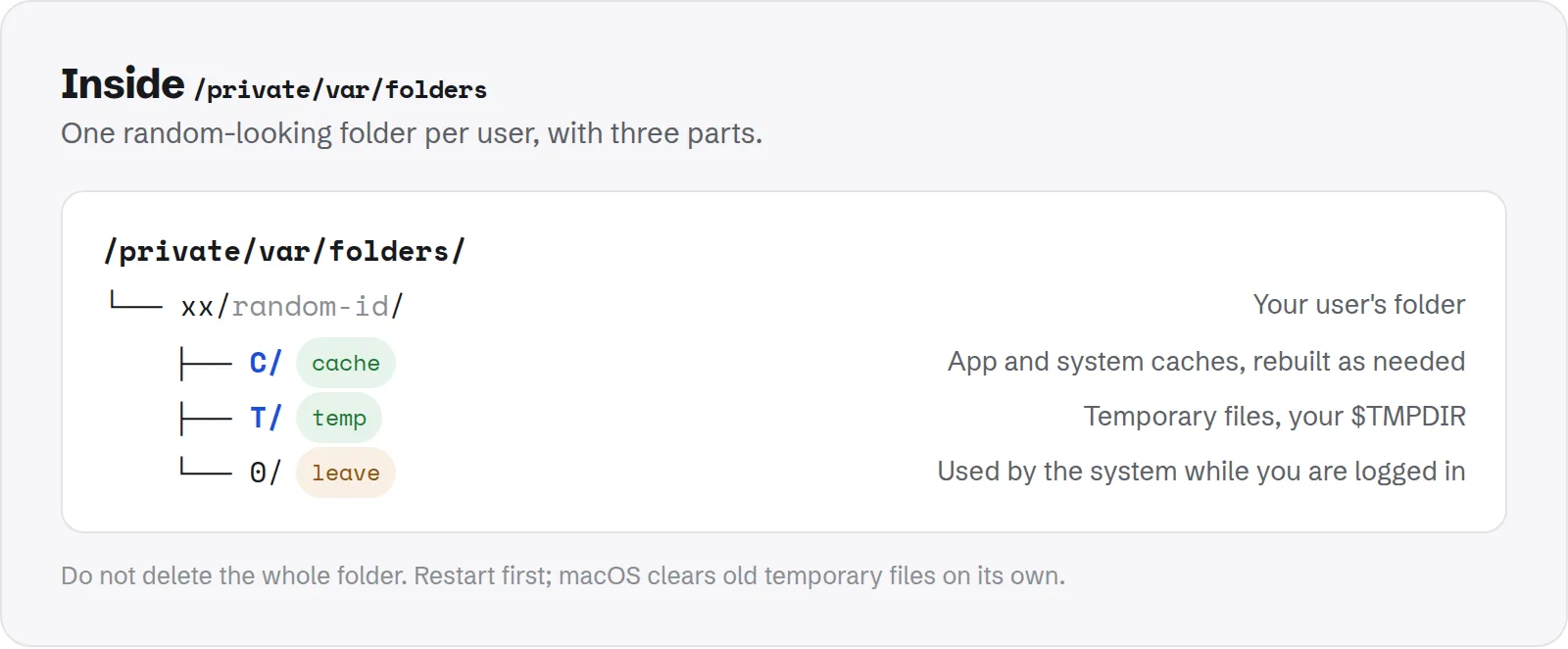
/private/var/folders. One random-looking folder per user, with three parts.How to find your own folders inside it
You do not need to guess which random folder is yours. macOS will tell you the exact paths in Terminal:
getconf DARWIN_USER_CACHE_DIR
getconf DARWIN_USER_TEMP_DIR
The first prints your C folder. The second prints your T folder. To open either in Finder, run open followed by the path, for example open "$(getconf DARWIN_USER_TEMP_DIR)".
How big is /private/var/folders on your Mac?
The whole folder includes other users and system accounts, so measuring all of it needs administrator rights:
sudo du -sh /private/var/foldersYour own parts can be measured without sudo, and they are usually where the space is:
du -sh "$(getconf DARWIN_USER_CACHE_DIR)" "$(getconf DARWIN_USER_TEMP_DIR)"To see which apps use the most space inside your cache folder:
du -sh "$(getconf DARWIN_USER_CACHE_DIR)"* | sort -hr | headFolder names usually match the app's bundle ID, such as com.apple.QuickLook.thumbnailcache. That makes it easy to see which app is responsible.
Why does /private/var/folders get so big?
Most of the time it stays small. When it grows, one of these is usually the reason.
- Your Mac has not restarted in weeks: macOS clears many old temporary files at startup. A Mac that only sleeps never gets that chance.
- An app left large temp files behind: video editors, installers, disk image tools and browsers can write gigabytes of temporary data, and do not always clean up after a crash.
- Thumbnail and preview caches: Quick Look builds previews for every file you browse. Big photo or video libraries make this cache large.
- Developer tools: compilers and build tools often keep caches here, separate from their main cache folders.
Is it safe to delete /private/var/folders?
Not as a whole, and not while apps are running. Here is why.
Apps keep files open in these folders while they work. If you delete them underneath a running app, the app may crash, lose unsaved work or show errors. Some system services can misbehave until the next restart.
The contents are not precious, though. Everything in C and T is cache or temporary data that can be rebuilt. The risk is the timing, not the data.
So the safe approach is to let macOS clean it, or to clean only your own C and T folders after quitting your apps.
The safe way to clear /private/var/folders
Work through these in order. Most people only need the first step.
1. Restart your Mac
A restart clears many old temporary files and frees the space apps were holding. It is the simplest and safest step, and it is often enough on its own.
2. Start up in Safe Mode once
Apple notes that starting up in Safe Mode clears certain system caches. Its guide to freeing up storage space on Mac mentions this as a way to make space temporarily available. Restart normally afterwards.
3. Clear your own cache and temp folders
If the folder is still large, clear just your parts by hand. Save your work and quit every app first, including ones in the menu bar.
- Run
open "$(getconf DARWIN_USER_TEMP_DIR)"to open your temp folder in Finder. - Select the large items inside it and move them to the Trash. Do not move the folder itself.
- Do the same for your cache folder with
open "$(getconf DARWIN_USER_CACHE_DIR)". - Empty the Trash, then restart.
If Finder says an item is in use, skip it. It belongs to something still running.
What not to do
A few shortcuts appear in old forum posts. They cause more trouble than they save.
- Do not run
sudo rm -rf /private/var/folders/*: it removes files for every user and system service at once, while they are running. - Do not delete the
0folder: it is used by your current session. - Do not change permissions in this folder: wrong permissions here can stop apps from starting.
What about the other folders in /private/var?
When people find /private/var/folders, they often notice its neighbours too. These are part of macOS as well, and each has its own rule.
/private/var/vm: swap files and the sleep image. macOS creates and removes them as memory is needed. Do not delete them; a restart shrinks swap on its own./private/var/log: system log files. macOS rotates and removes old ones by itself. They are rarely large./private/var/db: system databases, such as settings for installed software and security. Leave this folder alone.
If swap in /private/var/vm is large, your Mac is short of memory for what you run. Quitting heavy apps, or restarting, brings it back down.
Unlike your caches, none of these folders are yours to clean. If one keeps growing, the cause is usually an app or a lack of memory, not the folder itself.
Why it often counts as System Data
macOS does not show /private/var/folders in Finder, and it does not belong to any normal category. In Storage settings, its size is part of the System Data total.
If System Data is still large after a restart, other hidden folders are probably involved. See how to clear System Data on Mac for the other common causes, such as snapshots and old backups.
Developers often find their own tools are behind a large cache folder. Our guides to Docker disk space and Homebrew cleanup cover two common ones.
How to keep it small
You do not need to clean this folder by hand on a regular basis. Two habits keep it under control on their own.
- Restart every week or two: it gives macOS a chance to clear old temporary files.
- Quit heavy apps properly: video, design and installer apps clean up their temp files when they close normally, but often not after a crash.
How Purgy treats /private/var/folders
Because macOS and running apps write to /private/var/folders all the time, Purgy does not clear it. The safe way to empty it is the one described above: restart your Mac and let macOS clean it up.
There is one exception. Your Quick Look thumbnail cache lives inside your own folder there. It only holds the previews Finder makes of your files, so Purgy lists it under System caches and frees it with the rest. Finder makes new previews as you browse.
For the space this folder adds to System Data, Purgy offers better targets:
- The System Data screen breaks that figure into snapshots, iPhone backups, AI models, caches and developer data, and names the parts that belong to macOS.
- The caches apps keep in your Library are cleared in one click from the Overview, and they are usually much bigger than the temporary files here.
If /private/var/folders stays huge after a restart, the Space map shows which app's folder is growing so you can deal with that app. See what is inside your System Data with the free trial.
Questions people ask about /private/var/folders
These are the questions that come up most about this folder.
Is /private/var/folders a virus or malware?
No. It is a normal part of macOS on every Mac. The random folder names are generated by the system, not by anything harmful.
Why are the folder names random?
macOS creates them from your user ID so each account has its own private space. The names are meant for the system, not for people.
Will deleting it log me out or delete my files?
It will not delete your documents, which live in your home folder. Deleting the wrong parts while apps run can cause crashes and errors until you restart, which is why the steps above quit apps first.
Does macOS clean this folder automatically?
Yes, in part. Old temporary files are removed over time, mostly at startup. Caches are managed by each app, and some apps keep more than they need.
Why did the folder grow again after I cleaned it?
Apps rebuild their caches as you use them, so some growth is normal. If it grows back to many gigabytes within days, one app is usually responsible. The du command above shows which one.
Can I move /private/var/folders to another drive?
No. It is part of the system and must stay on your startup disk. Clearing it and restarting regularly is the right approach.