Docker Desktop Using Too Much Disk Space on Mac? Fix It

On this page
- Where does Docker Desktop store data on a Mac?
- What is using the space inside Docker?
- Find the biggest images and containers
- How to reclaim Docker disk space safely
- Be careful with volumes
- Why the Docker.raw file does not shrink right away
- Limit how big Docker's disk can grow
- Start fresh with Clean / Purge data
- Other container tools keep their own data
- A simple routine to keep Docker small
- Other developer folders worth checking
- How Purgy reclaims Docker space
- Questions people ask about Docker storage on Mac
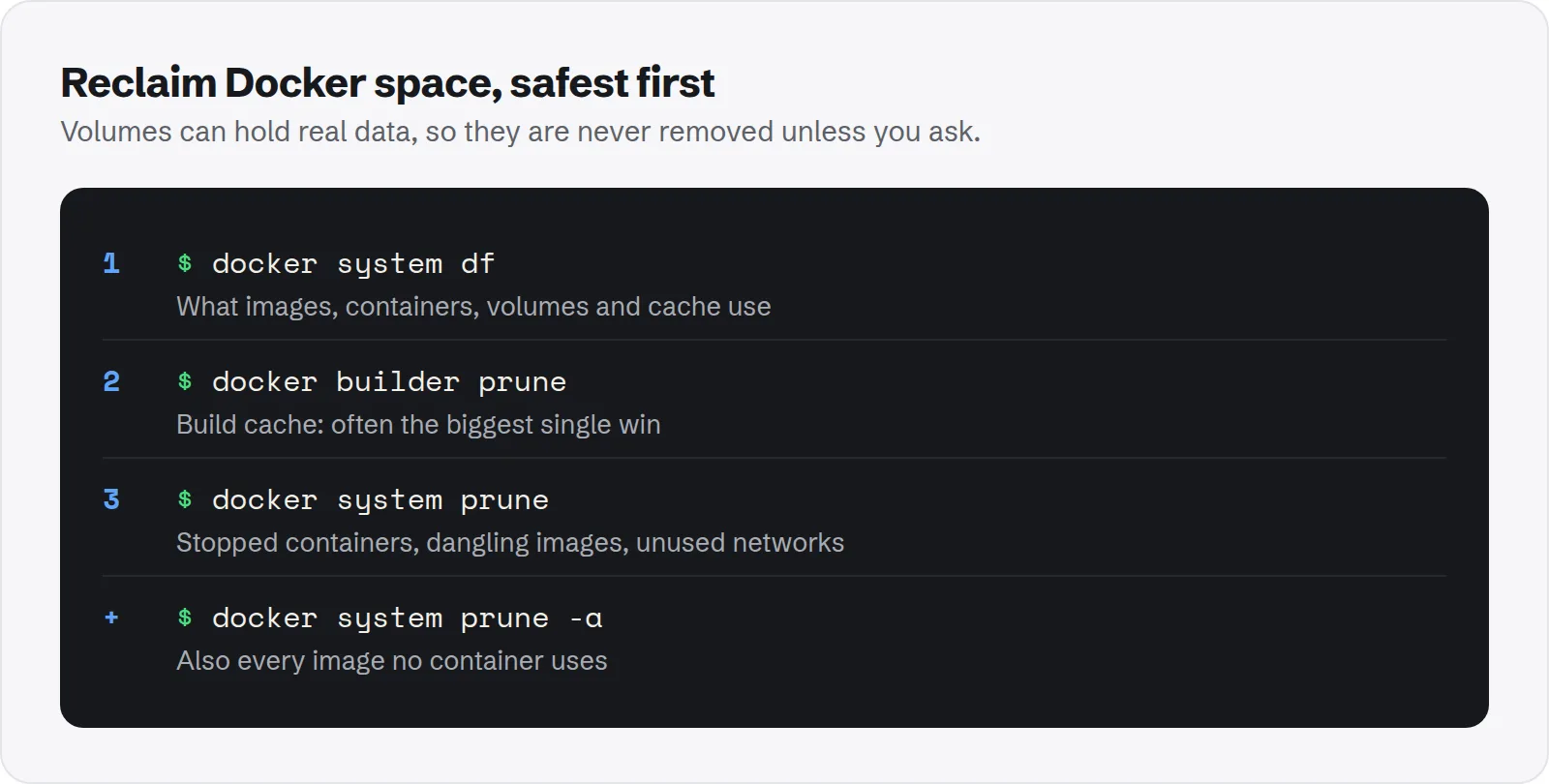
Quick answer: Run docker system df to see what Docker is using. Then run docker system prune to remove stopped containers, unused networks, dangling images and build cache.
Add -a to also remove every image no container uses. Volumes are kept unless you add --volumes, because they can hold real data.
Docker is easy to start with and easy to forget about. Every image you pull, every build you run and every container you start leaves something behind. On a Mac, all of it lives inside one large file, so it is hard to see what is using the space.
It is common for Docker Desktop to use 30 to 60 GB after a year of normal use. This guide explains where that space is and how to get it back without losing data you care about.
Where does Docker Desktop store data on a Mac?
On a Mac, Docker runs inside a small Linux virtual machine. Everything that machine stores is kept in a single disk image file:
~/Library/Containers/com.docker.docker/Data/vms/0/data/Docker.rawImages, containers, volumes and build cache all live inside that file. That is why Finder shows one huge file instead of the items inside it.
The file is "sparse". Its listed size is the maximum it may grow to, not what it actually uses. To see the real space it takes on your disk, use du rather than Finder's size:
du -h ~/Library/Containers/com.docker.docker/Data/vms/0/data/Docker.rawWhat is using the space inside Docker?
Docker can break the total down for you. Make sure Docker Desktop is running, then run:
docker system dfYou get four rows, each with a total size and how much of it can be reclaimed:
- Images: every image you pulled or built, including old versions and intermediate layers.
- Containers: the writable layer of each container, including stopped ones you forgot about.
- Local volumes: data that containers store outside their image, such as databases.
- Build cache: layers saved from previous builds to make the next build faster.
For a detailed list of every image, container and volume with its size, add -v: docker system df -v.
Find the biggest images and containers
The totals tell you which category is large. To find the specific items, list them with their sizes.
docker image ls
docker ps -a --size
The first command lists every image with its size. Look for old tags of the same image, such as several versions of a database or base image you no longer use.
The second lists every container, including stopped ones, with the space its writable layer uses. A container that wrote logs or downloaded files inside itself can be surprisingly large.
Remove a single image with docker image rm followed by its name and tag, or a single container with docker rm followed by its name.
How to reclaim Docker disk space safely
Work from the safest command to the most thorough. Stop after any step if you have freed enough.
1. Remove stopped containers
Stopped containers keep their writable layer. If you do not plan to restart them, remove them:
docker container prune2. Clear the build cache
Build cache is often the largest item for people who build images often. Removing it is safe; the next build just takes longer.
docker builder pruneAdd -a to remove all build cache, not only the parts Docker considers unused.
3. Remove unused images
Dangling images are leftover layers with no name. Removing them is always safe:
docker image pruneTo also remove every image that no container uses, add -a. Images you need later are pulled again from their registry.
4. Or do it all at once
docker system prune combines the steps above. By default it removes stopped containers, unused networks, dangling images and unused build cache:
docker system prune
docker system prune -a
The second form also removes all unused images. Docker's reference for docker system prune lists every option, and its guide to pruning unused objects explains each command.
Be careful with volumes
Volumes are where containers keep data that should survive a restart. A local database, uploaded files or a development cache often lives in a volume.
That is why no prune command above removes volumes unless you ask. Before removing any, list them and check what each one is for:
docker volume ls
docker system df -v
When you are sure, remove unused volumes with docker volume prune. Read its prompt carefully. If a volume holds a database you care about, back it up first.
Why the Docker.raw file does not shrink right away
After pruning, Docker frees space inside its virtual disk. macOS usually gets that space back automatically, but it can take a short while.
If du still shows the old size a few minutes later, quit Docker Desktop completely and open it again. That usually lets the file shrink to match what is really used.
Limit how big Docker's disk can grow
Docker Desktop lets you set a maximum size for its virtual disk. A lower limit stops Docker from quietly taking more space over time.
- Open Docker Desktop and go to Settings > Resources.
- Find the virtual disk limit setting.
- Choose a smaller size and click Apply.
Docker Desktop warns you if a change means existing data has to be removed. Read that warning before you confirm, especially if you keep databases in volumes.
Start fresh with Clean / Purge data
If you do not need anything stored in Docker, there is a single button that empties it all. This is the fastest way to reclaim the full space.
Open Docker Desktop, click the Troubleshoot icon, and choose Clean / Purge data. It removes every image, container and volume. Treat it like formatting a drive: only use it when nothing inside matters.
Other container tools keep their own data
If you have tried other tools that run containers on a Mac, they keep separate storage. Uninstalling Docker Desktop does not touch it.
- OrbStack: keeps its data in
~/.orbstack. Use its own settings to clean images and machines. - Colima: keeps its virtual machines in
~/.colima. Remove one withcolima delete. - Podman: uses its own machine, managed with
podman machinecommands.
Check each with du -sh ~/.orbstack ~/.colima 2>/dev/null. Old experiments with these tools often leave several gigabytes behind.
A simple routine to keep Docker small
A few habits stop Docker from growing back. None of them slow down normal work.
- Run
docker system pruneevery week or two: it only removes things nothing uses. - Use
--rmfor one-off containers:docker run --rmremoves the container when it exits. - Clear build cache after big build sessions:
docker builder pruneis often the biggest single win. - Name your volumes: named volumes are easy to recognise later, so you know which ones are safe to remove.
Other developer folders worth checking
Docker is often the largest developer item on a Mac, but rarely the only one. The same cleanup session can usually free more.
See how brew cleanup works, how to find every node_modules folder and how to clear Android Studio and Gradle caches.
How Purgy reclaims Docker space
Purgy splits Docker's space into the part that is safe to clear and the part that holds your work.
- Build cache and dangling images. With Docker Desktop running, Purgy asks Docker for these using Docker's own command-line tool and lists them under Developer & AI-tool caches. They are ticked by default and Docker removes them itself when you clean, the same as running the prune commands above.
- The Docker.raw data disk. This single file holds every container, image and volume. Purgy lists it under Backups & old tool data with a clear warning that removing it deletes all your containers. It is never ticked for you, and if you choose it, it moves to the Trash.
Purgy does not remove running containers, named volumes or tagged images you still use. Use docker system df and the commands above for those decisions. If Docker Desktop is not running, Purgy cannot ask it for the build cache and simply leaves that part out of the scan.
Because Docker.raw does not shrink immediately, check the real result in Purgy's Space map after Docker has compacted it. See your own numbers with the free trial.
Questions people ask about Docker storage on Mac
These come up most when developers notice Docker's size for the first time.
Is it safe to delete Docker.raw?
Only if you are willing to lose everything Docker stores: all images, containers and volumes. Using Clean / Purge data in Docker Desktop does the same thing in a cleaner way. Do not delete the file while Docker is running.
Why does Finder show Docker.raw as 64 GB when I barely use Docker?
Finder shows the file's maximum size. The space it really uses is usually much smaller. Use du -h on the file to see the true figure.
Does docker system prune delete my databases?
Not by default. Volumes are only removed if you add --volumes. Even then, read what it lists before you confirm.
Will pruning slow down my next build?
Yes, once. Docker has to download base images and rebuild layers it threw away. After that first build, the cache fills again and builds are fast as before.
Why is my build cache so large?
Every change to a Dockerfile or its inputs creates new cached layers, and old ones are kept. Projects that rebuild often can collect many gigabytes. docker builder prune clears them safely.
Does Docker storage show up as System Data?
Usually, yes. Because Docker keeps everything in a container folder in your Library, macOS often counts it in System Data. Our guide to clearing System Data on Mac covers the other common causes.