Android Studio and Gradle Cache Taking Space on Mac

On this page
- Where does Android Studio use space on a Mac?
- How much space is each folder using?
- What is inside the Gradle cache?
- Is it safe to delete the Gradle cache?
- How to clear the Gradle cache safely
- Clean up the Android SDK
- Delete emulators you no longer use
- Remove leftovers from old Android Studio versions
- Clean build folders inside projects
- Kotlin, Maven and other caches
- A simple routine for Android storage
- Other developer folders worth checking
- How Purgy handles the Gradle cache
- Questions people ask about Android Studio storage
Quick answer: Android development stores space in four places: the Gradle cache in ~/.gradle, the Android SDK in ~/Library/Android/sdk, emulators in ~/.android/avd, and Android Studio's own caches in ~/Library/Caches/Google.
Old Gradle versions, unused system images and emulators you no longer launch are all safe to delete. Gradle and the SDK Manager download anything you need again.
Android Studio is a heavy tool, and it gets heavier with every update. Each new Gradle version downloads its own distribution and builds its own caches. Each emulator image you try stays on disk until you remove it.
On a Mac used for Android work for a couple of years, 30 to 60 GB is common. This guide walks through each folder, how to measure it, and how to clean it safely.
Where does Android Studio use space on a Mac?
The space is spread across several folders, most of them hidden. Here is the short version before we go through each one.
- Gradle home,
~/.gradle: downloaded dependencies, build caches and Gradle distributions. - Android SDK,
~/Library/Android/sdk: platforms, build tools, NDK versions, the emulator and system images. - Emulators,
~/.android/avd: one folder per virtual device, with its own data. - Android Studio itself: caches, logs and settings for each version, under
~/Library. - Each project: its own
buildand.gradlefolders.
To open a hidden folder, press Cmd + Shift + G in Finder, paste the path and press Return.
How much space is each folder using?
Measure before you delete, so you start with the biggest win. These commands only read; they change nothing.
du -sh ~/.gradle ~/.gradle/* 2>/dev/null
du -sh ~/Library/Android/sdk/* 2>/dev/null
du -sh ~/.android/avd/* 2>/dev/null
du -sh ~/Library/Caches/Google/* 2>/dev/null
In the SDK, system-images and ndk are often the largest. In Gradle home, caches and wrapper usually are.
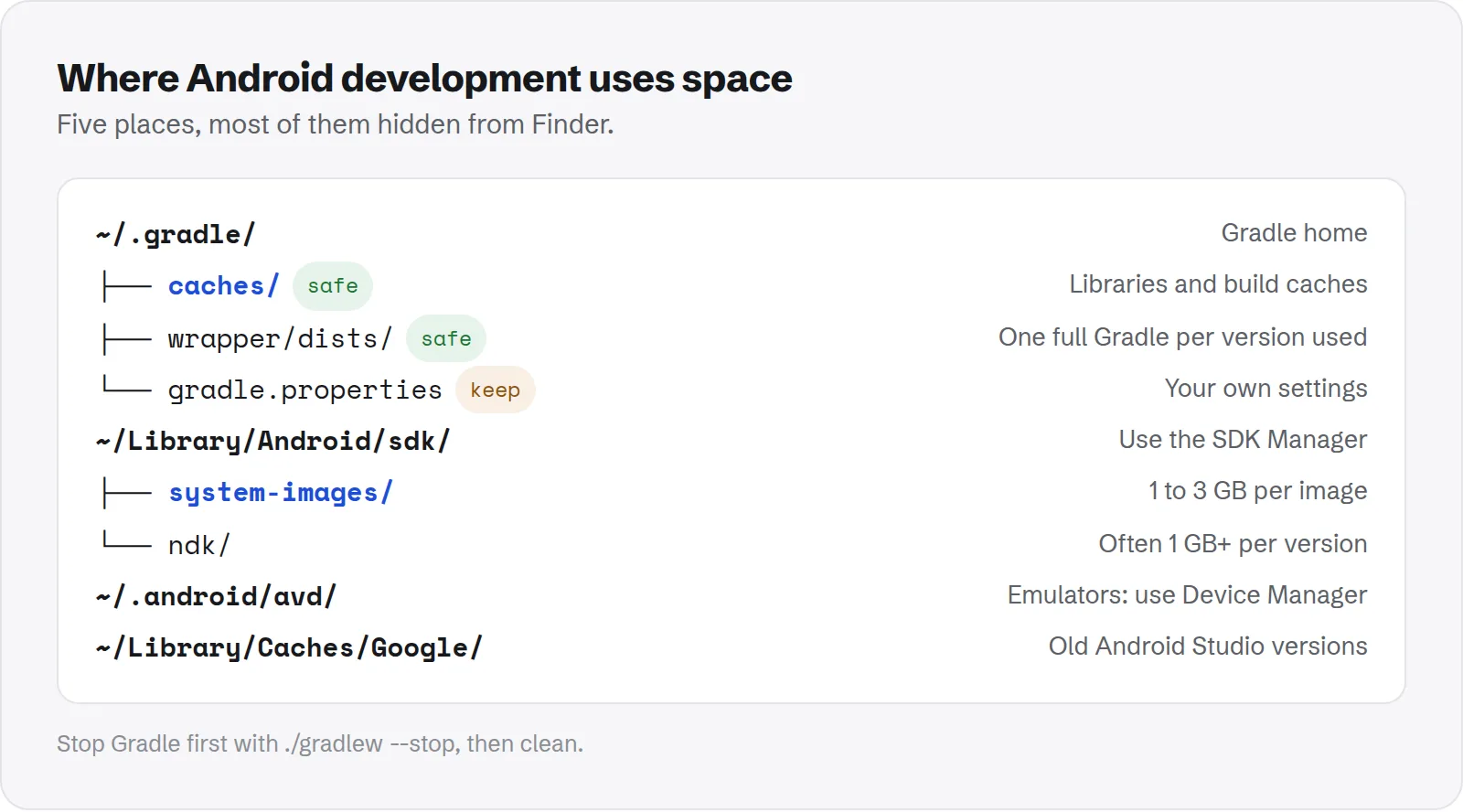
What is inside the Gradle cache?
Gradle keeps everything in its user home folder. Gradle's documentation on managed directories and caches describes the full layout. The parts that matter for space are these.
caches/: downloaded libraries and build caches. Some are shared across Gradle versions; others sit in a folder per version, such ascaches/8.7.wrapper/dists/: one full Gradle download for each version your projects have used through the Gradle wrapper.daemon/: logs from the background Gradle process.jdks/: Java versions Gradle downloaded for toolchains.
Recent Gradle versions clean up some unused entries on their own. But folders for Gradle versions you no longer use, and old wrapper downloads, often stay for good.
Is it safe to delete the Gradle cache?
Yes. Everything in ~/.gradle/caches and ~/.gradle/wrapper/dists can be downloaded or rebuilt. The cost is a slower first build while Gradle fetches dependencies again.
Two files are worth keeping. gradle.properties and anything in init.d hold your own settings, such as signing or proxy details. Do not delete the whole ~/.gradle folder without saving those first.
How to clear the Gradle cache safely
Stop any running Gradle daemons first. A running daemon can hold files open and recreate folders while you delete them.
./gradlew --stopRun that from any Android project. Then choose how deep to go.
Remove old Gradle versions only
Look in ~/.gradle/caches and ~/.gradle/wrapper/dists for version folders. Delete the ones your current projects do not use. You can see a project's version in its gradle/wrapper/gradle-wrapper.properties file.
Clear the whole cache
If you want a clean start, remove the cache and wrapper downloads together:
rm -rf ~/.gradle/caches ~/.gradle/wrapper/distsThis keeps your settings files. The next build in each project downloads what it needs, which can take several minutes on a slow connection.
Clean up the Android SDK
The SDK is usually the biggest single folder. Remove parts through the SDK Manager, not Finder, so Android Studio keeps its records in order.
- Open Android Studio and go to Settings > Languages & Frameworks > Android SDK. You can also open Tools > SDK Manager.
- On the SDK Platforms tab, tick Show Package Details.
- Untick system images and platforms for Android versions you no longer test on.
- On the SDK Tools tab, tick Show Package Details and untick old NDK and build-tools versions.
- Click Apply. Android Studio deletes what you unticked.
Each system image is often 1 to 3 GB, and each NDK version is often over 1 GB. Keeping only the versions your projects target makes a big difference.
If you prefer Terminal, the sdkmanager tool does the same job. List what is installed with sdkmanager --list_installed, then remove a package with sdkmanager --uninstall followed by its name in quotes.
Delete emulators you no longer use
Every virtual device keeps its own disk, with apps and data you installed while testing. A heavily used emulator can reach several gigabytes on its own.
- Open Device Manager in Android Studio.
- Find emulators you have not launched in a while.
- Open the menu next to each one and choose Delete.
To keep an emulator but free its data, choose Wipe Data instead. It returns the device to a fresh state.
Emulators you created for a one-off test, such as an old Android version or an unusual screen size, are usually the first to go.
Remove leftovers from old Android Studio versions
Each Android Studio version keeps its own caches, logs and settings in folders named after the version, such as AndroidStudio2024.1. After an upgrade, the old ones usually stay.
~/Library/Caches/Google/
~/Library/Logs/Google/
~/Library/Application Support/Google/
Delete folders for versions you no longer run. Keep the folders for the version you use now, because they hold your current settings and plugins.
Recent versions of Android Studio may offer to clean up old version folders for you after an update. Accepting is safe.
Clean build folders inside projects
Every Android project keeps a build folder per module and a .gradle folder at its root. In large projects these reach several gigabytes each.
Run ./gradlew clean in a project to empty its build folders. For projects you are not working on, you can delete the build folders entirely; they come back on the next build.
Kotlin, Maven and other caches
A few more folders grow on Macs used for Android or Kotlin work. They are easy to miss because they sit outside Android Studio's own folders.
~/.konan: the Kotlin/Native compiler and its dependencies, used by Kotlin Multiplatform projects. It can reach several gigabytes and is downloaded again when needed.~/.m2/repository: the local Maven repository. Some builds and tools publish or fetch libraries here. It is safe to clear, but the next build downloads again.~/Library/Caches/JetBrains: caches for IntelliJ IDEA and other JetBrains tools, if you use them alongside Android Studio.
Check them with du -sh ~/.konan ~/.m2 2>/dev/null. If you do not use Kotlin Multiplatform, ~/.konan may be left over from an old experiment.
A simple routine for Android storage
You do not need to do all of this every week. A short check after big updates keeps things under control.
- After an Android Studio update: remove old version folders in Caches, Logs and Application Support.
- After a Gradle upgrade: delete the old version's wrapper download and cache folder.
- Every few months: review system images, NDK versions and emulators in the SDK Manager and Device Manager.
Other developer folders worth checking
If you work on cross-platform apps, Android is rarely the only toolchain on your Mac. Apple and JavaScript tools grow in the same way.
See how to delete old iOS simulators, how to find every node_modules folder and how brew cleanup works. Each one often frees several gigabytes.
How Purgy handles the Gradle cache
Purgy finds ~/.gradle/caches as part of its Developer & AI-tool caches group, next to npm, Yarn, pnpm, Cargo and Xcode caches. Because Gradle downloads everything again on the next sync, this group is ticked by default and its space is freed straight away when you press Clean now.
The Android SDK, its system images and your emulators are a different matter. They are not caches, so Purgy does not clean them automatically:
- Remove SDK packages and old emulators with SDK Manager and Device Manager in Android Studio, as shown above.
- Open Purgy's Space map to check what is left. Hidden folders such as
~/.androidand~/.gradlecarry a HIDDEN badge, so you can finally see them. - Hidden tool folders you have not used for 90 days or more, for example after you stop Android work, appear under Backups & old tool data. They stay unticked until you choose them, and they only ever move to the Trash.
Project build folders inside your Android projects are not scanned, so delete those with Gradle's clean task. The free trial shows what Gradle and other developer tools take on your Mac.
Questions people ask about Android Studio storage
These are the questions that come up most when Android developers start cleaning.
Will deleting the Gradle cache break my projects?
No. Your code and build files are not touched. The next build downloads dependencies again, so it is slower once, then back to normal.
Why does Gradle download so much?
Each project can use different versions of libraries, plugins and Gradle itself. Gradle keeps every version it has downloaded, so several projects can mean several copies of similar files.
Can I move the Gradle cache to another drive?
Yes. Set the GRADLE_USER_HOME environment variable to a folder on the other drive. Keep the drive connected whenever you build, or Gradle starts a fresh cache in the default place.
Is it safe to delete ~/.android?
Not the whole folder. It holds your emulators and the debug keystore Android Studio uses to sign debug builds. Delete individual emulators through Device Manager instead.
Does Android Studio storage count as System Data?
Most of it does. macOS files hidden folders like ~/.gradle and ~/Library/Android under System Data in Storage settings. Our guide to clearing System Data covers the other common causes.