How to Delete Old iOS Simulators and Runtimes on Mac

On this page
- Simulator devices and simulator runtimes are different things
- Where are iOS simulators stored on a Mac?
- How much space are your simulators using?
- What fills up a simulator device?
- How to delete unavailable simulators
- How to delete old simulator runtimes
- Is it safe to delete simulators?
- How to reset a simulator instead of deleting it
- How to keep simulators from filling your Mac again
- Other developer folders worth checking
- Common problems after cleaning simulators
- What Purgy does, and does not do, with simulators
- Questions people ask about simulator storage
Quick answer: Run xcrun simctl delete unavailable in Terminal to remove simulators for iOS versions you no longer have installed. Then remove old runtimes in Xcode under Settings > Components, or with xcrun simctl runtime delete.
Both are safe. Xcode can download any runtime again when you need it.
Simulators are one of the quietest ways a developer Mac fills up. Each new Xcode brings new runtimes, each runtime can be several gigabytes, and old ones are rarely removed for you.
On top of that, every simulator device you create keeps its own data, apps and caches. This guide shows how to measure all of it and clean it safely.
Simulator devices and simulator runtimes are different things
It helps to know the two parts before you delete anything. They live in different places and are removed in different ways.
- Runtimes: the iOS, watchOS, tvOS or visionOS system that a simulator runs. One runtime per OS version. These are the big files.
- Devices: each simulated iPhone or iPad you can launch. A device uses a runtime and keeps its own data, such as installed apps, photos and settings.
Deleting a device frees its data. Deleting a runtime frees much more, but every device that uses it stops working until you install that runtime again.
Where are iOS simulators stored on a Mac?
Device data lives in your user Library. Each device has its own folder, named by a long ID:
~/Library/Developer/CoreSimulator/DevicesRecent versions of Xcode store runtimes as disk images managed by the system, not as normal folders you browse. The best way to see them is with the simctl tool described below.
Older Xcode versions kept runtimes in /Library/Developer/CoreSimulator/Profiles/Runtimes. If you have used Xcode for years, check that folder too.
There is also a cache folder that is safe to clear at any time:
~/Library/Developer/CoreSimulator/CachesHow much space are your simulators using?
Start by measuring, so you know which part is worth cleaning. These commands only read; they do not change anything.
du -sh ~/Library/Developer/CoreSimulator/Devices
du -sh ~/Library/Developer/CoreSimulator/Caches
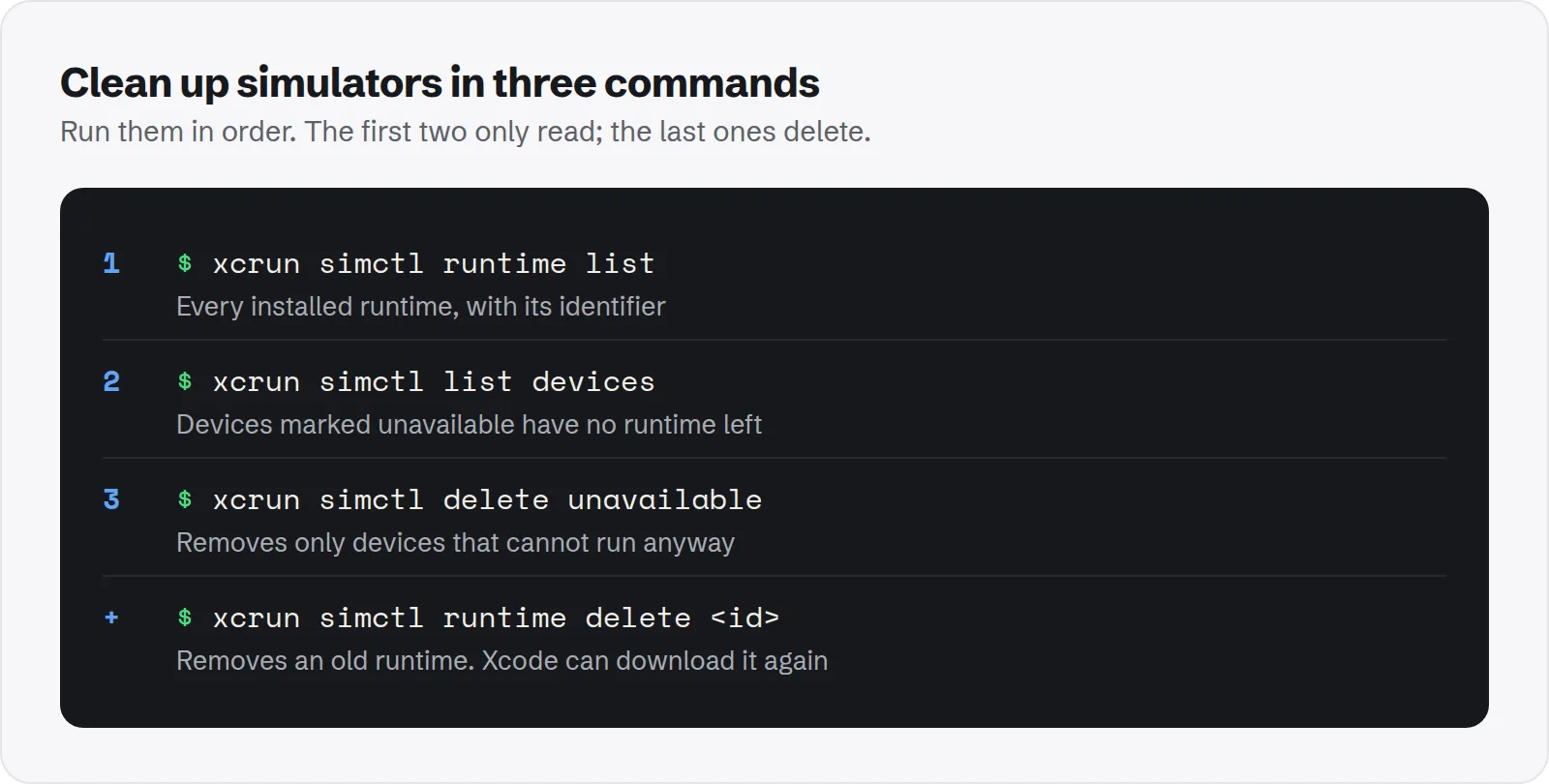
xcrun simctl runtime list
The last command lists every installed runtime with its version, build and identifier. You will need the identifier to delete one from Terminal.
To see your devices and which runtime each one uses:
xcrun simctl list devicesDevices marked unavailable belong to a runtime that is no longer installed. They cannot run, but their data still takes space.
What fills up a simulator device?
A fresh simulator is small. It grows the same way a real phone does, as you install builds and use apps inside it.
- Installed builds: every time you run your app, a copy is installed in the simulator. Several apps, each with assets, add up.
- App data: databases, downloaded files and caches your app writes while you test it.
- Media: photos and videos you added to test image pickers or uploads.
- Logs and crash reports: written by the simulated system while you work.
Each device keeps all of this in its own folder under Devices. A device you used heavily for a big app can reach several gigabytes on its own.
To find the largest devices, run this and look at the top of the list:
du -sh ~/Library/Developer/CoreSimulator/Devices/* | sort -hr | headMatch a folder ID to a device name with xcrun simctl list devices, which shows each device's ID next to its name.
How to delete unavailable simulators
This is the safest first step. It removes only devices that cannot run anyway, because their runtime is gone.
xcrun simctl delete unavailableOn a Mac that has been through a few Xcode updates, this alone can free several gigabytes. It does not touch runtimes or working devices.
How to delete old simulator runtimes
Runtimes are where most of the space goes. You can remove them in Xcode or in Terminal, and the result is the same.
In Xcode
- Open Xcode and choose Xcode > Settings.
- Open Components. In some Xcode versions this pane is called Platforms.
- Find the runtimes you no longer test on. Select one and click the minus button, or right-click and delete it.
In Terminal
List the runtimes, copy the identifier of the one you want to remove, then delete it:
xcrun simctl runtime list
xcrun simctl runtime delete <identifier>
Apple's help page on downloading and installing simulator runtimes explains how to get a runtime back if you need it later.
Is it safe to delete simulators?
Yes. Nothing in a simulator is needed by macOS or by your projects. The real question is how much you mind setting things up again.
- Runtimes: safe. Xcode downloads them again when a project or test needs one. The cost is download time.
- Unavailable devices: safe. They cannot run without their runtime anyway.
- Working devices: safe, but you lose test data inside them, such as apps you installed, photos or logged-in accounts.
- Simulator caches: safe. They are rebuilt when a simulator boots.
If a simulator holds test data you care about, such as a carefully set up account, keep that device and delete the rest.
How to reset a simulator instead of deleting it
Sometimes you want to keep a device but clear the clutter inside it. Erasing returns it to a fresh state and frees the space its apps and data used.
xcrun simctl erase allThis erases every device. To erase just one, replace all with that device's ID from xcrun simctl list devices. Quit the Simulator app first, because a booted device cannot be erased.
How to keep simulators from filling your Mac again
A little habit stops this folder from growing back. You only need to think about it when you update Xcode.
- After each Xcode update: run
xcrun simctl delete unavailableand remove runtimes you no longer test. - Keep only the versions you support: usually the current iOS and one or two older versions.
- Skip optional platforms: if you only build for iPhone, you do not need watchOS, tvOS or visionOS runtimes installed.
Other developer folders worth checking
Simulators sit next to other large Xcode folders. If you are cleaning one, it is worth checking the rest in the same session.
Our guide to Xcode Archives and iOS DeviceSupport covers two more folders that grow with every release. Old DeviceSupport folders are usually the easiest win.
Developer files often land in the System Data total in macOS Storage settings. If that number is still large after cleaning, see how to clear System Data on Mac.
If you also run local AI models while you work, check those folders too. They are often bigger than every simulator combined. See how much storage local LLMs need.
Common problems after cleaning simulators
A few things can look broken right after a cleanup. They are all quick to fix.
- A scheme shows no simulators: the runtime it needs is gone. Install it again from Settings > Components.
- The first launch is slow: the simulator is rebuilding caches you cleared. Later launches are normal.
- CI or scripts fail to find a device: they may refer to a device by name that you deleted. Create it again with
xcrun simctl create.
What Purgy does, and does not do, with simulators
Simulator devices and runtimes can hold app data you still need, so Purgy does not delete them. It handles the part that is always safe and helps you see the rest.
- Cleared automatically:
~/Library/Developer/CoreSimulator/Caches, Xcode's DerivedData and old iOS DeviceSupport folders. They appear under Developer & AI-tool caches, are ticked by default and rebuild when Xcode needs them. - Shown, not cleaned: the
CoreSimulator/Devicesfolder and the simulator runtimes. Usexcrun simctl delete unavailableand the runtime commands above for these, becausesimctlknows which devices are still in use. - Checked afterwards: the Space map shows how big
~/Library/Developeris before and after, folder by folder, so you can confirm the commands freed what you expected.
The same scan covers npm, Yarn, pnpm, Gradle, Cargo and Docker build caches, so one pass shows what all your developer tools are holding. Try it on your own machine with the free trial.
Questions people ask about simulator storage
These are the questions that come up most when developers clean up simulators for the first time.
How big is one iOS simulator runtime?
It varies by version, but a single iOS runtime is usually several gigabytes. Keeping five or six old versions can easily use 30 GB or more.
Will deleting a runtime break my Xcode project?
No. Your project files are not touched. If a scheme targets a simulator on a runtime you removed, Xcode will ask you to download it again or pick another simulator.
What does "unavailable" mean in the simulator list?
It means the device needs a runtime that is no longer installed. Usually you removed that runtime, or an Xcode update replaced it. These devices cannot boot, so deleting them loses nothing.
Is the CoreSimulator Caches folder safe to delete?
Yes. It holds caches that simulators build when they boot. Quit the Simulator app first, then delete the folder's contents. The next boot is a little slower while the caches are rebuilt.
Why did my simulators come back after an Xcode update?
New Xcode versions create a default set of devices for the runtimes they ship with. Deleting them is safe. Many developers keep only the two or three models they actually test on.
Should I delete simulators on a CI machine?
Yes, but script it. CI Macs collect runtimes and devices fast. Running xcrun simctl delete unavailable after each Xcode update keeps build machines from running out of space mid-build.