How Much Storage Do You Need to Run Local LLMs on a Mac?

On this page
- Disk space and memory are two different limits
- How to estimate a model's size
- What fits on your Mac?
- How much disk space should you plan for?
- Where local LLM files are stored on a Mac
- Can you run local LLMs from an external drive?
- How to keep local AI from filling your Mac
- How Purgy keeps local models in check
- Questions people ask about local LLM storage
Quick answer: One everyday 7–8B model at 4-bit quantization takes about 4–5 GB of disk space, and a 70B model takes about 40 GB. For casual use with two or three models, plan on 20–30 GB of free space.
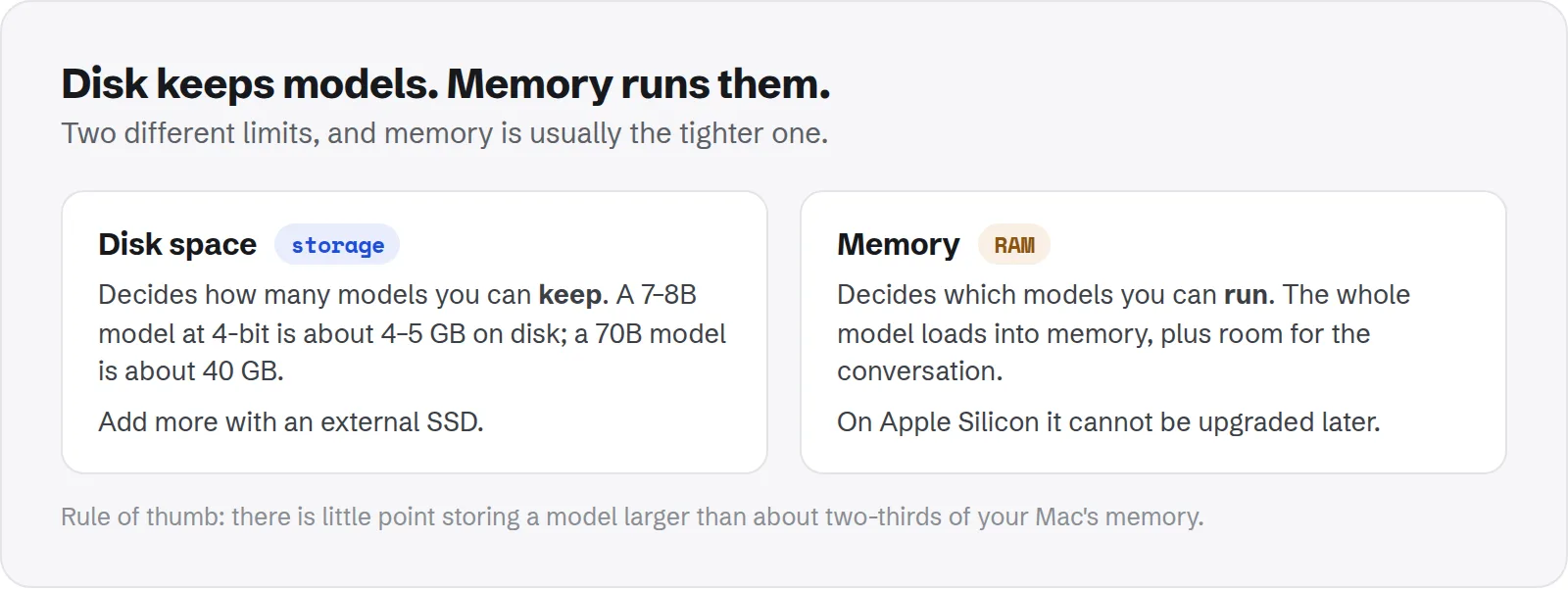
For regular experimenting, plan on 100 GB or more. Memory is usually the tighter limit: a model has to fit in your Mac's memory to run well, so there is little point storing models larger than about two-thirds of your RAM.
Running models like Llama, Qwen, Mistral or Gemma on your own Mac is now a few clicks in Ollama or LM Studio. The catch is that models are some of the largest files you will ever download, and every tool keeps its own copy.
This guide explains how to estimate a model's size, what fits on each Mac, and how to plan your storage so local AI does not crowd out everything else.
Disk space and memory are two different limits
It helps to separate the two questions:
- Disk space decides how many models you can keep. A model sits on your drive as one or more large files.
- Memory (RAM) decides which models you can run. When you start a chat, the whole model is loaded into memory, plus extra working memory for the conversation.
On Apple Silicon Macs, the CPU and GPU share the same unified memory. That is why Macs are good at local AI: a 64 GB Mac can give a model far more memory than most graphics cards have.
But macOS keeps part of that memory for itself and your apps. By default, the GPU can use roughly two-thirds to three-quarters of the total, depending on how much memory your Mac has.
So a 16 GB Mac has room for models up to about 10 GB, comfortably less if you also keep a browser and other apps open. Storing a 40 GB model on that Mac uses disk space without giving you anything you can run well.
How to estimate a model's size
Two numbers decide a model's size on disk:
- Parameters: the "7B", "14B" or "70B" in the name, meaning billions of parameters.
- Quantization: how many bits are stored per parameter. Full models are usually 16-bit. Local tools mostly use 4-bit to 8-bit versions, which are much smaller and lose surprisingly little quality.
The rule of thumb:
size in GB ≈ billions of parameters × bits per parameter ÷ 8Real 4-bit formats such as Q4_K_M keep some parts at higher precision, so they average closer to 4.5–5 bits per parameter. A 7B model at Q4_K_M therefore comes out around 4–4.5 GB, not the 3.5 GB the plain formula gives.
Model sizes at a glance
| Model | 4-bit (Q4_K_M, MLX 4-bit) | 8-bit (Q8_0) | 16-bit (full) |
|---|---|---|---|
| 1–3B | 1–2 GB | 2–3.5 GB | 2–6 GB |
| 7–8B | 4–5 GB | 8–9 GB | 14–16 GB |
| 12–14B | 7–9 GB | 13–15 GB | 24–28 GB |
| 30–34B | 18–20 GB | 32–36 GB | 60–68 GB |
| 70B | about 40 GB | about 75 GB | about 140 GB |
These are approximations; the exact figure depends on the architecture. Ollama shows the real size in ollama list, and LM Studio shows it before you download.
Mixture-of-experts models
Some newer models use a "mixture of experts" design and have names like "30B-A3B". The first number is the total size, and the second is how much is active for each word generated.
Disk space and memory follow the total: a 30B-A3B model takes about as much room as any 30B model, even though it runs nearly as fast as a 3B one.
What fits on your Mac?
A realistic guide for 4-bit models, leaving room for macOS and a few open apps:
| Mac memory | Comfortable model size | Disk per model (4-bit) |
|---|---|---|
| 8 GB | 1–3B | 1–2 GB |
| 16 GB | up to 7–8B; 12–14B is tight | 4–9 GB |
| 24 GB | up to 12–14B | 7–9 GB |
| 32–36 GB | up to about 30B | 18–20 GB |
| 64 GB | up to 70B, with a short context | about 40 GB |
| 96–128 GB | 70B at higher quality, or larger models | 40–75 GB |
Long conversations and large documents need extra memory on top of the model, for what is called the context or KV cache.
If a model barely fits, it may load and then slow down badly once the chat gets long. When in doubt, pick one size smaller.
How much disk space should you plan for?
Add up the models you expect to keep, then add headroom for macOS itself.
Casual use: 20–30 GB
One general chat model in the 7–14B range, perhaps a small fast model and a coding model. This fits even on a 256 GB Mac, as long as you delete models you stop using.
Regular experimenting: 100–200 GB
Trying new releases every few weeks, comparing quantizations, and using two tools such as Ollama and LM Studio side by side. This is where storage disappears without you noticing, because each tool keeps separate copies and nothing is removed automatically.
Large models and development: 300 GB or more
Running 70B models, keeping several of them, working with full-precision weights from Hugging Face, or converting and fine-tuning models. Here an external SSD is the practical answer.
Keep space free for macOS
Whatever you plan for models, leave room for your Mac to work. macOS needs free space for its swap file when memory runs low, which happens more while large models are loaded, and for system updates, which can need tens of gigabytes during installation.
Keeping 15–20% of your drive free is a sensible target. Apple's guide to freeing up storage space on Mac covers the built-in tools for checking.
Where local LLM files are stored on a Mac
Each tool has its own folder, and they do not share files:
| Tool | Default location | Guide |
|---|---|---|
| Ollama | ~/.ollama/models | Ollama models on Mac |
| LM Studio | ~/.lmstudio/models | LM Studio models on Mac |
| Hugging Face libraries, MLX scripts | ~/.cache/huggingface | Hugging Face cache on Mac |
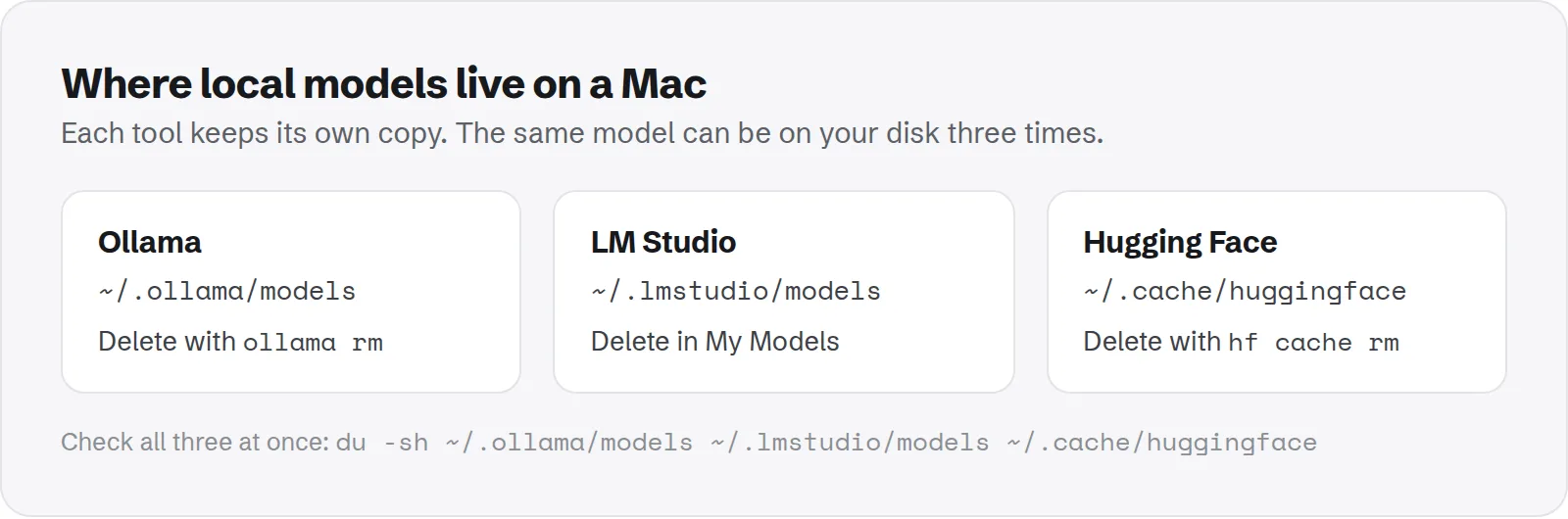
To see how much each one is using right now:
du -sh ~/.ollama/models ~/.lmstudio/models ~/.cache/huggingface 2>/dev/nullIf the same model shows up in two or three places, delete the copies in the tools you use least.
Can you run local LLMs from an external drive?
Yes. Ollama, LM Studio and the Hugging Face libraries can all keep their models on an external drive. Each guide linked above shows how to move them. Some practical points:
- Use an SSD, not a hard drive. A model is read in full every time it loads. A fast USB-C, Thunderbolt or USB4 SSD loads a model in seconds; a spinning hard drive can take minutes.
- Speed only matters at load time. Once a model is in memory, the drive is no longer involved, so chatting is just as fast as from the internal drive.
- Keep the drive connected. If it is missing when a tool starts, your models disappear from its list until you plug it back in.
For a Mac with 256 GB or 512 GB of internal storage, a 1 TB external SSD for models is often a better buy than giving up space you need for everything else.
How to keep local AI from filling your Mac
- Match models to your memory. If a model is too large to run comfortably, delete it rather than keeping it for some day.
- Keep one version of each model. After comparing quantizations or formats, keep the one you use. The rest are full copies.
- Pick one main tool. Using Ollama and LM Studio both is fine, but download a given model in only one of them.
- Review monthly. Models are downloads, not documents. Deleting one you might want later costs a few minutes of downloading; keeping ten "just in case" costs a hundred gigabytes.
How Purgy keeps local models in check
Once you have more than a few models, the hard part is remembering where they all are. Purgy's AI models screen puts them in one list:
- It checks Ollama, LM Studio, the Hugging Face cache and GPT4All, and shows each tool's total size. Since Purgy 1.1.3 that includes LM Studio's
~/.lmstudio/models, its older~/.cache/lm-studio/models, and a folder you chose in LM Studio's settings. - Nothing is selected for you. Re-downloading a 40 GB model is a real cost, so you decide what goes.
- Whatever you pick moves to the Trash, where Finder can put it back.
Apple Intelligence models are not in that list, because they are part of macOS and no app can remove them. Purgy's System Data screen shows how much they take and which setting turns them off.
If your Mac's storage settings show a huge "System Data" figure, model folders are a common reason. Our guide to clearing System Data on Mac covers the other usual causes. See what your models take with the free trial.
Questions people ask about local LLM storage
A few questions come up again and again. Here are short, direct answers.
Buying a Mac for local AI: more memory or more storage?
Memory, almost always. On Apple Silicon, memory cannot be upgraded after you buy the Mac, and it decides which models you can run at all.
Storage can be added later with an external SSD. If the budget forces a choice, a Mac with more memory and less internal storage is usually the better machine for local models.
Can a 256 GB Mac run local LLMs?
Yes. A couple of 7–8B models take under 10 GB. The limit is discipline rather than capacity: keep one or two models you actually use, delete the rest, and put any larger collection on an external SSD.
Does a model take more disk space while it is running?
No. The file on disk stays the same size. Running a model uses memory, and long conversations use more of it. The exception is when memory runs out and macOS starts swapping to disk, which uses free space temporarily and slows everything down.
If I delete a model, do I lose my chats?
No. Chat history is stored separately from the model files in both Ollama and LM Studio. You can delete a model and download it again later; your old conversations stay where they were.