Hugging Face Cache on Mac: Where It Is and How to Clear It
On this page
- Where is the Hugging Face cache on a Mac?
- What is inside the cache?
- How much space is the Hugging Face cache using?
- How to clear the Hugging Face cache
- Is it safe to delete the Hugging Face cache?
- How to move the Hugging Face cache to another drive
- Other AI caches worth checking
- How Purgy shows every AI cache together
Quick answer: On a Mac, Hugging Face tools store downloaded models and datasets in ~/.cache/huggingface. Models are in the hub folder inside it. To see what is there and how big each item is, run hf cache ls.
To remove a model, run hf cache rm with its ID, and to clear out old versions in one go, run hf cache prune.
Everything in the cache can be downloaded again, so clearing it is safe. The cost is the time it takes to download it again.
You do not have to use Hugging Face's website to fill this folder. Any Python script that calls from_pretrained() in Transformers or Diffusers, any MLX example that loads a model by name, and many notebooks and AI apps download into it quietly.
Nothing ever removes old downloads, so after a few months of experiments it is common to find tens of gigabytes there, sometimes hundreds.
Where is the Hugging Face cache on a Mac?
The default location is:
~/.cache/huggingfaceThe ~ stands for your home folder, so the full path looks like /Users/yourname/.cache/huggingface. Folders starting with a dot are hidden in Finder.
To open it, press Cmd + Shift + G in Finder, paste the path and press Return, or press Cmd + Shift + . (period) to show hidden files.
Several settings can move it, so if the folder is missing or small, check whether one of these is set in your shell:
HF_HOMEmoves the whole Hugging Face folder.HF_HUB_CACHEmoves only the model cache (hub).HF_DATASETS_CACHEmoves only the Datasets library's cache.TRANSFORMERS_CACHEis an older setting that some projects still use.XDG_CACHE_HOME, if set, replaces~/.cacheas the starting point.
Run env | grep -E 'HF_|TRANSFORMERS|XDG_CACHE' in Terminal to see whether any are set.
What is inside the cache?
The main folders are:
hub/: models, datasets and Spaces downloaded through the Hugging Face Hub library. This is usually where most of the space is.datasets/: the Datasets library's own cache. It holds processed copies of datasets in Arrow format, which can be larger than the original download.xet/: present with newer versions of the Hub library, which download through Hugging Face's Xet storage. It holds data chunks used to speed up downloads.tokenandstored_tokens: your login for Hugging Face. They are tiny. Deleting them signs you out.
Inside hub, each item gets a folder named after the repository, such as models--mistralai--Mistral-7B-Instruct-v0.3 or datasets--rajpurkar--squad. Each of those has three parts:
blobs/: the actual files, named by checksum. This is where the space goes.snapshots/: one folder per downloaded version (revision), containing links that point intoblobs.refs/: small files mapping names likemainto a revision.
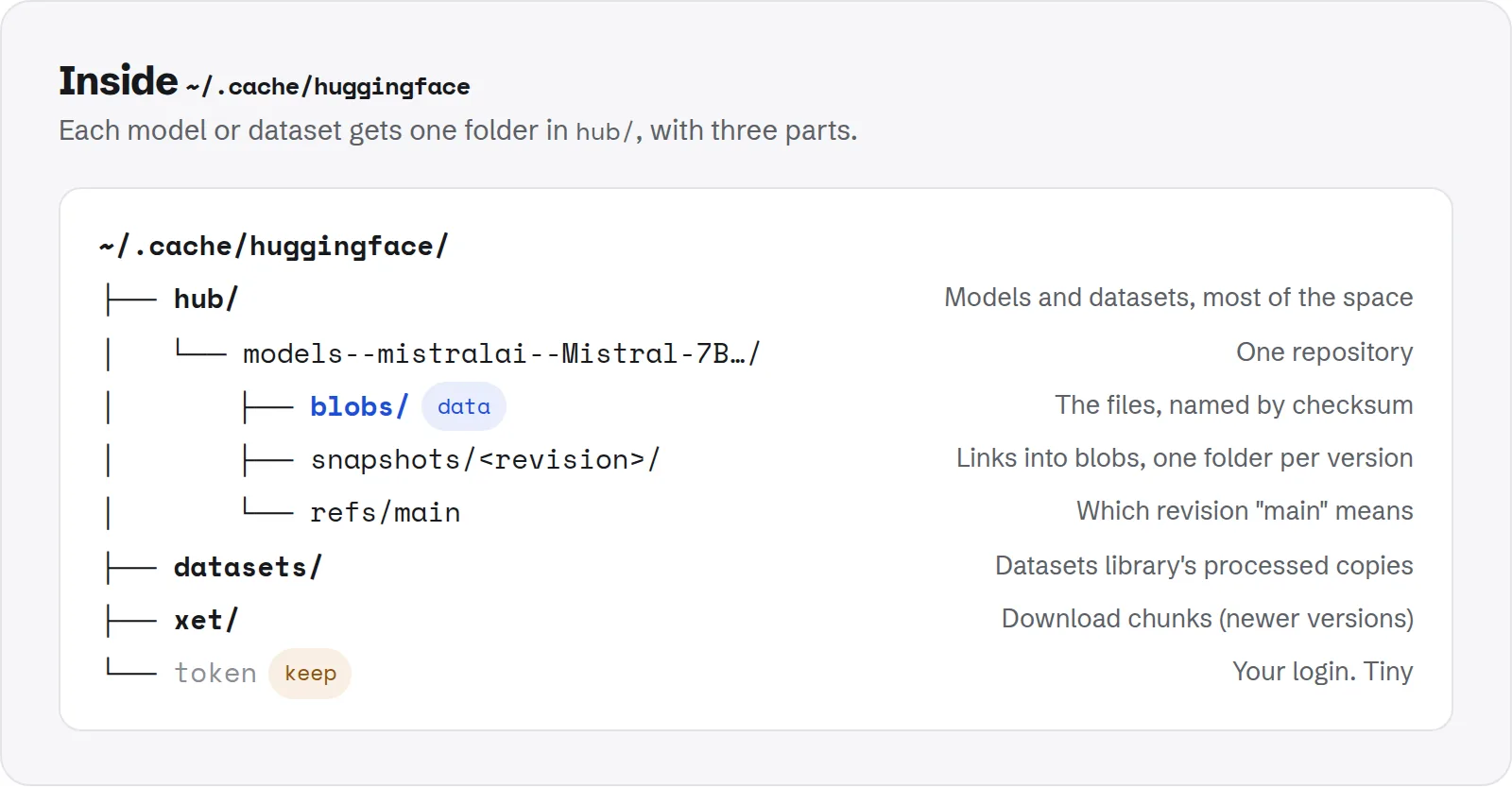
~/.cache/huggingface. Nearly all of the space is in the blobs folders inside hub.Because of these links, deleting a single file from blobs by hand can leave a broken model. Delete whole models--… folders, or use the tools below.
How much space is the Hugging Face cache using?
For the total:
du -sh ~/.cache/huggingfaceFor the biggest models and datasets:
du -sh ~/.cache/huggingface/hub/* | sort -hr | head -n 15The Hub library's own command-line tool, hf, gives a more useful report, because it understands models, datasets and revisions:
hf cache lsThis lists every cached repository with its size and when it was last used. Add --revisions to see each downloaded version separately.
You can also filter, for example hf cache ls --filter "size>1GB" to show only large items, or --filter "accessed>30d" to show what you have not used in a month.
If hf is not found, install or update the library with pip install -U huggingface_hub. Older versions of the library used a different tool, huggingface-cli, with the commands scan-cache and delete-cache.
It was removed in version 1.0 of the library, so use hf on any current install. Hugging Face's version 1.0 migration notes list the changes.
Why the cache grows faster than you expect
- Old revisions are kept. When a model's authors update it and you load it again, the new files are downloaded and the old version stays.
hf cache ls --revisionsshows several revisions for the same model when this happens. - Full-precision weights. Many repositories store weights in 16-bit precision, about 2 GB per billion parameters. A 7B model is around 14–15 GB, three times the size of the 4-bit version you might run in Ollama or LM Studio.
- Extra file formats. Some repositories contain the same weights twice, for example as
.safetensorsand as older.binfiles. Depending on how a script downloads the model, you may get both. - Datasets are processed into new copies. The Datasets library keeps the download and a processed Arrow version, and each different processing step can add another cache file.
How to clear the Hugging Face cache
There are three ways to clear it. The hf tool is the safest, because it understands which files belong to which model.
Option 1: use the hf tool (recommended)
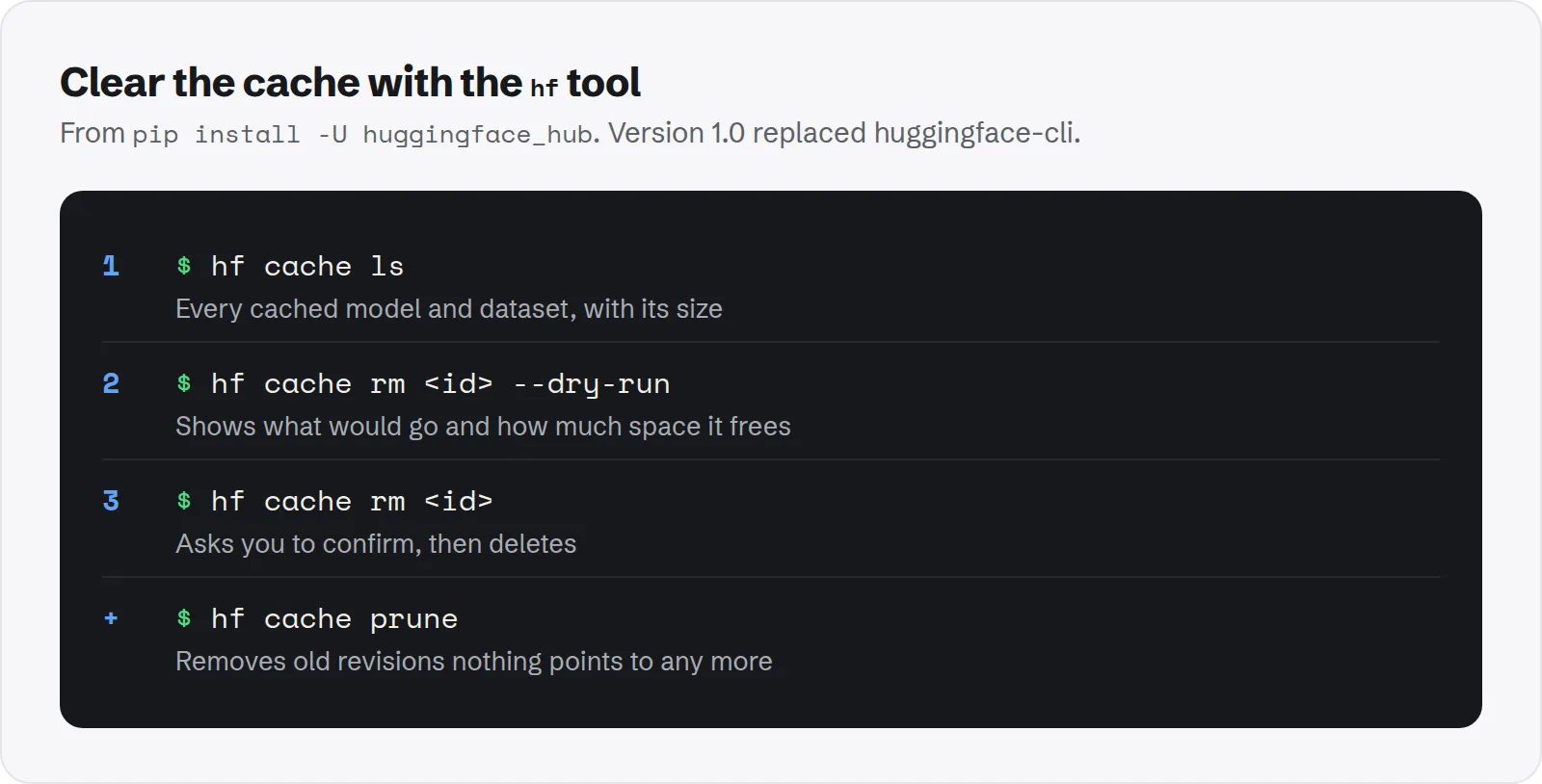
hf cache commands. Run with --dry-run first to see what will go.To remove a whole model or dataset, copy its ID from hf cache ls and pass it to hf cache rm. Add --dry-run first to see what would be deleted and how much space you would get back:
hf cache ls
hf cache rm model/mistralai/Mistral-7B-Instruct-v0.3 --dry-run
hf cache rm model/mistralai/Mistral-7B-Instruct-v0.3
The command asks you to confirm before it deletes anything. You can name several IDs at once, or pass revision hashes from hf cache ls --revisions to remove only specific versions.
To remove old revisions of models you still use, run:
hf cache prune --dry-run
hf cache prune
This deletes revisions that nothing points to any more, such as a version a model's authors have since replaced, and keeps the current one.
It only removes files no other revision needs. Hugging Face's guide to managing the cache explains how revisions and shared files work in more detail.
Option 2: delete a model folder in Finder
- Quit any Python process, notebook or app that might be using the model.
- Open
~/.cache/huggingface/hubwith Cmd + Shift + G. - Move the whole
models--org--namefolder to the Trash. - Empty the Trash to get the space back.
Option 3: clear everything
To remove all cached models but stay signed in, delete only the hub folder:
rm -rf ~/.cache/huggingface/hubTo clear the Datasets cache as well:
rm -rf ~/.cache/huggingface/datasetsThe library creates the folders again the next time something downloads. Both commands delete permanently, without going through the Trash.
From Python
If you would rather script it, the Hub library exposes the same scan:
from huggingface_hub import scan_cache_dir

cache = scan_cache_dir()
print(cache.size_on_disk_str)
for repo in sorted(cache.repos, key=lambda r: r.size_on_disk, reverse=True)[:10]:
    print(repo.size_on_disk_str, repo.repo_id)
To delete, pass revision hashes to cache.delete_revisions(...), which returns a plan you run with .execute(). The plan's expected_freed_size_str tells you how much you will get back before you commit.
Is it safe to delete the Hugging Face cache?
Yes, for almost everything in it. The cache is a local copy of files that live on the Hugging Face Hub. Deleting it does not break Python, macOS or your code. The next time a script asks for a model, it downloads it again.
A few cases deserve a moment's thought first:
- Large downloads on a slow or metered connection. Getting a 30 GB model back can take hours.
- Gated or removed models. If a model required you to accept terms and your access lapsed, or the authors deleted or made it private, your cached copy may be the only one you can get.
- Offline work. If you run with
HF_HUB_OFFLINE=1, scripts will fail for anything you deleted until you are online again. - The
tokenfile. Keep it unless you want to sign out. It is not what is using the space.
Your own fine-tuned models and training outputs are normally saved wherever your script writes them, not in this cache. If you are not sure, check your training code's output path before deleting anything.
How to move the Hugging Face cache to another drive
- Close anything that is using Hugging Face models.
- Move the folder to the new drive:
The links insidemv ~/.cache/huggingface /Volumes/External/huggingfacesnapshotsare relative, so they keep working after the move as long as you move the whole folder together. - Point the tools at the new location by adding this line to
~/.zshrc:export HF_HOME=/Volumes/External/huggingface - Open a new Terminal window and run
hf cache lsto check that your models are found.
The setting only applies to programs started from a shell that reads ~/.zshrc. An app or editor launched from the Dock may still use the default location unless you set HF_HOME in its own settings too.
If the external drive is not connected, scripts will start downloading into an empty cache, so keep it plugged in while you work.
Other AI caches worth checking
The Hugging Face cache is often one of several places models pile up:
- Ollama keeps its own copy in
~/.ollama/models. See where Ollama stores models on Mac. - LM Studio keeps its own copy in
~/.lmstudio/models. See LM Studio models taking up space. - PyTorch Hub uses
~/.cache/torch. - pip keeps downloaded packages in
~/Library/Caches/pip, which you can clear withpip cache purge.
None of these share files, so the same model can easily be on your disk three times. If you are planning how much room to leave for all of this, see how much storage you need for local LLMs on a Mac.
How Purgy shows every AI cache together
Purgy's AI models screen lists the Hugging Face cache next to Ollama and GPT4All, with each tool's total size. That is the quickest way to spot the same model stored more than once.
- Open Purgy and let it scan.
~/.cache/huggingfaceappears under Unused AI models with its size. - Nothing is ticked for you, because re-downloading large models costs real time and bandwidth.
- If you tick the cache, it moves to the Trash, so you can put it back before emptying it.
Purgy works on the cache as a whole. To remove a single model or old revision, hf cache above is the more precise tool, because it understands how the cache is organised.
The pip cache in ~/Library/Caches/pip is a simpler case: Purgy clears it with your other caches, since pip downloads packages again when needed. See what your AI tools are holding with the free trial.