How to Clear the Microsoft Teams Cache on Mac
On this page
- Is it safe to clear the Teams cache?
- Which version of Teams do you have?
- How to clear the new Teams cache
- Do not delete the shared Office folder
- How to clear the cache using Finder
- Remove leftovers from classic Teams
- How much space is Teams using?
- When clearing the cache fixes Teams problems
- Other Microsoft apps that use a lot of space
- Clearing Teams on a work Mac
- Other chat apps that keep big caches
- A simple routine for Teams storage
- How Purgy clears the Teams cache
- Questions people ask about the Teams cache on Mac
Quick answer: Quit Teams, then delete two folders: ~/Library/Group Containers/UBF8T346G9.com.microsoft.teams and ~/Library/Containers/com.microsoft.teams2. Open Teams again and it rebuilds what it needs.
These are the folders Microsoft itself lists for the new Teams on Mac. Your chats, files and meetings are stored in Microsoft's cloud, so they are not affected.
Microsoft Teams keeps a lot on your Mac: images from chats, previews of shared files, web content and data for offline use. Over months of meetings and busy channels, that cache can reach several gigabytes.
A large or damaged cache can also make Teams slow, show old content or fail to load. Clearing it fixes both problems. This guide shows how to do it safely.
Is it safe to clear the Teams cache?
Yes. The cache holds local copies of things that live in Microsoft 365. Clearing it does not delete messages, files, meetings or channel content.
There are a few side effects to expect. The first launch afterwards takes longer, because Teams rebuilds the cache. You may need to sign in again. Some settings stored only on your Mac, such as a custom background you uploaded, may need to be added again.
Microsoft also notes that clearing the cache is not the fix for problems like missing chat history or wrong unread counts. Those come from the service, not from your Mac.
Which version of Teams do you have?
Microsoft replaced the original Teams app with a new version in 2024. The new app stores its data in different folders, so it matters which one you have.
- New Teams: the current app. Its icon usually reads "Microsoft Teams" and it is the one Microsoft updates today.
- Classic Teams: the older app, now retired. Its data may still be on your Mac if you used it before the switch.
Most people today have only the new app. The classic app's leftovers are covered further down, because they are often forgotten.
How to clear the new Teams cache
These steps follow Microsoft's own guide to clearing the Teams client cache.
- Quit Teams completely. Right-click its icon in the Dock and choose Quit, or press Cmd + Q while it is open.
- Open Terminal from
Applications > Utilities. - Run these two commands, pressing Return after each one:
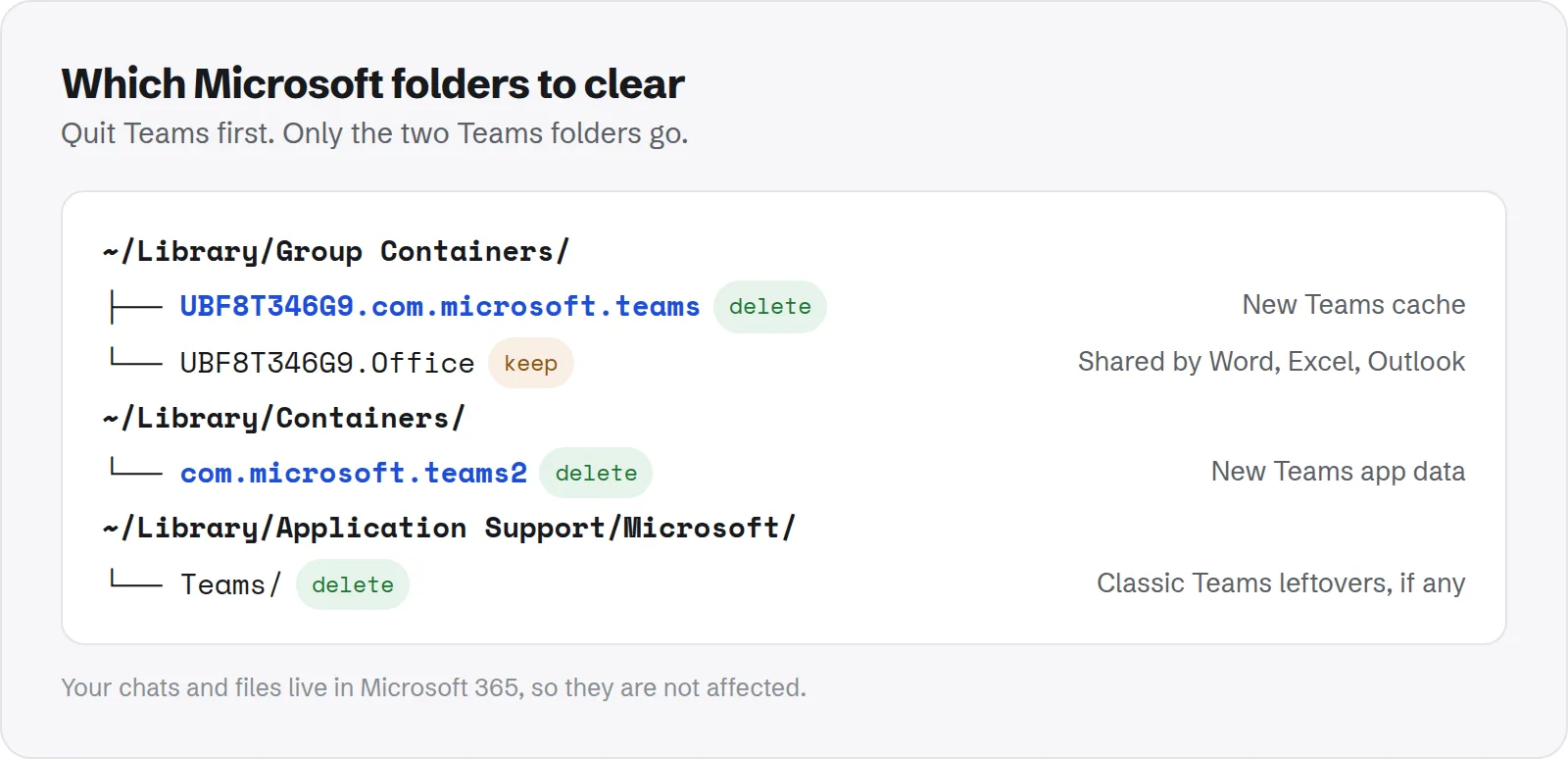
rm -rf ~/Library/Group\ Containers/UBF8T346G9.com.microsoft.teams rm -rf ~/Library/Containers/com.microsoft.teams2 - Open Teams again and sign in if asked.
The backslash in the first command is there because the folder name contains a space. Type it exactly as shown.
Both commands delete straight away, with no Trash step. That is fine here, because everything in these folders can be rebuilt.
Do not delete the shared Office folder
In ~/Library/Group Containers you will see other folders that start with UBF8T346G9. One of them is UBF8T346G9.Office.
That folder is shared by Word, Excel, PowerPoint, Outlook and OneNote. It holds settings, templates and sign-in data for all of them. Deleting it can sign you out of Office or reset its settings.
Only delete the folder that ends in com.microsoft.teams. Leave every other UBF8T346G9 folder alone.
How to clear the cache using Finder
If you prefer not to use Terminal, Finder works just as well. The folders are hidden, so open them by path.
- Quit Teams.
- In Finder, press Cmd + Shift + G and paste
~/Library/Group Containers/. - Find
UBF8T346G9.com.microsoft.teamsand move it to the Trash. - Press Cmd + Shift + G again and paste
~/Library/Containers/. - Find
com.microsoft.teams2and move it to the Trash. - Empty the Trash and open Teams.
If Finder asks for permission to move a container folder, allow it. macOS protects these folders a little more than normal ones.
Remove leftovers from classic Teams
If you used Teams before the new app arrived, the classic app's data may still be on your Mac. It is no longer used, so it is pure wasted space.
Check for this folder:
~/Library/Application Support/Microsoft/TeamsIf it exists and you only use the new Teams, you can delete it. Also check /Applications for an old "Microsoft Teams classic" app and move it to the Trash if you see one.
How much space is Teams using?
Measure before and after, so you know how much you freed. This command reads only; it changes nothing:
du -sh ~/Library/Group\ Containers/UBF8T346G9.com.microsoft.teams ~/Library/Containers/com.microsoft.teams2 2>/dev/nullOn a Mac used for daily meetings, a few gigabytes is common. If the number climbs back quickly after clearing, that is normal for heavy use; the cache fills with what you open.
When clearing the cache fixes Teams problems
Freeing space is one reason to clear the cache. It also fixes a set of common problems that come from damaged local data.
- Teams is very slow to open or switch chats: a bloated cache can slow everything down.
- Images or profile pictures do not load: broken cached images are replaced with fresh ones.
- Teams shows a blank or white window: damaged web content in the cache is a common cause.
- Settings changes do not stick: a reset often clears whatever was stuck.
If a problem is about missing messages, channels or wrong unread counts, clearing the cache usually will not help. Those need your IT team or Microsoft support.
Other Microsoft apps that use a lot of space
If Teams was large, the rest of Microsoft 365 may be too. Two apps are common causes, and both have safe, built-in ways to shrink.
- Outlook: keeps a local copy of your mailbox inside the shared Office folder. Do not delete it by hand. If it is large, ask whether you need years of mail offline; Outlook and your IT team can limit how much is kept on the Mac.
- OneDrive: files you have opened are downloaded to your Mac. In Finder, right-click a OneDrive folder and choose Free Up Space. The files stay in the cloud and download again when you open them.
OneDrive's Free Up Space is often the biggest win of all. A shared work folder can hold far more than the Teams cache.
Clearing Teams on a work Mac
If your Mac is managed by your company, clearing the Teams cache is usually fine and is often what IT asks you to try first. It does not change any company settings.
Some companies install Teams with special settings or add-ins. If Teams behaves differently after clearing the cache, or keeps asking you to sign in, contact your IT team before reinstalling anything.
Never delete company profiles or security tools to free space. They can look like large folders in your Library, but removing them can lock you out of work apps.
Other chat apps that keep big caches
Teams is not the only chat app that quietly stores gigabytes. If you use several, each keeps its own cache of images, files and videos.
Our guide to Telegram storage on Mac shows how to clear Telegram and set limits so it does not grow back. Many chat caches end up inside the System Data total; see how to clear System Data for the rest.
A simple routine for Teams storage
You do not need to clear Teams often. Doing it when there is a reason works best.
- When Teams misbehaves: clear the cache before reinstalling. It fixes most local problems.
- When you are short of space: check its size with the command above. A few gigabytes back is common.
- After switching to new Teams: delete classic Teams leftovers once.
How Purgy clears the Teams cache
New Teams is a sandboxed app, so its cache sits in ~/Library/Containers, a folder most guides and many cleaners skip. Purgy scans the cache folder inside every sandboxed app container, so Teams appears under System caches with its size.
- Quit Teams completely, as described above.
- Open Purgy and let it scan. Teams' cache is ticked by default with the other app caches, and the Review list shows how big it is.
- Press Clean now. Only the cache is removed. Your chats, files and account are stored by Microsoft, and you stay signed in.
This is a lighter clean than Microsoft's full reset above. Purgy protects everything in ~/Library/Group Containers, so it never deletes the Teams folder there or the shared Office folder that Word, Excel and Outlook rely on. If Teams is misbehaving rather than just using space, follow Microsoft's steps above instead.
Leftovers from classic Teams are found in ~/Library/Caches and Application Support in the same scan. If you no longer use classic Teams, remove the app and its leftovers together with the Uninstall apps screen. See what Teams and your other apps cache with the free trial.
Questions people ask about the Teams cache on Mac
These are the questions that come up most about clearing Teams.
Will clearing the Teams cache delete my chats?
No. Chats, files and meeting recordings are stored in Microsoft 365. Teams downloads what it needs again after you clear the cache.
Do I need to sign in again afterwards?
Possibly. Some sign-in data is stored with the cache. If Teams asks, sign in with your usual work or school account.
Why is Teams so slow the first time after clearing?
It is rebuilding the cache from scratch: downloading images, previews and settings again. Later launches are back to normal speed.
Is it safe to delete every folder starting with UBF8T346G9?
No. Those folders belong to different Microsoft apps. UBF8T346G9.Office is shared by Word, Excel and Outlook. Only delete the Teams one.
How often does the Teams cache need clearing?
Only when you need the space or Teams misbehaves. There is no benefit to clearing it on a schedule, because it simply fills again with what you open.
Should I reinstall Teams instead?
Clearing the cache first is quicker and fixes most problems. Reinstalling the app alone often leaves the old cache in place, so the problem can come straight back.