Telegram Taking Too Much Space on Mac? How to Clear It

On this page
- Which Telegram app do you have?
- Is it safe to clear Telegram's cache?
- How to clear Telegram's cache in the Mac app
- How to clear the cache in Telegram Desktop
- Set limits so the cache does not grow back
- Turn off automatic downloads for big files
- Where Telegram stores data on a Mac
- How to check how much space Telegram really uses
- Remove the Telegram app you do not use
- Leaving channels and groups you do not read
- Does Telegram count as System Data?
- A simple routine for Telegram storage
- Where Purgy fits with Telegram
- Questions people ask about Telegram storage
Quick answer: Open Telegram's settings and find its storage section. In the Telegram app for Mac it is under Data and Storage > Storage Usage. In Telegram Desktop it is under Advanced > Manage local storage.
Clear the cache there. Your chats stay safe, because Telegram keeps them in its cloud and downloads media again when you open it.
Telegram is built around the cloud, so it can feel strange that it uses so much space on your Mac. The reason is simple: every photo, video, voice message and file you view is saved locally, so it opens fast next time.
In busy groups and channels that adds up quickly. It is common to find Telegram using 10 GB or more on a Mac that has been used for a year. This guide shows how to clear it and stop it growing back.
Which Telegram app do you have?
There are two official Telegram apps for Mac, and their settings look different. It is worth checking which one you use before you follow any steps.
- Telegram (for macOS): the native Mac app, available on the Mac App Store. It looks and feels like a typical Mac app.
- Telegram Desktop: the cross-platform app, the same one used on Windows and Linux. Its menus look the same on every system.
Open the app and choose About from its menu if you are not sure. Some people have both installed, which doubles the storage they use.
Is it safe to clear Telegram's cache?
Yes, for normal chats, groups and channels. Telegram stores your messages and media in its cloud. Clearing the cache removes only the local copies on your Mac.
Telegram's own FAQ makes this point: the app needs very little space on your device, and you can clear the cache to free space without losing anything.
There is one exception. Secret chats are not stored in the cloud; they live only on the devices in the chat. If you use secret chats on your Mac, check that you have saved anything important from them before clearing storage.
How to clear Telegram's cache in the Mac app
These steps are for the native Telegram app for macOS. The exact names can change slightly between versions.
- Open Telegram and go to Settings.
- Choose Data and Storage.
- Open Storage Usage. Telegram calculates how much space it uses and shows a breakdown by type, such as photos, videos and files.
- Choose what to clear. You can clear everything, or only some types of media.
The calculation can take a minute if the cache is large. Wait for it to finish before you choose what to clear.
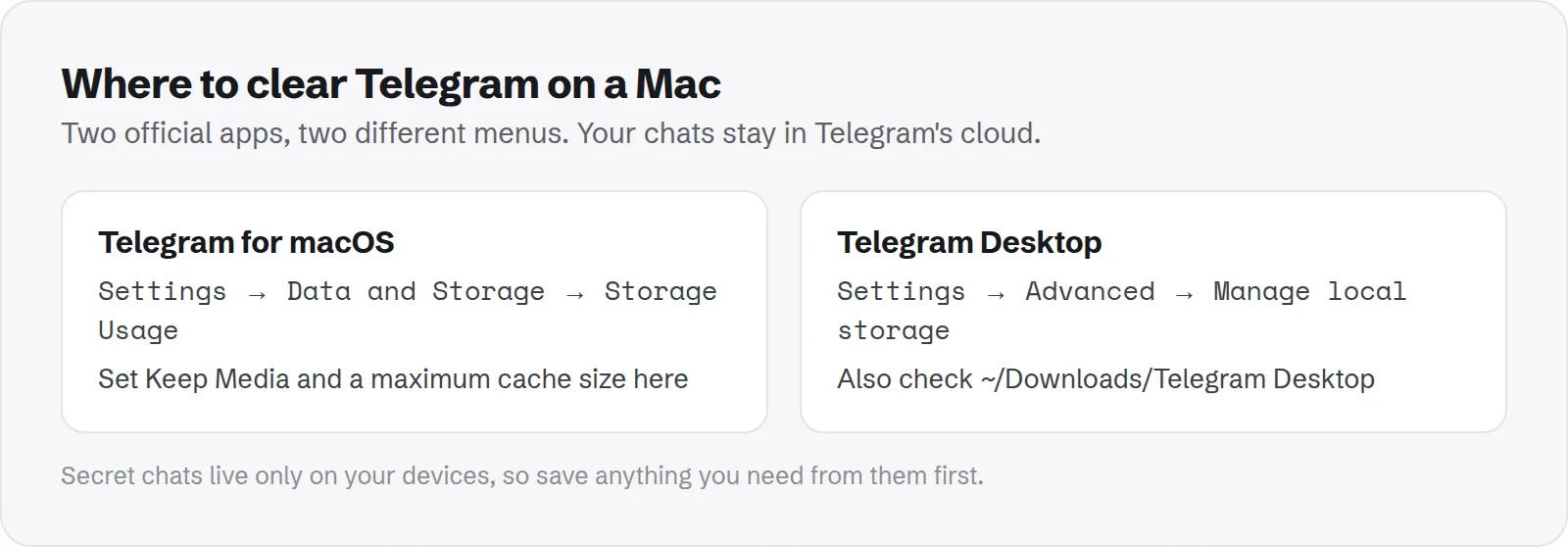
How to clear the cache in Telegram Desktop
Telegram Desktop keeps its storage settings in the advanced section. Again, names may vary a little by version.
- Open Telegram Desktop and go to Settings.
- Choose Advanced.
- Click Manage local storage.
- Click Clear all, or clear individual types of media.
Telegram Desktop also saves files you download to a folder in your Downloads, usually called Telegram Desktop. Clearing the cache does not touch that folder. Check it separately in Finder, because it often holds large videos and documents.
Set limits so the cache does not grow back
Clearing once helps, but the cache fills again as you keep chatting. Both apps let you limit how long media is kept and how big the cache can get.
- Keep media: choose how long Telegram keeps media you have viewed, such as one week or one month. Older items are removed automatically.
- Maximum cache size: set an upper limit. When the cache reaches it, Telegram removes the oldest files first.
In the Mac app, both are in Data and Storage > Storage Usage. In Telegram Desktop, they are in Manage local storage. A one-week limit is a good balance for most people.
Turn off automatic downloads for big files
By default, Telegram downloads some media on its own, so it is ready when you scroll. In busy channels this fills the cache with videos you never watch.
Open Data and Storage (or Advanced in Telegram Desktop) and find the automatic media download settings. Turn off automatic downloads for videos and files, or lower the size limit.
Photos are small, so you can usually leave them on. Videos and files are where most of the space goes.
Where Telegram stores data on a Mac
You do not need to touch these folders, because the in-app tools are safer. But it helps to know where the space is if you are measuring your disk.
- Telegram for macOS: its data lives in a folder under
~/Library/Group Containers, with a name ending inru.keepcoder.Telegram. - Telegram Desktop: its data lives in
~/Library/Application Support/Telegram Desktop. - Saved downloads: usually in
~/Downloads/Telegram Desktop, or wherever you set in the app.
Deleting these folders by hand can sign you out or remove settings. Use the app's storage screen instead.
How to check how much space Telegram really uses
The app's storage screen is the easiest place to look. If you want to confirm the number from outside the app, measure its folders in Terminal:
du -sh ~/Library/Group\ Containers/*keepcoder* 2>/dev/null
du -sh ~/Library/Application\ Support/Telegram\ Desktop 2>/dev/null
du -sh ~/Downloads/Telegram\ Desktop 2>/dev/null
Run it again after clearing the cache. The first or second line should drop sharply, depending on which app you use.
Remove the Telegram app you do not use
If both Telegram apps are installed, each one keeps its own cache of the same chats. That can double the space Telegram takes.
Pick the app you prefer and remove the other. Clear its storage first from its own settings, then quit it and move it to the Trash. Its leftover data folder, listed above, can then be deleted too.
Leaving channels and groups you do not read
Big public channels are often the main source of cached media. Even if you only scroll past, previews and auto-downloaded files land on your Mac.
Leaving channels you no longer read stops new media arriving. You can also mute them and turn off automatic downloads, but leaving is the cleanest fix.
Does Telegram count as System Data?
Often, yes. Because Telegram stores its cache in hidden Library folders, macOS may count it in System Data rather than under Telegram in Storage settings.
If System Data is still large after you clear Telegram, other hidden folders are probably involved. See how to clear System Data on Mac for the other common causes.
For a deeper look at hidden system folders that grow, our guide to /private/var/folders covers one that surprises many people.
A simple routine for Telegram storage
Set it once and Telegram mostly takes care of itself. A quick check every few months is enough after that.
- Set Keep Media to one week: old media clears itself.
- Set a maximum cache size: 2 to 5 GB is plenty for most people.
- Turn off automatic video downloads: watch videos when you choose to.
- Check your Downloads folder: files you saved from Telegram stay there until you delete them.
Where Purgy fits with Telegram
The Mac App Store version of Telegram keeps its data, cache included, in ~/Library/Group Containers. That folder also holds data other apps share with their extensions, so Purgy protects all of it and never deletes from it.
Clear Telegram's cache from inside Telegram, as shown above. Telegram knows which files are cached media and which are part of your chats.
Purgy still helps in two ways:
- Seeing the size. The System Data screen includes Group Containers in its Real data, keep row, and the Space map shows Telegram's folder next to everything else, so you can confirm Telegram is the problem before you start.
- Media you saved. Files you downloaded from Telegram usually land in Downloads. The Documents screen lists the big ones and exact duplicates, with nothing selected for you.
If you have both Telegram apps and want to remove one, the Uninstall apps screen removes it and its leftovers in your Library, all moved to the Trash. See how much Telegram uses with the free trial.
Questions people ask about Telegram storage
These are the questions that come up most when people clean Telegram on a Mac.
Will clearing the cache delete my chats?
No. Regular chats, groups and channels live in Telegram's cloud. Messages stay, and media downloads again when you open it.
Why is Telegram so big if everything is in the cloud?
Because it keeps local copies of media you view, so it loads instantly next time. Without limits, those copies are kept for a long time.
Do I need to clear Telegram on my iPhone too?
Each device keeps its own cache. Clearing it on your Mac does not affect your phone. The phone app has the same storage settings if you want to clean it.
Why does Storage Usage show a different number than Finder?
Telegram counts only its own media cache. Finder and Terminal count the whole data folder, including settings and the database of your chat list. Small differences are normal.
Can I move Telegram's cache to an external drive?
Telegram Desktop lets you choose where downloaded files are saved. The cache itself stays in the app's own folder. Setting limits is usually a better fix than moving it.
Is it safe to delete the Telegram Desktop folder in Downloads?
Yes, if you have kept copies of anything you need. These are files you chose to save, not part of how the app works. Look through it first, since it may hold documents people sent you.