Can You Delete Application Support Folders on Mac?

On this page
- What is Application Support?
- Find what is using the space
- What is safe to delete
- What you should keep
- Large items that often hide here
- How to clean Application Support safely
- Reset a misbehaving app the safe way
- Move large libraries instead of deleting them
- The shared folder: /Library/Application Support
- Where this fits in your Library
- How Purgy cleans Application Support without touching your data
- Questions people ask about Application Support
Quick answer: Only for apps you have removed. ~/Library/Application Support holds real app data, such as databases, settings, downloads and libraries. Deleting the folder of an app you still use resets it and can lose data.
Folders left by apps you uninstalled are safe to delete. Inside apps you use, cache folders such as Cache, Code Cache and GPUCache are usually safe to clear too.
Application Support is often one of the largest folders in your Library. It is also the one where a careless delete causes the most trouble. Unlike Caches, the data here is not always rebuilt.
This guide explains what lives in Application Support, how to find out what is using the space, and how to clean it without losing anything important.
What is Application Support?
It is where apps keep the data they need to run, outside of your documents. Each app normally gets its own folder, named after the app or its developer.
What an app stores here depends on the app. Common examples:
- Databases: the library of a notes app, the catalogue of a photo editor, or the message history of a chat app.
- Downloaded content: plug-ins, templates, sound libraries or offline data.
- Settings and profiles: for example a browser profile with bookmarks, history and extensions.
- Caches: some apps, especially ones built with web technology, keep their caches here instead of in Caches.
Your own copy is at ~/Library/Application Support. There is also a shared one at /Library/Application Support, covered further down.
Find what is using the space
Measure before you delete anything. This lists the twenty largest folders, biggest first:
du -sh ~/Library/Application\ Support/* 2>/dev/null | sort -hr | head -20To open the folder in Finder, press Cmd + Shift + G and type ~/Library/Application Support.
Most folder names are clear, such as Slack or Google. Some use a bundle ID like com.example.app; the middle part is usually the developer and the last part the app.
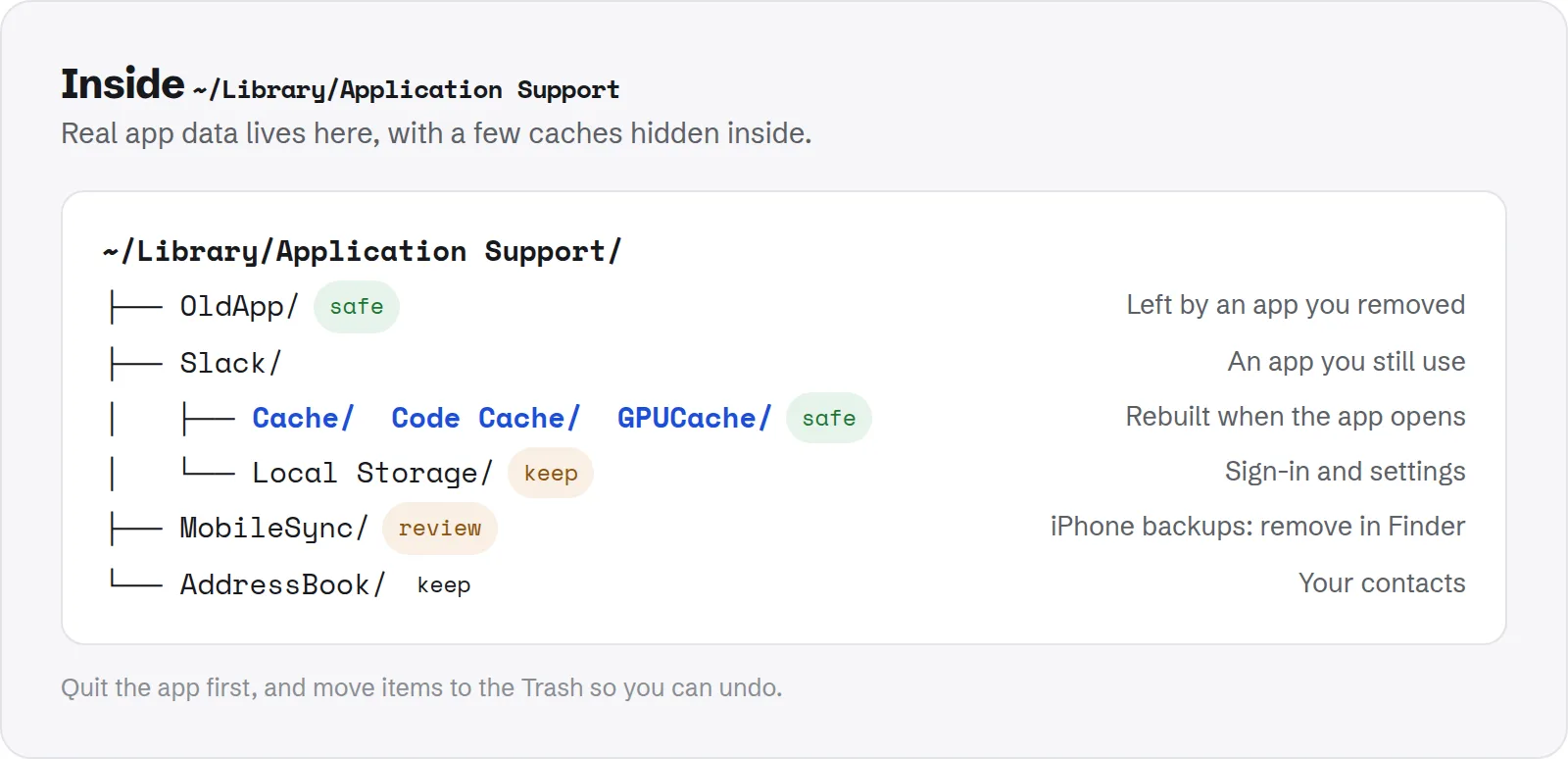
~/Library/Application Support. Real app data lives here, with a few caches hidden inside.What is safe to delete
Three kinds of content can go without any real risk. Together they are often most of the space.
Folders of apps you uninstalled
Moving an app to the Trash does not remove its Application Support folder. These leftovers can stay for years, and nothing will ever use them again.
Look for names of apps you no longer have. If you are sure an app is gone, move its folder to the Trash. If you might reinstall it later and want your settings back, keep it.
Cache folders inside apps you use
Many apps built on Electron, such as Slack, Discord, VS Code, Notion and Microsoft Teams, keep browser-style caches inside their Application Support folder. Look for subfolders named:
CacheorCachesCode CacheGPUCacheService Worker/CacheStorage
Quit the app, then move just those subfolders to the Trash. The app rebuilds them. Leave the rest of the app's folder alone, because it holds your sign-in and settings.
Old crash reports and logs
Folders like CrashReporter and app-specific logs folders hold records of past problems. They are only useful for troubleshooting and can go.
What you should keep
Some folders here hold data that is personal, hard to rebuild, or shared by many parts of macOS. Leave these unless you know exactly what you are doing.
AddressBook: your contacts data.MobileSync: iPhone and iPad backups made on this Mac. Remove backups from Finder's device screen instead, so you can see which is which.- Browser profiles: such as
Google/ChromeorFirefox. They hold bookmarks, saved passwords, history and extensions. - Folders for apps you use: they hold that app's data. Clean them from inside the app where possible.
- Apple folders you do not recognise: names starting with
com.appleoften belong to system features. When unsure, leave them.
Apple's guide to locating and managing iPhone backups shows the safe way to remove old device backups.
Large items that often hide here
A few things in Application Support are big by design. Knowing them helps you decide quickly.
- Games: Steam keeps installed games under
Steam/steamapps. Uninstall games from Steam, not Finder. - Audio and music libraries: instruments and sound packs for music apps can reach tens of gigabytes. Remove them from the app that installed them.
- Old device backups: in
MobileSync. Often several gigabytes each. - Editor workspace data: VS Code's
Code/User/workspaceStoragekeeps data for every project you ever opened. Old entries can go.
How to clean Application Support safely
Follow these steps each time. They make sure you can undo anything that turns out to matter.
- Back up first. Check that Time Machine or another backup has run recently.
- Quit the app involved. Including menu bar helpers.
- Move to the Trash, do not delete outright. That keeps a way back.
- Open the app and check it. Make sure your data and settings are fine.
- Empty the Trash after a day or two.
Reset a misbehaving app the safe way
Application Support is also useful for fixing apps that keep crashing or acting strangely. Instead of deleting the app's folder, test with a temporary move.
- Quit the app.
- Move its folder from Application Support to your Desktop.
- Open the app. It starts fresh, as if newly installed.
- If the problem is gone and you do not miss anything, delete the folder on your Desktop.
- If you lost something important, quit the app and move the folder back.
This gives you a clean test with a full way back. It is much safer than deleting the folder and hoping.
Move large libraries instead of deleting them
Some of the biggest folders here hold content you want to keep, such as games or sound libraries. Deleting is not the only option.
Many of these apps let you choose where their content lives. Steam can add a library folder on an external drive, and most music apps let you move their sound libraries. Use the app's own setting, so it knows where to find things.
Moving a folder by hand in Finder usually breaks the app's links to its content. Always check the app's settings or help first.
The shared folder: /Library/Application Support
There is a second Application Support folder at the top level of your disk. It holds data shared by all users, such as audio plug-ins, printer drivers and licensing tools.
Removing things here needs an administrator password and affects everyone on the Mac. Only delete folders for software you have fully uninstalled. If an app came with its own uninstaller, use that instead, because it knows every file it added.
Where this fits in your Library
Application Support is one of several Library folders, each with its own rules. Some are as safe as caches; others hold data you must keep.
Our guide to the Mac Library folder walks through each one. For the simpler case, see whether ~/Library/Caches is safe to delete.
Most of this space is counted as System Data in Storage settings. See how to clear System Data on Mac for the other usual causes.
How Purgy cleans Application Support without touching your data
The hard part of Application Support is that cache and real data sit side by side in the same app folder. Purgy looks inside each app's folder, up to a few levels deep, and picks out only the folders that are caches by name and purpose: Cache, Code Cache, GPUCache, CachedData, ShaderCache and similar.
Chrome, Slack, Discord, VS Code and other apps built the same way each appear as one row under System caches. Clearing that row deletes only those cache folders. Bookmarks, settings, sign-ins, chats and documents in the same app folder stay where they are.
For the rest of Application Support:
- Apps you are removing: Purgy's Uninstall apps screen takes the app's Application Support folder with it, together with its caches, preferences and login items, all moved to the Trash.
- Old iPhone backups in
MobileSync/Backupare listed for review, never selected for you. - Anything else large: the Space map shows each folder's size so you can decide, and moves only what you tick to the Trash.
On macOS 27, Apple locks the data folders of some apps, including several browsers. When macOS refuses access, Purgy says so instead of working around it. You can see what it finds in your own Application Support with the free trial.
Questions people ask about Application Support
These are the questions that come up most about this folder.
What happens if I delete an app's Application Support folder?
The app behaves as if it were newly installed. Settings are reset, and any data it kept there, such as a library or history, may be gone. That is why it is only safe for apps you removed.
Why is Application Support so big?
Because many apps store real content there, not just settings. Games, music libraries, device backups and chat histories can each be several gigabytes.
Is it safe to delete folders starting with com.apple?
Usually not worth it. They belong to macOS features and Apple apps, and are often small. Deleting them can reset features in ways that are hard to notice until later.
How do I know which app a folder belongs to?
Most names match the app or developer. For bundle IDs like com.example.app, search the last part online or check your Applications folder for a match.
Does Application Support show up in Storage settings?
Not as its own item. Some of it is counted under the app it belongs to, and much of it ends up in System Data. That is why a large Application Support folder can make System Data look huge.
Will deleting leftovers from old apps cause problems?
No. If the app is gone, nothing uses that folder. The only reason to keep it is if you plan to reinstall the app and want your old settings back.