Is ~/Library/Caches Safe to Delete on Mac?

On this page
- What is ~/Library/Caches?
- What happens when you delete caches?
- Which caches grow the largest?
- How to clear ~/Library/Caches safely
- Clear one app's cache from inside the app
- A few caches are worth keeping
- Caches of apps you have uninstalled
- What about /Library/Caches and /System/Library/Caches?
- When clearing a cache fixes a problem
- How much space can you expect to get back?
- Why caches come back
- Where caches fit in your Library
- How Purgy clears ~/Library/Caches safely
- Questions people ask about ~/Library/Caches
Quick answer: Yes. The contents of ~/Library/Caches are safe to delete, because apps rebuild their caches as they need them.
Quit your apps first, clear the folders inside Caches rather than Caches itself, and move them to the Trash so you can undo. Expect some apps to open a little slower the first time afterwards.
"Clear your caches" is one of the oldest Mac tips. It is also one of the most misunderstood. Caches are not junk in the usual sense. They are copies apps keep on purpose, so they can work faster.
That said, caches grow without much control, and old ones are rarely cleaned up. On some Macs this folder reaches 10 to 30 GB. This guide explains what is inside, what clearing it really does, and how to do it properly.
What is ~/Library/Caches?
It is the folder where apps store data they can rebuild. The idea is simple: if something is slow to download or compute, keep a copy so next time is quick.
Each app gets its own folder inside, usually named after its bundle ID. Some examples you might see:
com.apple.Safari: parts of websites Safari has loaded.Google: Chrome's cache and other Google app data.com.spotify.client: music Spotify has streamed recently.Homebrew: packages Homebrew has downloaded.com.apple.QuickLook.thumbnailcache: previews of your files.
The ~ means your home folder, so this is your own Caches folder. There is a separate shared one at /Library/Caches, covered further down.
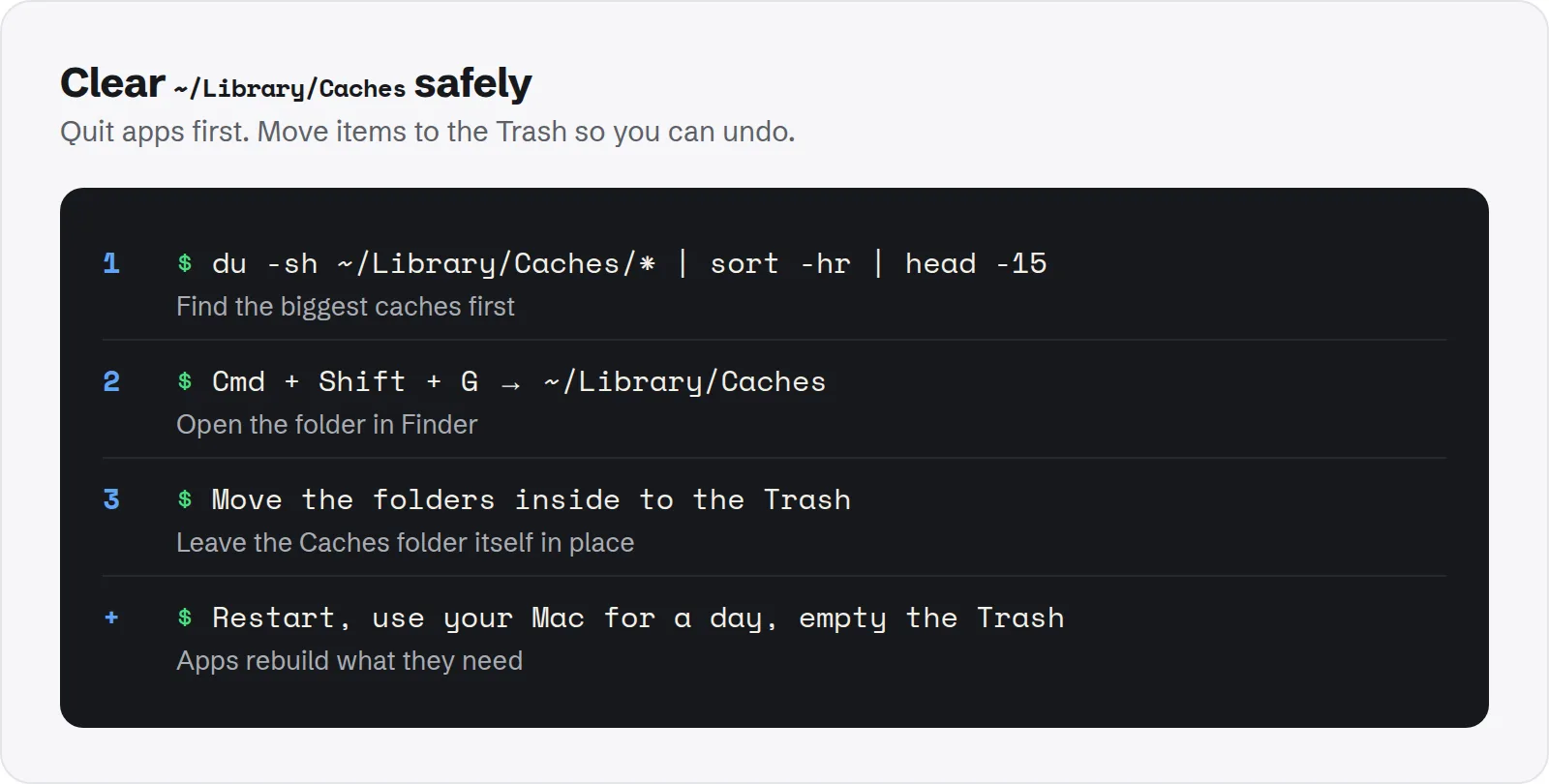
~/Library/Caches safely. Quit apps first. Move items to the Trash so you can undo.What happens when you delete caches?
Nothing breaks, but you will notice a few things for a short while. All of them are normal.
- Apps open a little slower once: they rebuild what they lost.
- Websites load slower once: browsers download images and scripts again.
- Previews take a moment: Finder rebuilds thumbnails as you browse.
- Streaming apps fetch again: recently played music or video downloads again when you play it.
Your documents, settings and passwords are not stored in Caches, so they are not touched.
Which caches grow the largest?
On most Macs, a handful of apps account for most of the folder. Measuring first tells you which ones are worth clearing.
du -sh ~/Library/Caches/* 2>/dev/null | sort -hr | head -15Common large ones include web browsers, streaming apps, developer tools such as Homebrew, pip and test browsers, and design or video apps that keep previews.
If one app's cache is much larger than the rest, clearing just that one often gives you most of the space with the least disruption.
How to clear ~/Library/Caches safely
These steps clear caches without risking anything you need. They take a couple of minutes.
- Save your work and quit your apps, including menu bar apps.
- In Finder, press Cmd + Shift + G, type
~/Library/Cachesand press Return. - Select the folders inside. Choose all of them, or only the large ones you found above.
- Move them to the Trash. Leave the
Cachesfolder itself in place. - Restart your Mac, use it as normal for a day, then empty the Trash.
If Finder says an item is in use, skip it. Something is still running that needs it.
Clear one app's cache from inside the app
Many apps have their own button to clear their cache. When there is one, use it, because the app knows exactly what is safe to remove.
- Browsers: clear cached images and files from their privacy or history settings.
- Chat apps: Slack, Teams, Telegram and others have storage or troubleshooting options.
- Developer tools: use their own commands, such as
brew cleanupfor Homebrew.
Our guides to Homebrew cleanup, Telegram storage and the Teams cache show this for three common apps.
A few caches are worth keeping
"Safe to delete" does not always mean "worth deleting". Some caches cost you time or data to rebuild, and that is worth knowing before you clear them.
- Large offline content: a few apps keep downloaded maps, songs or lessons in their cache. Clearing means downloading again, which matters on a slow or metered connection.
- Developer build caches: clearing them means the next build of a big project is much slower.
- Caches you will just refill today: clearing a browser cache you will rebuild in an hour gains little.
The best targets are caches of apps you rarely use, or apps you have removed. Those give space back without any slowdown.
Caches of apps you have uninstalled
Dragging an app to the Trash does not remove its cache. Its folder stays in ~/Library/Caches indefinitely.
Look through the folder names for apps you no longer have. These are the easiest wins of all, because nothing will ever rebuild them. Delete them without a second thought.
What about /Library/Caches and /System/Library/Caches?
Your Mac has more than one Caches folder. Each has a different owner, and the rules differ.
/Library/Caches: shared caches for all users, written by system services and some apps. Usually small. It needs an administrator password to change, and restarting clears much of it./System/Library/Caches: part of macOS. It is protected and should be left alone.
For most people, your own ~/Library/Caches is the only one worth cleaning by hand. Temporary caches also live in a hidden system folder; see whether /private/var/folders is safe to delete.
When clearing a cache fixes a problem
Caches are not only about space. A damaged cache can make an app misbehave, and clearing just that app's cache is a quick, low-risk fix.
- The app shows old content: such as an old version of a page or a list that will not refresh.
- Thumbnails are blank or wrong: Finder or a photo app shows the wrong preview for a file.
- The app crashes on launch: after an update, an old cache in a format the new version does not expect can cause this.
- The app is stuck on a loading screen: common with chat and streaming apps.
Quit the app, move its folder in ~/Library/Caches to the Trash and open it again. If the problem is gone, empty the Trash later.
How much space can you expect to get back?
It depends on how you use your Mac. A light user may free less than a gigabyte. Someone who streams, browses heavily and uses developer tools can free 10 GB or more.
The first clean usually gives the most back, because it removes caches that have built up for years, including ones from apps you no longer have. Later cleans give back less, because apps rebuild only what they use.
Why caches come back
Clearing caches is not a one-time fix. Apps start rebuilding them as soon as you use them again. That is normal and intended.
If one cache grows back to many gigabytes within days, that app is caching aggressively. Look for a cache size limit in its settings, or clear it regularly.
Where caches fit in your Library
Caches is one of several folders in your Library. Some are just as safe to clear; others hold data you must keep.
Our guide to the Mac Library folder goes through each one. In Storage settings, most of this space is counted as System Data. See how to clear System Data on Mac for the other usual causes.
Apple's guide to freeing up storage space on Mac also notes that starting up in Safe Mode clears certain system caches.
How Purgy clears ~/Library/Caches safely
Clearing caches by hand means quitting apps, opening folders one by one and remembering the exceptions. Purgy does the same job with those rules built in.
- Open Purgy and let it scan. Each app's folder in
~/Library/Cachesappears as its own row with its size, together with the caches of sandboxed apps in~/Library/Containersand the cache folders inside Application Support. - On the Overview, System caches is ticked by default. The Review list shows every app's cache, largest first, so you can untick any app you want to keep warm.
- Press Clean now. By default the cache contents are deleted outright, so the space comes back immediately and you do not need to empty the Trash. If you would rather keep a safety net, choose Move junk to Trash under Settings, Cleaning method.
Purgy only removes what is inside the caches folders, never the folders themselves, which avoids the app errors described above. It does not touch /Library/Caches or /System/Library/Caches, which belong to macOS. See how big your caches are with the free trial.
Questions people ask about ~/Library/Caches
These come up most when people clear caches for the first time.
Will deleting caches delete my files or settings?
No. Documents live in your home folders, and settings live in Preferences and app data folders. Caches only hold copies apps can rebuild.
Will clearing caches make my Mac faster?
Rarely. It frees space, which helps if your disk is nearly full. Otherwise apps may feel slightly slower at first while they rebuild.
Can I delete the Caches folder itself?
Clear its contents instead. Most apps recreate the folder if it is missing, but a few show errors until it exists again.
Do I need to empty the Trash afterwards?
Yes, to actually get the space back. Wait until you have used your Mac for a day and everything works, then empty it.
Why is one app's cache so large?
Usually because it streams or previews a lot of media, or because it never sets a size limit. Check that app's settings for a cache or storage option before clearing it again.
Is it safe to use Terminal to clear caches?
It works, but it skips the Trash. A small typo in a delete command can remove the wrong folder with no way back. Finder is safer for most people.