How to Remove Leftover Files After Deleting an App on Mac
On this page
- What gets left behind when you delete an app?
- First, use the app's own uninstaller if it has one
- Find the app's bundle ID before you search
- Where to look for leftover files
- Remove background helpers and login items
- Check the shared Library too
- How to remove leftovers safely
- Spot leftovers from apps you removed long ago
- Reset an app instead of removing it
- Be careful with shared folders
- App Store apps are a little different
- Where leftovers fit in the bigger picture
- How Purgy finds leftover app files
- Questions people ask about app leftovers
Quick answer: After moving an app to the Trash, look for folders and files with its name or developer in ~/Library/Application Support, ~/Library/Caches, ~/Library/Preferences, ~/Library/Containers and ~/Library/Logs.
Also check ~/Library/LaunchAgents, /Library/LaunchAgents and Login Items in System Settings for background helpers. Move what you find to the Trash, restart, then empty the Trash.
On a Mac, most apps look like a single file in your Applications folder. Removing that file feels like removing the app. But apps also create data elsewhere as you use them, and dragging the app to the Trash leaves all of it behind.
Leftovers from one app are usually small. Leftovers from years of apps you tried and removed can add up to several gigabytes, and some include background helpers that keep running. This guide shows where to look and how to clean up safely.
What gets left behind when you delete an app?
Apps spread their data across your Library so it survives updates. When you delete only the app, these stay:
- App data: databases, downloads and libraries in
Application Support. - Caches: in
Caches, sometimes very large for media or design apps. - Settings: a
.plistfile inPreferences. - Sandboxed data: a whole folder in
Containersfor App Store and sandboxed apps. - Logs and crash reports: in
Logs. - Background helpers: launch agents, login items or system extensions that start automatically.
The data is kept on purpose, in case you reinstall. If you will not, it is wasted space, and over the years it can come from dozens of apps you have long forgotten.
First, use the app's own uninstaller if it has one
Some apps come with an uninstaller, especially large suites, security tools, drivers and VPNs. It knows every file the app added, including ones in system folders.
Apple's guide to deleting or uninstalling apps on Mac recommends using an included uninstaller when there is one. Look for it in the app's folder in Applications, or on the developer's website.
If you already deleted the app without it, you can often download the uninstaller separately and run it anyway.
Find the app's bundle ID before you search
Many leftover files are named after the app's bundle ID rather than its display name, for example com.example.photoeditor. Knowing it makes the search much easier.
If the app is still installed, get its ID in Terminal:
mdls -name kMDItemCFBundleIdentifier /Applications/AppName.appIf you already deleted it, use the app or developer name instead. Most leftovers include one or the other.
Where to look for leftover files
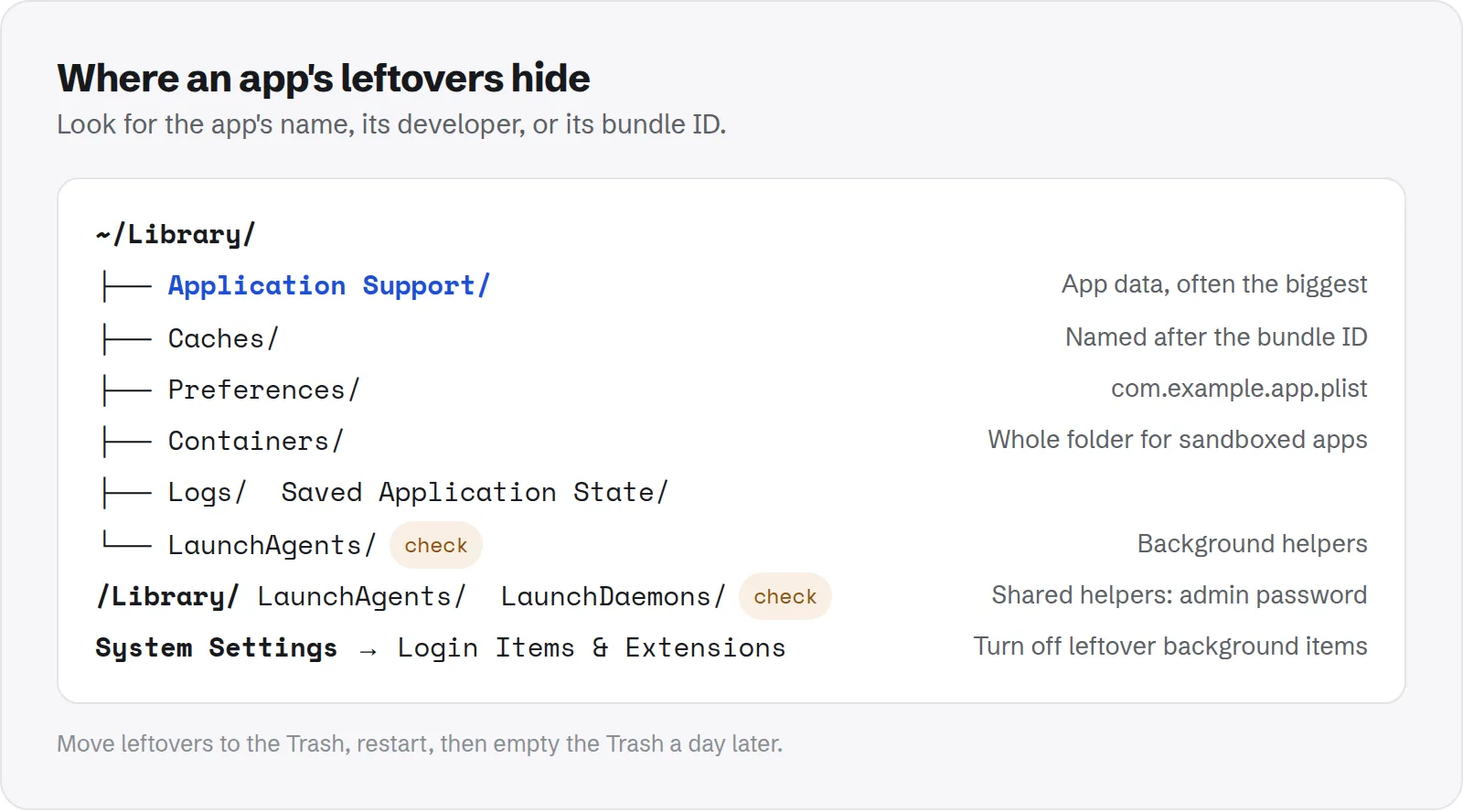
Open each folder below with Cmd + Shift + G in Finder. Look for names that match the app, its developer or its bundle ID.
~/Library/Application Support: usually the biggest leftover. A folder named after the app or developer.~/Library/Caches: a folder named after the bundle ID.~/Library/Preferences: files likecom.example.app.plist.~/Library/Containersand~/Library/Group Containers: folders for sandboxed apps.~/Library/Saved Application State: a folder ending in.savedState.~/Library/Logs: a folder or file with the app's name.~/Library/HTTPStoragesand~/Library/WebKit: web data for apps that show web content.
To search all of them at once in Terminal, replace appname with the app or developer name:
find ~/Library -iname "*appname*" 2>/dev/nullThis only lists matches. Read the list carefully before moving anything, because short names can match unrelated files.
Remove background helpers and login items
Helpers are the most important leftovers to remove, because they can keep running after the app is gone. They waste memory and sometimes show errors.
- Open System Settings > General > Login Items & Extensions.
- Under Open at Login, remove the app if it is still listed.
- Under Allow in the Background, turn off items from the app's developer.
Then check these folders for .plist files named after the app or developer:
~/Library/LaunchAgents
/Library/LaunchAgents
/Library/LaunchDaemons
Move matching files to the Trash and restart. The two folders starting with /Library need your administrator password. Be careful there: only remove files you are sure belong to the app you deleted.
Check the shared Library too
Apps that install drivers, plug-ins or system extensions also put files in the shared Library at the top of your disk. These affect every user on the Mac.
/Library/Application Support: shared data for the app./Library/PrivilegedHelperTools: helper tools that run with extra permissions./Library/Extensionsand system extensions: drivers and add-ons, usually from hardware or security software.
For these, the developer's uninstaller is much safer than deleting by hand. Removing a system extension the wrong way can cause warnings or problems at startup.
How to remove leftovers safely
Follow the same routine each time. It takes a few minutes and keeps a way back.
- Make sure the app is gone and not running. Check Activity Monitor for anything with its name.
- Move leftovers to the Trash. Do not delete them outright.
- Restart your Mac. This stops any helpers that were still loaded.
- Use your Mac for a day. If nothing complains, empty the Trash.
Spot leftovers from apps you removed long ago
The hardest leftovers to find are from apps you deleted years ago and have forgotten. Dates help here.
- Open
~/Library/Application Supportin Finder. - Switch to list view with Cmd + 2.
- Sort by Date Modified, oldest first.
Folders that have not changed in years usually belong to apps you no longer have. Check your Applications folder for each name, then remove the ones with no matching app. Repeat in Caches and Containers.
Reset an app instead of removing it
The same folders are useful when an app misbehaves but you want to keep it. Removing its settings and caches gives it a fresh start.
macOS keeps app settings in memory as well as in the .plist file, so deleting the file alone may not take effect. Quit the app and use Terminal instead:
defaults delete com.example.appReplace the ID with the app's bundle ID. Then move its cache folder to the Trash and open the app again. If you lost something important, restore the cache folder with Put Back.
Be careful with shared folders
Some leftovers sit next to data that other apps still use. Developers with several apps often share one folder between them.
A common example is Microsoft: its Office apps share a folder in Group Containers that Word, Excel and Outlook all need. Our guide to clearing the Teams cache shows which Microsoft folder is safe and which is not.
If a folder is named after a developer rather than one app, check whether you still use any of that developer's other apps before removing it.
App Store apps are a little different
Apps from the Mac App Store are sandboxed. Most of their data lives in a single folder in ~/Library/Containers, which makes their leftovers easier to find.
You can delete them from Launchpad by holding an icon until it jiggles and clicking the delete button, or by dragging them to the Trash. Then check Containers for a folder with the app's bundle ID and remove it if it is still there.
Where leftovers fit in the bigger picture
Leftovers live in the same Library folders as the data of apps you still use. Knowing which folders are safe in general helps you work faster.
See whether Application Support is safe to delete, whether Caches is safe to delete and our guide to the Mac Library folder.
How Purgy finds leftover app files
Searching each Library folder by bundle ID, as above, is exactly what Purgy's Uninstall apps screen does when you remove an app.
- Pick the app in Uninstall apps.
- Purgy looks up its bundle ID and finds its files in your Library:
Caches,Preferences,Application Support,Logs,Saved Application StateandLaunchAgents. - You see each leftover with its size before removing anything.
- The app and its leftovers move to the Trash together, so you can undo it.
For apps you removed long ago, Purgy's scan lists their leftover caches and logs under System caches and Logs, and hidden tool folders you have not used for 90 days or more under Backups & old tool data, unticked until you choose them.
Purgy only searches your own user Library. Helpers in the shared /Library folder need an administrator password, so remove those with the app's own uninstaller or by hand, as described above. Try a clean uninstall with the free trial.
Questions people ask about app leftovers
These are the questions that come up most when people clean up after old apps.
Is it safe to delete leftover files?
Yes, for apps you have removed and do not plan to reinstall. Nothing else uses them. Keep them only if you want your old settings back after a reinstall.
Why does macOS not remove leftovers automatically?
Because the same files hold your settings and data. If you reinstall, the app picks up where you left off. macOS cannot know whether you plan to come back.
How much space do leftovers use?
Usually a few megabytes per app. Media, design and developer apps can leave hundreds of megabytes or several gigabytes in caches and app data.
Can leftovers slow down my Mac?
Files sitting on disk do not. Background helpers that still run can, a little. That is why login items and launch agents are worth removing.
What if I delete the wrong file?
If you moved it to the Trash, open the Trash, right-click the file and choose Put Back. That is why the Trash step matters.