Why Is System Data So Large on Mac? The Real Causes
On this page
- What macOS counts as System Data
- How big should System Data be?
- Cause 1: Time Machine local snapshots
- Cause 2: old iPhone and iPad backups
- Cause 3: app caches and app data
- Cause 4: developer tools
- Cause 5: local AI models
- Cause 6: virtual machines and disk images
- Cause 7: temporary files and swap
- Cause 8: cloud sync app caches
- What is not counted as System Data
- Why System Data changes size on its own
- A quick way to find your cause
- Is it safe to delete System Data?
- How Purgy shows which cause is yours
- Questions people ask about System Data
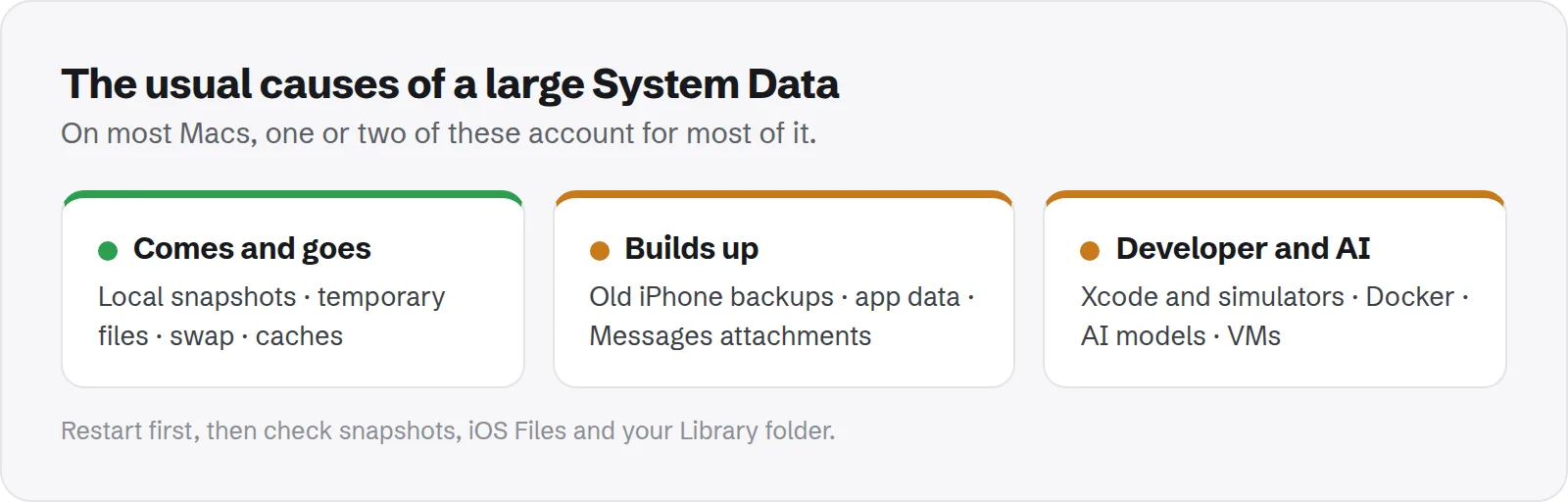
Quick answer: System Data is large because macOS puts everything that does not fit its other categories there. The usual causes are Time Machine local snapshots, old iPhone backups, app caches and data, developer tools, local AI models and virtual machines.
On most Macs, one or two of these account for most of the space. Finding which ones is the key to shrinking it.
Open System Settings > General > Storage on many Macs and you will see a large grey bar called System Data. Sometimes it is bigger than your apps and documents combined, and Apple gives you no list of what is inside.
This guide focuses on the why. It explains what macOS counts as System Data, the causes we see most often, and how to work out which one is filling your Mac. For step-by-step cleaning, see our guide to clearing System Data on Mac.
What macOS counts as System Data
Storage settings sorts your disk into categories such as Applications, Documents, Photos, Mail and iCloud Drive. Anything it cannot place in one of those ends up in System Data.
In older versions of macOS this category was called "Other". The name changed, but the idea did not: it is still a catch-all for leftovers.
That is why System Data is not one thing. It is a mix of system files, hidden app data and temporary files, and its size depends heavily on how you use your Mac. Two people with the same Mac can see very different numbers.
How big should System Data be?
There is no fixed normal size, but there are useful ranges. A Mac used for everyday tasks often has System Data somewhere around 10 to 30 GB.
Developer Macs, Macs that back up iPhones, and Macs that run local AI or virtual machines can easily have 50 to 150 GB. That is not a fault; it just means large hidden data lives there.
The warning sign is not the size alone. It is System Data that keeps growing month after month while your use stays the same.
Cause 1: Time Machine local snapshots
When automatic Time Machine backups are on, macOS keeps local snapshots on your internal disk. They are usually short-lived, but they can grow large, especially when backups fail.
How to tell: run tmutil listlocalsnapshots / in Terminal. A long list, or snapshots several days old, suggests this is a cause. See how to delete local snapshots.
Cause 2: old iPhone and iPad backups
Every device you back up to your Mac leaves a backup, and backups of old phones often stay for years. Each one can be tens of gigabytes.
How to tell: check iOS Files in Storage settings, or measure ~/Library/Application Support/MobileSync/Backup. See how to delete old iPhone backups.
Cause 3: app caches and app data
Browsers, chat apps, streaming apps and creative tools keep caches and data in your Library. Most of it is counted as System Data.
How to tell: run du -sh ~/Library/* | sort -hr | head. Large Caches, Application Support or Containers folders point here. See whether ~/Library/Caches is safe to delete and whether Application Support is safe to delete.
Cause 4: developer tools
Xcode, simulators, Docker, Android Studio and package managers all store large amounts in hidden folders. On a developer Mac, this is often the biggest single cause.
How to tell: measure ~/Library/Developer, ~/Library/Containers/com.docker.docker, ~/.gradle and ~/.npm. See old iOS simulators, Docker disk space and Android Studio and Gradle.
Cause 5: local AI models
Tools like Ollama and LM Studio download model files that are several gigabytes each, often tens of gigabytes in total. They live in hidden folders, so they show up as System Data.
How to tell: run du -sh ~/.ollama ~/.lmstudio ~/.cache/huggingface 2>/dev/null. See how much storage local LLMs need.
Cause 6: virtual machines and disk images
Virtual machines from Parallels, VMware or UTM store each machine as one large file. Depending on where they are saved, they can be counted as System Data.
How to tell: look for very large files in your Documents or a virtual machines folder, and check each app's settings for where it stores machines.
Cause 7: temporary files and swap
macOS writes temporary files and swap to hidden system folders. These grow when your Mac has been running a long time or memory is tight.
How to tell: restart, then check System Data again. If it dropped noticeably, temporary files were part of the cause. See whether /private/var/folders is safe to delete.
Cause 8: cloud sync app caches
Cloud storage apps keep local copies and caches of files you open. Google Drive, for example, keeps a file cache in its Application Support folder, and it can grow to many gigabytes.
How to tell: measure the app's folder, such as du -sh ~/Library/Application\ Support/Google. In the app's settings, look for a cache size or an option to keep files online only.
What is not counted as System Data
Knowing what System Data does not include helps you rule things out quickly. Storage settings gives these their own categories:
- Applications: the apps in your Applications folder.
- Documents: files in your own folders.
- Photos, Music and TV: their libraries.
- Messages and Mail: conversations, attachments and mailboxes.
- iCloud Drive: files stored locally from iCloud.
If one of these is large, look there instead. If none is, the space really is in System Data.
Why System Data changes size on its own
Several of these causes come and go. Snapshots are made and removed. Caches fill and are trimmed. Swap grows and shrinks.
That is why System Data can be 40 GB in the morning and 30 GB in the evening without you doing anything. See why your Mac storage keeps changing and what purgeable storage is.
A quick way to find your cause
You do not need to check everything. Work through these quick checks in order, and stop when you find the big one.
- Restart and note System Data before and after.
- Check snapshots with
tmutil listlocalsnapshots /. - Check iOS Files in Storage settings for old backups.
- Measure your Library with
du -sh ~/Library/* | sort -hr | head. - Measure hidden home folders with
du -sh ~/.[!.]* | sort -hr | head.
For the full walk-through, including finding space outside your home folder, see Mac storage full but can't find the files.
Is it safe to delete System Data?
Not as a whole. System Data includes files macOS and your apps need. But many of the large parts inside it are safe to remove, such as caches, old backups, old snapshots and leftover app data.
The safe approach is to find the specific cause, then use the right tool for it. Apple's guide to freeing up storage space on Mac covers the built-in tools.
How Purgy shows which cause is yours
Each of the seven causes above sits in a different folder, and Storage settings lumps them together. Purgy's System Data screen puts them back in separate rows with a size for each:
- APFS snapshots (cause 1) and Old iOS backups (cause 2): listed for review, never ticked for you. Backups go to the Trash; snapshots are removed with Apple's
tmutilonly if you tick them. - System caches (cause 3) and Dev junk (cause 4): freed in one click, because they rebuild on their own.
- Unused AI models (cause 5): listed with each tool's name, moved to the Trash only if you choose them.
- Real data, keep: Mail, Messages and shared app data, measured and never deleted.
- macOS's own assets: named, with the setting that controls them, since no app can remove them.
Virtual machines and disk images (cause 6) show up in the Space map and on the Documents screen. Swap and temporary files (cause 7) are managed by macOS, and a restart is still the right fix. See which cause is yours with the free trial.
Questions people ask about System Data
These come up most when people see a large System Data figure.
Why is System Data bigger than my apps and files?
Because it collects many large hidden items, such as backups, snapshots and caches. On some Macs, those simply add up to more than your own files.
Is System Data the same as macOS?
No. macOS itself is counted separately. System Data is everything that does not fit the named categories, much of it created by apps and your use.
Why did System Data suddenly jump?
A new backup, a large download that was moved into an app, a background update, or a growing app cache are common reasons. Check the quick list above.
Will restarting reduce System Data?
Often a little, sometimes a lot. It clears temporary files and shrinks swap, and gives Storage settings a fresh calculation.
Can I see what is inside System Data in macOS?
Not directly. Storage settings does not list its contents. Terminal or a tool that measures hidden folders is needed to see inside.
Does a large System Data slow down my Mac?
Not by itself. It only matters when your disk is nearly full, because macOS then has less room for swap and temporary files.
Why is System Data different on two similar Macs?
Because it depends on use. One Mac might back up an iPhone or run Docker; the other might not. Two Macs with the same apps can still differ by tens of gigabytes.
Should I worry about a large System Data figure?
Only if you are short of space or it keeps growing. A large but stable figure usually just reflects how you use your Mac.