Mac Storage Full but You Can't Find the Files? Here's Why

On this page
- Why Finder does not show where the space went
- Step 1: check Storage settings first
- Step 2: show hidden files in Finder
- Step 3: measure your home folder in Terminal
- Step 4: measure the whole disk
- The usual hiding places
- Less obvious places to check
- Search for large files with Finder
- Check external drives and cloud folders
- Things not to do
- Why the numbers do not add up
- How Purgy shows where the space went
- Questions people ask about missing Mac storage
Quick answer: The missing space is almost always in places Finder hides: your Library folder, hidden "dot" folders, Time Machine snapshots, old device backups, other user accounts, or files inside app packages such as your Photos library.
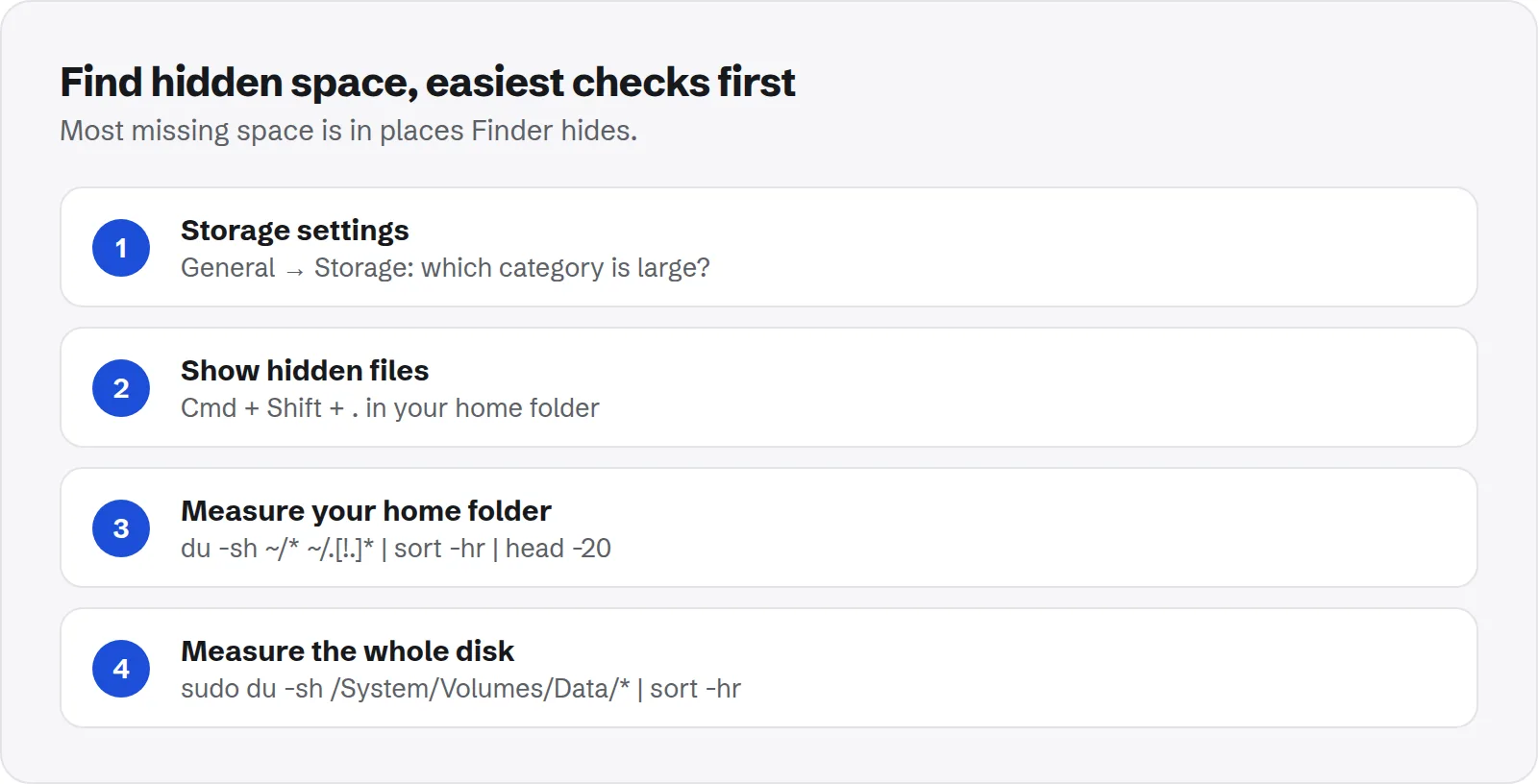
Start with System Settings > General > Storage to see which category is large. Then measure hidden folders with Terminal or a space map, biggest first.
It is one of the most frustrating Mac problems. Storage settings says your disk is nearly full. You open your Documents, Desktop and Downloads, and they add up to a fraction of that. Where did the rest go?
The space is real, it is just out of sight. macOS hides many folders to protect them, and some of the biggest space users never appear in Finder at all. This guide walks you through finding them, from the easiest checks to the deepest.
Why Finder does not show where the space went
Finder is designed to show your files, not everything on your disk. By default it hides several things that often hold the most data.
- Your Library folder: app data, caches, mail, messages and backups.
- Dot folders: folders whose names start with a dot, like
~/.ollamaor~/.npm, used by developer and command-line tools. - System folders: such as
/private/var, which hold caches, swap and temporary files. - The inside of packages: your Photos library and many apps look like single files, but are folders full of data.
- Other user accounts: each account's files are private, so you cannot see their size from yours.
- Snapshots: Time Machine local snapshots do not appear as files anywhere.
Step 1: check Storage settings first
Storage settings sorts your disk into categories. It is the fastest way to know which kind of data to look for.
- Open System Settings > General > Storage.
- Wait for the coloured bar and the list to finish calculating.
- Look at the largest categories. Hover over the bar to see each one's size.
Many categories have an info button that lists the biggest items inside. If System Data is the largest, the space is in hidden folders; keep reading. Apple's guide to freeing up storage space on Mac explains each category.
Step 2: show hidden files in Finder
Finder can show hidden files and folders with one shortcut. It is a quick way to spot large dot folders in your home folder.
Open your home folder and press Cmd + Shift + . (period). Hidden items appear faded. Press the same keys again to hide them.
To open your Library, press Cmd + Shift + G and type ~/Library. Finder will not show folder sizes by default; turn them on with View > Show View Options > Calculate all sizes in list view.
Step 3: measure your home folder in Terminal
Terminal can measure every folder, including hidden ones, and sort them by size. This is often where the answer appears.
du -sh ~/* ~/.[!.]* 2>/dev/null | sort -hr | head -20That lists the twenty biggest items in your home folder, hidden ones included. If Library is near the top, go one level deeper:
du -sh ~/Library/* 2>/dev/null | sort -hr | head -20If macOS blocks some folders, give Terminal Full Disk Access in System Settings > Privacy & Security > Full Disk Access, then run the commands again.
Step 4: measure the whole disk
If your home folder is not the problem, look at the whole disk. On modern Macs, your data lives on a volume mounted at /System/Volumes/Data.
sudo du -sh /System/Volumes/Data/* 2>/dev/null | sort -hr | head -20It asks for your password and can take several minutes. Look for Users (all accounts), Applications, Library and private. Each points you to a different kind of space.
The usual hiding places
On most Macs, the missing space turns out to be one or more of these. Each has its own guide with safe steps.
- Old iPhone and iPad backups: often tens of gigabytes. See how to delete old iPhone backups.
- Time Machine local snapshots: invisible in Finder. See how to delete local snapshots.
- Messages attachments: years of photos and videos. See how to clear Messages attachments.
- App caches and data: in your Library. See the Mac Library folder guide.
- Developer tools: Docker, Xcode and simulators. See Docker disk space and old iOS simulators.
- Local AI models: see how much storage local LLMs need.
Less obvious places to check
If the usual suspects come up empty, check these. They catch people out because they look small or do not look like files at all.
- Old macOS installers: apps named "Install macOS …" in Applications are often over 12 GB each. Delete them once the upgrade is done.
- Your Photos library: it looks like one file in Pictures, but can be hundreds of gigabytes. Select it and press Cmd + I to see its size.
- Virtual machine disks: files from Parallels, VMware or UTM can be 50 GB or more each.
- Other user accounts: a family member's or an old account. Check System Settings > Users & Groups.
- The Shared folder:
/Users/Sharedis visible to everyone and easy to forget. - The Trash: including Trash on external drives that are connected.
Search for large files with Finder
Finder can search your Mac for files above a given size. It will not find hidden system data, but it is great for forgotten videos, disk images and downloads.
- Open a Finder window and press Cmd + F.
- Click This Mac.
- Change the first search rule from Kind to Other, then choose File Size.
- Set it to is greater than 1 GB.
Sort the results by size. Old screen recordings, .dmg installers and exported videos often show up here.
Check external drives and cloud folders
Sometimes the files you are looking for are not on your Mac's disk at all, or only partly. Two cases cause confusion.
- Cloud folders: iCloud Drive, Dropbox, Google Drive and OneDrive may keep full local copies. Their folders can look small in some views while using a lot of disk.
- Backups of external drives: some backup apps keep a local cache of what they copy. Check the app's settings for its cache location.
For cloud folders, use each app's "online-only" or "free up space" option on large folders you rarely open.
Things not to do
When the disk is full and the cause is unclear, it is tempting to delete big folders you do not recognise. That can do real harm.
- Do not delete folders in
/Systemor/privateby hand. They belong to macOS. - Do not delete your Photos library or Messages folder to save space. Clean them from inside the apps.
- Do not run delete commands you found online without reading them. One wrong path can remove your files.
Why the numbers do not add up
Sometimes the space is not missing at all; different tools are just counting differently. Finder's "Available" includes space macOS can free on its own, while other tools only count truly free space.
See what purgeable storage is and why your Mac storage keeps changing if your numbers seem to move or disagree.
How Purgy shows where the space went
The steps above all solve the same problem: Finder hides much of your disk. Purgy's Space map shows all of it in one view.
- Open Space map. It lists every folder on your Mac and any attached drive, largest first, measured as you look.
- Folders whose names begin with a dot carry a HIDDEN badge. These are the ones Finder never shows, such as
~/.ollama,~/.cacheor~/.docker. - Click into any folder to drill down, and use the back and forward buttons to return.
- Tick a file or folder to move it to the Trash. You confirm first and can put it back from Purgy's Trash screen. macOS's own files are locked.
If the space is in System Data rather than in a folder you can find, Purgy's System Data screen breaks that figure into snapshots, backups, AI models, caches, developer data and the parts macOS keeps for itself. You can see your own disk this way with the free trial.
Questions people ask about missing Mac storage
These come up most when people go looking for lost space.
What is taking up space on my Mac if not my files?
Usually app data, caches, device backups, snapshots and mail or messages attachments. Most of this is counted as System Data in Storage settings.
Why is System Data so large?
It collects everything that does not fit Apple's other categories, including caches, snapshots and backups. See how to clear System Data on Mac for the full list.
Do other user accounts count against my storage?
Yes. Every account on the Mac uses the same disk. You cannot see inside another account, but its size counts toward the total.
Is it safe to show hidden files permanently?
Yes, but it clutters Finder and makes accidental changes easier. Use the shortcut to toggle them when you need them.
Why does du show "Operation not permitted"?
macOS protects some folders. Give Terminal Full Disk Access in Privacy & Security, then quit and reopen Terminal.
How much free space should a Mac have?
Aim for 15 to 20 percent of your disk free. macOS needs room for updates, swap and temporary files, and runs more smoothly with that headroom.
Can I find big files without Terminal?
Yes. Finder's search with a file size rule finds large visible files, and a space map app shows hidden folders visually.