Why Does My Mac Storage Keep Changing? Causes and Fixes

On this page
- The normal reasons free space changes
- Why different tools show different numbers
- Storage settings can be slow to update
- How to tell normal from a problem
- Find what is writing to your disk
- Find what is growing on your disk
- Common causes of steady growth
- Cloud sync apps are a common cause
- Quick fixes that bring free space back
- Low free space makes the swings bigger
- Where the moving space shows up
- How Purgy helps you track what is growing
- Questions people ask about changing storage
Quick answer: Your Mac's free space changes on its own because macOS constantly creates and removes temporary data: Time Machine snapshots, caches, swap files, background update downloads and iCloud copies.
Swings of a few gigabytes a day are normal. If free space only ever goes down, use Activity Monitor's Disk tab to find which app is writing the most, and check for local snapshots and runaway caches.
You check your storage in the morning and have 60 GB free. By the evening it is 45 GB, and you have not saved anything big. The next day it is back to 58 GB. It feels like something is wrong.
Usually nothing is wrong. macOS uses spare disk space to work faster and keep your data safer, and it gives that space back when needed. This guide explains what moves the number, and how to spot the rare case where something really is eating your disk.
The normal reasons free space changes
Several macOS features use disk space temporarily. Each one comes and goes, so together they make the number move up and down.
- Time Machine local snapshots: made about every hour when automatic backups are on, kept for up to a day, and removed when space is needed.
- Caches: apps and macOS keep copies of data to work faster, and trim them over time.
- Swap and sleep files: when memory is tight, macOS writes some of it to disk. The more apps you run, the more swap it uses.
- Background update downloads: macOS and the App Store can download updates in the background, which uses several gigabytes until they are installed.
- iCloud Drive and Photos: files download when you open them and are removed again when space is low, if Optimize Mac Storage is on.
None of these need you to do anything. They are signs of macOS doing its job, using spare space now and handing it back the moment you need it for something else.
Why different tools show different numbers
Part of the "changing" is not your disk changing at all. Different parts of macOS measure space in different ways.
- Finder's "Available" includes purgeable space macOS can clear on its own.
- Terminal's
dfshows only space that is free right now. - Storage settings groups space into categories and can take a while to recalculate after big changes.
Compare numbers from the same tool over time, not across different tools. Our guide to purgeable storage on Mac explains the gap in detail.
Storage settings can be slow to update
The Storage screen in System Settings calculates its categories in the background. After you delete or add a lot, it can show old figures for a while.
If the numbers look wrong right after a cleanup, wait a few minutes, close System Settings and open it again. A restart also forces a fresh calculation.
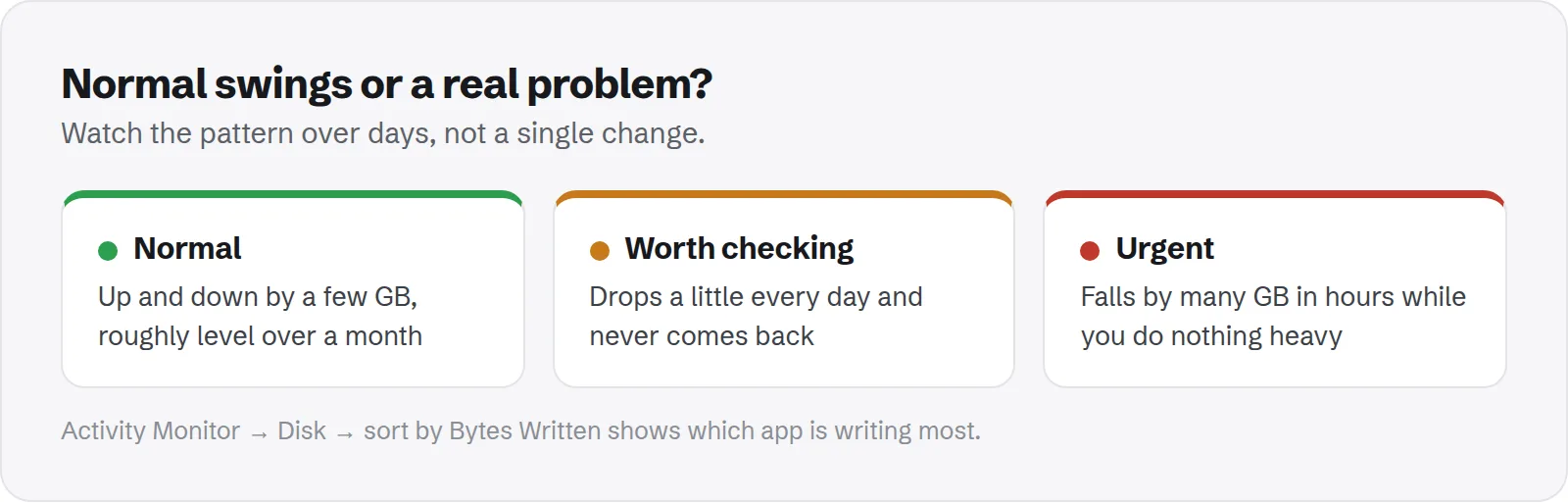
How to tell normal from a problem
The pattern matters more than the size of a single change. Here is a simple way to tell the two apart.
- Normal: free space goes up and down over the day and week, but stays roughly level over a month.
- Worth checking: free space drops steadily every day and never comes back, even after a restart.
- Urgent: free space falls by many gigabytes in hours while you are doing nothing heavy.
Write down the number at the same time each day for a few days, ideally from the same tool. A steady downward line points to something growing that should not be.
Find what is writing to your disk
Activity Monitor can show which apps write the most data. This is the fastest way to catch a runaway app.
- Open Activity Monitor from
Applications > Utilities. - Click the Disk tab.
- Sort by Bytes Written, largest first.
The top of the list shows what has written the most since your Mac started. Some system processes always write a lot, such as backup and indexing services. An app you barely use near the top is a clue worth following.
Find what is growing on your disk
To see where space is going, measure the big folders in your home folder and compare over a day or two:
du -sh ~/* ~/Library/* 2>/dev/null | sort -hr | head -20Run it now and again tomorrow. The folder that grew is your answer. Common culprits are a cache in ~/Library/Caches, an app folder in ~/Library/Application Support, or Docker's disk image in ~/Library/Containers.
Common causes of steady growth
When free space really does keep falling, one of these is usually responsible.
- Snapshots that are not being removed: often because backups are failing. See how to delete Time Machine local snapshots.
- A runaway log or cache: an app logging the same error constantly. See whether Mac log files are safe to delete.
- Sync apps downloading everything: a cloud folder set to keep all files offline.
- Developer tools: Docker, simulators and package caches can grow by gigabytes a week.
- Media apps: streaming and chat apps caching more video than expected.
Cloud sync apps are a common cause
Dropbox, Google Drive and OneDrive can each keep a full local copy of everything in your cloud folder. If a shared folder grows, your disk shrinks with it, even if you never open those files.
Each app has a way to keep files in the cloud until you open them:
- Dropbox: right-click a file or folder and choose Make online-only.
- Google Drive: choose to stream files rather than mirror them, in its preferences.
- OneDrive: right-click a folder and choose Free Up Space.
Files stay listed in Finder and download when you open them. For large shared folders, this often brings back more space than any other step.
Quick fixes that bring free space back
If you need space back now, these steps are safe and usually effective. Do them in this order.
- Empty the Trash. Files in it still take space.
- Restart your Mac. This clears temporary files and shrinks swap.
- Delete local snapshots with
tmutil thinlocalsnapshots / 999999999999 4. - Install or remove pending updates. Downloaded but uninstalled updates take space.
- Clear the largest caches. See whether ~/Library/Caches is safe to delete.
Low free space makes the swings bigger
When your disk is nearly full, normal changes feel dramatic. A 5 GB swing does not matter with 200 GB free, but it does with 10 GB free.
macOS also works harder when space is tight. It purges more often, and some features pause until there is room. Keeping 15 to 20 percent of your disk free makes everything smoother, including these swings.
Apple's guide to freeing up storage space on Mac lists the built-in tools for getting there.
Where the moving space shows up
Most of the space that comes and goes is counted as System Data in Storage settings. That is why System Data is the category that seems to change the most.
If System Data is large and keeps growing, see how to clear System Data on Mac. For one of the hidden folders behind it, read whether /private/var/folders is safe to delete.
How Purgy helps you track what is growing
Free space that moves on its own is usually normal. The question is what is growing. Purgy gives you three ways to answer it.
- The menu bar panel shows free space and memory at a glance, so you can watch the number over a day without opening Storage settings.
- The Space map lists every folder, hidden ones included, largest first. Check it today and again in a few days to see which folder grew.
- The System Data screen splits that figure into Time Machine snapshots, iPhone backups, caches, developer data, AI models and the parts macOS keeps for itself. If System Data jumped, you can see which part changed.
Once you know the cause, caches and logs can be cleared in one click from the Overview. Purgy also keeps a History of past cleans, so you can see how quickly caches come back.
Purgy does not stop cloud sync apps or macOS from using space, and it cannot free purgeable space, which macOS releases only when it needs to. Use the fixes above for those. Watch your own disk with the free trial.
Questions people ask about changing storage
These come up most when people notice their free space moving.
Is it normal for free space to change every day?
Yes. Changes of a few gigabytes in either direction are completely normal. Snapshots, caches, swap and updates all come and go.
Why did I get space back without deleting anything?
macOS freed purgeable data, removed old snapshots, or installed an update and removed its download. That is expected.
Why did I lose space overnight?
Common reasons are a background update download, new snapshots, or an app syncing files. If it keeps happening every night, check Activity Monitor's Disk tab.
Can malware fill my disk?
It is rare. A buggy app logging errors, or a sync app downloading files you forgot about, is far more likely. Check which folder is growing before assuming anything worse.
Should I turn off Time Machine to stop the changes?
No. Backups are worth far more than steady numbers. Delete snapshots when you need space, and keep backups on.
Does Spotlight indexing use disk space?
A little. Spotlight keeps an index so search is fast. It can grow for a while after you add many files, then settles down. It is rarely a big part of the changes.
Why does Storage settings say "Calculating" for so long?
It is scanning your disk to sort files into categories. On a large or very full disk this can take several minutes. Restarting usually helps it finish.