What Is Purgeable Storage on Mac, and How to Free It

On this page
- What does purgeable mean on a Mac?
- What is inside purgeable storage?
- Where to see purgeable space
- Why purgeable space sometimes is not freed
- How to turn purgeable space into free space
- Free, purgeable and used: the three kinds of space
- A quick check of real free space
- When to turn off Optimize Mac Storage
- Is purgeable storage a problem?
- Purgeable space and System Data
- What Purgy can and cannot do about purgeable space
- Questions people ask about purgeable storage
Quick answer: Purgeable storage is space used by files macOS can remove on its own when you need room. It includes iCloud files that also exist online, Time Machine local snapshots and some caches.
macOS counts it as available, and frees it automatically. If an installer still says you are out of space, delete local snapshots with tmutil, restart, and the purgeable space usually becomes real free space.
Many Mac owners notice two numbers that do not match. Finder says you have 80 GB available. Terminal says 20 GB is free. An installer refuses to run. The gap is purgeable storage.
It is a useful feature that is easy to misunderstand. This guide explains what purgeable space is, where to see it, and what to do when macOS will not free it in time.
What does purgeable mean on a Mac?
"Purgeable" means "can be removed safely without asking you". It is data your Mac keeps because it is handy, but that also exists somewhere else, or is not essential.
Because macOS can remove it at any time, it counts that space as available. When an app needs room, macOS frees purgeable data first, in the background.
That is why your free space can seem to grow on its own when you start a big download. macOS is quietly clearing purgeable items to make room, and you never see a prompt.
What is inside purgeable storage?
Several kinds of data can be purgeable. Which ones you have depends on your settings and how you use your Mac.
- iCloud Drive files: with Optimize Mac Storage on, local copies of files that are also in iCloud can be removed and downloaded again when you open them.
- Optimized photos: with iCloud Photos and Optimize Mac Storage, full-size originals can be replaced by smaller versions.
- Time Machine local snapshots: recent snapshots on your internal disk, kept until the space is needed.
- Some caches: caches the system knows it can rebuild.
- Watched movies and TV shows: bought from Apple and already watched, if storage optimization is on.
Apple's guide to freeing up storage space on Mac describes the settings that make files purgeable.
Where to see purgeable space
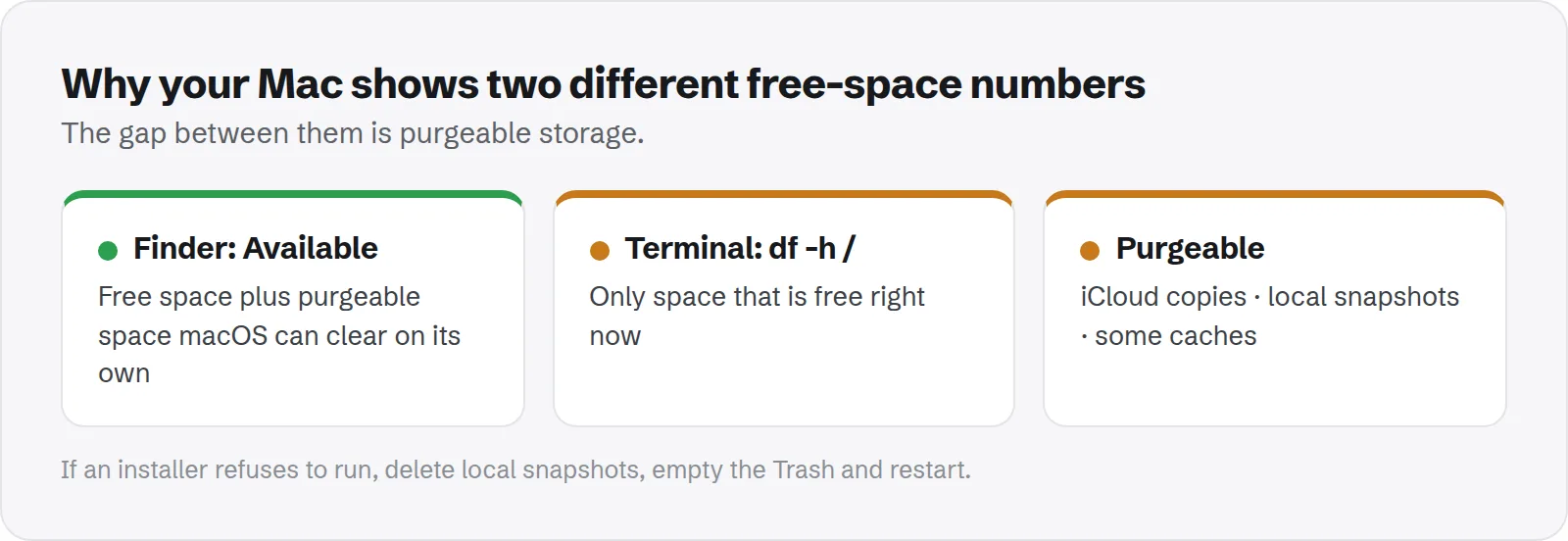
Different tools count it differently, which is the root of the confusion. Here is what each one shows.
- Finder Get Info: select your startup disk, press Cmd + I. "Available" includes purgeable space.
- Finder status bar: turn it on with View > Show Status Bar. Its "available" figure also includes purgeable space.
- Terminal:
df -h /shows space that is free right now, without purgeable space. - Disk Utility: shows used and free space for each volume. Its figures can differ again, because they count the whole disk container.
A big difference between Finder's "Available" and Terminal's "free" is your purgeable space.
Why purgeable space sometimes is not freed
In theory, macOS frees purgeable space whenever it is needed. In practice, there are a few cases where it does not happen in time.
- Installers check free space strictly: some apps and macOS updates look at real free space before starting, and refuse even though purgeable space would cover it.
- Large single copies: copying one huge file at once can fail before macOS frees enough.
- Snapshots kept too long: local snapshots can stay longer than expected, especially if backups have been failing.
- iCloud is slow or offline: files cannot be removed locally until macOS is sure they are safely in iCloud.
How to turn purgeable space into free space
Work through these steps in order. Most people only need the first two.
1. Restart your Mac
A restart gives macOS a chance to clear caches and tidy up. It is quick and often frees a surprising amount on its own, especially on a Mac that has only been sleeping for weeks.
2. Delete Time Machine local snapshots
Snapshots are often the largest purgeable item. List them, then ask macOS to free as much as it can:
tmutil listlocalsnapshots /
tmutil thinlocalsnapshots / 999999999999 4
Your backups on your Time Machine drive are not affected. Our guide to deleting Time Machine local snapshots explains every option.
3. Let iCloud catch up
If you use Optimize Mac Storage, make sure iCloud has finished syncing. Check for upload progress in Finder's sidebar next to iCloud Drive. Once files are safely in iCloud, macOS can remove local copies.
You can also remove a local copy yourself: right-click a file or folder in iCloud Drive and choose Remove Download. The file stays in iCloud.
4. Empty the Trash
Files in the Trash are not purgeable. They count as used space until you empty it, however long they sit there. Right-click the Trash in the Dock and choose Empty Trash.
Free, purgeable and used: the three kinds of space
It helps to think of your disk in three parts. Every storage number you see is some mix of these.
- Free: empty space, ready to use right now.
- Purgeable: space holding data macOS can remove on its own, such as iCloud copies and snapshots.
- Used: everything else, including your files, apps, the system and data that is not purgeable.
"Available" in Finder is free plus purgeable. Most installers and Terminal only count free. Knowing this explains almost every mismatch you will see.
A quick check of real free space
If you want to know exactly how much space is free right now, before starting a big download or install, ask Terminal:
df -h /
diskutil info / | grep -i "free space"
Compare the result with Finder's "Available" figure. If Terminal shows much less, run the steps above first, then start your install.
When to turn off Optimize Mac Storage
Optimize Mac Storage is what makes many iCloud files purgeable. It is great for saving space, but it has a cost.
If you often work without internet, or on a slow connection, files you need may not be on your Mac when you open them. In that case, keep important folders downloaded: right-click them in iCloud Drive and choose Keep Downloaded, where your macOS version offers it.
For most people with reliable internet, leaving it on is the better choice.
Is purgeable storage a problem?
Usually not. It is space macOS is using sensibly, and it gives it back when needed. A large purgeable figure on its own is nothing to fix or worry about.
It only becomes a problem when a tool refuses to run because it ignores purgeable space. Then the steps above turn it into real free space quickly.
Purgeable space and System Data
Some purgeable items, such as snapshots and caches, are also counted in the System Data total in Storage settings. That is why System Data can shrink on its own over time.
If System Data is large and does not shrink, the cause is usually something that is not purgeable, such as old device backups or app data. See how to clear System Data on Mac and how to delete old iPhone backups.
What Purgy can and cannot do about purgeable space
Purgeable space is managed by macOS, and no app can free it directly. Purgy does not claim to. What it can do is turn some of the space behind that number into real free space you control.
- How much is purgeable. Since version 1.1.3, Purgy shows how much of your free space is purgeable on its System Data screen, on Overview and in Monitor System Health, and says plainly that there is nothing to clean there.
- Time Machine local snapshots are a big part of purgeable space. Purgy lists them under Backups & old tool data and, if you tick them, removes them with Apple's
tmutilcommand. macOS does not report each snapshot's size, so Purgy shows them without one rather than guessing. - Caches and logs are freed outright in one click, so free space goes up immediately rather than when macOS decides.
- iCloud files kept on your Mac stay untouched. Purgy protects iCloud Drive's local copies, so use Optimize Mac Storage as described above.
Purgy's menu bar panel and Overview show free space as macOS reports it, so compare the number before and after cleaning to see the real gain. See what is behind your own numbers with the free trial.
Questions people ask about purgeable storage
These come up most when people see the word "purgeable" for the first time.
Can I delete purgeable files myself?
Some of them. You can delete local snapshots, remove downloads of iCloud files, and empty the Trash. The rest macOS manages on its own, and does not need your help.
Will I lose files if macOS purges them?
No. Purgeable files exist elsewhere, such as in iCloud, or are safe to remove, such as caches and snapshots. iCloud files download again when you open them.
Why does my free space change without me doing anything?
macOS is creating snapshots, filling caches, or freeing purgeable space in the background. Small daily changes are normal.
Why does a macOS update say I do not have enough space?
The installer may be checking real free space, not counting purgeable space. Delete snapshots, empty the Trash and restart, then try again.
Does purgeable space slow down my Mac?
No. It is ordinary data on your disk that macOS has marked as removable. It does not use memory or processor time while it sits there.
Can I make macOS purge everything right now?
There is no single button. Deleting snapshots, removing iCloud downloads and emptying the Trash covers most of it, and macOS handles the rest when space is actually needed.
Is purgeable space shown in Storage settings?
Not as its own item in recent versions of macOS. Storage settings focuses on categories. Finder's Get Info and status bar are the easiest places to see the effect.