How to Delete Old iPhone Backups on Mac (and Free GBs)
On this page
- Where are iPhone backups stored on a Mac?
- How much space are your backups using?
- Method 1: delete backups from Storage settings
- Method 2: delete backups in Finder
- Which backups are safe to delete?
- Encrypted backups need extra thought
- Check you have a newer backup before deleting
- Old iTunes leftovers on upgraded Macs
- Why old backups pile up
- Can you move iPhone backups to an external drive?
- Turn on iCloud Backup to need fewer Mac backups
- Where this space shows up in Storage settings
- How Purgy finds old iPhone and iPad backups
- Questions people ask about iPhone backups on Mac
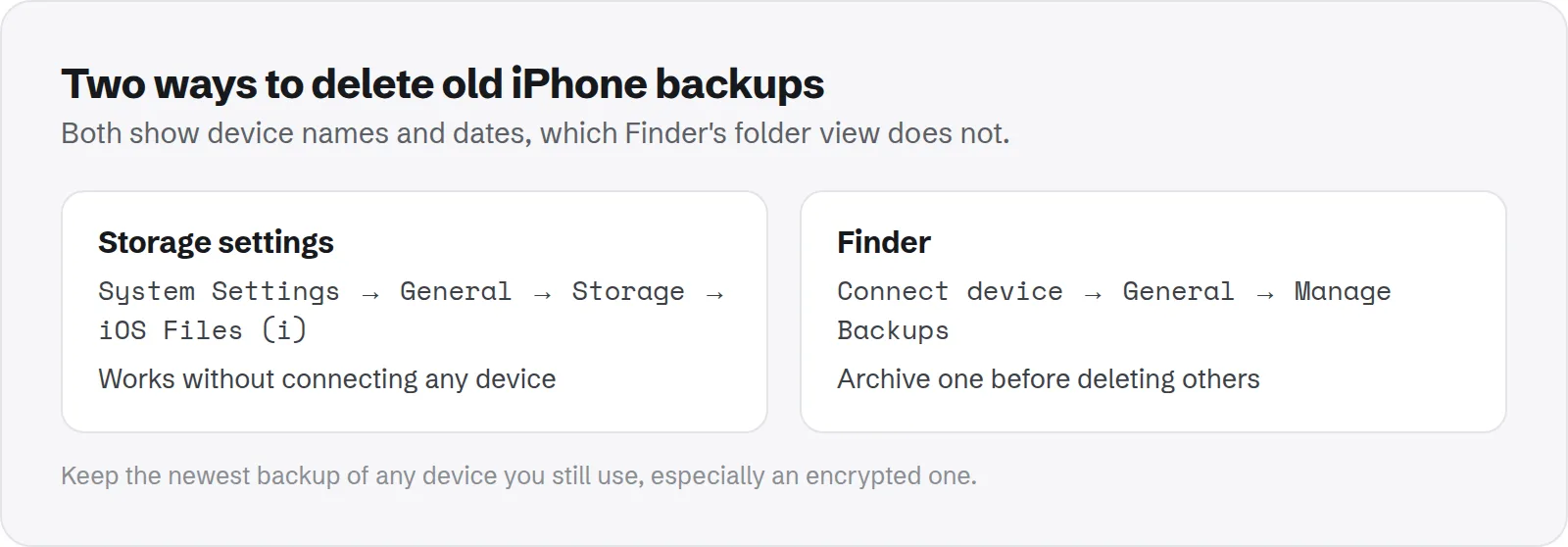
Quick answer: Open System Settings > General > Storage, click the info button next to iOS Files, select old backups and click Delete. You can also connect your iPhone, select it in Finder and choose Manage Backups.
Keep your most recent backup of any device you still use. Backups of phones you sold, lost or replaced are usually safe to delete.
Every time you back up an iPhone or iPad to your Mac, the backup stays on your startup disk. If you have upgraded phones a few times, older backups are probably still there too.
A single backup can be 10 to 50 GB or more, depending on what is on the device. This guide shows how to find them, decide which ones to keep, and delete the rest safely.
Where are iPhone backups stored on a Mac?
Finder saves device backups in a hidden folder inside your Library:
~/Library/Application Support/MobileSync/Backup/Each backup is a folder with a long ID as its name, so you cannot tell which device it belongs to from Finder alone. The ID is unique to each device. That is why the steps below use the Storage screen or Finder's device view instead.
Apple's guide to locating and managing iPhone backups confirms this location and the ways to manage them.
How much space are your backups using?
Check before you delete, so you know whether it is worth it. This command reads only; it changes nothing:
du -sh ~/Library/Application\ Support/MobileSync/Backup/* 2>/dev/nullEach line is one backup. The Storage screen in the next section shows the same backups with device names and dates, which is easier to read.
Method 1: delete backups from Storage settings
This is the easiest way, and it works without connecting any device. It shows each backup's device name, date and size.
- Open System Settings and go to General > Storage.
- Wait for the list to load, then click the info button next to iOS Files.
- Select the backups you want to remove. Hold Cmd to select several.
- Click Delete and confirm.
iOS Files can also list old iPhone or iPad software update files. Those are always safe to delete; your device downloads updates itself when it needs them.
Method 2: delete backups in Finder
Use this if you want to see backups for one specific device, or archive one before deleting others.
- Connect your iPhone or iPad with a cable.
- Select it in the Finder sidebar.
- On the General tab, click Manage Backups.
- Right-click a backup and choose Delete. You can also choose Archive to keep it from being overwritten.
The list shows every backup on your Mac, not only ones for the connected device. Check the name and date before deleting.
Which backups are safe to delete?
The right answer depends on whether the device still exists and whether you have another backup of it.
Usually safe to delete:
- Backups of devices you no longer own: a phone you sold, traded in or gave away.
- Older backups of a device that has a newer one: the newest backup already contains its current data.
- Backups of devices that use iCloud Backup: if the device backs up to iCloud and that backup is recent, the Mac copy is a second copy.
Worth keeping:
- The latest backup of a device you use: especially if it does not back up to iCloud.
- Backups of a lost or broken device: this may be the only copy of its photos, messages or notes.
- Archived backups you made on purpose: such as a backup taken before a risky update.
Encrypted backups need extra thought
If you turned on encrypted backups, the backup also includes saved passwords, Health data and Wi-Fi settings. Those are not in an unencrypted backup.
Deleting your only encrypted backup means losing that extra data if your phone ever needs restoring. If iCloud Backup is on and recent, you are covered. If not, keep the latest encrypted backup and delete only older ones.
Check you have a newer backup before deleting
Before you remove an older backup of a phone you still use, make sure a newer one really exists. It takes a minute and avoids an unpleasant surprise.
- For a Mac backup: connect the device, select it in Finder, and look at the General tab. It shows the date of the latest backup to this Mac.
- For an iCloud backup: on the iPhone, open Settings, tap your name, then iCloud > iCloud Backup. It shows the last successful backup.
If both dates are old, make a fresh backup first. Then delete the older ones with confidence.
Old iTunes leftovers on upgraded Macs
If your Mac has been upgraded from an older version of macOS, iTunes may have left device software files behind. Each iPhone or iPad update file can be several gigabytes.
Check this folder in Finder with Cmd + Shift + G:
~/Library/iTunes/iPhone Software UpdatesFiles ending in .ipsw are safe to delete. Devices download their own updates when they need them.
Why old backups pile up
Backups do not clean themselves up in most situations. A new backup of the same device replaces the old one, unless something changes along the way.
- New phone, new backup: each device gets its own backup, so every phone you have owned can leave one behind.
- Archived backups: archiving freezes a backup so later ones do not replace it. Archives stay until you delete them.
- Different Macs or user accounts: each keeps its own backups.
Can you move iPhone backups to an external drive?
Finder has no setting for this. Backups always go to the MobileSync folder on your startup disk.
Some guides suggest replacing that folder with a link to an external drive. It can work, but it is easy to get wrong, and a backup made while the drive is disconnected can fail or fill your disk anyway. For most people, iCloud Backup or regular deleting of old backups is the simpler choice.
If you want an extra copy of an important backup, copy its folder to an external drive by hand, then delete it from your Mac using one of the methods above.
Turn on iCloud Backup to need fewer Mac backups
If your iPhone backs up to iCloud each night, you rarely need a full backup on your Mac too. That avoids the problem entirely.
On the iPhone, open Settings, tap your name, then iCloud > iCloud Backup, and turn it on. It needs enough iCloud storage for the backup.
Many people still make a Mac backup before a big iOS update, as a safety net. That is a good habit; just delete the old one afterwards.
Where this space shows up in Storage settings
Device backups are listed under iOS Files in Storage settings. Older versions of macOS sometimes counted them in System Data instead.
Backups live inside Application Support, which holds other large app data too. See whether Application Support folders are safe to delete for the rest of that folder.
If System Data is still large after removing backups, see how to clear System Data on Mac. For a wider tour of hidden folders, read our guide to the Mac Library folder.
How Purgy finds old iPhone and iPad backups
A backup can be the only copy of a phone's photos and messages, so Purgy treats backups as something you decide on, not junk.
- Open Purgy and let it scan. It reads
~/Library/Application Support/MobileSync/Backup, the folder Finder uses for every device backup. - Each backup appears under Backups & old tool data with its size. The System Data screen also shows the total as Old iOS backups, so you can see how much of System Data they explain.
- Nothing is ticked for you. Tick only the backups of devices you no longer own or have backed up more recently, after checking the dates as described above.
- Selected backups move to the Trash, not straight to deletion. If you made a mistake, put them back from the Trash before emptying it.
Purgy does not open backups or tell you which device each one belongs to beyond what the folder shows, so Finder's Manage Backups list is still the best place to match a backup to a device. Purgy also never touches iCloud backups. To see how much space your local backups use, start the free trial.
Questions people ask about iPhone backups on Mac
These are the questions that come up most when people find old backups.
Will deleting a backup delete anything on my iPhone?
No. A backup is a copy. Deleting it from your Mac does not change anything on the device itself.
Is it safe to delete the MobileSync folder in Finder?
It works, but you cannot see which backup is which. Use Storage settings or Finder's Manage Backups, which show names and dates.
Why is my iPhone backup so large?
It contains most of the data on your device that is not already in iCloud, such as app data, messages and sometimes photos. A phone full of local media produces a large backup.
Do iCloud backups take space on my Mac?
No. iCloud backups are stored in iCloud. Only backups made through Finder on this Mac are stored locally.
Can I recover a backup after deleting it?
Only from the Trash or another backup of your Mac, such as Time Machine. Storage settings deletes straight away, so be sure before you click Delete.
How many backups should I keep?
One recent backup per device you use is enough for most people. Keep an extra archived one only for special cases, such as before a major update.