How to Delete Time Machine Local Snapshots on Mac
On this page
- What are Time Machine local snapshots?
- Why delete local snapshots at all?
- How to list your local snapshots
- How to delete local snapshots with tmutil
- How to delete snapshots in Disk Utility
- How to see how much space snapshots use
- Snapshots made by other backup apps
- Is it safe to delete local snapshots?
- How to stop local snapshots from being made
- Snapshots and the "Purgeable" number
- When snapshots keep coming back too large
- How Purgy handles local snapshots
- Questions people ask about local snapshots
Quick answer: List local snapshots with tmutil listlocalsnapshots / in Terminal. Delete one with tmutil deletelocalsnapshots followed by its date, such as 2026-10-15-091530.
You can also delete them in Disk Utility with View > Show APFS Snapshots. It is safe; your Time Machine backups on your backup disk are not affected.
Time Machine does more than copy files to your backup drive. On most Macs it also keeps local snapshots on your internal disk, so you can recover recent versions even when the backup drive is not connected.
macOS usually manages them well. But sometimes they hold tens of gigabytes, and because their size is hard to see, they can make your disk look fuller than it should. This guide explains how to check and remove them.
What are Time Machine local snapshots?
A local snapshot is a record of your disk at a moment in time, stored on the same disk. It only takes space for files that have changed since it was made.
According to Apple's page about Time Machine local snapshots, they work like this:
- They are made about every hour: when Time Machine is set to back up automatically.
- They are kept for up to 24 hours: or until the space is needed.
- They only exist on APFS disks: which is the default format on modern Macs.
- Their space counts as available: macOS frees it when an app needs room.
In theory, you never need to delete them. In practice, they can still cause confusion and occasional problems.
Why delete local snapshots at all?
If macOS frees snapshot space on its own, why bother? There are a few good reasons.
- Installers check free space strictly: some apps and macOS updates refuse to install when "available" space includes snapshots that have not been freed yet.
- The numbers look wrong: you delete a large file, but free space does not go up. The file still exists inside a snapshot.
- Snapshots got stuck: occasionally snapshots are kept longer than they should be, especially after errors.
- You need space right now: deleting them frees it immediately, instead of waiting for macOS.
How to list your local snapshots
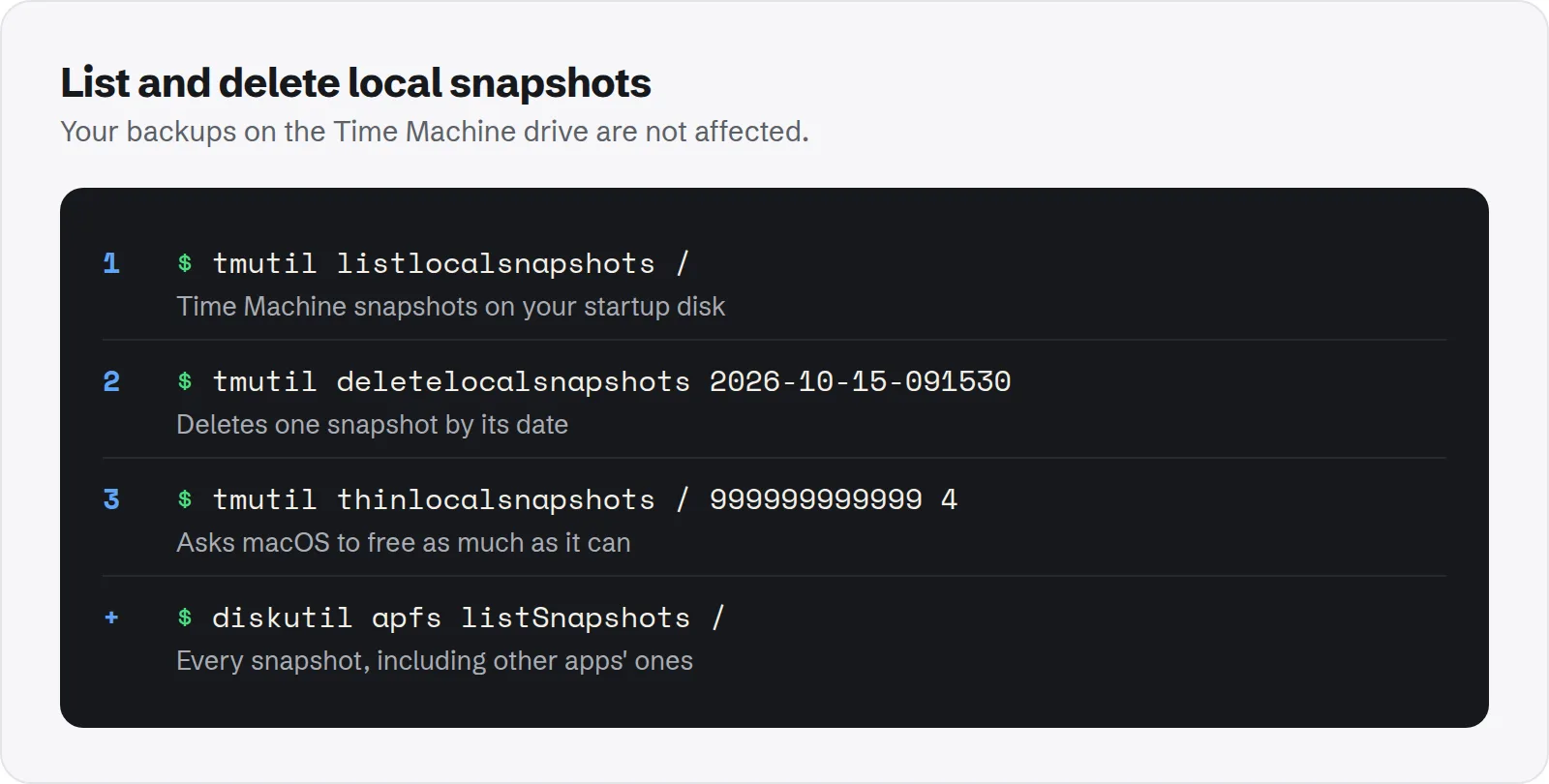
Open Terminal from Applications > Utilities and run:
tmutil listlocalsnapshots /Each line is one snapshot. The name ends with its date and time, for example com.apple.TimeMachine.2026-10-15-091530.local. If nothing is listed, you have no Time Machine snapshots, and they are not your problem.
To see every snapshot on your startup disk, including ones made by macOS updates or other backup apps, run:
diskutil apfs listSnapshots /How to delete local snapshots with tmutil
Delete one snapshot by passing its date and time, the part between TimeMachine. and .local:
tmutil deletelocalsnapshots 2026-10-15-091530Repeat for each one you want gone. If macOS asks for permission, enter your password, or run the command with sudo in front.
To ask macOS to free as much snapshot space as it can in one step, use the thin command. The large number is the amount of space to free in bytes, and 4 is the urgency:
tmutil thinlocalsnapshots / 999999999999 4Run tmutil listlocalsnapshots / again afterwards to check what is left.
How to delete snapshots in Disk Utility
If you prefer not to use Terminal, Disk Utility can show and delete snapshots too.
- Open Disk Utility from
Applications > Utilities. - Choose View > Show APFS Snapshots.
- Select your startup volume, usually Macintosh HD - Data, in the sidebar.
- A list of snapshots appears at the bottom. Select the ones to remove and click the minus button, or right-click and delete.
Disk Utility also shows each snapshot's size, which Terminal does not. That makes it easy to see which ones matter.
How to see how much space snapshots use
Terminal lists snapshots but not their size. To decide whether they are worth deleting, check the size in one of these places first.
- Disk Utility: with snapshots shown, the list at the bottom includes the space each one holds on its own.
- Get Info on your disk: select Macintosh HD in Finder and press Cmd + I. If "Available" is much larger than the free space other tools report, the difference is often snapshot space waiting to be freed.
If the snapshots only hold a few hundred megabytes, leave them. They will expire within a day anyway.
Snapshots made by other backup apps
Time Machine is not the only tool that makes snapshots. Some third-party backup apps create their own, and macOS makes one during system updates.
These do not appear in tmutil listlocalsnapshots, but they do in diskutil apfs listSnapshots / and in Disk Utility. Their names usually include the app that made them.
Manage those from the app that created them. Its settings usually control how many snapshots it keeps. Deleting them by hand can confuse the app's own records.
Is it safe to delete local snapshots?
Yes. Deleting local snapshots does not touch the backups on your Time Machine drive. Those are separate and stay as they are.
The only thing you lose is the ability to restore from those hours using the snapshot when the backup drive is not connected. If your backup drive is up to date, you lose nothing important.
Be more careful with snapshots that are not from Time Machine. Ones named after macOS updates or another backup app belong to those tools. Delete them only if you understand what they are for.
How to stop local snapshots from being made
Local snapshots are tied to automatic Time Machine backups. If you do not want them, the only switch is turning off automatic backups.
Open System Settings > General > Time Machine and adjust the backup frequency or turn off automatic backups. Existing snapshots are removed over time.
Turning off automatic backups is rarely a good trade. Backups matter more than a few gigabytes. A better approach is to keep them on and delete snapshots only when you need the space.
Snapshots and the "Purgeable" number
Because macOS counts snapshot space as available, it often shows up as "purgeable" space. That is space macOS says it can free, but has not freed yet.
That explains a common puzzle: Storage settings says you have plenty of space, but an installer says you do not. Deleting snapshots turns purgeable space into real free space.
Snapshots are also one of the usual suspects behind a large System Data figure. See how to clear System Data on Mac for the others, such as old device backups. Our guide to deleting old iPhone backups covers that one in detail.
When snapshots keep coming back too large
Snapshots grow when a lot of data changes between them. A few habits are common causes.
- Large files that change often: virtual machine disks, Docker images and video projects change constantly, so each snapshot holds new copies of changed parts.
- Big downloads you delete soon after: if you download and remove a large file within a day, a snapshot may still hold it.
- Backups that keep failing: if Time Machine cannot reach its backup disk, snapshots may build up while it waits.
Excluding busy folders from Time Machine in its settings stops them from filling snapshots. Virtual machines and Docker data are good candidates if you back them up another way.
How Purgy handles local snapshots
Purgy uses the same Apple tool as this guide, tmutil, so you get the same result without typing dates into Terminal.
- Open Purgy and let it scan. Each local snapshot is listed under Backups & old tool data by date. The System Data screen shows them as APFS snapshots and explains what you lose by removing them.
- Snapshots are never ticked for you. Tick the ones you want gone.
- Purgy removes them with
tmutil deletelocalsnapshots. Snapshots cannot go to the Trash, which is why Purgy only removes them after you tick them.
Purgy does not show a size for each snapshot, because macOS does not report one. Compare free space before and after instead.
Purgy also does not change your Time Machine settings or touch backups on an external drive, and macOS will make new local snapshots on its own schedule. To stop that, use the steps above. See your own snapshots with the free trial.
Questions people ask about local snapshots
These come up often when people first find their snapshots.
Will deleting snapshots delete my Time Machine backups?
No. Local snapshots live on your Mac's own disk. Your backups on an external or network drive are separate and are not affected.
Why do I have snapshots without a backup drive connected?
Local snapshots are made exactly for that situation. They give you recent versions when the backup drive is away, and Time Machine copies them to the drive later.
Why does Terminal say "Operation not permitted"?
macOS protects some actions. Try the command with sudo in front, or give Terminal Full Disk Access in System Settings > Privacy & Security.
Will snapshots come back after I delete them?
Yes, as long as automatic backups are on. That is normal. They are kept small and short-lived unless something unusual is going on.
Can I delete snapshots while a backup is running?
It is better to wait. Let the current backup finish, or pause it from the Time Machine menu, then delete. That avoids a failed backup.
Do snapshots slow down my Mac?
Not noticeably. They are a built-in feature of APFS and are designed to be cheap. The issue is space, not speed.