Are Mac Log Files Safe to Delete? What to Clear and Keep
On this page
- Where are log files stored on a Mac?
- How big are your log folders?
- Which logs are safe to delete?
- Which logs should you leave alone?
- How to delete log files safely
- Keep crash reports when you are troubleshooting
- Why a log file suddenly gets huge
- How to use Console to find the app responsible
- Log folders from apps you removed
- Logs and your privacy
- Logs, caches and the Library folder
- How Purgy clears logs
- Questions people ask about Mac log files
Quick answer: Yes. Logs and crash reports in ~/Library/Logs and /Library/Logs are safe to delete. Apps create new ones as needed, and nothing depends on old ones.
Leave /private/var/log and /private/var/db/diagnostics alone, because macOS manages those itself. Keep recent crash reports if you are troubleshooting a problem.
Log files are the diary of your Mac. Apps and macOS write down what they did, what went wrong and when. That is useful when something breaks, and useless the rest of the time.
Usually logs take very little space, often less than a gigabyte in total. But now and then an app gets stuck writing the same error over and over, and a single log grows to several gigabytes. This guide shows where logs live and how to clean them safely.
Where are log files stored on a Mac?
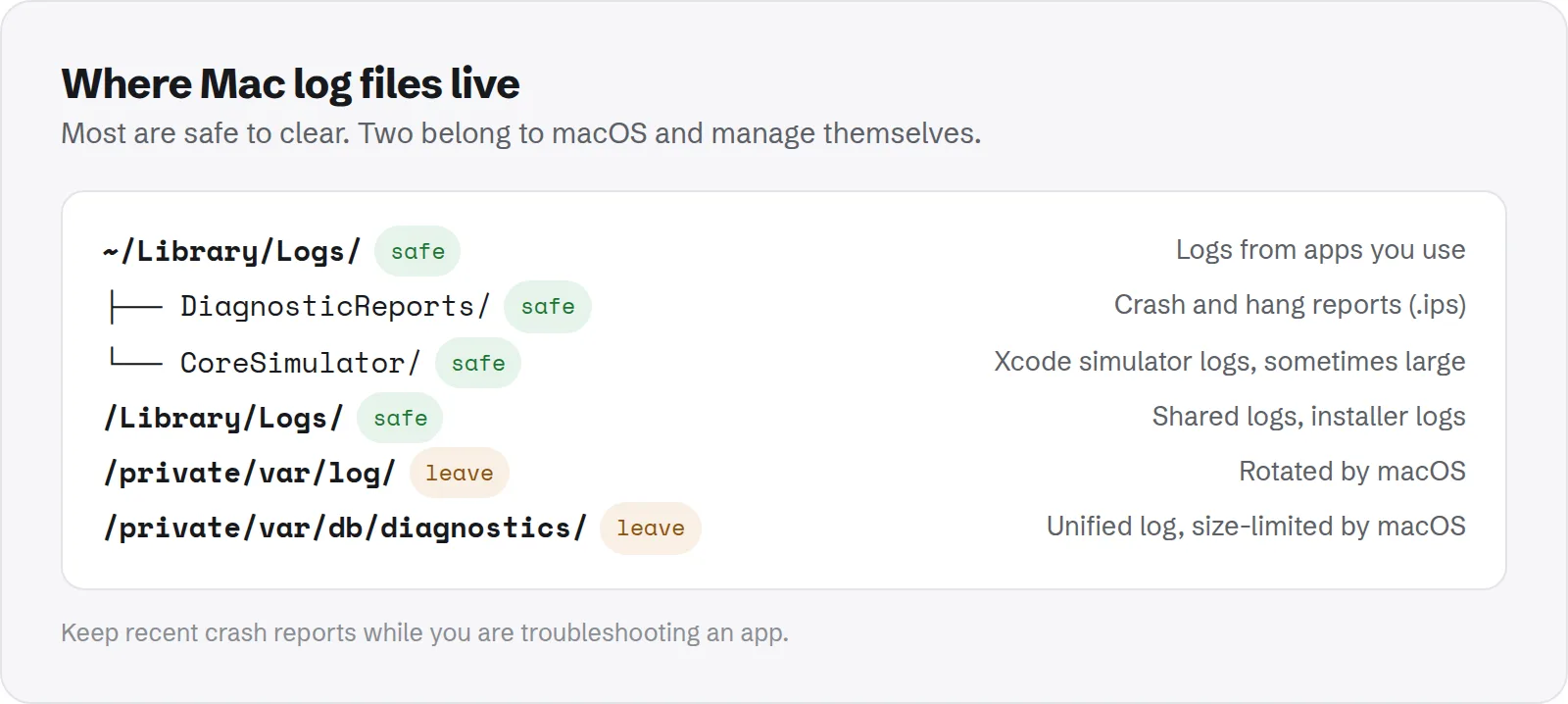
Logs are spread across a few folders. Each one has a different owner and a different rule for cleaning.
~/Library/Logs: logs for your user account, written by apps you use. Safe to clean.~/Library/Logs/DiagnosticReports: crash and hang reports for apps you ran. Safe to clean./Library/Logs: shared logs for all users, including installer logs and system crash reports. Safe to clean, with an administrator password./private/var/log: traditional system logs. macOS rotates and removes old ones on its own./private/var/db/diagnostics: the unified log system that the Console app reads. Managed by macOS.
To open a hidden folder, press Cmd + Shift + G in Finder and paste its path.
How big are your log folders?
Measure first. In most cases logs are tiny, and cleaning them frees very little. This command checks the folders you can safely clean:
du -sh ~/Library/Logs /Library/Logs 2>/dev/nullTo find a single runaway log, list the largest items inside your own Logs folder:
du -sh ~/Library/Logs/* 2>/dev/null | sort -hr | headIf one folder is far bigger than the rest, the app it belongs to is probably logging an error in a loop. Clearing its logs helps, but fixing or updating the app stops it coming back.
Which logs are safe to delete?
Almost all logs you can reach without special tools are safe. Here is what is in each common folder.
- App logs in
~/Library/Logs: written by apps like Zoom, Adobe tools or developer tools. Safe. Apps start new logs when they need to. - Crash reports in
DiagnosticReports: files ending in.ips,.crash,.hangor.spin. Safe, unless you are sending them to a developer. - Simulator logs in
~/Library/Logs/CoreSimulator: written by Xcode's simulators. Safe, and sometimes surprisingly large. - Installer logs in
/Library/Logs: records of software installs. Safe.
Which logs should you leave alone?
Two locations belong to macOS. It cleans them on its own schedule, and deleting files by hand can cause errors or remove information you need when something breaks.
/private/var/log: rotated and pruned automatically. Rarely large./private/var/db/diagnosticsanduuidtext: the unified log database. It has its own size limits and removes old entries itself.
There is a Terminal command that erases the unified log, but there is almost never a reason to use it. The space is limited by design, and you lose the history that helps diagnose problems.
How to delete log files safely
Use Finder, so you can undo if needed. Logs are low risk, but the Trash costs nothing.
- Quit apps whose logs you plan to delete, so they are not writing to them.
- In Finder, press Cmd + Shift + G and open
~/Library/Logs. - Select the folders and files you want to remove and move them to the Trash.
- Repeat for
/Library/Logsif you want. Finder asks for your password. - Empty the Trash.
You can delete the contents of DiagnosticReports in the same way. Keep any report you plan to share with support.
Keep crash reports when you are troubleshooting
Crash reports are the one kind of log worth keeping for a while. They show exactly where an app failed, which helps developers fix it.
If an app keeps crashing, open the Console app, choose Crash Reports in the sidebar, and look at the latest one. You can send it to the developer or attach it to a support request.
Once the problem is solved, delete the old reports. They have done their job, and new ones will appear if the problem ever returns.
Why a log file suddenly gets huge
Healthy apps write small logs and trim them. When a log grows to gigabytes, something is wrong. These are the usual causes.
- An error in a loop: an app hits the same error every second and logs it each time.
- Debug logging left on: some apps have a verbose logging option for troubleshooting that is easy to forget.
- A crashed background helper: a helper that keeps restarting can write a crash report each time.
Update the app, turn off any debug logging in its settings, or remove the app if you no longer use it. Then clear its logs once more.
How to use Console to find the app responsible
Before you delete a large log, it is worth a quick look at what it says. The Console app makes this easy, and it often points straight at the app causing trouble.
- Open Console from
Applications > Utilities. - In the sidebar, choose Log Reports to see app logs, or Crash Reports to see crashes.
- Click the largest or most recent file to read it.
- Look for the same message repeated many times. The app or process name near it is your culprit.
You do not need to understand every line. Seeing which app wrote it is usually enough to decide whether to update, reset or remove that app.
Log folders from apps you removed
Like caches, logs are left behind when you drag an app to the Trash. Their folders in ~/Library/Logs stay until you remove them.
Look through the folder names for apps you no longer have. These are safe to delete without a second thought, because nothing will ever write to them again.
Logs and your privacy
Logs can contain more than error codes. Crash reports and app logs may include file names, folder paths, app names and sometimes account or server names.
That is fine on your own Mac. But think twice before sharing a full log publicly, for example in a forum post. Remove anything personal first, or share only the lines that matter.
If you are selling or giving away your Mac, do not rely on deleting logs. Erase the whole Mac with Erase All Content and Settings instead, which removes everything properly.
Logs, caches and the Library folder
Logs live next to caches in your Library, and the two are often cleaned together. Caches usually free far more space than logs do.
See whether ~/Library/Caches is safe to delete, and our guide to the Mac Library folder for every other folder in it.
Developers should also check simulator data, not just simulator logs. See how to delete old iOS simulators. Apple's guide to freeing up storage space on Mac covers the built-in tools.
How Purgy clears logs
Purgy lists every folder in ~/Library/Logs with its size, so the runaway log described above is easy to spot at the top of the list.
- Open Purgy and let it scan. Logs appears as its own category on the Overview, ticked by default.
- Open the Review list to see each app's logs, largest first. If you are in the middle of troubleshooting, untick the app whose crash reports you want to keep.
- Press Clean now. Logs are records apps write as they run, so removing them frees the space straight away and the app starts a fresh log.
Purgy only clears your own logs in ~/Library/Logs. It does not touch the system logs in /var/log or /Library/Logs, or the unified log macOS manages itself, because those belong to macOS and are trimmed automatically.
If one app's log keeps coming back large, use Console as shown above to find out why. When you uninstall an app with Purgy, its log folder is removed with it. See how much your logs take with the free trial.
Questions people ask about Mac log files
These come up most when people find their log folders for the first time.
Will deleting logs break anything?
No. Logs are records, not settings or data. Apps and macOS create new logs as they need them.
Will deleting logs speed up my Mac?
No. Logs only affect disk space, and usually only a little. If a runaway log is filling your disk, removing it helps with space, not speed.
What is a .ips file?
It is a crash or problem report in the format macOS uses today. You can open it in the Console app. It is safe to delete once you no longer need it.
Why do I keep getting new crash reports?
An app or background helper keeps failing. Open the newest report in Console to see which app it is, then update or remove that app.
Does the Clear button in Console delete logs?
No. In Console, Clear only empties what is shown in the window. The log files on disk stay where they are. Delete them in Finder as described above.
Are install logs needed after an update?
No. They record what an installer did, which only matters if the install failed. Once everything works, they are safe to remove.
How often should I clear logs?
There is no need for a schedule. Check them when you are short of space, or after fixing an app that was crashing. Most of the time they stay small on their own.