How to Clear the Slack Cache on Mac (and Free Space)

On this page
- Is it safe to clear the Slack cache?
- How to clear the Slack cache from the app
- Reset App Data for a deeper clean
- Where Slack stores its cache on a Mac
- How to clear the cache manually
- Check your Downloads folder
- Why Slack's cache grows
- Sign out of workspaces you no longer use
- Make Slack download less
- Leftovers after uninstalling Slack
- Slack on a work Mac
- When clearing the cache fixes Slack problems
- Other chat apps worth cleaning
- How Purgy clears the Slack cache
- Questions people ask about the Slack cache
Quick answer: In the Slack app, open the Help menu in the menu bar, choose Troubleshooting, then Clear Cache and Restart. Slack closes, clears its local files and opens again, still signed in.
Your messages and files are stored by Slack in the cloud, so nothing is lost.
Slack is built on web technology, which means it behaves a lot like a browser. It keeps copies of images, files, previews and web data so channels load fast. Over months of busy workspaces, that cache can reach several gigabytes.
A large or damaged cache can also make Slack slow, show stale content or fail to load images. Clearing it fixes both. This guide covers the built-in method, where the files live, and how to keep Slack lean.
Is it safe to clear the Slack cache?
Yes. Slack stores your messages, files and channels on its servers. The cache only holds local copies to make the app faster.
After clearing it, Slack may take a little longer to load channels and images the first time, because it downloads them again. You stay signed in to your workspaces.
Slack's own help article on troubleshooting connection issues suggests clearing the cache as one of its standard fixes.
How to clear the Slack cache from the app
This is the recommended way. Slack knows exactly what is safe to remove, and it restarts itself afterwards.
- Open Slack.
- In the menu bar at the top of your screen, click Help.
- Choose Troubleshooting.
- Click Clear Cache and Restart.
Slack closes and opens again within a few seconds. Channels may load a little slower the first time, while images and previews download again.
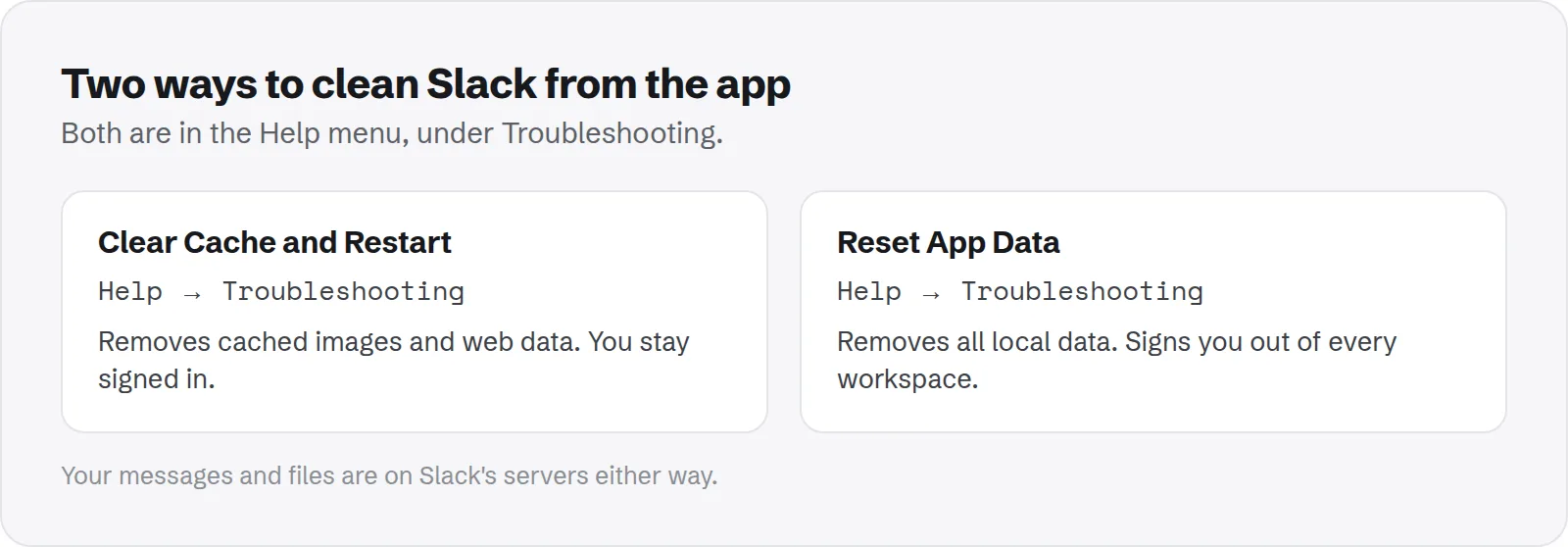
Reset App Data for a deeper clean
The same Troubleshooting menu has a stronger option, Reset App Data. It removes all of Slack's local data, not just the cache.
Use it when clearing the cache did not fix a problem, or when you want the smallest possible footprint. It signs you out of every workspace, so you need to sign in again afterwards. Your messages are still safe on Slack's servers.
Where Slack stores its cache on a Mac
Where the files live depends on how you installed Slack. Both versions use the same kind of folders inside.
- Downloaded from Slack's website:
~/Library/Application Support/Slack - Installed from the Mac App Store: inside
~/Library/Containers/com.tinyspeck.slackmacgap, in aSlackfolder deeper down.
Inside, folders named Cache, Code Cache, GPUCache and Service Worker are the cache. Other folders hold your sign-in and settings.
To check the size, run this in Terminal:
du -sh ~/Library/Application\ Support/Slack ~/Library/Containers/com.tinyspeck.slackmacgap 2>/dev/nullHow to clear the cache manually
The menu option is easier, but you can clear the cache by hand if Slack will not open at all. Only remove the cache folders, so you stay signed in.
- Quit Slack completely with Cmd + Q.
- In Finder, press Cmd + Shift + G and open the Slack folder from the list above.
- Move
Cache,Code Cache,GPUCacheandService Workerto the Trash. - Open Slack again. If it works, empty the Trash.
Leave the rest of the folder alone. Deleting the whole Slack folder works like Reset App Data and signs you out of every workspace, which is rarely what you want.
Check your Downloads folder
Files you download from Slack go to your Downloads folder by default. Clearing Slack's cache does not touch them.
Open Downloads in Finder, switch to list view with Cmd + 2 and sort by Size. Shared videos, design files and exports from Slack are often among the largest items.
You can also change where Slack saves downloads, in Slack's preferences under Advanced, if you want them kept in their own folder.
Why Slack's cache grows
A few habits make the cache grow faster. Knowing them helps you keep it small.
- Many workspaces: each signed-in workspace adds its own cached data.
- Media-heavy channels: channels full of images, GIFs, screen recordings and file previews fill the cache quickly.
- Huddles and clips: recordings and previews are cached when you play them.
- Months without a restart: Slack trims some data on its own, but a long-running session keeps more.
Sign out of workspaces you no longer use
Old workspaces from past jobs, events or communities still sync in the background and keep their cache. Signing out removes their local data and stops them using space.
Click the workspace name in Slack, choose Sign out, and repeat for each one you no longer need. You can always sign back in later, and nothing in the workspace itself is deleted when you sign out on one Mac.
Make Slack download less
Slack shows images and previews inline by default, which means downloading and caching them. You can turn some of that off.
Open Slack's preferences and go to Messages & media. Options there control whether images and files uploaded to Slack, and previews from linked websites, appear inline.
Turning off inline previews for linked websites is a good start. It removes a lot of cached images you never look at closely, and you can still click any link to open it.
Leftovers after uninstalling Slack
If you stop using Slack on your Mac, dragging the app to the Trash leaves its data behind. Check these places and move anything you find to the Trash:
~/Library/Application Support/Slack, or thecom.tinyspeck.slackmacgapfolder in~/Library/Containers.~/Library/Caches: folders withslackortinyspeckin the name.~/Library/Preferences: files starting withcom.tinyspeck.slackmacgap.
Our guide to removing leftover files after deleting an app covers the full method for any app.
Slack on a work Mac
On a Mac managed by your company, clearing Slack's cache is safe and often the first thing IT asks you to try. It does not change any company settings.
Your company may control which workspaces you can sign out of, or how files are downloaded. If an option is missing or greyed out, that is usually why. Ask IT before reinstalling Slack on a managed Mac.
When clearing the cache fixes Slack problems
Clearing the cache is the first thing to try for many everyday Slack problems. It is quick and safe.
- Images or emoji do not load: broken cached images are replaced.
- Old messages or channels look stale: Slack reloads fresh data.
- The app is slow to switch channels: a bloated cache can slow things down.
- Slack shows a blank window: damaged web data is a common cause.
If the problem stays after clearing the cache, try Reset App Data, then reinstall Slack as a last resort. Most problems are fixed by the first step.
Other chat apps worth cleaning
Slack is one of several chat apps that keep large local caches. If you use more than one, each keeps its own copy of images and files.
See how to clear the Microsoft Teams cache, how to free WhatsApp storage and how to clear Telegram on Mac.
Slack is one of many apps that keep caches inside Application Support rather than Caches. Our guide to whether Application Support is safe to delete explains how to spot them.
How Purgy clears the Slack cache
Slack keeps its cache in several folders inside ~/Library/Application Support/Slack, such as Cache, Code Cache, GPUCache and Service Worker storage, right next to the data that keeps you signed in. Purgy picks out only the cache folders.
- Quit Slack.
- Open Purgy and let it scan. Slack appears as one row under System caches with its total cache size, ticked by default.
- Press Clean now. The cache folders are deleted and the rest of the Slack folder is left alone, so you stay signed in to every workspace and Slack rebuilds its cache as you use it.
This is gentler than Slack's Reset App Data, which signs you out. Files you downloaded from Slack are a separate matter: they are in your Downloads folder, and Purgy's Documents screen lists the big ones for you to review.
The same scan covers Discord, Teams, VS Code and other apps built the same way. See how big your Slack cache is with the free trial.
Questions people ask about the Slack cache
These come up most when people clear Slack on a Mac.
Will clearing the Slack cache delete my messages?
No. Messages, files and channels are stored on Slack's servers. The cache only holds local copies.
Will I be signed out?
Not with Clear Cache and Restart. Reset App Data, or deleting the whole Slack folder, signs you out of every workspace.
How often should I clear the Slack cache?
Only when you need the space or Slack misbehaves. It fills again as you use Slack, so clearing it on a schedule gains little.
Why is Slack still large after clearing the cache?
Check your Downloads folder, and count your workspaces. Each workspace keeps its own data, and downloaded files are not part of the cache.
Is the Mac App Store version of Slack different?
It works the same, but it keeps its data inside a container folder instead of Application Support. The Clear Cache and Restart option works the same way in both.
Can I clear the cache while in a huddle or call?
Wait until it ends. Clear Cache and Restart closes Slack, which drops you from any huddle or call in progress.
Does the Slack app in the browser use space on my Mac?
Only through your browser's own cache. If you use Slack in a browser, clearing that browser's cache and site data for Slack frees it.