How to Clear the Spotify Cache on Mac and Free Space

On this page
- Cache and downloads are two different things
- How to clear the Spotify cache on Mac
- How to remove offline downloads
- Change where offline downloads are saved
- Where Spotify stores its cache on a Mac
- How to clear the cache manually
- Why the Spotify cache keeps growing
- Lower the quality to save space
- Spotify problems that clearing the cache fixes
- How much space should Spotify use?
- Removing Spotify completely
- Spotify on a Mac with several users
- Other apps with big media caches
- A simple routine for Spotify storage
- How Purgy clears the Spotify cache
- Questions people ask about the Spotify cache
Quick answer: In the Spotify app on your Mac, click your profile picture, choose Settings, scroll to Storage and click Clear cache. If you are on Premium and saved music offline, use Remove all downloads in the same section to free that space too.
Your playlists and library are stored in your Spotify account, so nothing is lost.
Spotify streams music, but it also keeps a copy of what you listen to on your Mac. That makes songs start instantly and saves data. It also means the Spotify cache can grow to several gigabytes without you noticing.
Downloads for offline listening take even more. This guide shows how to clear both, where the files live, and how to stop Spotify filling your disk again.
Cache and downloads are two different things
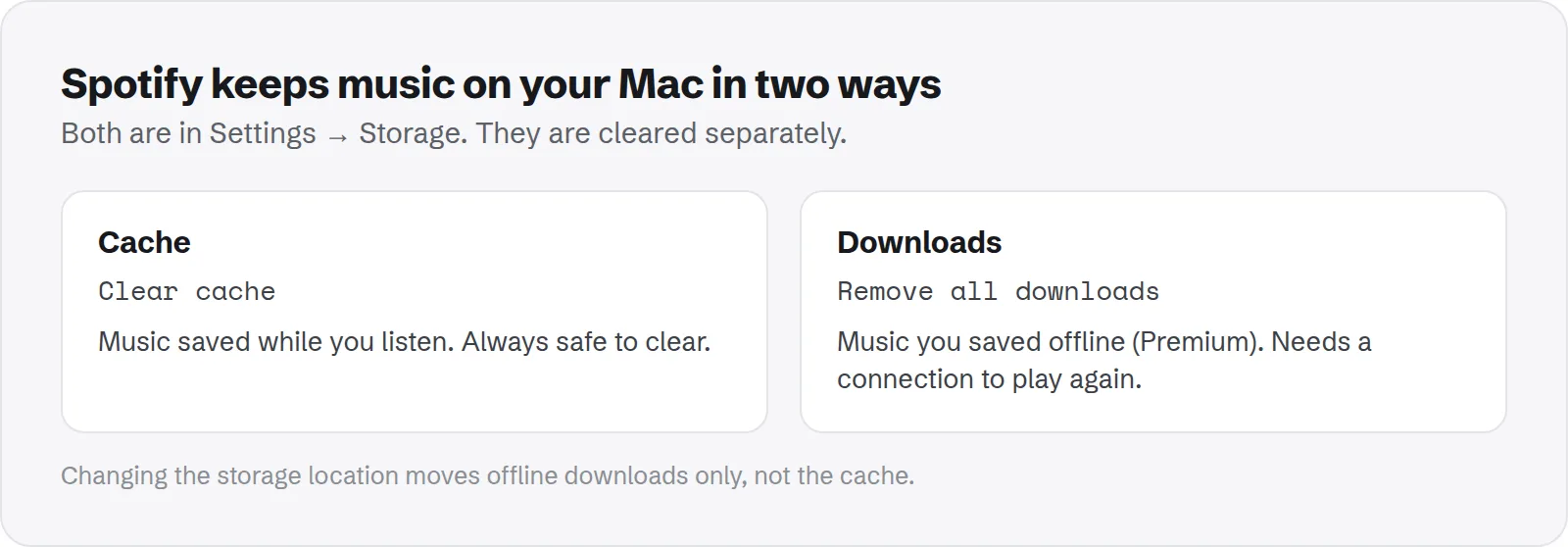
Spotify stores music on your Mac in two ways. They are cleared separately, and the difference matters.
- Cache: songs and data Spotify saved automatically while you listened. It is temporary and Spotify can rebuild it at any time.
- Downloads: playlists, albums and podcasts you chose to make available offline. Premium only. They stay until you remove them.
Clearing the cache is always safe. Removing downloads means you need an internet connection to play that music again, or you need to download it again.
How to clear the Spotify cache on Mac
The built-in option is the safest way. Spotify's own page on storage information describes the same settings.
- Open Spotify on your Mac.
- Click your profile picture at the top and choose Settings.
- Scroll down to Storage.
- Next to Cache, click Clear cache and confirm.
The Storage section also shows how much space the cache and downloads use, so you can see the difference right away. It updates as soon as the cache is cleared.
How to remove offline downloads
If you are a Premium user, downloads are often much bigger than the cache. A few large playlists saved offline can use 10 GB or more.
To remove everything at once, open Settings > Storage and click Remove all downloads. To remove only some, open a downloaded playlist or album and turn off its Download toggle.
Keep downloads for music you play offline, for example on flights. Remove the rest; you can download them again any time.
Change where offline downloads are saved
If you want to keep a large offline library, you can store it on an external drive instead of your startup disk. The option is in Settings > Storage, under the offline storage location.
This setting only moves offline downloads. Spotify's regular cache stays in its own folder on your startup disk. Keep the external drive connected when you want to play offline music, or Spotify cannot find it.
Where Spotify stores its cache on a Mac
You do not need to touch these folders, because the in-app button is safer. But it helps to know where they are if you are measuring your disk.
~/Library/Caches/com.spotify.client: the main cache of streamed music and data.~/Library/Application Support/Spotify: settings, sign-in data and, in aPersistentCachefolder, more cached content.
To check the size, run this in Terminal:
du -sh ~/Library/Caches/com.spotify.client ~/Library/Application\ Support/Spotify 2>/dev/nullHow to clear the cache manually
If Spotify will not open, or the in-app button does not free space, you can clear the cache folder by hand. Only remove the cache, so you stay signed in.
- Quit Spotify with Cmd + Q.
- In Finder, press Cmd + Shift + G and open
~/Library/Caches/com.spotify.client. - Move the contents to the Trash.
- Open Spotify. If everything works, empty the Trash.
Avoid deleting the whole Application Support/Spotify folder. It also holds your sign-in and settings, so you would need to log in again and reset your preferences.
Why the Spotify cache keeps growing
The cache grows with every song you play. A few things make it grow faster than usual:
- Very high streaming quality: higher quality means bigger files in the cache.
- Lots of variety: playing many different songs and podcasts caches more than replaying the same favourites.
- Long podcast episodes: a few hours of audio adds up quickly.
- Downloads at very high quality: offline music at the highest setting takes much more space.
Lower the quality to save space
If you do not need the highest quality, lowering it shrinks both the cache and downloads. On laptop speakers or everyday headphones, many people hear little difference.
Open Settings and look for Audio quality. Choose a lower streaming quality, and a lower download quality if you save music offline. New songs use the new setting; existing downloads stay as they are until you download them again.
Spotify problems that clearing the cache fixes
Clearing the cache is not only about space. It also fixes a set of common Spotify problems caused by damaged local data.
- Songs skip or stop: a broken cached file can cause this.
- Artwork or playlists look wrong: stale cached data is replaced.
- Spotify is slow to start: a huge cache can slow it down.
- Local files do not show: a fresh cache often helps Spotify find them again.
How much space should Spotify use?
Without offline downloads, a cache of a few hundred megabytes to a few gigabytes is normal. It depends on how much you listen and at what quality.
Downloads are a different story. Each hour of music at high quality is often over 100 MB, so a library of long playlists saved offline can easily pass 10 GB. If Spotify is very large, downloads are usually the reason.
Removing Spotify completely
If you stop using the Spotify app on your Mac, dragging it to the Trash leaves its cache and settings behind. Clear the cache and remove downloads in the app first, then quit it and move it to the Trash.
Afterwards, check for these and move them to the Trash too:
~/Library/Caches/com.spotify.client~/Library/Application Support/Spotify- Files starting with
com.spotify.clientin~/Library/Preferences
Our guide to removing leftover files after deleting an app covers the full method.
Spotify on a Mac with several users
Each user account on a Mac keeps its own Spotify cache and downloads. If several people use Spotify on the same Mac, each one adds their own copy.
Each person needs to clear their own cache from their own account. An administrator cannot clear other users' Spotify data from the app.
Other apps with big media caches
Spotify is one of many apps that keep media on your Mac to make things faster. Chat apps do the same with images and videos.
See how to clear the Slack cache and how to free WhatsApp storage. For the general rules, read whether ~/Library/Caches is safe to delete.
Many of these caches are counted as System Data in Storage settings. See how to clear System Data on Mac for the other usual causes.
A simple routine for Spotify storage
You do not need to clear Spotify often. A few settings keep it in check.
- Download only what you play offline: and remove downloads you have finished with.
- Pick a sensible quality: the highest setting is rarely needed on a laptop.
- Clear the cache when you need space: it takes a few seconds.
- Move big offline libraries: to an external drive if you keep a lot offline.
How Purgy clears the Spotify cache
Purgy finds Spotify's cache in ~/Library/Caches/com.spotify.client and lists it under System caches with its size. It is ticked by default, and Clean now frees it with your other app caches.
Quit Spotify before you clean. Spotify streams again what it needs, so the only effect is that songs you play often load from the network once more.
Purgy does not remove offline downloads. They are music you chose to keep, and Spotify stores them in its own format that only Spotify can manage.
To free that space, remove downloads in Spotify or change the storage setting described above. Purgy's Space map shows how much the Spotify folders take in total, so you can see whether downloads or the cache is the real cause.
Spotify is one of several streaming and chat apps that keep large caches. One Purgy scan shows them all side by side. Check your own Mac with the free trial.
Questions people ask about the Spotify cache
These come up most when people clear Spotify on a Mac.
Will clearing the cache delete my playlists?
No. Playlists, liked songs and your library are stored in your Spotify account. They appear again as soon as Spotify reconnects.
Will clearing the cache remove my downloads?
No. Clear cache and Remove all downloads are separate buttons. Clearing the cache keeps your offline music.
Why is the cache back to several gigabytes so soon?
Because Spotify caches what you play. Heavy listening fills it again quickly. That is normal; clear it again whenever you need the space.
Can I stop Spotify caching completely?
No. Caching is part of how Spotify plays music smoothly. You can only clear it, lower the quality, or keep fewer downloads.
Do I lose local files I added to Spotify?
No. Local files live in your own music folders. Spotify only points to them, so clearing its cache does not touch them.
Is it safe to delete the com.spotify.client folder?
Yes, while Spotify is closed. It only holds cached content. Spotify rebuilds it as you listen, and you stay signed in.
Does the Spotify web player use my Mac's storage?
Only through your browser's cache. Clearing your browser's cache and site data for Spotify frees that space.