WhatsApp Taking Too Much Storage on Mac? How to Fix It

On this page
- Why WhatsApp uses so much space on a Mac
- Which WhatsApp app do you have?
- How to see what is using space in WhatsApp
- How to delete media without deleting chats
- Turn off automatic downloads
- Use disappearing messages for busy chats
- Leave or mute groups you no longer read
- Check your Downloads folder
- Where WhatsApp stores data on a Mac
- Be careful with logging out
- WhatsApp on your phone is separate
- Other chat apps that keep big caches
- A simple routine for WhatsApp storage
- Where Purgy fits with WhatsApp
- Questions people ask about WhatsApp storage on Mac
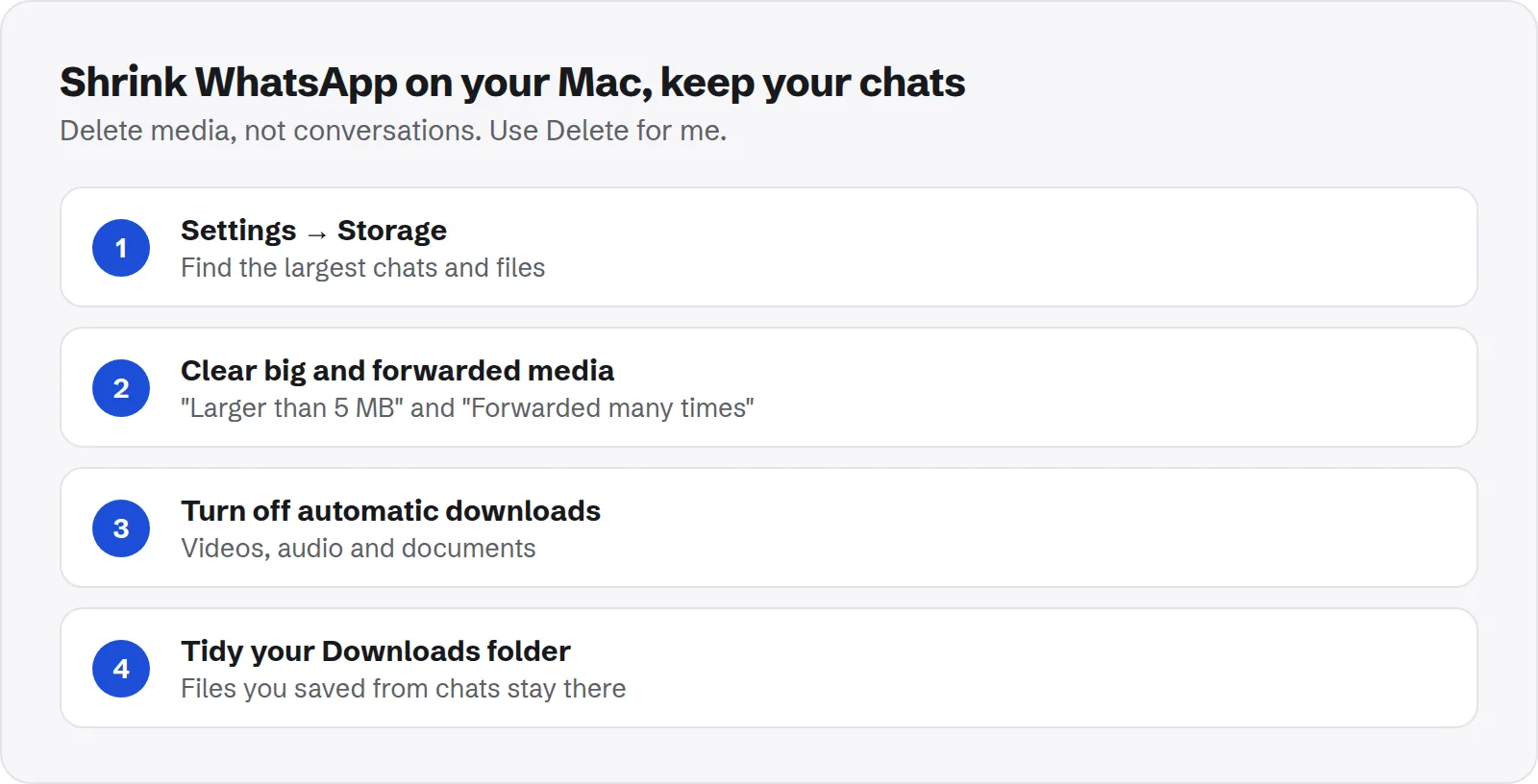
Quick answer: Open WhatsApp on your Mac, go to Settings and look for the storage section. Review the largest chats and media, and delete what you do not need with Delete for me.
Then turn off automatic downloads for videos and documents, so the space does not fill again. Also check your Downloads folder, where files you saved from WhatsApp stay until you delete them.
WhatsApp on a Mac feels light, but it quietly keeps a copy of photos, videos, voice notes and documents from your chats. Busy family groups and work chats can add gigabytes over a few months.
This guide shows where that space goes and how to clear it without losing the chats themselves.
Why WhatsApp uses so much space on a Mac
WhatsApp on Mac works alongside your phone. Messages and media sync to the Mac, and media is stored locally so you can open it quickly.
A few things make it grow faster than you might expect:
- Automatic media download: photos, and sometimes videos and documents, download as soon as they arrive.
- Busy groups: a few active groups can send hundreds of photos and videos a week.
- Forwarded media: the same viral video arrives in several chats, and each copy can take space.
- Saved files: files you open or save go to your Downloads folder as well.
Which WhatsApp app do you have?
WhatsApp has released more than one Mac app over the years. Older Macs may still have the older desktop version, while newer ones use the current app from WhatsApp or the Mac App Store.
The menus differ a little between them, so the steps below describe where to look rather than exact button names. If you have both installed, remove the one you do not use; each keeps its own copy of your media.
How to see what is using space in WhatsApp
Recent versions of WhatsApp include a storage screen that lists your largest chats and files. It is the easiest place to start.
- Open WhatsApp on your Mac.
- Open Settings.
- Choose the Storage section. Depending on your version, it may be called Storage and Data.
- Look for an option to manage storage. It shows chats sorted by size, and groups of large or often-forwarded files.
Groups such as "Larger than 5 MB" and "Forwarded many times" are usually the quickest wins. They are often videos and memes you do not need to keep.
How to delete media without deleting chats
You can remove photos, videos and files while keeping the text of your conversations. This is the safest way to free space.
- Open a large chat from the storage screen, or open the chat and view its contact or group info.
- Open Media, links and docs.
- Select the items you want to remove.
- Choose Delete, then Delete for me.
Delete for me only removes the copy on your devices. The other people in the chat keep theirs. Choose it rather than Delete for everyone, which removes a message for all participants.
Turn off automatic downloads
Clearing media helps once. Stopping automatic downloads keeps it from coming back.
- Open WhatsApp Settings and go to the storage section.
- Find the automatic media download options.
- Leave Photos on if you like, since they are small.
- Turn off automatic downloads for Videos, Audio and Documents.
Media still shows a preview, and you can download it with one click when you want it.
Use disappearing messages for busy chats
Some chats never need a long history, such as a daily team update or a group for planning one event. Disappearing messages remove new messages and their media after a set time.
Open the chat's contact or group info, find Disappearing messages, and pick a period such as 7 days. It only affects new messages, and everyone in the chat can see that it is on.
For groups that send lots of photos and videos, this keeps storage flat without you having to clean them by hand.
Leave or mute groups you no longer read
Large groups you only skim are often the main source of media. Muting stops notifications, but the media still arrives.
If a group no longer matters to you, exiting it is the cleanest fix. If you want to stay, at least turn off automatic downloads so its videos do not land on your Mac.
Check your Downloads folder
When you open or save a file from WhatsApp on a Mac, it usually lands in your Downloads folder. Those copies stay even after you delete the media inside WhatsApp.
Open Downloads in Finder, switch to list view with Cmd + 2, and sort by Size. Large videos and documents from chats are often near the top. Keep what you need and move the rest to the Trash.
Where WhatsApp stores data on a Mac
You do not need to touch these folders; the in-app tools are safer. But knowing where they are helps if you are measuring your disk.
- Current app: stores most of its data in a folder in
~/Library/Group Containerswithwhatsappin its name, plus a folder in~/Library/Containers. - Older desktop app: stores its data in
~/Library/Application Support/WhatsApp.
To check the size, run this in Terminal:
du -sh ~/Library/Group\ Containers/*[Ww]hats[Aa]pp* ~/Library/Containers/*[Ww]hats[Aa]pp* ~/Library/Application\ Support/WhatsApp 2>/dev/nullDeleting these folders by hand logs you out and removes local history. Use the in-app storage tools instead.
Be careful with logging out
Logging out of WhatsApp on your Mac removes its local data, which frees space. But it is not a free reset.
When you log back in, your phone syncs recent history to the Mac again. Older messages and media may not all come back to the Mac. Your phone keeps its own copy, but the Mac's history can be shorter afterwards.
If you want to keep a full history on your Mac, delete media from inside WhatsApp rather than logging out.
WhatsApp on your phone is separate
Your iPhone keeps its own WhatsApp storage, and its backups go to iCloud. Clearing WhatsApp on your Mac does not change your phone, and the phone's backup does not use your Mac's disk.
If your phone is also full, it has the same storage tools in WhatsApp's settings. The same rule applies: delete media, keep chats.
Other chat apps that keep big caches
If WhatsApp was large, your other chat apps probably are too. Each keeps its own media, even when the same file was shared in several apps.
See how to clear Telegram on Mac and how to clear the Microsoft Teams cache. Many of these folders are counted in System Data; see how to clear System Data on Mac for the rest.
For the general rules on hidden app folders, read whether Application Support is safe to delete.
A simple routine for WhatsApp storage
A little setup now saves cleaning later. After that, a quick check every few months is enough.
- Turn off automatic video and document downloads: the biggest single change.
- Review the largest chats: every few months, from the storage screen.
- Clear forwarded media: it is rarely worth keeping.
- Tidy Downloads: files saved from chats pile up there.
Where Purgy fits with WhatsApp
WhatsApp's chats and media on a Mac are stored in ~/Library/Group Containers. Purgy protects that folder and never deletes from it, because it holds your conversations and can be the only copy of a photo or voice note. Use WhatsApp's own Manage storage screen, as shown above, to remove media without losing chats.
Purgy helps around that:
- Measuring. The System Data screen counts Group Containers in its Real data, keep row, and the Space map shows WhatsApp's folder next to everything else, so you know how much WhatsApp is really using.
- Saved media. Photos, videos and documents you saved from WhatsApp land in Downloads or wherever you put them. The Documents screen lists large files and exact duplicates, nothing selected for you, and moves only what you pick to the Trash.
- The old app. If you still have the older WhatsApp app, the Uninstall apps screen removes it with its leftovers.
See how much space WhatsApp and everything else takes with the free trial.
Questions people ask about WhatsApp storage on Mac
These come up most when people clean WhatsApp on a Mac.
Will deleting media delete my chats?
No. Deleting photos, videos or files with Delete for me removes only that media. The text of your conversations stays.
Does deleting on my Mac delete it on my phone?
Deleting a message with Delete for me can apply on your linked devices too, depending on your version. Media you saved to your phone's Photos app stays there. If you need a file, save it somewhere safe first.
Why is WhatsApp still big after I deleted media?
Check your Downloads folder for files you saved, and make sure you do not have two WhatsApp apps installed. Also give the app a moment to update its storage figure.
How much space should WhatsApp use on a Mac?
With automatic video and document downloads off, a few hundred megabytes to a couple of gigabytes is typical. Several gigabytes usually means busy groups with downloads switched on.
Can I move WhatsApp storage to an external drive?
No. WhatsApp keeps its data in its own folder on your startup disk. Controlling automatic downloads is the way to keep it small.
Is it safe to delete the WhatsApp folder in Group Containers?
Only if you are happy to log out and lose the local history on your Mac. It is better to use the app's own storage tools.