Messages Attachments Filling Your Mac? How to Clear Them
On this page
- Where Messages stores attachments on a Mac
- Method 1: review attachments in Storage settings
- Method 2: keep messages for less time
- Method 3: delete conversations you do not need
- Save what matters before you delete
- What about Messages in iCloud?
- Let macOS keep older attachments in iCloud
- Do not forget Mail attachments
- Messages on a shared family Mac
- Why Messages grows so large
- Do not delete the Messages folder by hand
- Other apps that keep big media
- A simple routine for Messages storage
- Where Purgy fits with Messages
- Questions people ask about Messages storage
Quick answer: Open System Settings > General > Storage, click the info button next to Messages, and delete large attachments you do not need.
To stop it growing back, open Messages, go to Messages > Settings > General and set Keep messages to 1 year or 30 days. Do not delete the ~/Library/Messages folder by hand.
Messages on a Mac keeps your conversations, and with them every photo, video, voice message and file people send you. If you have used iMessage for years, that history can reach tens of gigabytes.
The good news is that macOS has safe tools for this. This guide shows how to find the biggest attachments, remove them without losing your conversations, and keep Messages from filling your disk again.
Where Messages stores attachments on a Mac
Messages keeps its data in your Library. Two parts matter for space:
~/Library/Messages/Attachments: photos, videos and files from your conversations. This is usually the large part.~/Library/Messages/chat.db: the database of your conversations. Usually much smaller, and essential.
You can measure the attachments folder in Terminal. If macOS blocks access, give Terminal Full Disk Access in System Settings > Privacy & Security first.
du -sh ~/Library/Messages/AttachmentsAvoid deleting files in these folders by hand. Messages expects them to match its database, and removing them directly can leave broken items in your conversations.
Method 1: review attachments in Storage settings
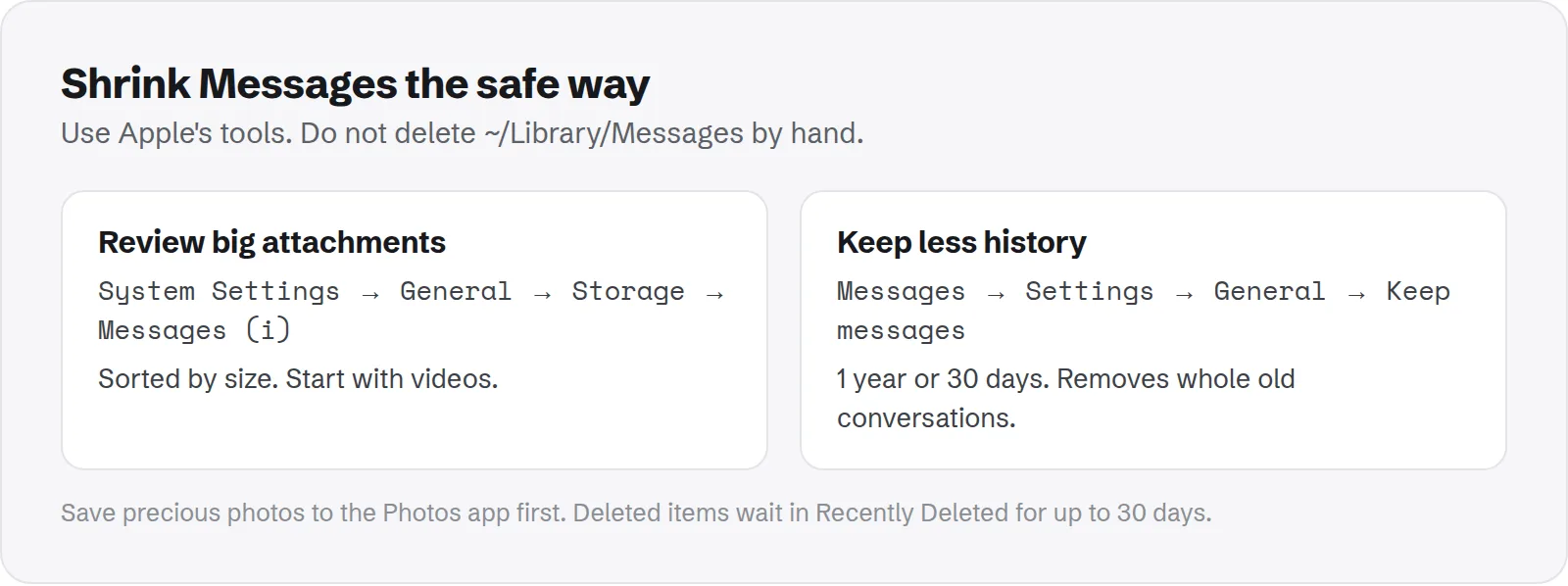
This is the easiest and safest way. It lists your largest attachments, with previews, and deletes them properly.
- Open System Settings and go to General > Storage.
- Wait for the list to load, then click the info button next to Messages.
- You see a list of attachments, sorted by size. Select the ones you do not need. Hold Cmd to select several.
- Click Delete and confirm.
Start with videos at the top of the list. A handful of long videos often accounts for most of the space, so a few clicks can free several gigabytes.
Method 2: keep messages for less time
By default, Messages keeps everything forever. Changing that one setting stops attachments from piling up for years.
- Open Messages.
- Choose Messages > Settings and click General.
- Set Keep messages to 1 Year or 30 Days.
Be careful: this removes whole conversations older than the period you choose, including their text, not only attachments. Choose it only if you do not need old conversations.
Method 3: delete conversations you do not need
Some chats are mostly media, such as a group that shared photos from one trip. Deleting the whole conversation removes its attachments too.
In Messages, right-click a conversation in the sidebar and choose Delete Conversation. Apple's guide to deleting messages and conversations on Mac covers the options in detail.
Deleted messages go to Recently Deleted for up to 30 days, so you can recover them if you change your mind. The space is fully freed once they leave that folder.
Save what matters before you delete
Some attachments are precious, such as family photos that only exist in a chat. Save them before you clean.
In a conversation, open its details to see the photos and files it contains. Drag any you want to keep to a folder in Finder, or into the Photos app. Then delete the rest with a clear conscience.
What about Messages in iCloud?
If you turned on Messages in iCloud, your conversations are stored in iCloud and synced across your devices. That changes two things.
- Deleting syncs: deleting a message or conversation on your Mac also deletes it on your other devices.
- Attachments still download: attachments you open on the Mac are stored locally, so Messages in iCloud does not mean they take no space.
Messages in iCloud can also help: macOS can keep older attachments in iCloud only and remove local copies when space is low, if storage optimisation is on in Storage settings.
Let macOS keep older attachments in iCloud
If you use Messages in iCloud, macOS can store older attachments only in iCloud and keep recent ones on your Mac. It is a good middle ground if you want your full history but not all of it on your disk.
Open System Settings > General > Storage. Under recommendations, look for Store in iCloud and make sure Messages is included. macOS then frees local copies when space gets low, and downloads them again when you open them.
This needs enough iCloud storage for your messages. If your iCloud plan is nearly full, check that first.
Do not forget Mail attachments
Mail works in a similar way. When you open an attachment from an email, Mail keeps a copy in its own downloads folder, separate from your Downloads folder.
That folder is inside Mail's container in your Library, in a folder called Mail Downloads. The copies are safe to delete; the originals stay in your emails. Quit Mail before removing them.
Mail's mailboxes themselves should not be deleted by hand. Remove large old emails from inside Mail if they are the problem.
Messages on a shared family Mac
Each user account on a Mac has its own Messages data. If several family members use Messages on the same Mac, each one adds their own attachments.
Each person needs to review their own attachments from their own account. Storage settings only shows the Messages data of the person signed in.
Why Messages grows so large
Most people are surprised by how big Messages gets. A few habits drive it.
- Videos: each one can be tens or hundreds of megabytes, and family and friend groups share a lot of them.
- Keeping everything forever: the default setting never removes old attachments.
- Group chats: busy groups send far more media than one-to-one chats.
- Many years of history: conversations from old phones are kept when you set up new ones.
Do not delete the Messages folder by hand
Some guides suggest deleting ~/Library/Messages or its Attachments folder in Finder. It frees space, but it is risky.
Without Messages in iCloud, those files may be the only copy of your conversations and media. With it, a mismatch between the database and the files can cause errors and broken items. The built-in tools above avoid both problems.
Other apps that keep big media
Messages is one of several apps that keep photos and videos from conversations. If it was large, check the others too.
See how to free WhatsApp storage on Mac, how to clear the Slack cache and how to clear Telegram.
For the wider picture, our guide to the Mac Library folder explains which folders, like Messages, should never be cleaned by hand.
A simple routine for Messages storage
A few minutes now saves gigabytes later. After that, a quick check every few months is enough.
- Review large attachments in Storage settings: start with videos.
- Save precious photos to Photos: so they do not depend on a chat.
- Pick a Keep messages period: if you do not need old conversations.
- Delete media-heavy group chats: once the event or trip is over.
Where Purgy fits with Messages
Messages attachments are your own photos, videos and files, and they may be the only copy. So Purgy deliberately never deletes anything from ~/Library/Messages. It is on the protected list and locked in every screen.
What Purgy does instead is tell you how much of your disk Messages is using. The System Data screen includes Messages in its Real data, keep row, together with Mail and shared app data, so you can see whether Messages is the reason your disk is full before you spend time clearing it.
If it is, clear attachments with the methods above: Storage settings, a shorter Keep messages setting, or deleting conversations in the Messages app. macOS then removes the files safely and keeps your iCloud copy in sync.
For everything else on the disk, Purgy frees caches, logs, developer caches and old installers in one click and lists backups and large files for you to review. See how much Messages and everything else takes with the free trial.
Questions people ask about Messages storage
These come up most when people clean up Messages on a Mac.
Will deleting attachments delete the conversation?
No. Deleting an attachment from Storage settings removes that file only. The rest of the conversation stays.
Does deleting on my Mac delete it on my iPhone?
If Messages in iCloud is on, yes, deletions sync to all your devices. If it is off, each device keeps its own copy.
Is it safe to delete ~/Library/Messages/Attachments?
Not by hand. Use Storage settings or Messages itself, so the database stays in step with the files.
Why is Messages still large after deleting attachments?
Deleted items may still be in Recently Deleted for up to 30 days. Empty it in Messages, or wait, to free the space fully.
How much space should Messages use?
It varies a lot. A light user may have under a gigabyte. Someone with years of history and busy group chats can easily have 20 GB or more, mostly in videos.
Do stickers and Memoji take much space?
No. They are small. Photos and especially videos are where nearly all the space goes.
Can I move Messages to an external drive?
No. Messages keeps its data in your Library on your startup disk. Using the Keep messages setting and Messages in iCloud are the ways to keep it small.
Will setting Keep messages to 30 days delete my photos?
It deletes attachments in conversations older than 30 days. Photos you saved to the Photos app are separate and are not affected.