What Is "Other" Storage on Mac? And Where Did It Go?
On this page
- Other vs System Data: what changed
- What was inside Other storage?
- How to check Other storage on an older Mac
- How to check System Data on a newer Mac
- How to find what is inside
- How to reduce Other or System Data safely
- Archives and disk images: an easy win
- Extra places to check on older Macs
- Try Safe Mode on an older Mac
- What not to delete
- Why the size changes by itself
- How Purgy explains Other and System Data
- Questions people ask about Other storage
Quick answer: "Other" was the name older versions of macOS used for storage that did not fit categories like Apps, Photos or Documents. Starting with macOS Monterey, Apple renamed it System Data.
It holds caches, app data, logs, device backups, disk images, archives and other files macOS cannot label. You shrink it by finding the large items inside and removing the ones you no longer need.
If you have an older Mac, or read older guides, you have probably seen "Other" as a large grey bar in your storage overview. On newer Macs it has disappeared, and System Data has appeared in its place.
They are essentially the same idea with a new name. This guide explains what Other storage held, how to check it on any macOS version, and how to make it smaller safely.
Other vs System Data: what changed
Apple has changed how it shows storage a few times. The short version:
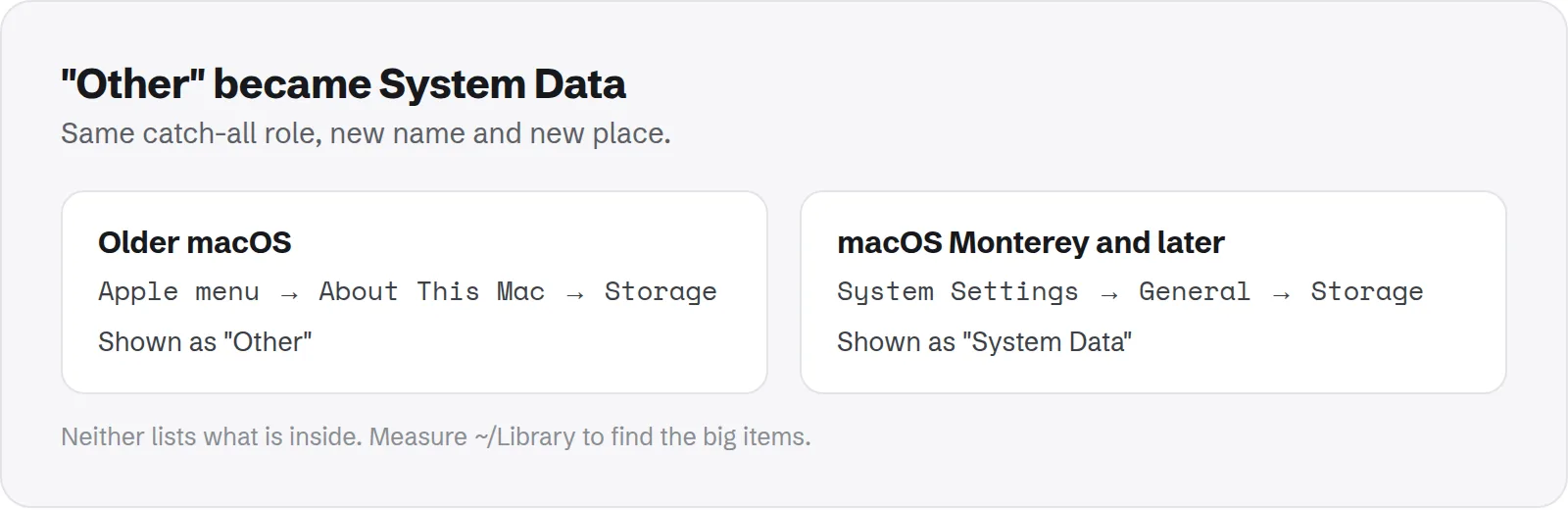
- Older macOS versions: the storage bar under About This Mac > Storage had a category called Other.
- macOS Monterey and later: the same catch-all is called System Data, and it lives in System Settings > General > Storage on recent versions.
Apple also moved some things into their own categories over time, so System Data on a new Mac is not exactly the same mix as Other on an old one. But the role is the same: whatever does not fit elsewhere.
What was inside Other storage?
Other was a mix of many kinds of files. Some were system files; many were created by apps or by you.
- Caches: from browsers, apps and macOS itself.
- App data: files in your Library's Application Support and Containers folders.
- Logs and crash reports.
- Device backups: iPhone and iPad backups made on the Mac.
- Disk images and archives:
.dmg,.zipand similar files macOS did not count as documents. - Plug-ins, fonts and extensions.
- Virtual machines and temporary files.
Because it held so many kinds of data, Other could range from a few gigabytes to well over 100 GB on the same model of Mac.
How to check Other storage on an older Mac
If your Mac runs a version of macOS from before Monterey, the steps are a little different from today's Macs.
- Click the Apple menu and choose About This Mac.
- Click the Storage tab and wait for the bar to load.
- Hover over the grey section to see the size of Other.
- Click Manage to see Apple's recommendations and the largest items in each category.
The Manage window does not list what is inside Other. For that, you need to look in hidden folders yourself, as described below.
How to check System Data on a newer Mac
On recent macOS versions, open System Settings > General > Storage. System Data appears in the coloured bar and in the list below it.
Like Other, it has no detailed breakdown in macOS. Our guide on why System Data is so large walks through the usual causes and how to tell which one is yours.
How to find what is inside
The same method works for Other and System Data. Measure the hidden folders where most of it lives, biggest first.
du -sh ~/Library/* 2>/dev/null | sort -hr | head -20That lists the largest folders in your Library. Then check the common big items one by one:
- Device backups:
~/Library/Application Support/MobileSync/Backup - Caches:
~/Library/Caches - Local snapshots: run
tmutil listlocalsnapshots / - Disk images and archives: search Downloads for
.dmgand.zipfiles
If you cannot see some folders, give Terminal Full Disk Access in your Mac's privacy settings and try again.
How to reduce Other or System Data safely
Work from the safest, biggest wins down. These steps apply to any macOS version.
- Empty the Trash and restart. Clears temporary files.
- Remove old installers and disk images from Downloads and Applications.
- Delete old device backups. See how to delete old iPhone backups.
- Delete local snapshots. See how to delete Time Machine snapshots.
- Clear large caches. See whether ~/Library/Caches is safe to delete.
- Remove leftovers of old apps. See how to remove leftover app files.
For the complete step-by-step method on a newer Mac, see how to clear System Data on Mac.
Archives and disk images: an easy win
On older Macs, a surprising share of Other was simply downloaded files that macOS did not classify as documents. Installers and zip files are the classic example.
Open your Downloads folder, switch to list view with Cmd + 2, and sort by Kind or Size. Delete .dmg installers for apps you already installed, and .zip files you already unpacked.
Old macOS installers in Applications, named "Install macOS …", are another easy win. Each one is often over 12 GB.
Extra places to check on older Macs
Macs that have been through many macOS versions often carry leftovers from older apps. These rarely appear on new Macs, but can be large on old ones.
- iPhone software files: iTunes kept iOS update files in
~/Library/iTunes/iPhone Software Updates. Files ending in.ipsware safe to delete. - Old iOS apps from iTunes: if you used to sync apps with iTunes, copies may sit in a
Mobile Applicationsfolder inside your iTunes Media folder. They are no longer used. - Old iPhoto libraries: after moving to Photos, an old
iPhoto Librarymay still exist in Pictures. Check it carefully before deleting; Photos may share files with it, so deleting it can free less than its size suggests. - Mail downloads: copies of attachments you opened in Mail, kept in a
Mail Downloadsfolder inside Mail's data folder.
Make sure you have a current backup before removing anything from an old Mac. Older libraries can be the only copy of something important.
Try Safe Mode on an older Mac
Starting up in Safe Mode clears certain system caches, and has worked this way for many macOS versions. It is a quick, low-risk step when Other is unusually large.
Start up in Safe Mode once, then restart normally and check your storage again. How you enter Safe Mode depends on whether your Mac has an Intel or Apple chip; Apple's support site explains both.
What not to delete
Because Other and System Data include real system and app files, some parts must stay. Avoid deleting these by hand:
- Anything in
/System: it belongs to macOS. - Your Keychains, Mail and Messages folders: personal data that is hard to recover.
- App data for apps you still use: deleting it resets the app and can lose data.
Our guide to the Mac Library folder lists which folders are safe, which need care, and which to never touch.
Why the size changes by itself
Both Other and System Data include data that comes and goes, such as snapshots, caches and temporary files. That is why the figure can change from one day to the next.
See why your Mac storage keeps changing if you are trying to make sense of moving numbers.
How Purgy explains Other and System Data
Storage settings shows a single grey bar. Purgy's System Data screen breaks it into parts you can act on:
- APFS snapshots and Old iOS backups, listed for you to review.
- Unused AI models from tools such as Ollama, LM Studio and GPT4All.
- System caches and Dev junk, which rebuild on their own and are freed in one click.
- Real data, keep: Mail, Messages and shared app data, measured so you know their size and never deleted.
- macOS's own assets, such as Apple Intelligence models and speech voices. These are protected by macOS and no app can delete them, so Purgy names them and tells you which setting controls them.
Archives and disk images, the easy win described above, appear on the Documents screen and under Backups & old tool data, unticked and only ever moved to the Trash. On an older Mac that still says Other, the same screen applies. See what your own System Data is made of with the free trial.
Questions people ask about Other storage
These come up most from people who see "Other" or wonder where it went.
Is Other storage the same as System Data?
Essentially, yes. Apple renamed the catch-all category to System Data starting with macOS Monterey. Some items have moved into their own categories since.
Why is Other so large on my old Mac?
Usually because of device backups, caches, disk images and app data built up over years. Older Macs have often had more time to collect it.
Can I delete Other storage?
Not all of it, but many large parts inside it, such as old backups, installers and caches, are safe to remove.
Why does the Manage window not show Other's contents?
macOS does not list it. You need Terminal or a tool that measures hidden folders to see inside.
Are zip files and installers really counted as Other?
On older macOS versions, often yes. macOS did not treat them as documents, so they were added to Other. Clearing old ones from Downloads was an easy way to shrink it.
Will upgrading macOS reduce Other storage?
Not by itself. The data stays and is shown as System Data instead. You still need to remove the large items inside it.
Why did Other drop after a restart?
Temporary files, swap and some caches are cleared or shrunk at restart. That part of Other comes back gradually as you use your Mac.
Is there an "Other" category on newer Macs?
No. On current macOS versions, look for System Data instead. It plays the same role.