How to Live With a 256GB MacBook: A Practical Storage Guide
On this page
- How much of 256 GB can you actually use?
- Set up iCloud to keep big files off your Mac
- Use an external SSD for big projects
- Keep apps lean
- Control the apps that store media
- Browsers and the Downloads folder
- Pick an iCloud plan that fits
- Do not back up your iPhone to your Mac
- Developers on a 256 GB Mac
- A monthly routine that keeps space free
- Why keeping free space matters
- When 256 GB is really not enough
- How Purgy keeps a 256 GB Mac in check
- Questions people ask about 256 GB MacBooks
Quick answer: A 256 GB MacBook works well if you keep large media in the cloud or on an external SSD, turn on Optimize Mac Storage for iCloud Drive and Photos, and clear caches, backups and downloads every month or two.
Aim to keep about 40 GB free at all times, so updates and everyday work run smoothly.
Many MacBooks ship with 256 GB of storage. For browsing, documents, email and streaming, that is plenty. Add a photo library, a few big apps and a year of messages, and it gets tight quickly.
On Apple Silicon Macs, the internal storage cannot be upgraded later. So the answer is not a bigger disk; it is a smarter setup. This guide shows how to make 256 GB feel roomy.
How much of 256 GB can you actually use?
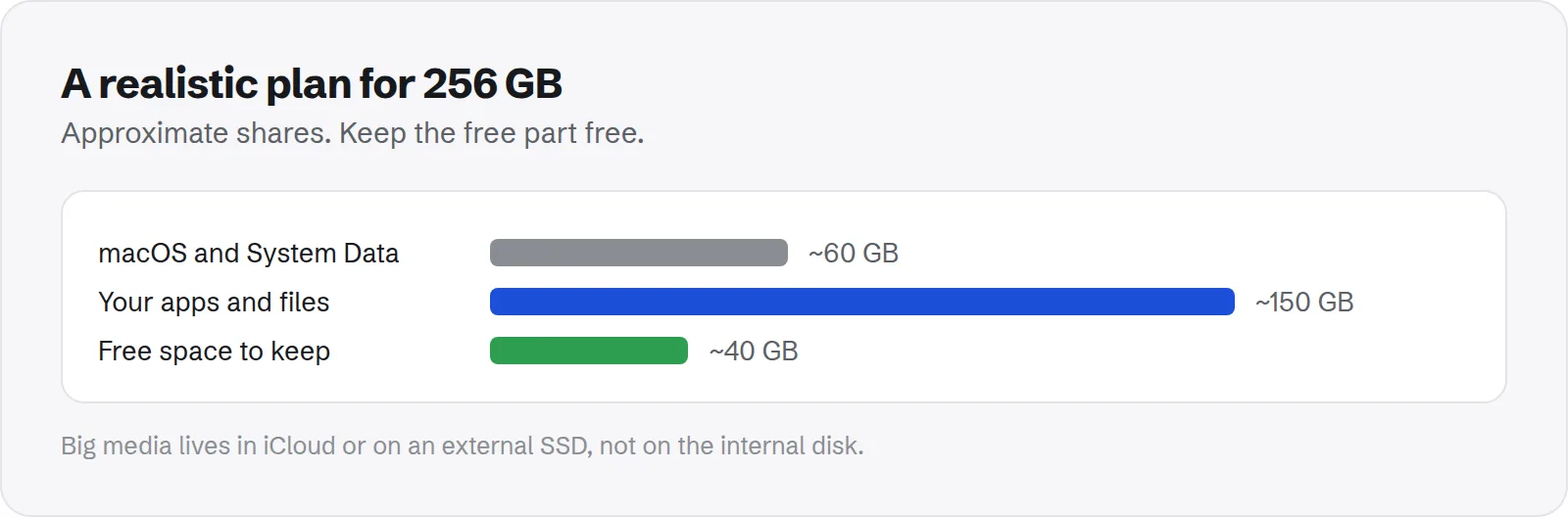
You do not get all 256 GB for your own files. A few things take their share before you install anything.
- macOS itself: the system and its built-in apps use a fixed chunk of the disk.
- System Data: caches, swap and snapshots, which grow and shrink as you work.
- Headroom for updates: major macOS updates need tens of gigabytes free to install.
In practice, plan on roughly 150 to 180 GB for your own apps and files, and keep the rest free. That is enough for most people if large media lives elsewhere.
Set up iCloud to keep big files off your Mac
iCloud is the single most useful tool for a small disk. It keeps your files available everywhere, while storing only what you use on the Mac.
- iCloud Drive with Optimize Mac Storage: files you have not opened recently are kept in iCloud and download when you open them.
- Desktop and Documents in iCloud: turn this on so those folders benefit too.
- iCloud Photos with Optimize Mac Storage: keeps smaller versions on your Mac and originals in iCloud.
Apple's guide to optimizing storage in Photos on Mac shows the setting. It needs enough iCloud storage for your library, so check your plan first.
Use an external SSD for big projects
Some files are too big or too active for iCloud, such as video projects, music libraries or large archives. An external SSD is the right home for them.
- Choose an SSD, not a hard drive: it is fast enough to work from directly.
- Use a fast connection: USB-C, Thunderbolt or USB4 drives open large files quickly.
- Format it as APFS: the best choice for drives used only with Macs.
- Keep a separate backup drive: do not rely on one external drive as both storage and backup.
A 1 TB external SSD costs far less than buying a Mac with more internal storage, and it moves with you between Macs. It also keeps working if you replace the Mac later on.
Keep apps lean
Apps are usually a smaller share than media, but a few are very large. Being picky saves real space.
- Remove apps you do not use: big suites, games and trial apps add up.
- Remove leftovers too: dragging an app to the Trash leaves its data. See how to remove leftover app files.
- Avoid duplicates: one browser and one chat app per job, not three.
- Delete old installers: "Install macOS" apps and
.dmgfiles in Downloads.
Control the apps that store media
Chat and streaming apps quietly save photos, videos and music. On a small disk, it is worth setting limits once.
- Messages: set Keep messages to 1 year, or use Messages in iCloud. See how to clear Messages attachments.
- WhatsApp and Telegram: turn off automatic video downloads. See WhatsApp storage and Telegram storage.
- Spotify and other streaming apps: download only what you play offline. See how to uninstall Spotify and clear its cache.
Browsers and the Downloads folder
Two everyday places fill up without you noticing. They are also the easiest to keep tidy.
- Downloads: installers, attachments and exports pile up here. Sort by size once a month and delete what you no longer need.
- Browser caches: heavy browsing can build a cache of several gigabytes. Clearing it now and then is safe; sites just load a little slower once.
- Several browsers: each keeps its own cache and profile. Using one main browser saves space.
Safari and Chrome both let you clear cached files from their settings without signing out of sites, if you choose only cached files.
Pick an iCloud plan that fits
The iCloud tips above only work if your iCloud storage has room. The free plan is small, and a photo library alone can fill a paid plan.
Check how much iCloud you use in System Settings, under your name and iCloud. If you are close to the limit, a larger plan is often cheaper than a Mac with more storage, and it works across your iPhone and iPad too.
Do not back up your iPhone to your Mac
A full iPhone backup can be as large as everything else on a 256 GB Mac. On a small disk, iCloud Backup is the better choice.
If you already have backups on your Mac, keep only the newest one for each device you use, or none if iCloud Backup is on. See how to delete old iPhone backups.
Developers on a 256 GB Mac
Development on a small disk is possible, but tools grow fast. A few rules keep them in check.
- Keep only the simulators you test on: see how to delete old iOS simulators.
- Prune Docker regularly: see Docker disk space on Mac.
- Clear package caches: see node_modules and Homebrew.
- Keep AI models on an external SSD: see storage for local LLMs.
A monthly routine that keeps space free
Ten minutes a month is enough to keep a 256 GB Mac comfortable. Here is a simple routine.
- Empty the Trash and clear your Downloads folder.
- Check Storage settings for any category that grew.
- Clear big caches from apps you use heavily.
- Review large files with Finder's search, sorted by size.
- Restart to clear temporary files and swap.
Apple's guide to freeing up storage space on Mac covers the built-in recommendations, such as emptying the Trash automatically.
Why keeping free space matters
A nearly full disk does more than block downloads. macOS needs free space to work well.
- Swap: when memory is tight, macOS writes some of it to disk. With no space, apps slow down or close.
- Updates: major updates need tens of gigabytes free to install.
- Snapshots and caches: they make your Mac faster and safer, but need room.
Keeping about 15 to 20 percent free, roughly 40 GB on a 256 GB Mac, avoids all three problems. If you are short before an update, see how to make space for a macOS update.
When 256 GB is really not enough
For some work, a small disk is a constant fight. That is worth knowing before your next Mac.
- Video editing with local footage: projects can need hundreds of gigabytes.
- Large photo libraries without iCloud: originals add up quickly.
- Heavy development with many toolchains: Xcode, Android Studio and Docker together are large.
- Running large local AI models: each model can be tens of gigabytes.
If that is you, an external SSD helps today, and more internal storage is worth considering next time you buy.
How Purgy keeps a 256 GB Mac in check
On a small disk the problem is rarely one huge file. It is a few gigabytes here and there that come back every month. Purgy is built for that routine.
- The regular sweep. The Overview screen totals caches, logs, developer caches and old macOS installers, all things that rebuild or were only needed once. They are ticked for you, and Clean now frees them in one go.
- The big files. The Documents screen lists files over 100 MB and exact duplicates in Downloads, Movies, Music, Desktop, Documents and Pictures. Nothing is pre-selected, and anything you pick moves to the Trash.
- The screenshot pile. The Screenshots screen gathers every screenshot so you can clear the ones you no longer need.
- An early warning. The menu bar panel shows free space at a glance, so you notice the disk filling before macOS warns you.
Purgy will not move files to iCloud or an external drive for you, and it never touches your Photos library. For those, use the iCloud and Photos settings described above. Try it on your own Mac with the free trial.
Questions people ask about 256 GB MacBooks
These come up most from people living with a small disk.
Is 256 GB enough for a MacBook?
For browsing, documents, email and streaming, yes. With iCloud and an external SSD for big files, many people never run out.
Can I upgrade the storage later?
Not on Apple Silicon MacBooks. The storage is built into the Mac. External drives and iCloud are the ways to add space.
How much free space should I keep?
About 40 GB on a 256 GB Mac. That leaves room for updates, swap and normal daily changes.
Does a full disk slow down a Mac?
Yes, when it gets very full. macOS has less room for swap and temporary files, so apps can slow down or quit.
What uses the most space on a typical Mac?
Photos, videos, Messages attachments, iPhone backups and caches. On developer Macs, simulators and Docker are often at the top.
How do I see what is using space right now?
Open System Settings > General > Storage. The list shows each category's size, and the info buttons list the biggest items inside.
Should I run apps from an external drive?
Most apps work best installed on the internal disk. Keep files and projects on the external SSD, and apps on the Mac.