How to See What's Taking Up Space on Your Mac
On this page
- Option 1: Storage settings
- Option 2: the Documents file browser
- Option 3: Finder
- Option 4: show hidden files in Finder
- Option 5: Terminal
- Option 6: ncdu, an interactive Terminal tool
- Option 7: a visual disk map
- Check external drives too
- Which tool should you use?
- What you will usually find
- Make it a monthly habit
- Tips for reading the numbers
- How Purgy shows your disk and what is safe to clear
- Questions people ask about checking Mac storage
Quick answer: Open System Settings > General > Storage for a breakdown by category, and click the info buttons to see the largest items in each.
For files Finder can show, search with a File Size rule. For hidden folders, use du in Terminal or a visual disk map. Each tool sees a different part of your disk, so using two together gives the full picture.
Knowing your disk is full is easy. Knowing what is filling it is harder. macOS has several built-in tools for this, and each one shows a different slice of the truth.
This guide walks through every practical option, what it shows, what it misses, and which one to reach for depending on what you are trying to find.
Option 1: Storage settings
Storage settings is Apple's own overview. It groups your disk into categories and offers recommendations for freeing space.
- Open System Settings > General > Storage.
- Wait for the coloured bar to finish calculating.
- Scroll the list of categories, such as Applications, Documents, Photos and System Data.
- Click the info button next to a category to see its largest items.
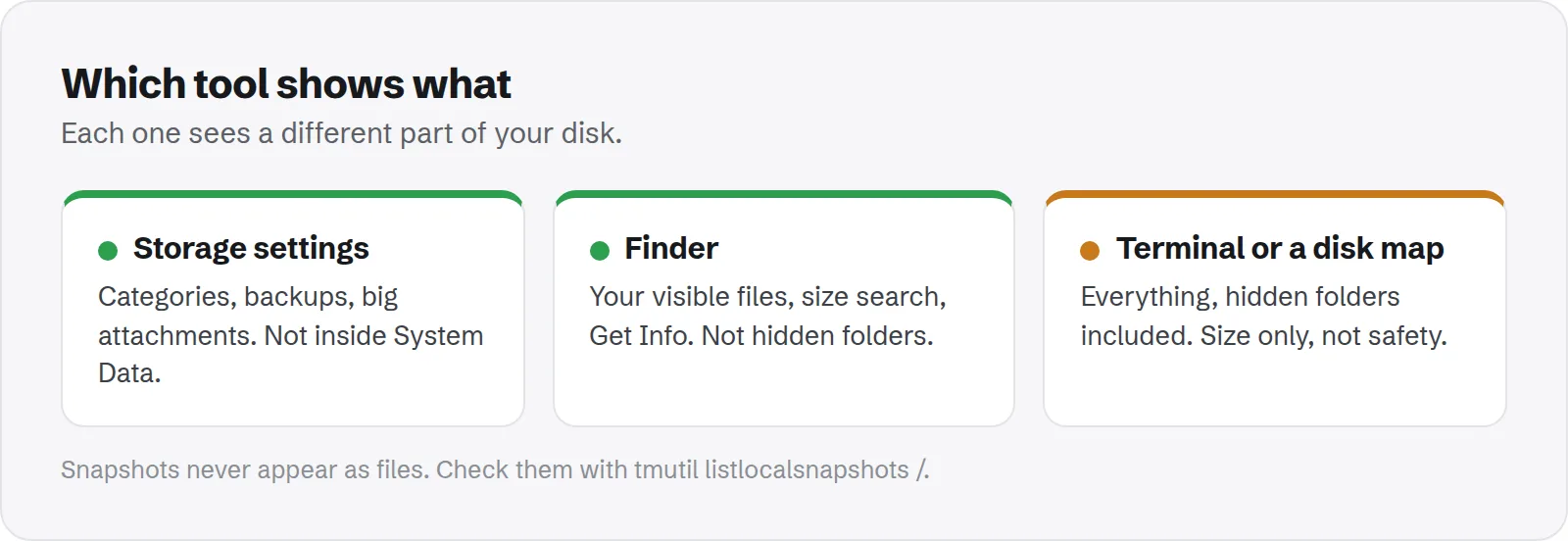
Good for: a quick overview, old device backups under iOS Files, large Messages attachments and big files in Documents. It is also the only tool here that needs no setup at all.
Misses: what is inside System Data, which is often the largest category.
Option 2: the Documents file browser
Inside Storage settings, the info button next to Documents opens a view of your largest files and folders. It is easy to overlook.
It can list large files, downloads and unsupported apps, and includes a simple file browser sorted by size. You can delete items straight from there, without opening Finder.
Apple's guide to freeing up storage space on Mac describes these recommendations in more detail.
Option 3: Finder
Finder is good for your own visible files. A few settings make it much more useful for finding space.
- Show folder sizes: in list view, choose View > Show View Options and tick Calculate all sizes. Then sort by size.
- Search by size: press Cmd + F, choose This Mac, change the first rule to File Size and set it to is greater than 1 GB.
- Get Info: select a file, folder or disk and press Cmd + I to see its exact size.
- Status bar: choose View > Show Status Bar to see free space at the bottom of every window.
Good for: forgotten videos, disk images, exported projects and old downloads.
Misses: hidden folders, other users' files and snapshots, which are often where the biggest surprises are.
Option 4: show hidden files in Finder
Many of the biggest space users are hidden. Finder can show them with a shortcut.
In any Finder window, press Cmd + Shift + . (period). Hidden files and folders appear faded. Press it again to hide them.
To open your hidden Library folder, press Cmd + Shift + G and type ~/Library. Our guide to the Mac Library folder explains what each part holds.
Option 5: Terminal
Terminal can measure any folder, hidden or not, and sort the results. It is the most precise built-in option.
du -sh ~/* ~/.[!.]* 2>/dev/null | sort -hr | head -20That lists the twenty largest items in your home folder, including hidden ones. To look one level deeper, point it at a folder, for example du -sh ~/Library/* | sort -hr | head.
To see the whole data volume, including other users and shared folders, use sudo du -sh /System/Volumes/Data/* | sort -hr. It asks for your password and can take a while.
Good for: hidden folders, developer tools and exact numbers you can compare from one day to the next.
Misses: snapshots, which do not appear as files. Check those with tmutil listlocalsnapshots /.
Option 6: ncdu, an interactive Terminal tool
If you like Terminal but want something easier to browse than du, try ncdu. It scans a folder, then lets you move through the results with the arrow keys, biggest first.
brew install ncdu
ncdu ~
It needs Homebrew to install. Press Return to open a folder and the left arrow to go back. It can also delete items, so read the screen carefully before pressing any delete key.
Option 7: a visual disk map
Disk map apps draw your disk as blocks or rings, sized by how much space each folder uses. Big folders jump out at a glance.
There are free and paid options. Free tools such as GrandPerspective and OmniDiskSweeper have been around for years. DaisyDisk is a popular paid choice; our comparison of Purgy and DaisyDisk explains how a map differs from a cleaner.
Good for: spotting where the space is quickly, including hidden folders, and showing it to someone who is not comfortable with Terminal.
Misses: whether a folder is safe to delete. A map shows size, not meaning.
Check external drives too
Every tool above can measure external drives as well. In Finder, select the drive and press Cmd + I for its totals. In Terminal, run du on its path under /Volumes.
External drives have their own hidden Trash, which only empties when the drive is connected and you empty the Trash. If a drive seems fuller than its files, that is often why.
Which tool should you use?
It depends on what you are looking for. Here is a quick guide.
- "What kind of data is filling my disk?" Start with Storage settings.
- "Where are my big videos and downloads?" Use Finder's size search.
- "What is inside System Data?" Use Terminal or a disk map.
- "Why is free space not what I expect?" Check snapshots and purgeable space.
For the last one, see what purgeable storage is and how to delete local snapshots.
What you will usually find
Once you can see inside your disk, the same culprits come up again and again. Each has a guide with safe next steps.
- Old iPhone backups: how to delete them.
- Messages attachments: how to clear them.
- App caches: whether they are safe to delete.
- Developer tools: Docker, simulators and node_modules.
- System Data in general: why it is so large.
Make it a monthly habit
Checking once when your disk is full is stressful. A quick look once a month keeps surprises away.
Open Storage settings, note the size of the biggest categories, and compare with last month. If one grew a lot, dig into it with Finder or Terminal while it is still small.
Tips for reading the numbers
Different tools rarely agree exactly. A few things explain most of the differences.
- Purgeable space: Finder counts it as available; Terminal does not.
- Shared files: some files are cloned or linked, so they are counted in more than one folder but stored once.
- Calculation delays: Storage settings can show old numbers for a few minutes after big changes.
Compare numbers from the same tool over time rather than across tools. See why your Mac storage keeps changing for more.
How Purgy shows your disk and what is safe to clear
Most of the tools above answer one question: where is the space? Purgy answers that and the next question too: what can I safely remove?
- Space map lists every folder on your Mac and attached drives, largest first, with hidden folders marked. You can drill in and tick anything to move it to the Trash, while macOS's own files stay locked.
- System Data explains the grey bar in Storage settings, split into snapshots, backups, AI models, caches, developer data and the parts that belong to macOS.
- Overview totals what is safe to clear now, such as caches, logs and old installers, and frees it with one click.
- Documents lists files over 100 MB, exact duplicates and old downloads, with nothing selected for you.
Every item shows a reason and is marked as safe to free, yours to decide or protected, so you are not guessing. If you only want a map, a visual tool like the ones above is enough. If you also want to clean, try Purgy on your Mac with the free trial.
Questions people ask about checking Mac storage
These come up most when people start looking at their disk.
What is the quickest way to see what is using space?
Storage settings. It gives you the categories in under a minute. Then dig into the largest one.
Why does Finder not show folder sizes?
Calculating sizes takes time, so it is off by default. Turn on Calculate all sizes in View Options while in list view.
How do I see hidden files on Mac?
Press Cmd + Shift + . in Finder. Press it again to hide them.
Why does Terminal say "Operation not permitted"?
macOS protects some folders. Give Terminal Full Disk Access in System Settings > Privacy & Security, then reopen it.
Is a disk map app safe to use?
Viewing is always safe. Deleting from a map is where care is needed, because a map shows size, not whether something is needed.
How often should I check my storage?
Once a month is plenty for most people. Check more often if your disk is small or nearly full, or before installing a big update.
Why do Storage settings and Finder show different totals?
They count purgeable space and shared files differently, and Storage settings may still be recalculating. Small differences are normal.
Can I see other users' storage?
Only as a total. Their folders are private. An administrator can measure them in Terminal with sudo, but should respect their files.