How to Fully Uninstall Apps on Mac (Every Kind of App)
On this page
- Why dragging to the Trash is not enough
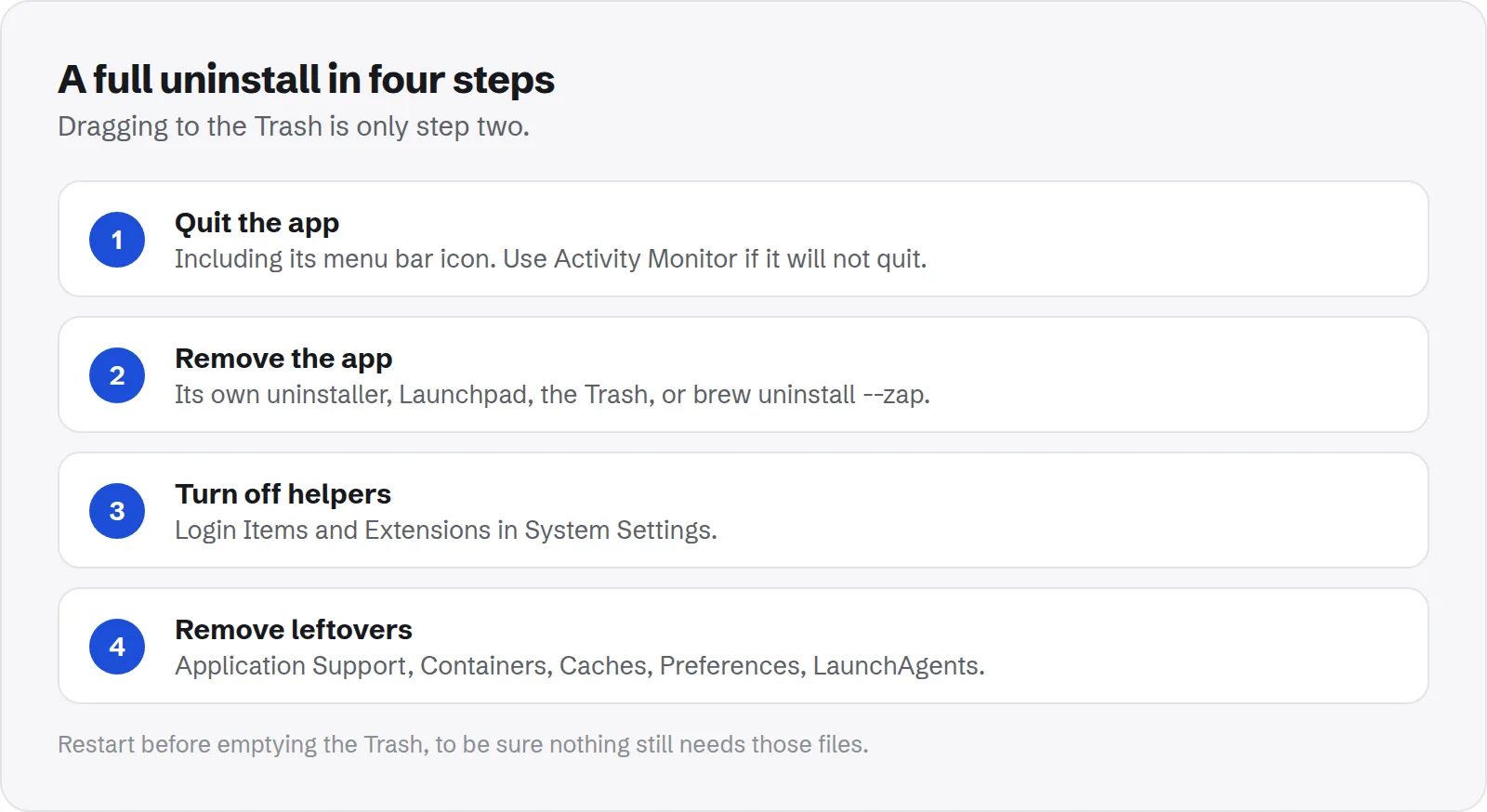
- Step 1: quit the app first
- Step 2: remove the app the right way for its type
- Step 3: turn off login items and extensions
- Step 4: remove the leftover files
- Check that nothing is left
- Apps that will not delete
- Built-in Apple apps
- Uninstall or reset?
- How much space does a full uninstall free?
- How Purgy uninstalls an app and its leftovers
- Questions people ask about uninstalling apps on Mac
Quick answer: Quit the app, then remove it the way it was installed. Use the app's own uninstaller if it has one, delete App Store apps from Launchpad or Finder, and use brew uninstall --zap for Homebrew apps.
After that, turn off its login items and extensions, and remove the data it left in your Library. That last step is what makes the uninstall complete.
On a Mac, most apps look easy to remove. You drag the icon to the Trash and it is gone. But the app's settings, caches, helpers and support files usually stay behind.
Most of the time that is harmless. But leftovers use space, and helpers can keep running in the background. This guide shows how to fully uninstall each kind of app, step by step, so nothing is left running or taking space.
Why dragging to the Trash is not enough
An app on a Mac is a single bundle in Applications. But while you use it, the app creates files in other places.
- Settings: preference files in
~/Library/Preferences. - Data: documents, databases and downloads in
~/Library/Application Supportor~/Library/Containers. - Caches and logs: in
~/Library/Cachesand~/Library/Logs. - Helpers: login items and background agents that start with your Mac.
Dragging the app to the Trash removes only the bundle. Everything else stays until you remove it yourself.
Step 1: quit the app first
An app that is running cannot be removed cleanly. macOS may refuse with a message that the item is in use.
Quit the app with Cmd + Q. If it has a menu bar icon, quit it from there too. Some apps keep running in the menu bar after you close their windows.
If the app will not quit, open Activity Monitor, search for its name, select it and click the stop button. Choose Quit, or Force Quit if it does not respond.
Step 2: remove the app the right way for its type
How you remove an app depends on how you installed it. Pick the section that matches your app.
Apps from the App Store
App Store apps are the simplest. They live in a sandbox, so most of their data sits in one container folder.
- Open Launchpad, or Applications in Finder.
- In Launchpad, press and hold the app icon until it jiggles, then click the delete button.
- In Finder, drag the app to the Trash, then empty the Trash.
Apple's guide to deleting or uninstalling apps on Mac shows both ways.
Its container in ~/Library/Containers may stay behind, along with a group container in ~/Library/Group Containers. Step 4 covers both.
Apps that come with their own uninstaller
Some large apps install drivers, helpers or shared components. They usually ship an uninstaller, and you should use it.
Look in the app's folder in Applications, in its menus, or on the vendor's website. Antivirus tools, VPNs, audio drivers and creative suites often work this way.
Adobe apps are a good example. See how to uninstall Adobe Creative Cloud for that process.
Apps you downloaded from the web
Most downloaded apps have no uninstaller. Drag them from Applications to the Trash and empty it.
If macOS asks for your password, the app was installed for all users. That is normal; enter your password to continue.
Apps installed with Homebrew
If you installed an app with Homebrew, remove it with Homebrew too. Otherwise Homebrew still thinks it is installed.
brew uninstall --zap --cask app-nameThe --zap option also removes files the app's cask lists as leftovers, such as settings and caches. Read the list it prints, because it can include shared files. Homebrew's command reference explains each option, and our guide to the Homebrew cache covers cleaning up afterwards.
Step 3: turn off login items and extensions
Some apps add helpers that start when you log in. After the app is gone, a helper can stay listed, or even keep running.
- Open System Settings > General > Login Items & Extensions.
- Under Open at Login, remove the app with the minus button.
- Under Allow in the Background, turn off items from the app's developer.
- Check the extensions sections for anything the app added, such as a Finder or network extension.
The name of this pane changes between macOS versions. On older versions it is under Users & Groups.
Step 4: remove the leftover files
This is the step that makes an uninstall complete. In Finder, press Cmd + Shift + G and open each of these folders.
~/Library/Application Support~/Library/Containersand~/Library/Group Containers~/Library/Caches~/Library/Preferences~/Library/Logsand~/Library/Saved Application State~/Library/LaunchAgents
Look for folders and files with the app's name or its developer's name. Move them to the Trash, then restart before emptying it, to be sure nothing breaks.
Our guide to removing leftover app files explains how to find an app's bundle ID and search for files that do not use its name.
Check that nothing is left
After removing an app, a quick search shows anything you missed. Replace AppName with part of the app's name.
find ~/Library -iname "*AppName*" 2>/dev/nullThis only lists files. It deletes nothing. Read each result before you remove it, because a short name can match files that belong to other apps.
If the search finds nothing, the uninstall is complete. That is the result you want.
Repeat the search with the developer's name, since some apps store files under the company name instead.
Apps that will not delete
Sometimes macOS refuses to move an app to the Trash. These are the common reasons and fixes.
- "The item is in use": quit the app and its menu bar helper, or restart and try again.
- "Cannot be modified or deleted": it may be a built-in macOS app. Those are part of the system and cannot be removed.
- Asked for a password: the app belongs to all users. Enter an administrator password.
- An app that reinstalls itself: it has a background helper or a management tool. Use its uninstaller, or ask your IT team if it is a work Mac.
Built-in Apple apps
Apps like Safari, Mail, Music and Photos are part of macOS. They sit on a protected, read-only system volume and cannot be deleted.
You can still free the space their data uses. Clean Messages and Mail from inside each app, and see how to clear Messages attachments for one of the biggest.
Uninstall or reset?
If an app is misbehaving, you may not need to remove it. Resetting it often fixes the problem and keeps the app.
To reset, quit the app and remove only its preference file and cache. It starts fresh the next time you open it. To remove it for good, follow all four steps above.
How much space does a full uninstall free?
It depends on the app. For small utilities, the leftovers may be a few megabytes. For some apps, they are far bigger than the app itself.
- Chat and meeting apps: often hundreds of megabytes to several gigabytes of cache and media.
- Creative suites: shared libraries, fonts and caches across several folders.
- Developer tools: SDKs and caches that can run to tens of gigabytes. See Android Studio and Docker.
To see how much your Library holds in total, see whether Application Support is safe to delete.
How Purgy uninstalls an app and its leftovers
Steps 1 to 4 above are what Purgy's Uninstall apps screen does for you.
- Open Uninstall apps and pick the app. Purgy shows when you last used it and how much space it takes.
- Purgy finds the files the app left in your Library, matched by its bundle ID and name: its folder in
Caches, itsPreferencesfile, its folders inApplication SupportandLogs, its saved window state, and its launch agents in~/Library/LaunchAgents. - You see every file with its size before anything happens.
- The app and its leftovers move to the Trash together, so you can put them back if the app turns out to be needed.
Two limits are worth knowing. Purgy only works in your own user Library, so it does not remove system-wide helpers in /Library, which need an administrator password.
For apps that install those, such as security tools and VPNs, run the developer's uninstaller first, then use Purgy to catch what remains. Purgy also cannot remove Apple's built-in apps. Try it on an app you no longer use with the free trial.
Questions people ask about uninstalling apps on Mac
These come up most when people remove apps.
Does deleting an app remove its data?
No. Moving an app to the Trash removes only the app itself. Its settings, caches and data stay in your Library until you remove them.
Is it safe to delete an app's Library files?
Yes, once the app is gone. If you plan to reinstall it, keep its Application Support folder, which may hold your data.
Why is an app still running after I deleted it?
A helper or login item is still active. Turn it off in Login Items, then restart your Mac.
Can I uninstall apps from Terminal?
Yes, but it is easy to make a mistake. Finder and the app's own uninstaller are safer for most people. Homebrew apps are the exception: use brew uninstall.
Do I need to restart after uninstalling?
Not always. It is a good idea if the app had background helpers or extensions, so they stop fully.
Will reinstalling bring back my settings?
Only if you kept the app's leftover files. If you removed them, the app starts fresh.
Can I uninstall apps on a work Mac?
It depends on your company. Managed Macs can block removal or reinstall apps automatically. Ask your IT team before removing work tools.
Should I cancel a subscription before uninstalling?
Yes. Removing an app does not cancel its subscription. Cancel it in the App Store or on the developer's site first.