How to Clear the Chrome Cache on Mac (Without Losing Logins)
On this page
- What the Chrome cache is, and what it is not
- How to clear the Chrome cache on Mac
- How to clear the cache for one site only
- Fix one page with a hard reload
- Where Chrome keeps its data on a Mac
- Should you delete the Chrome folders by hand?
- If Chrome will not open
- What to expect after clearing
- Other Chrome data that can use space
- Clear site data automatically when Chrome closes
- Will clearing the cache speed up Chrome?
- How often should you clear it?
- Chrome is one of many caches
- How Purgy clears the Chrome cache with your other apps
- Questions people ask about the Chrome cache
Quick answer: In Chrome, press Cmd + Shift + Delete. Choose a time range, tick only Cached images and files, and click Delete data.
That clears the cache but keeps your history, passwords and logins. Leave Cookies and other site data unticked if you do not want to be signed out of websites.
Chrome keeps a cache of images, scripts and other files from the sites you visit. It helps pages load faster the next time. Over months it can grow to a few gigabytes, and sometimes it holds a stale file that makes a site look or behave wrong.
Clearing it is safe and quick. This guide shows the standard way, how to clear just one site, how to fix a page with a hard reload, and where Chrome keeps its data on a Mac.
What the Chrome cache is, and what it is not
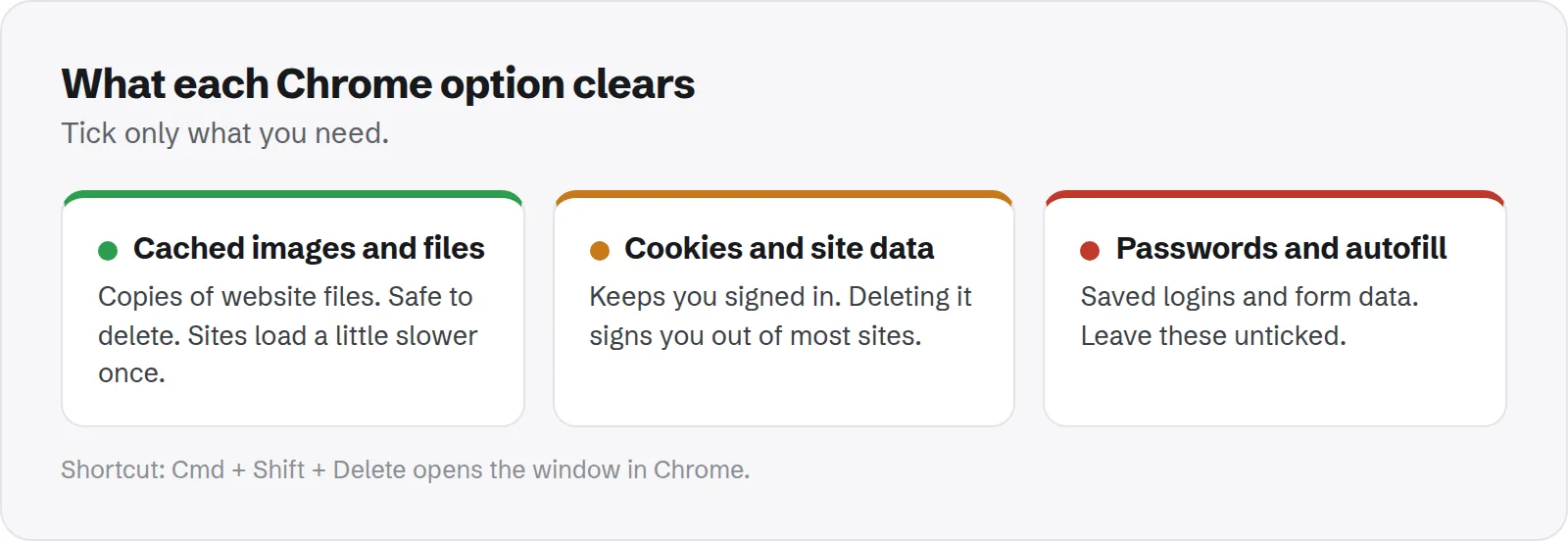
Chrome stores several kinds of data, and the clear-data window lists them separately. It helps to know what each one does before you tick boxes.
- Cached images and files: copies of website files. Safe to delete; sites just load a little slower once.
- Cookies and other site data: what keeps you signed in and remembers site settings. Deleting it signs you out of most sites.
- Browsing history: the list of pages you visited.
- Passwords and autofill: saved logins and form data. Only shown under the advanced options.
For freeing space and fixing display problems, the cache is usually all you need to clear.
How to clear the Chrome cache on Mac
This is the standard method, and it works on every recent version of Chrome.
- Open Chrome and press Cmd + Shift + Delete. You can also go to the three-dot menu, then Delete browsing data.
- Choose a Time range. Pick All time to clear everything.
- Tick Cached images and files. Untick the other boxes if you want to keep them.
- Click Delete data.
The window shows roughly how much space the cache uses before you delete it. Google's help page on clearing cache and cookies in Chrome covers the same steps. Menu names can change slightly between versions.
How to clear the cache for one site only
If only one website is acting up, you do not need to clear everything. Chrome can remove data for a single site.
- Open the site.
- Click the icon to the left of the address in the address bar.
- Choose Site settings.
- Click Delete data, and confirm.
This removes that site's cookies and stored data too, so you may need to sign in to it again. Other sites are not affected.
Fix one page with a hard reload
Sometimes a single page shows an old version after a site update. A hard reload fetches fresh copies of its files.
Press Cmd + Shift + R on the page. Chrome ignores the cached files for that page and downloads them again.
If that does not work, open Developer Tools with Cmd + Option + I. Then right-click the reload button and choose Empty Cache and Hard Reload. That option only appears while Developer Tools is open.
Where Chrome keeps its data on a Mac
Chrome stores data in two main places in your hidden Library. Knowing them helps when you want to see how much space Chrome really uses.
- The cache:
~/Library/Caches/Google/Chrome - Your profile:
~/Library/Application Support/Google/Chrome
The profile folder holds your bookmarks, history, extensions, passwords and site data. Each Chrome profile has its own folder inside it, such as Default or Profile 1.
To measure both, run this in Terminal:
du -sh ~/Library/Caches/Google/Chrome ~/Library/Application\ Support/Google/ChromeShould you delete the Chrome folders by hand?
The cache folder is safe to delete while Chrome is closed. Chrome rebuilds it the next time you browse.
The profile folder is a different story. Do not delete it unless you want to reset Chrome completely. It holds your bookmarks, extensions and, unless you sync them, your passwords.
If you do want a full reset, sign in to Chrome sync first so your bookmarks and passwords come back. Our guide to whether Application Support is safe to delete explains why that folder needs care.
If Chrome will not open
A damaged cache can sometimes stop Chrome from starting, or make it crash on launch. You can clear the cache without opening Chrome.
- Make sure Chrome is fully quit. Check the Dock and Activity Monitor.
- In Finder, press Cmd + Shift + G and go to
~/Library/Caches/Google/Chrome. - Move the folders inside it to the Trash.
- Open Chrome again.
This only removes cached files. Your bookmarks, passwords and history stay in the profile folder. If Chrome still will not open, the problem is likely elsewhere, such as an extension or the profile itself.
What to expect after clearing
Clearing the cache changes very little that you will notice. A few small things are normal.
- First visits are slower: sites download their images and scripts again.
- The space comes back slowly: as you browse, the cache fills up again over days or weeks.
- Some sites show a cookie banner: only if you also cleared cookies.
Other Chrome data that can use space
Clearing the cache helps, but it is not always where Chrome's space goes. A few other things can be larger.
- Site storage: web apps such as email, docs and chat store offline data. It is cleared with cookies and site data.
- Several profiles: each profile keeps its own cache and data. Remove profiles you no longer use from Chrome's profile menu.
- On-device AI model: recent Chrome versions can download a local AI model for built-in features. It can use several gigabytes in Chrome's profile folder.
- Extensions: some keep their own data. Remove extensions you do not use.
To see which sites store the most, open chrome://settings/content/all in the address bar. You can sort by data stored and delete the largest.
Clear site data automatically when Chrome closes
If you share a Mac or want a clean slate each day, Chrome can clear site data every time you close it. It is a setting, not a scheduled task.
Open chrome://settings/content/siteData and choose the option to delete data sites have saved when you close all windows. Wording varies by version. This clears cookies and site data, not the cached files.
Be aware that this also signs you out of sites each time. Most people are better off clearing the cache by hand when needed.
Will clearing the cache speed up Chrome?
Not usually. The cache exists to make Chrome faster. Right after clearing it, sites load a little slower until they are cached again.
Clearing helps when a site shows old content, loads wrongly, or when Chrome's cache has grown large on a full disk. If Chrome is slow in general, too many tabs and extensions are the more common cause.
How often should you clear it?
There is no need to clear it on a schedule. Chrome limits and trims its own cache over time.
Clear it when a site misbehaves, when you need space, or as part of a monthly tidy-up on a small disk. Our 256GB MacBook guide includes browser caches in a simple routine.
Chrome is one of many caches
Browsers are only one source of cache on a Mac. Chat apps, streaming apps and developer tools often keep more.
See whether ~/Library/Caches is safe to delete for the bigger picture, and how to free up 20 GB fast if you need space quickly.
How Purgy clears the Chrome cache with your other apps
Clearing the cache inside Chrome works well for Chrome. The trouble is that Chrome is rarely the only app holding a large cache. Purgy finds Chrome's cache folders in ~/Library/Caches and the cache folders inside each Chrome profile, then lists them next to Slack, Discord, VS Code and every other app under System caches.
- Quit Chrome so it is not writing to its cache while you clean.
- Open Purgy. After the scan, System caches is ticked on the Overview, and the Review list shows Chrome's share with its size.
- Press Clean now. Only the cache folders are deleted. History, bookmarks, passwords, cookies and extensions stay, so you remain signed in everywhere.
Two limits are worth knowing. Purgy does not clear cookies or browsing history; use Chrome's own Delete browsing data for that. And on macOS 27, Apple protects the data folders of Chrome and some other browsers.
If macOS blocks access, Purgy shows that the folder could not be measured rather than forcing its way in, and Chrome's own setting is the way to clear it.
See how much your browsers and other apps are caching with the free trial.
Questions people ask about the Chrome cache
These come up most when people clear Chrome's data.
Will clearing the cache delete my passwords?
No. Passwords are a separate option, under the advanced settings. If you only tick cached images and files, your passwords stay.
Will I be signed out of websites?
Only if you also delete cookies and other site data. Clearing the cache alone keeps you signed in.
How big can the Chrome cache get?
Usually a few hundred megabytes to a few gigabytes. Chrome manages its size, but heavy browsing keeps it near its limit.
Does clearing the cache delete my bookmarks?
No. Bookmarks live in your profile, which clearing the cache does not touch.
Does incognito mode use the cache?
It uses a temporary cache that is removed when you close all incognito windows. Nothing from it stays on disk afterwards.
Does clearing the cache on my Mac clear it on my phone?
No. The cache is stored on each device. Synced data like history can be cleared across devices, but the cache is local.
Do I need to restart Chrome after clearing the cache?
No. The change takes effect straight away. Reload any open tabs to load fresh copies of their pages.