How to Clear Safari Cache on Mac: Cache Only or Everything

On this page
- Three ways to clear Safari data
- How to clear only the cache
- How to clear one site's data
- How to clear history, cookies and cache together
- Fix one page with a reload from origin
- Where Safari keeps its cache on a Mac
- Safari's cache vs your Downloads
- Website data from web apps
- Web apps added to the Dock
- If a site still looks broken
- Safari on a shared Mac
- Will clearing the cache make Safari faster?
- Safari is one of many caches
- Where Purgy fits when you clear Safari
- Questions people ask about the Safari cache
Quick answer: To clear only the cache, turn on Show features for web developers in Safari's Advanced settings, then choose Develop > Empty Caches, or press Option + Cmd + E.
That keeps your history, cookies and logins. Use History > Clear History only if you also want to remove history, cookies and site data.
Safari, like every browser, keeps a cache of website files so pages load faster. Most of the time you never think about it. But a stale cache can make a site look broken, and on a full Mac it is one of many caches worth clearing.
Safari makes this a little less obvious than Chrome. There is no single "clear cache" button in the main menus. This guide shows the hidden cache-only option, how to clear one site, and what the bigger clear options really delete.
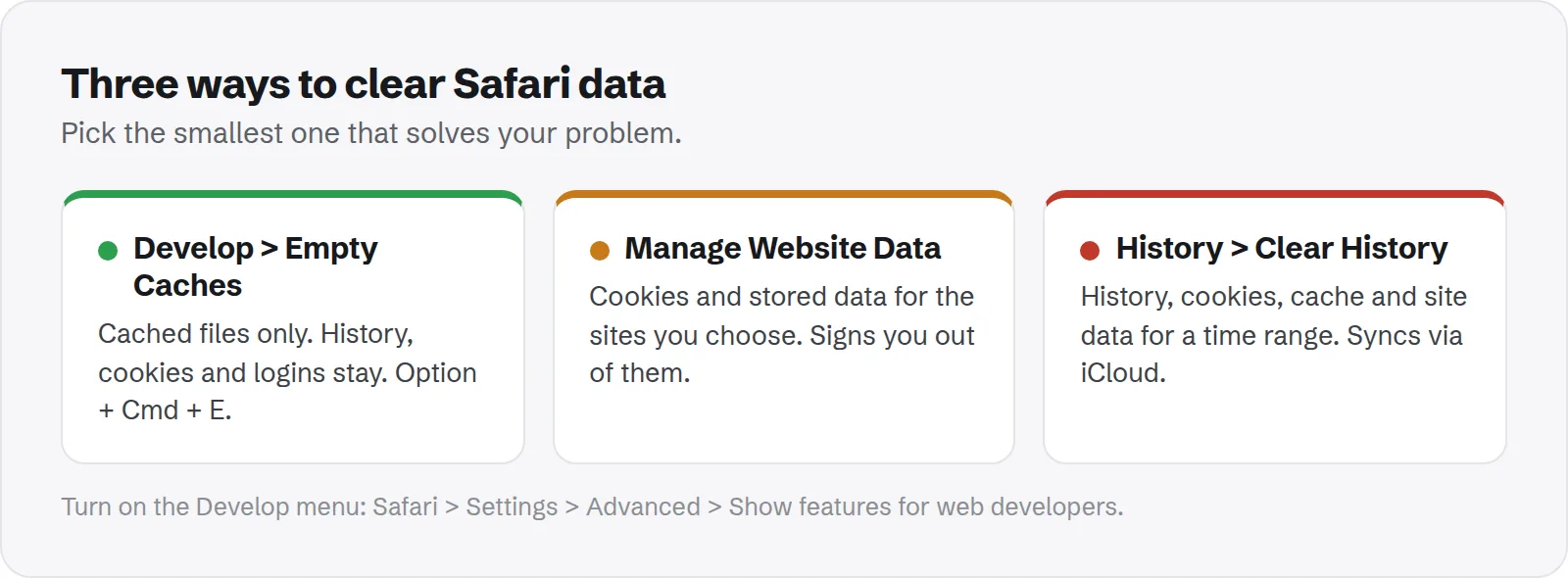
Three ways to clear Safari data
Safari has three main options, and they delete very different amounts. Pick the smallest one that solves your problem.
- Empty Caches: removes cached website files only. Logins and history stay.
- Manage Website Data: removes cookies and stored data for the sites you choose.
- Clear History: removes history, cookies, cache and other site data for the time range you pick.
For freeing space or fixing a page that shows old content, Empty Caches is usually enough.
How to clear only the cache
The cache-only option lives in the Develop menu, which is hidden by default. Turning it on is safe and takes a few seconds.
- Open Safari and choose Safari > Settings.
- Click Advanced.
- Tick Show features for web developers. On older versions it is called Show Develop menu in menu bar.
- Close Settings. A Develop menu now appears in the menu bar.
- Choose Develop > Empty Caches, or press Option + Cmd + E.
There is no confirmation message. The cache is cleared straight away, and you stay signed in to your sites.
How to clear one site's data
If only one website is misbehaving, you can remove just its data. Other sites keep their logins.
- Choose Safari > Settings, then click Privacy.
- Click Manage Website Data.
- Search for the site, select it, and click Remove.
This removes the site's cookies and stored data, so you will need to sign in to it again. Apple's guide to managing cookies and website data in Safari covers this window.
How to clear history, cookies and cache together
This is the biggest reset. It is useful when you want a clean start, or when you share a Mac and want to remove your browsing traces.
- Choose History > Clear History.
- Choose a time range, such as the last hour or all history.
- Click Clear History.
It removes history, cookies, cache and other website data for that range. You will be signed out of many sites. Apple's guide to clearing your browsing history in Safari explains what is removed.
If you use Safari with iCloud, clearing history also clears it on your other devices signed in to the same account.
Fix one page with a reload from origin
Sometimes only one page shows an old version after a site update. You can reload it while ignoring the cache.
With the Develop menu turned on, press Option + Cmd + R to reload the page from its source. Safari downloads fresh copies of its files without clearing anything else.
If that does not help, try Empty Caches, then reload the page normally.
Where Safari keeps its cache on a Mac
Safari stores its cache and website data in your hidden Library. macOS protects some of these folders, so you may need to give Terminal Full Disk Access to see them.
- Cache:
~/Library/Caches/com.apple.Safari - History, bookmarks and settings:
~/Library/Safari - Container data:
~/Library/Containers/com.apple.Safari
Do not delete these folders by hand. The menu options above are safer and clear the right files. Deleting ~/Library/Safari can remove your bookmarks and history.
Safari's cache vs your Downloads
The cache is not where files you download end up. Downloads go to your Downloads folder by default, and they often use far more space.
Open Downloads in Finder, sort by size, and delete what you no longer need. Safari can also remove items from its download list automatically. Look for the option in Safari > Settings > General.
Website data from web apps
Some sites store more than a cache. Email, documents, maps and chat apps can save offline data so they work without a connection.
In Manage Website Data, Safari lists each site that stores data. You can remove the ones you no longer use. That data can grow larger than the cache on Macs that use many web apps.
Web apps added to the Dock
On recent versions of macOS, you can add a website to the Dock as a web app. Each web app keeps its own separate cookies and website data.
Clearing Safari's data does not clear a web app's data. To clear it, open the web app and look in its settings for the option to clear website data.
If a site still looks broken
Sometimes a site keeps misbehaving even after you clear the cache. A few other things are worth checking before you give up.
- Extensions: content blockers and other extensions can break pages. Turn them off in Safari > Settings > Extensions and try again.
- The site's own data: remove it in Manage Website Data, then sign in again.
- Privacy features: some sites react badly to tracking protection. Try the site in a Private window to compare.
- The site itself: try another browser. If it fails there too, the problem is on the website's side.
Safari on a shared Mac
If several people use one Mac, each should have their own user account. Safari then keeps a separate cache, history and set of logins for each person.
If you share one account, Private Browsing is the simplest way to avoid leaving history and logins behind. Clearing history at the end of a session also works, but it removes everything for that time range.
Will clearing the cache make Safari faster?
Usually not. The cache helps pages load faster. Right after you clear it, sites load a little more slowly until they are cached again.
Clear it to fix a site that shows old or broken content, or to free space on a full disk. If Safari is slow in general, check the number of open tabs and extensions first.
Safari is one of many caches
On most Macs, Safari's cache is modest compared with chat apps, streaming apps and developer tools. If you are short of space, look at those too.
See whether ~/Library/Caches is safe to delete for the full picture, how to clear the Chrome cache if you use both browsers, and how to free up 20 GB fast.
Where Purgy fits when you clear Safari
For Safari itself, use Safari. The Empty Caches command and the Manage Website Data list described above are the only reliable ways to clear its cache, because macOS protects Safari's data folders from other apps.
Clearing Safari often does not free as much space as people expect, though, because the big caches on most Macs belong to other apps. That is where Purgy helps:
- It lists the caches of your other apps under System caches, including other browsers you have installed, Slack, Spotify, Teams and similar apps, with the size of each in the Review list.
- The ones that rebuild on their own are ticked for you, and Clean now frees them in one step.
- Downloaded files in your Downloads folder, a common cause of "Safari is using space", show up on the Documents screen with the largest first. Nothing there is selected for you, and anything you pick moves to the Trash.
Purgy does not clear Safari history, cookies or website data. That stays a Safari decision. To see what everything else is caching on your Mac, start the free trial.
Questions people ask about the Safari cache
These come up most when people clear Safari's data.
Does clearing the Safari cache delete my passwords?
No. Passwords are stored in your keychain, in the Passwords app or Passwords settings. Clearing the cache or history does not remove them.
Will I be signed out of websites?
Not with Empty Caches. Clear History and removing website data both sign you out, because they delete cookies.
Why can I not find a "clear cache" option in Safari?
It is in the Develop menu, which is hidden by default. Turn on Show features for web developers in Advanced settings.
Does clearing the cache delete my bookmarks?
No. Bookmarks are not part of the cache or history. They stay, and sync with iCloud if you use it.
Does clearing the cache on my Mac clear it on my iPhone?
No. Empty Caches only affects the Mac you run it on. Clear History is different: with iCloud, it clears history on your other devices too.
Does Private Browsing use the cache?
Private windows do not keep their browsing data after you close them. Nothing from them stays in your cache or history.
Is it safe to turn on the Develop menu?
Yes. It only adds a menu with tools for web developers. It does not change how Safari works for everyday browsing.
How often should I clear Safari's cache?
Only when you need to. Safari manages its cache on its own. Clear it when a site misbehaves or your disk is nearly full.
Can I clear the cache for the last hour only?
Empty Caches always clears the whole cache. Clear History lets you pick a time range, but it also removes history and cookies for that period.