Photos Library Too Large on Mac? How to Shrink It Safely

On this page
- How to check the size of your Photos library
- Why a Photos library grows so large
- Option 1: keep originals in iCloud
- Option 2: merge duplicate photos
- Option 3: remove videos you do not need
- Option 4: empty Recently Deleted
- Option 5: move the library to an external drive
- Option 6: stop copying imports into the library
- Option 7: archive old years
- What not to do
- Check for old libraries too
- When the library is not the problem
- What Purgy does with a large Photos library
- Questions people ask about large Photos libraries
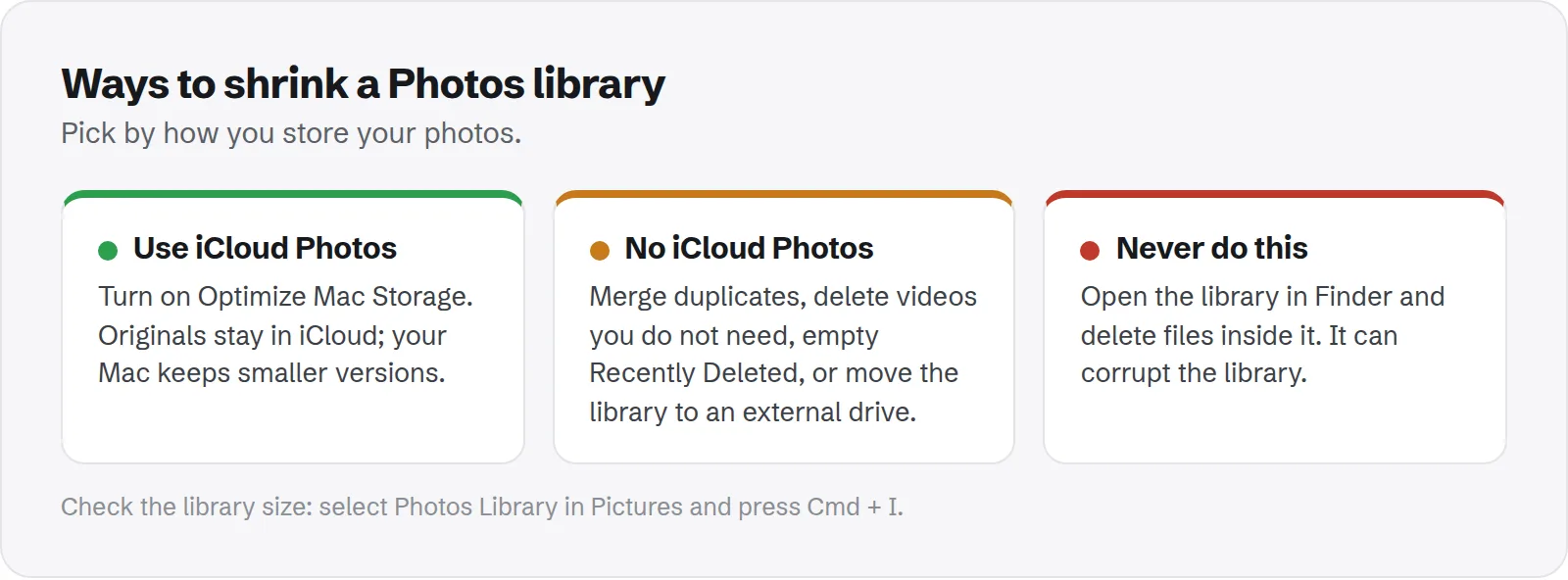
Quick answer: If you use iCloud Photos, turn on Optimize Mac Storage in Photos settings. Your Mac then keeps smaller versions and stores the full originals in iCloud.
If you do not use iCloud Photos, merge duplicates, delete videos you do not need, empty Recently Deleted, or move the whole library to an external drive. Never delete files from inside the library in Finder.
For many people, the Photos library is the biggest single thing on their Mac. Years of photos, Live Photos and phone videos add up, and a library of 100 GB or more is common.
On a Mac with a small disk, that can leave little room for anything else. This guide shows how to check how big your library really is, and the safe ways to make it smaller without losing a single memory.
How to check the size of your Photos library
Your library is a single file-like package, usually in your Pictures folder. You can measure it in a few seconds.
- Quit Photos.
- In Finder, open your Pictures folder.
- Select Photos Library and press Cmd + I to see its size.
You can also open System Settings > General > Storage and look at the Photos category. If you have more than one library, Finder shows each one separately.
Why a Photos library grows so large
It is rarely the photos alone. Several things make a library bigger than you might expect.
- Videos: a few minutes of 4K video can use more space than hundreds of photos.
- Live Photos: each one stores a short video clip as well as the photo.
- Duplicates: the same photo imported twice, from a phone and a camera, or from old backups.
- Edits: Photos keeps the original so you can undo changes, plus rendered versions of edits.
- Recently Deleted: items you deleted stay for about 30 days before they are removed.
Option 1: keep originals in iCloud
If you use iCloud Photos, this is the biggest and easiest win. Your full library stays safe in iCloud, while your Mac keeps smaller versions.
- Open Photos and choose Photos > Settings.
- Click the iCloud tab.
- Select Optimize Mac Storage.
macOS does not shrink the library all at once. It replaces originals with smaller versions over time, mostly when your Mac needs space. When you open a photo, the full version downloads from iCloud.
Apple's guide to optimizing storage in Photos on Mac explains the setting. You need enough iCloud storage for the whole library first.
Option 2: merge duplicate photos
On recent versions of macOS, Photos can find duplicates for you. It merges them into one copy, keeping the best quality and the combined details.
- In Photos, click Duplicates under Utilities in the sidebar.
- Review each set and click Merge, or select several sets and merge them together.
Merged duplicates move to Recently Deleted, so you can recover them for a while. Apple's guide to removing duplicate photos on Mac has the details. If you do not see Duplicates, Photos may still be scanning your library.
Option 3: remove videos you do not need
Videos are usually where most of the space is. Removing a few long ones can free more than deleting hundreds of photos.
In the sidebar, open Media Types > Videos. Photos shows each video's length, and longer videos are usually larger. Look for screen recordings, accidental recordings, and clips you already shared or saved elsewhere.
Delete what you do not need. If a video matters, export it to an external drive first, then delete it from the library.
Option 4: empty Recently Deleted
Deleting a photo does not free space straight away. It moves to Recently Deleted and stays there for about 30 days.
Click Recently Deleted in the sidebar, unlock it if asked, then choose Delete All. Only do this when you are sure, because items deleted from here are gone.
Option 5: move the library to an external drive
If you do not use iCloud Photos, or your library is too big for your iCloud plan, an external drive is a good home for it. Photos works normally from an external drive.
- Quit Photos.
- Drag Photos Library from your Pictures folder to the external drive.
- When the copy finishes, double-click the library on the drive to open it.
- Check that everything is there before deleting the copy on your Mac.
Use a drive formatted as APFS or Mac OS Extended. Do not use your Time Machine drive, an SD card, or a network or cloud folder. Apple's guide to moving your Photos library to save space lists all the requirements.
Keep the drive connected when you open Photos. If it is missing, Photos creates a new empty library instead.
Option 6: stop copying imports into the library
By default, Photos copies every file you import into the library. If you import from a folder you already keep, that means two copies.
In Photos > Settings > General, you can turn off Copy items to the Photos library. New imports then stay where they are, and Photos only points to them.
This saves space but has a cost. If you move or delete those files, Photos loses them, and they are not uploaded to iCloud Photos. Most people are better off leaving the setting on.
Option 7: archive old years
If you do not use iCloud Photos, you can keep recent years on your Mac and older years on a drive. This works well for very large libraries.
- In Photos, select the photos and videos from an older year.
- Choose File > Export > Export Unmodified Original and save them to an external drive.
- Check the exported files open correctly.
- Delete them from the library, then empty Recently Deleted.
Keep two copies of the archive, on two different drives, because it is now the only place those photos live. Edits are not kept when you export unmodified originals.
What not to do
The library looks like a single file, but it is really a package of thousands of files and a database. Treat it carefully.
- Do not open it and delete files in Finder. It can corrupt the library and lose photos.
- Do not delete the library to "start fresh" unless you are sure every photo is in iCloud or another backup.
- Do not turn off iCloud Photos to save space. It can download originals and make the library bigger.
If Photos starts acting strangely, you can repair the library. Hold Option + Cmd while opening Photos, then click Repair.
Check for old libraries too
If you have used Macs for many years, you may have more than one library. Old iPhoto libraries and test libraries often stay in Pictures.
Look in Pictures for any other library. Open it to check what is inside before deleting anything.
When the library is not the problem
Sometimes Photos is not really the reason your disk is full. If the Photos category is small in Storage settings, look elsewhere.
Messages attachments, old iPhone backups and System Data are common culprits. See how to clear Messages attachments, how to delete old iPhone backups and how to see what is taking up space.
What Purgy does with a large Photos library
Your Photos library may be the only copy of years of pictures, so Purgy never deletes from it. It is on the protected list, excluded from every clean, and locked even in the Space map.
Use the options above, in Photos and iCloud settings, to shrink the library itself. Purgy helps with the rest of the problem:
- Is Photos really the cause? The Space map shows the library's size next to every other folder, so you can check before you start deleting pictures.
- Copies outside the library. Exported photos and videos often end up in Downloads, Desktop, Movies or Pictures as well. The Documents screen lists files over 100 MB and exact duplicates there. Nothing is ticked for you, and anything you pick moves to the Trash.
- Screenshots. The Screenshots screen gathers them in one place, so you can clear the ones you no longer need.
- Everything else. Caches, logs and old installers are freed in one click, which may buy enough room without touching a single photo.
See what is really using your disk with the free trial.
Questions people ask about large Photos libraries
These come up most from people whose library is filling their Mac.
Will Optimize Mac Storage delete my photos?
No. Your full photos stay in iCloud. Your Mac keeps smaller versions and downloads originals when you open them.
Why did my library not shrink after deleting photos?
Deleted items wait in Recently Deleted for about 30 days. Empty it to free the space now.
Can I delete the Photos Library file in Finder?
Only if every photo is safely stored somewhere else, such as iCloud Photos or a backup. Otherwise you lose them.
Is it safe to keep my library on an external drive?
Yes, with a reliable drive formatted for Mac. Keep a separate backup, because a single drive can fail.
Why is my library bigger than my iPhone's photos?
The library can hold originals, edits, Live Photo videos and duplicates. It may also include photos from other devices and older imports.
How long does Optimize Mac Storage take to free space?
It works gradually. macOS frees space mainly when your disk gets low, so the library may not shrink straight away.
Do shared albums use space on my Mac?
Shared albums do not count against your iCloud storage. Photos in them can still be stored on your Mac, but they are usually small compared with your main library.